Clone an MCP Server Configuration
Cloning lets you start a new entry in the MCP server catalog from an existing one, instead of re-entering every field by hand. The clone opens as an editable, pre-filled form so you can review and adjust values before saving — not a one-click copy.
Cloning an MCP server configuration is available only to users whose account has is_admin set
to true. This includes Maintainers, who always have is_admin enabled. For everyone else,
the Clone item is hidden from the row actions menu, and the clone request is rejected by the
API. See Roles and Access Control for details on these
roles.
The MCPs management page is also available only when both of these feature flags are enabled:
mcpConnect, set in the customer configuration. See Customer Feature Configuration.features:enterpriseEdition, which the platform enables automatically when it runs as Enterprise Edition.
If either flag is disabled, the page is not available.
This manages the same admin-controlled catalog referenced in
Adding an MCP Server (the servers available under Browse Catalog,
and the only servers selectable when mcpCustomServersDisabled restricts users to catalog-only
configuration).
Open MCP Catalog Management
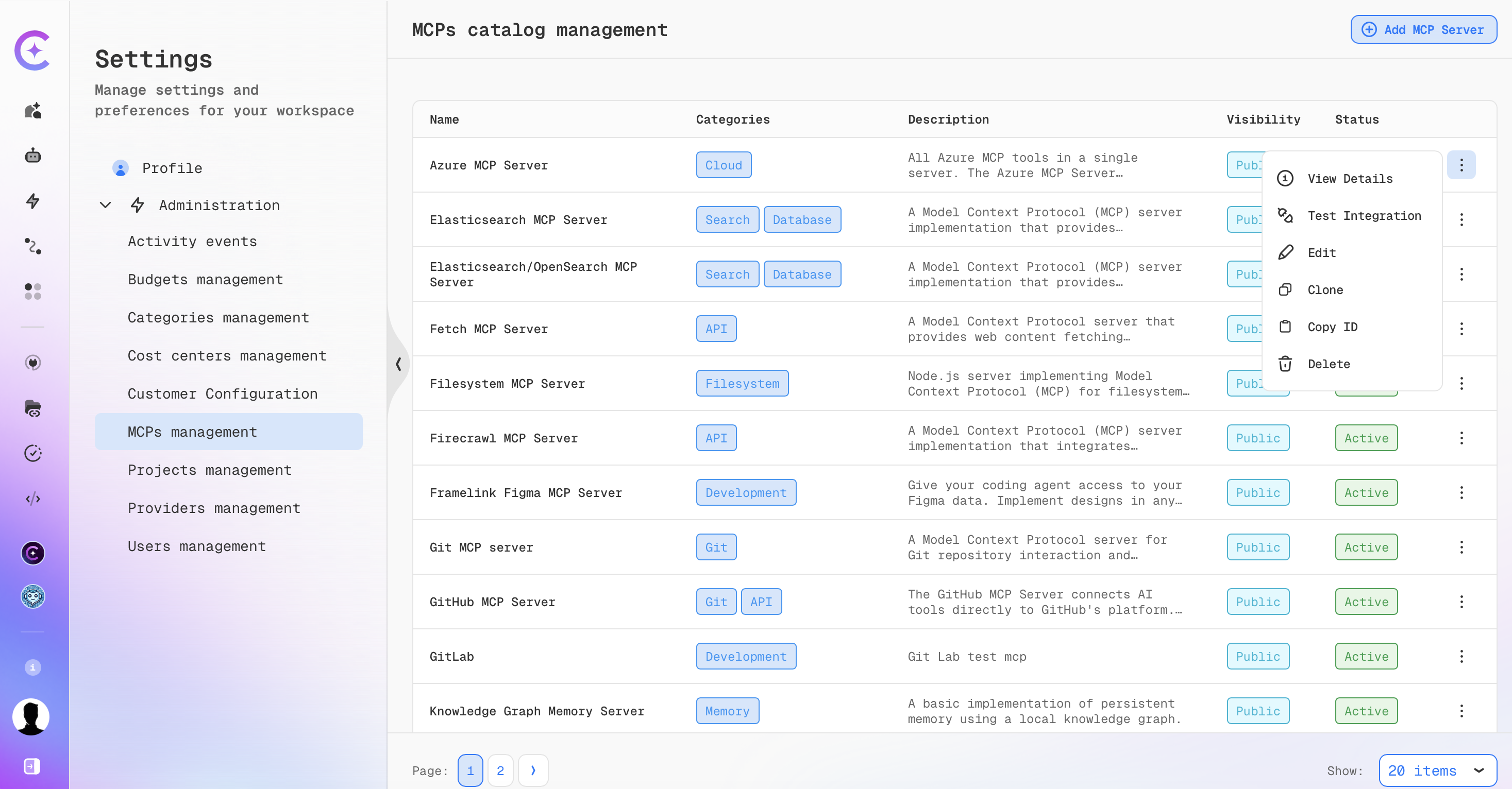
- Click the Profile icon in the bottom-left corner → Settings → Administration → MCPs management.
- The MCPs catalog management page lists every server in the catalog, with its name, categories, description, visibility, and status.
Clone an Existing Server
-
Open the actions menu (⋮) for the server you want to copy and select Clone.
-
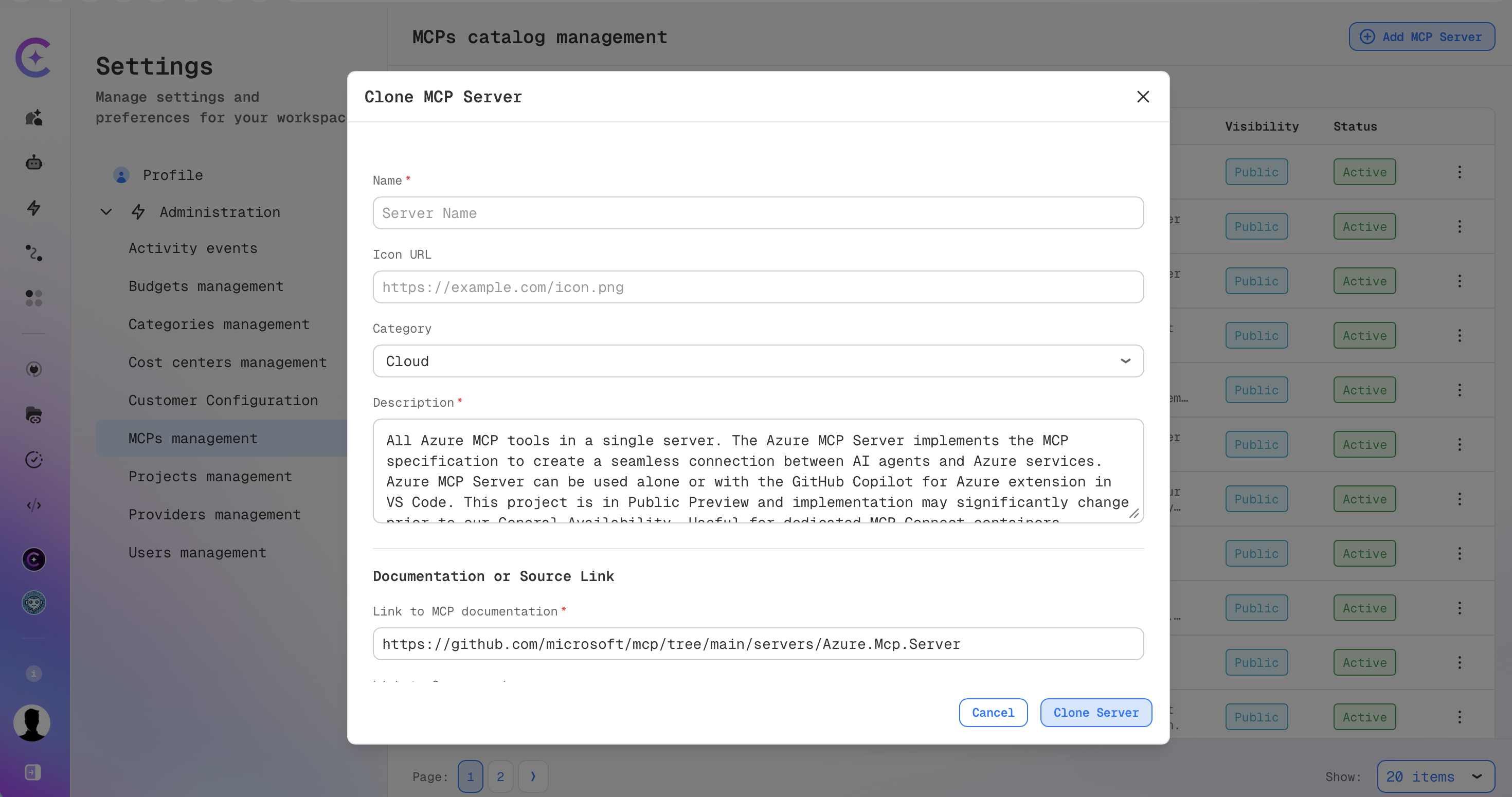
The Clone MCP Server dialog opens immediately, pre-filled from the source server — except Name, which opens empty. Type a name before you can save; it is not pre-filled or suggested from the source name.
-
Review and edit any of the pre-filled values:
- The top fields: Name (required, starts empty), Icon URL, Category (choose up to three from the predefined list), Description (required).
- Documentation or Source Link: Link to MCP documentation (required). Link to Source code isn't marked required in the dialog, but the form currently blocks saving if it's left empty — fill in a URL here even though it has no required indicator.
- Server Configuration: the server's Configuration JSON (command/arguments or connection URL, depending on server type), with Prettify and copy helpers.
- Environment Variables: the source's required environment variable definitions (name, description, required flag), editable and extendable with Add Variable.
-
Click Clone Server to save the new catalog entry, or Cancel to discard the draft.
If the source server's auth settings include a confidential OAuth2 client secret, the
Configuration JSON never shows the real value — the secret field is replaced with a
has_client_secret flag instead. Leave that part of the configuration as-is to carry the
original secret over to the clone unchanged, or add a client_secret value to set a different
secret for the clone.
This masking applies only to OAuth2 client secrets in auth_config. Any other credentials in the
Configuration JSON — such as headers, tokens, environment variable values, or credentials embedded
in URLs — are shown in plain text to the person cloning and are copied to the clone as-is unless
you change them.
If the source server uses an OAuth2 login flow, the clone always gets a new internal auth configuration ID. Existing OAuth sign-ins for the source server do not carry over to the clone — anyone using the clone, including you, needs to complete the OAuth login again for it, even though the rest of the Configuration JSON is unchanged.
After Cloning
- The clone is saved as a new, independent catalog entry. Subsequent edits to the clone do not change the original, and edits to the original do not affect the clone.
- You become the owner of the clone, regardless of who created the original.
- Visibility and system-provided status are always copied from the source and cannot be changed in the clone form.
- Assistants and workflows that use the original server are not switched to the clone. Update them manually if they should use the new entry.
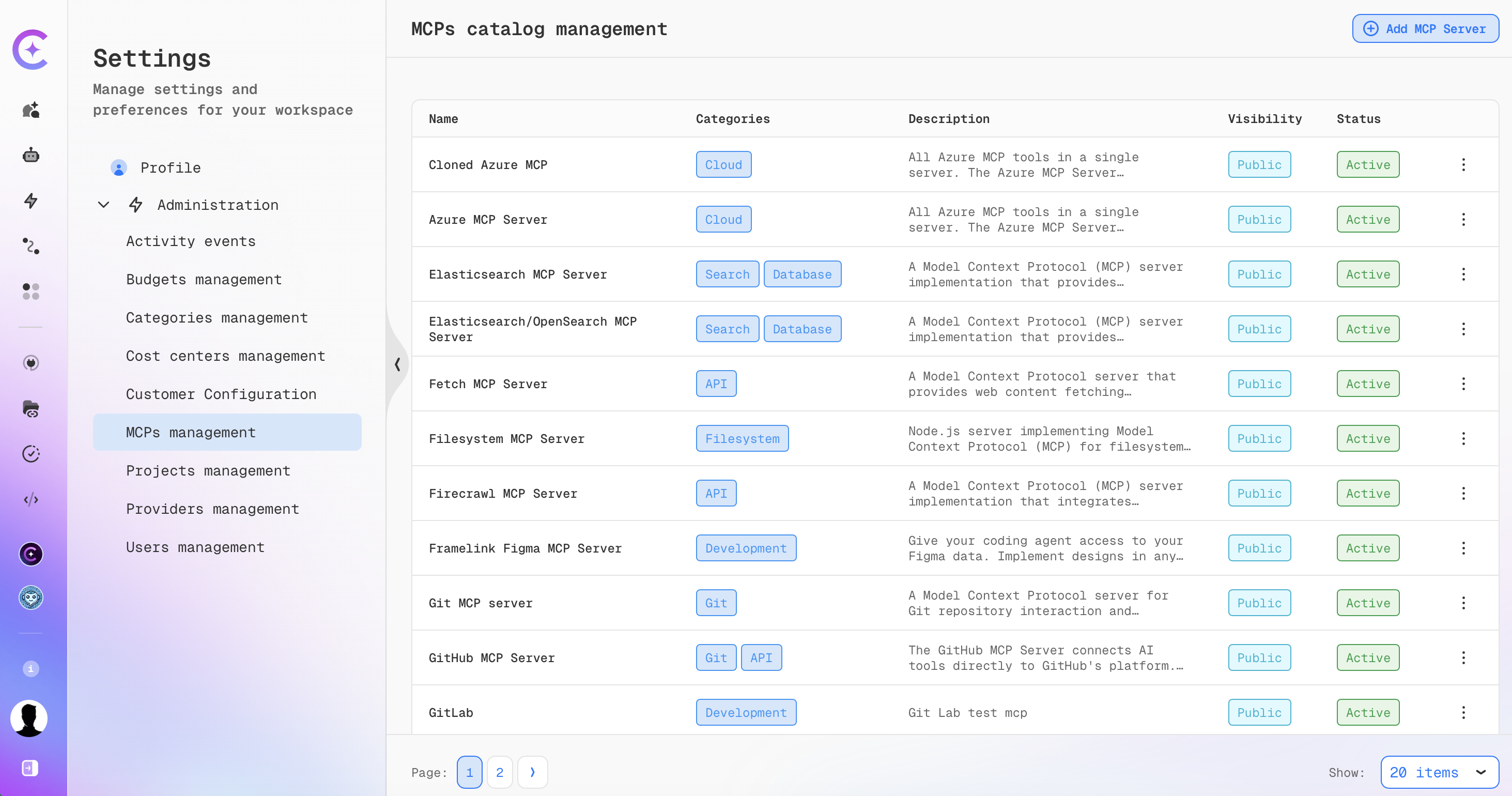
- The clone starts with its own usage count of zero and is active immediately. It appears at the top of the list right after saving; after a page refresh, it takes its place in the regular sort order (most-used first, then by name).
Validation and Errors
- Name, Description, Link to MCP documentation, Link to Source code, and the Configuration JSON are required.
- Link to MCP documentation, Link to Source code, and Icon URL must be valid URLs.
- You can select at most three categories.
- Each environment variable must have a name.
- Configuration JSON must be valid JSON; an invalid server configuration is rejected on save.
- The name must be unique among the configurations you created — reusing a name you already used for another of your catalog entries is rejected with "Name already exists". A name used by a different admin or maintainer's entry does not conflict.
- If the source server is deleted before you finish cloning it, saving fails with "MCP configuration not found" — verify the configuration still exists and retry.
- On the rare case of an internal ID conflict, saving fails and can be retried — a new identifier is generated on every clone attempt.