CodeMie CLI: Unified AI Coding Agent Ecosystem
Part of the CodeMie Enterprise package, and may not be enabled on every deployment. If this capability is missing from the UI described below, contact the CodeMie platform administrator. See all Enterprise features.
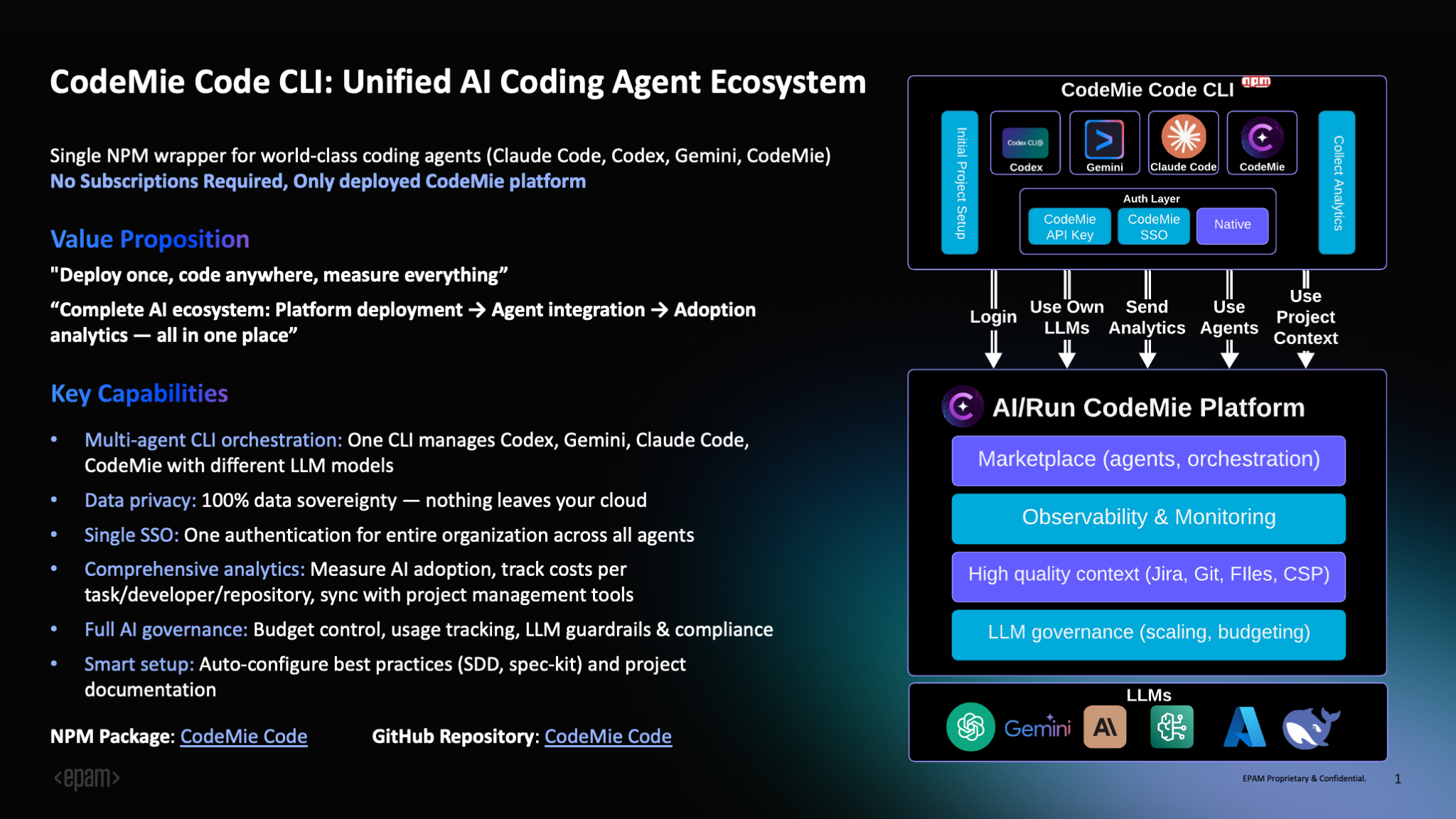
Overview
CodeMie CLI is a unified command-line interface that provides access to multiple AI coding assistants through a single NPM package. It serves as a wrapper for popular AI coding agents including Claude Code, Gemini CLI, OpenAI Codex, GitHub Copilot CLI, OpenCode, and a built-in agent powered by LangGraph.
Key Capabilities
Multi-Agent Orchestration: Manage multiple AI coding agents from one CLI — Claude Code, Gemini CLI, OpenAI Codex, GitHub Copilot CLI, OpenCode, and the built-in CodeMie agent. Each agent can be powered by different LLM models, allowing developers to choose the appropriate assistant for each task: Claude Code for complex refactoring, Gemini for rapid prototyping, or the built-in agent for file operations and planning.
Profile Management: Maintain separate configurations for different contexts (work, personal, team projects). Each profile can be configured with its own provider (Azure OpenAI, AWS Bedrock, or LiteLLM), enabling seamless switching between environments.
Enterprise Features: Built-in support for SSO authentication via CodeMie platform, comprehensive analytics and usage tracking, audit logging with session management, secrets scanning via Gitleaks, budget controls, and governance policies.
Data Sovereignty: All data remains within your infrastructure. AI interactions stay in your cloud environment, supporting compliance with security and data protection requirements.
Analytics and Monitoring: Track session count, duration, token usage, cost estimates, tool usage statistics, cache hit rates, and language statistics. All analytics data is stored locally for complete control.
Why Choose CodeMie CLI?
No Subscriptions Required
CodeMie CLI operates on a bring-your-own-infrastructure model. For enterprises, there are no subscriptions or licenses required - you only need:
- CodeMie Platform: Deployed in your cloud environment (AWS, GCP, or Azure)
- LiteLLM Proxy: Installed as part of your CodeMie platform for unified model access - see the LiteLLM Proxy Deployment Guide
- LLM Models: Access to AI models through your existing cloud provider:
- AWS: Bedrock models (Claude, Titan, etc.)
- Azure: Azure OpenAI Service
- GCP: Vertex AI models
No per-developer fees, no seat licenses - just your infrastructure costs and model API usage. Your organization maintains full control over data, costs, and governance.
Enterprise Benefits
Complete Data Control: Your code never leaves your infrastructure. All AI interactions are routed through your deployed CodeMie platform and LiteLLM Proxy, ensuring 100% data sovereignty and compliance with enterprise security policies.
Unified Authentication: Single sign-on (SSO) via CodeMie platform eliminates API key management. One authentication with your CodeMie credentials gives developers access across all agents, with secure credential storage in system keychains.
Cost Management: Track and control AI spending with detailed analytics showing costs per task, developer, and repository. Set budget limits and receive alerts when thresholds are approached.
Governance and Compliance: Implement LLM guardrails, audit logging with session tracking, secrets scanning for credential leaks, and usage reporting for compliance requirements.
For Individual Developers and Teams
Flexibility: Switch between different AI models and providers based on task requirements. Use Claude for complex reasoning, GPT for speed, or Gemini for multimodal tasks.
Productivity: Built-in planning tools, task management, and integrated analytics help track productivity gains and optimize AI usage patterns.
Team Standardization: Standardize on a unified CLI across the team with consistent workflows, reducing onboarding time and ensuring best practices.
Installation
Prerequisites
- Node.js: 20 or later (the installer checks this automatically)
- npm: Bundled with Node.js
- CodeMie Platform: Deployed instance with LiteLLM Proxy configured (for SSO authentication)
- LLM Access: One of the following:
- AWS Bedrock with model access
- Azure OpenAI Service
- Google Cloud Vertex AI
Install via Script (Recommended)
The installers check Node.js, npm, and registry access and tell you what to fix if something is missing.
macOS, Linux, or WSL:
curl -fsSL https://raw.githubusercontent.com/codemie-ai/codemie-code/main/install/macos/install.sh | bash
Windows (PowerShell):
irm https://raw.githubusercontent.com/codemie-ai/codemie-code/main/install/windows/install.ps1 | iex
Install via npm
npm install -g @codemieai/code
Quick Start
# 1. Sign in and configure authentication
codemie setup

# 2. Check your setup
codemie doctor

# 3. Install Claude Code
codemie install claude --supported

# 4. Register your CodeMie assistants
codemie setup assistants

# 5. Start Claude Code with CodeMie
codemie-claude
After codemie setup assistants, your CodeMie assistants are available inside Claude Code as subagents (@assistant-name) and slash commands (/assistant-name).
Setup Configuration
Run the interactive setup wizard to configure authentication and model selection:
codemie setup
Configuration steps:
- Profile Creation: Name your configuration (e.g., "work", "personal")
- Provider Selection: Choose from Azure OpenAI, AWS Bedrock, LiteLLM, or CodeMie SSO
- Authentication: Configure API keys or CodeMie platform credentials
- Model Selection: Pick your preferred LLM model with real-time availability checking
- Verification: Test your configuration with a health check
Install Agents
After setup, install the agents you want to use:
# Install Claude Code (latest supported version)
codemie install claude --supported

# Install Gemini CLI
codemie install gemini --supported

# Install OpenAI Codex
codemie install codex --supported

# Install GitHub Copilot CLI
codemie install copilot --supported

# Install OpenCode
codemie install opencode --supported

# Verify installation
codemie doctor
The built-in agent (codemie-code) is available immediately after setup without installation.
For detailed configuration, authentication methods, troubleshooting, and advanced usage, see the CodeMie CLI GitHub Repository.
Commands
Core Commands
Profile Management
codemie profile                      # List all profiles
codemie profile switch <name>        # Switch active profile
codemie profile delete <name>        # Remove a profile
Agent Installation
codemie install claude --supported   # Install Claude Code
codemie install gemini --supported   # Install Gemini CLI
codemie install codex --supported    # Install OpenAI Codex
codemie install copilot --supported  # Install GitHub Copilot CLI
codemie install opencode --supported # Install OpenCode
codemie uninstall <agent>            # Remove an agent
System Commands
codemie setup                        # Configuration wizard
codemie setup assistants             # Register CodeMie assistants in Claude Code as @name subagents and /name slash commands
codemie setup skills                 # Register CodeMie skills as slash commands
codemie doctor                       # Health check and diagnostics
codemie self-update                  # Update CodeMie CLI to the latest version
codemie self-update --check          # Check for updates without installing
codemie --version                    # Show version
codemie --help                       # Show help
MCP Server Management
Manage remote MCP servers registered with Claude Code. All MCP traffic is routed through the built-in codemie-mcp-proxy, which handles OAuth automatically.
codemie mcp add <name> <url>         # Register an MCP server
codemie mcp add <name> <url> --scope project  # Register for the current project only
codemie mcp remove <name>            # Remove a registered MCP server
codemie mcp list                     # List all registered MCP servers
Examples:
# Add a remote MCP server for the current user
codemie mcp add my-server https://mcp.example.com/sse

# Add a project-scoped MCP server
codemie mcp add my-server https://mcp.example.com/sse --scope project

# List all registered MCP servers
codemie mcp list

# Remove an MCP server
codemie mcp remove my-server
Agent Shortcuts
Run AI Assistants
All agents support two modes:
# Interactive mode (stays open for conversation)
codemie-code                         # Built-in CodeMie agent
codemie-claude                       # Claude Code agent
codemie-gemini                       # Gemini CLI agent
codemie-codex                        # OpenAI Codex agent
codemie-copilot                      # GitHub Copilot CLI agent
codemie-opencode                     # OpenCode agent

# Single task mode (executes and exits)
codemie-code --task "<prompt>"       # Built-in CodeMie agent
codemie-claude --task "<prompt>"     # Claude Code agent
codemie-gemini --task "<prompt>"     # Gemini CLI agent
codemie-codex --task "<prompt>"      # OpenAI Codex agent
codemie-copilot --task "<prompt>"    # GitHub Copilot CLI agent
codemie-opencode --task "<prompt>"   # OpenCode agent
Common Options:
--task "<prompt>": Execute single task and exit--profile <name>: Use specific profile--model <model>: Override default model--help: Show agent-specific help
Example Workflows
# Code review (single task)
codemie-code --task "Review this PR for security issues and performance bottlenecks"

# Bug fixing
codemie-claude --task "Fix the authentication bug in src/auth.ts"

# Test generation
codemie-gemini --task "Generate comprehensive unit tests for the API endpoints"

# Documentation
codemie-code --task "Document the functions in utils/helpers.js with JSDoc comments"

# Multi-profile usage
codemie-claude --profile work --task "Review company codebase"
codemie profile switch personal
codemie-code --task "Help with my open source project"

# Interactive mode for exploratory work
codemie-claude
> Review my authentication code
> Now refactor it to use JWT tokens
> Add error handling
> exit
Analytics and Monitoring
View Analytics
codemie analytics                    # Show all analytics
codemie analytics --agent claude     # Filter by agent
codemie analytics --last 7d          # Last 7 days
codemie analytics --export json      # Export to JSON
Log Management
codemie log                          # Show recent logs
codemie log --level error            # Show only errors
codemie log follow                   # Real-time monitoring (tail-like)
codemie log session <id>             # View specific session details
Tracked metrics include:
- Session count, duration, and token usage (input/output/total)
- Cost estimates based on model pricing
- Tool usage statistics with success/failure rates
- Cache hit rates and efficiency metrics
- Language statistics (lines added, files created/modified)
Connect Remote MCP Servers
Use codemie mcp add to register remote MCP servers with Claude Code. The built-in codemie-mcp-proxy handles OAuth authentication automatically, so you don't need to manage tokens manually:
codemie mcp add <name> <url>
codemie mcp add <name> <url> --scope project
codemie mcp remove <name>
codemie mcp list
To connect VS Code to the CodeMie model catalog and MCP proxy:
codemie proxy connect vscode
codemie proxy connect vscode --profile <name>
codemie proxy connect vscode --insiders
The proxy starts locally and adds the managed CodeMie model catalog and MCP servers to your agent. Your SSO credentials remain in CodeMie and are not written to the agent configuration.
The VS Code proxy integration covers chat and agent workflows. Inline suggestions continue to use Copilot.
Updating CodeMie CLI
Check for a new version or update immediately:
codemie self-update           # Update to the latest version
codemie self-update --check   # Check for updates without installing
To enable automatic updates, set the environment variable:
CODEMIE_AUTO_UPDATE=true
Resources
- GitHub Repository: https://github.com/codemie-ai/codemie-code
- NPM Package: https://www.npmjs.com/package/@codemieai/code
- Issue Tracker: https://github.com/codemie-ai/codemie-code/issues
- Documentation: See repository for detailed configuration, authentication, and architecture guides