Analytics Dashboard
The Analytics Dashboard provides comprehensive monitoring and management of LLM usage, costs, and activity metrics across the CodeMie platform. Access real-time insights into token consumption, spending patterns, and system utilization with flexible filtering and dual visualization modes.
Personal Spending Widget
The Personal Spending widget gives you a real-time view of your LLM budget consumption without leaving the platform. It is located at the top of the Settings → Profile page.
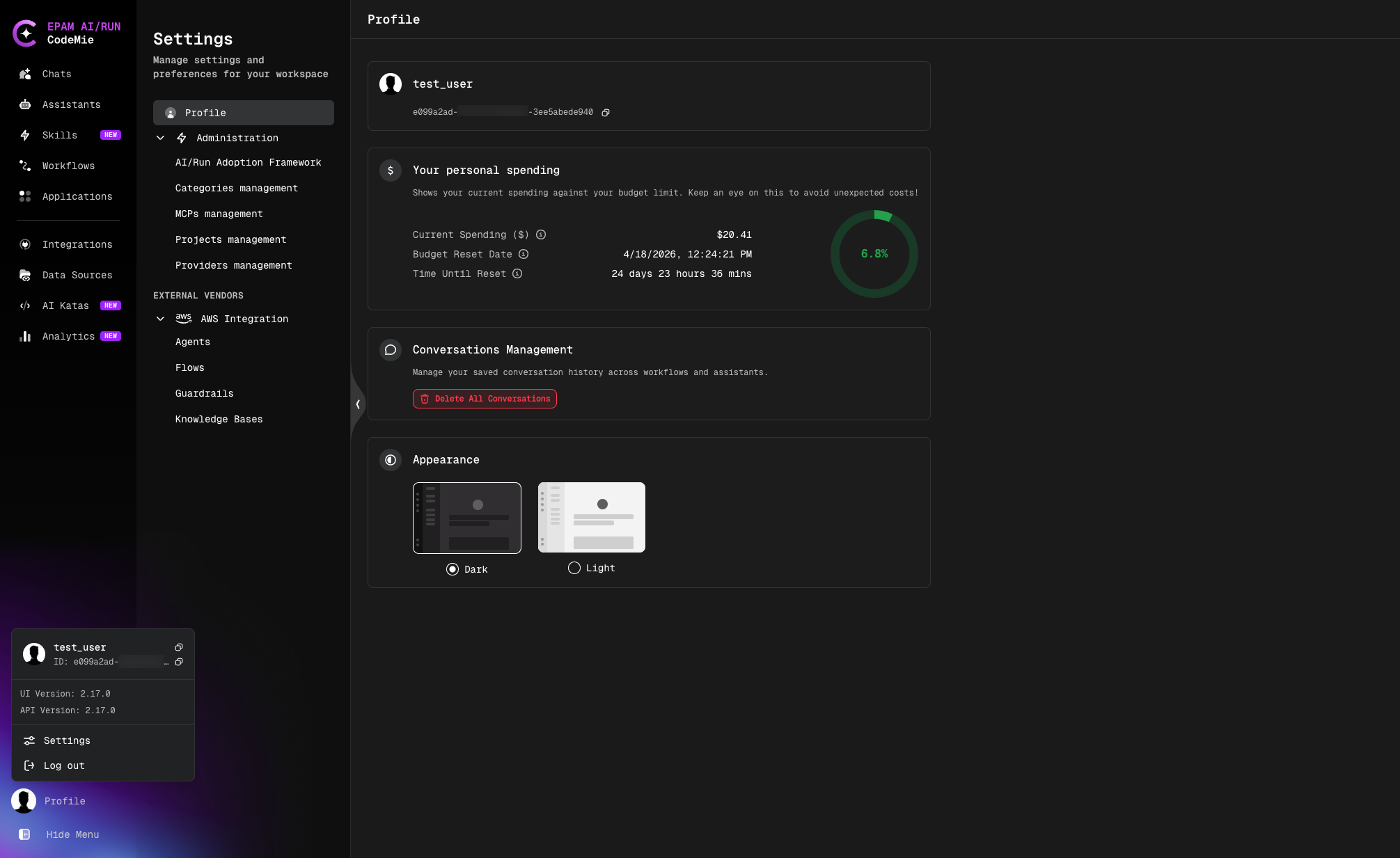
The widget displays:
| Field | Description |
|---|---|
| Current Spending | Your total LLM spend to date in the current budget period (USD) |
| Budget Reset Date | The exact date and time when your budget counter resets |
| Time Until Reset | Days, hours, and minutes remaining until the next budget reset |
A circular progress chart visualizes how much of your total budget has been consumed. The chart fills as spending increases toward the configured limit.
If the widget shows no data, your administrator has not configured a budget limit for your account via LiteLLM. Contact your administrator to set up budget tracking.
Platform Admins and Auditors can view the budget spending for any individual user directly from the Users Management page. Open the User Details panel for the target user to see their spending across all budget categories.
Accessing the Widget
- Click your profile icon or Settings in the bottom-left navigation.
- Select Profile from the settings menu.
- The Your personal spending section appears at the top of the page.
Accessing the Analytics Dashboard
To access the Analytics Dashboard:
- Click on the Analytics icon in the left sidebar navigation.
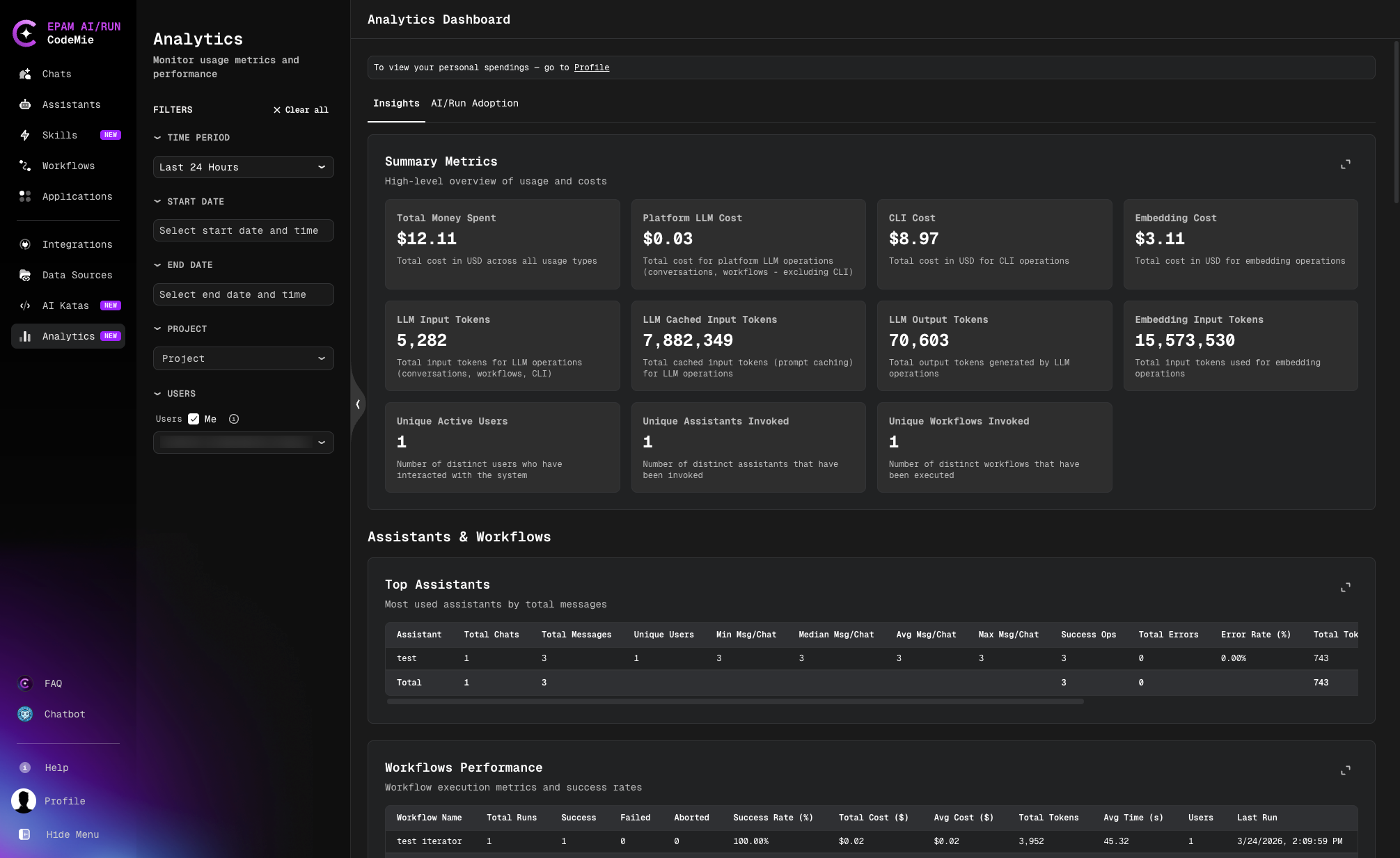
The dashboard opens on the Insights tab and displays:
- Summary Metrics — key cost and usage figures: total money spent, platform LLM cost, ELI cost, re-ranking cost, token counts (input, cached input, output, re-ranking), unique active users, unique assistants invoked, and unique workflows invoked.
- Assistants & Workflows — top assistants by total messages and workflows performance table with execution metrics and success rates.
To view your personal spending against your budget limit, go to Settings → Profile. A shortcut link is also available at the top of the Analytics Dashboard.
Access Permissions and Data Visibility
The Analytics Dashboard data visibility depends on your user role:
Regular Users
Regular users without admin privileges:
- View only personal statistics (your own usage and costs)
- Access data related to your individual activity
- Monitor your own assistants, workflows, and tool usage
Platform Admin
Platform Admins (is_admin = true) have full access to analytics data across the entire CodeMie platform:
- View statistics for all projects in the organization
- View statistics for all users using CodeMie
- Access complete platform-wide usage and cost metrics
- Monitor all assistants, workflows, tools, and integrations
Project Admin
Project Admins have limited access to analytics data scoped to their managed projects:
- View statistics only for projects where you are a Project Admin
- View data for all users within your managed projects
- Monitor usage and costs specific to your projects
- Access project-level metrics for assistants and workflows
Auditor
Users with the Auditor flag have the same analytics visibility as Platform Admins:
- Access all dashboard tabs: Insights, CLI Insights, AI/Run Adoption, and Leaderboard
- View statistics for all projects in the organization
- View statistics for all users using CodeMie
- Access the full Summary Metrics panel
- Use the User filter to search and filter data across all platform users
To view analytics for projects or other users, Platform Admin, Project Admin, or Auditor access is required. Contact an administrator to obtain broader access to analytics data.
Global Filtering System
The Analytics Dashboard features a powerful filtering system that allows you to narrow down data across all dashboard sections simultaneously.
Available Filters
Time Period Filter
- Presets: Quick selection options
- Last Hour
- Last N Hours (customizable)
- Last N Days (customizable)
- Last Month
- Custom Range: Select specific start and end dates with time
- Start Date: Choose date and time
- End Date: Choose date and time
User Filter
- Multi-select dropdown with autocomplete
- Filter by specific users or select "Me" to view your own activity
- Combine multiple users for comparison
Project Filter
- Multi-select dropdown with autocomplete
- Filter analytics by specific projects
- View project-specific usage and costs
Filter Behavior
- Combined Filtering: All active filters work together to refine data
- Persistent Selections: Filter choices remain active as you navigate between dashboard sections
- Clear All: Reset all filters with a single action using the "Clear all" button
Routing Analytics
When enabled, the Routing Analytics section shows routing costs, estimated savings, router distribution, activity by tier, and the paths from routers to served models. See Routing Analytics for an explanation of the dashboard.
AI Champions Leaderboard
The Analytics Dashboard includes an AI Champions Leaderboard tab that ranks users by their overall AI platform engagement score. Scores are calculated across six dimensions — from daily platform usage to CLI-based agentic engineering — and users are grouped into tiers from Newcomer to Pioneer.
Platform admins and Auditors can browse the full ranked leaderboard with filters and drill into individual user profiles. Regular users can view their own score and tier.
See AI Champions Leaderboard for the full overview.