Users Management
Platform Admins and Maintainers can view user details, manage project assignments, and assign platform roles including the Auditor flag.
Auditors have read-only access — all user details and budget spend data are visible, but create, edit, deactivate, and role-change controls are not available.
Regular users manage project members from the Projects Management page.
Users Management is only available when Platform-managed mode is enabled. If this tab is not visible, ask your administrator to follow the Platform-managed Mode Configuration guide.
The Users Management page gives Platform Admins a unified view of all users registered on the platform, their roles, and their project memberships. From here you can filter users, inspect individual user details, and manage project assignments.
To access Users Management, click the Profile icon in the bottom-left corner → Settings → Administration → Users management.
Users List
The users list displays all platform users in a searchable, filterable table.
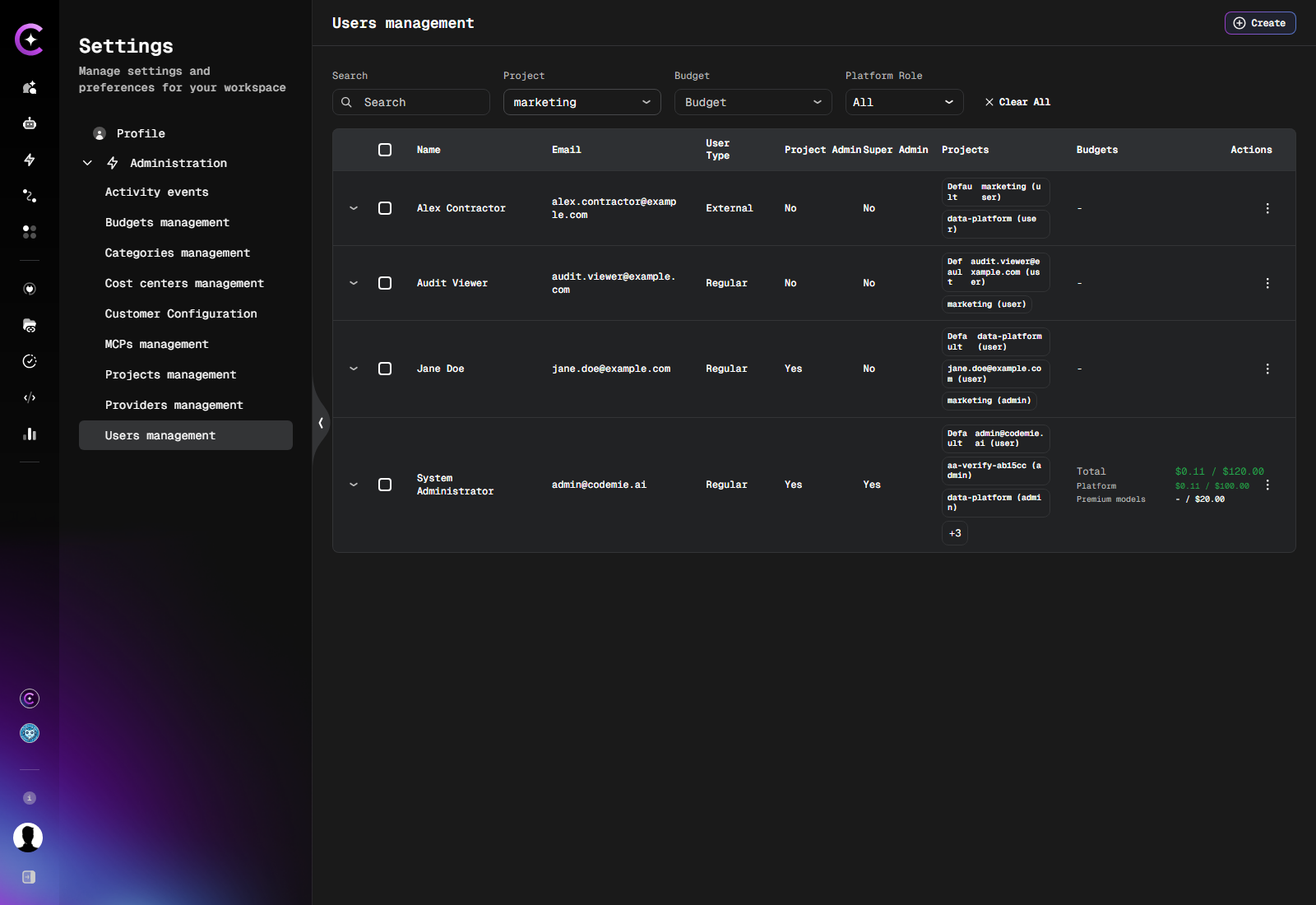
Columns
| Column | Description |
|---|---|
| Name | Display name |
| User's email address | |
| User Type | Regular or External — see External User |
| Project Admin | Whether the user holds Project Admin role in any project |
| Super Admin | Whether the user has platform-wide Super Admin privileges |
| Projects | Badge list of projects the user is assigned to. The default project is shown first and labeled Default — see Default Project |
| Actions | Row-level actions (edit, view details) |
Filtering
Use the filter bar at the top of the list to narrow results:
- Search — filter by name
- Project — show only users assigned to a specific project
- Platform Role — filter by
User,Project Admin, orSuper Admin
Click Clear All to reset all active filters.
User Details
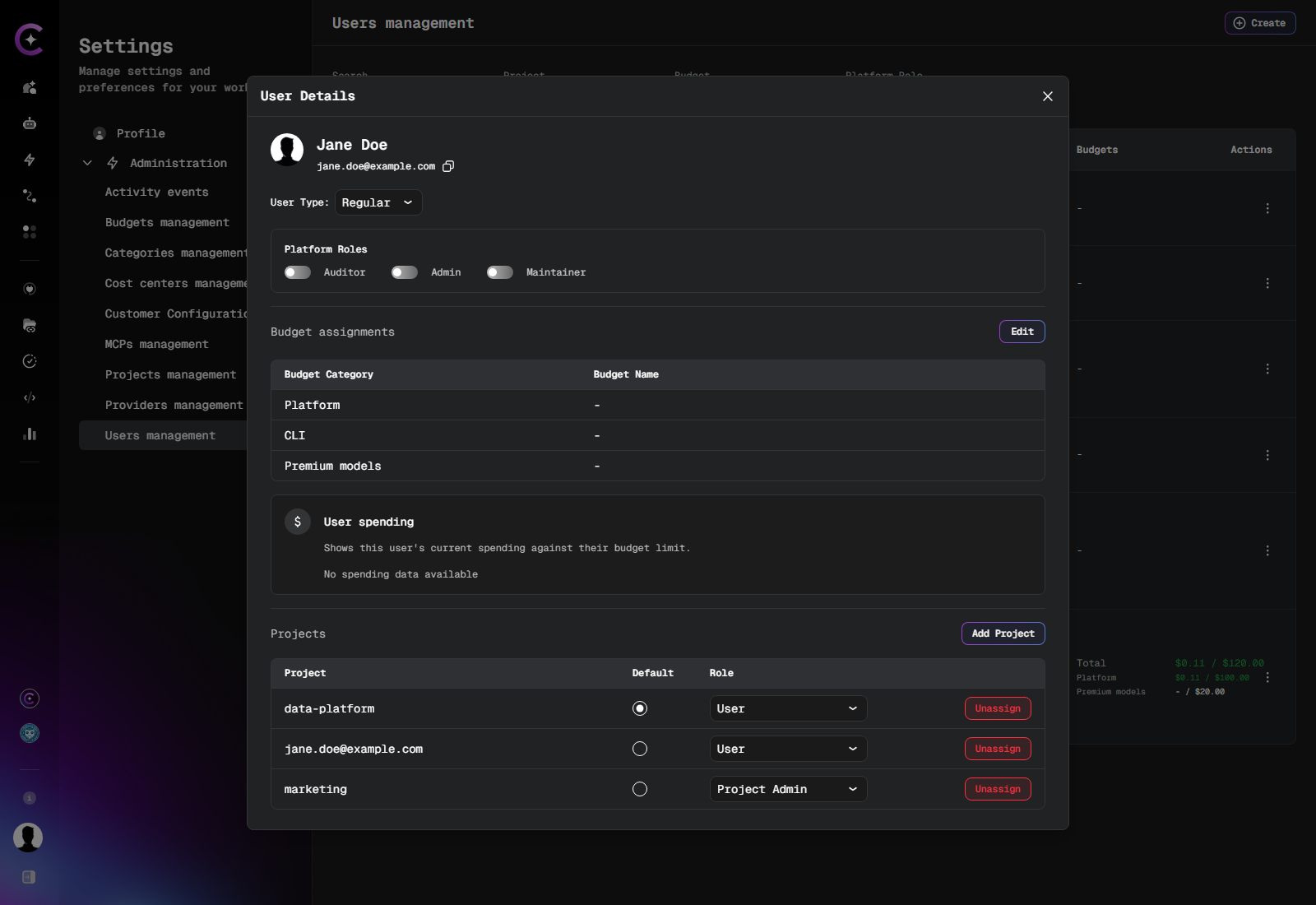
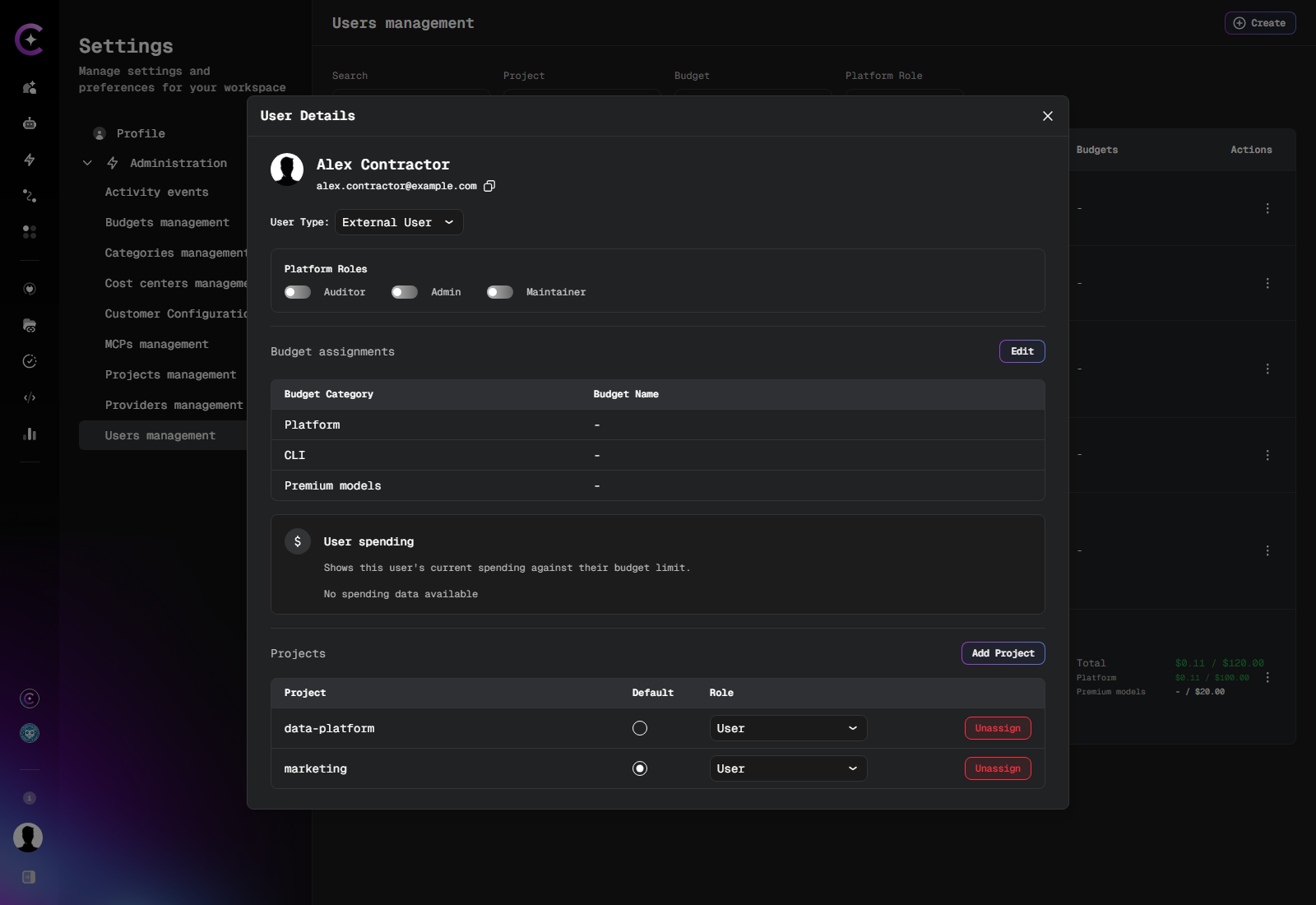
Click the ⋮ (Actions) menu on a user row, or click the user's name, to open the User Details panel.
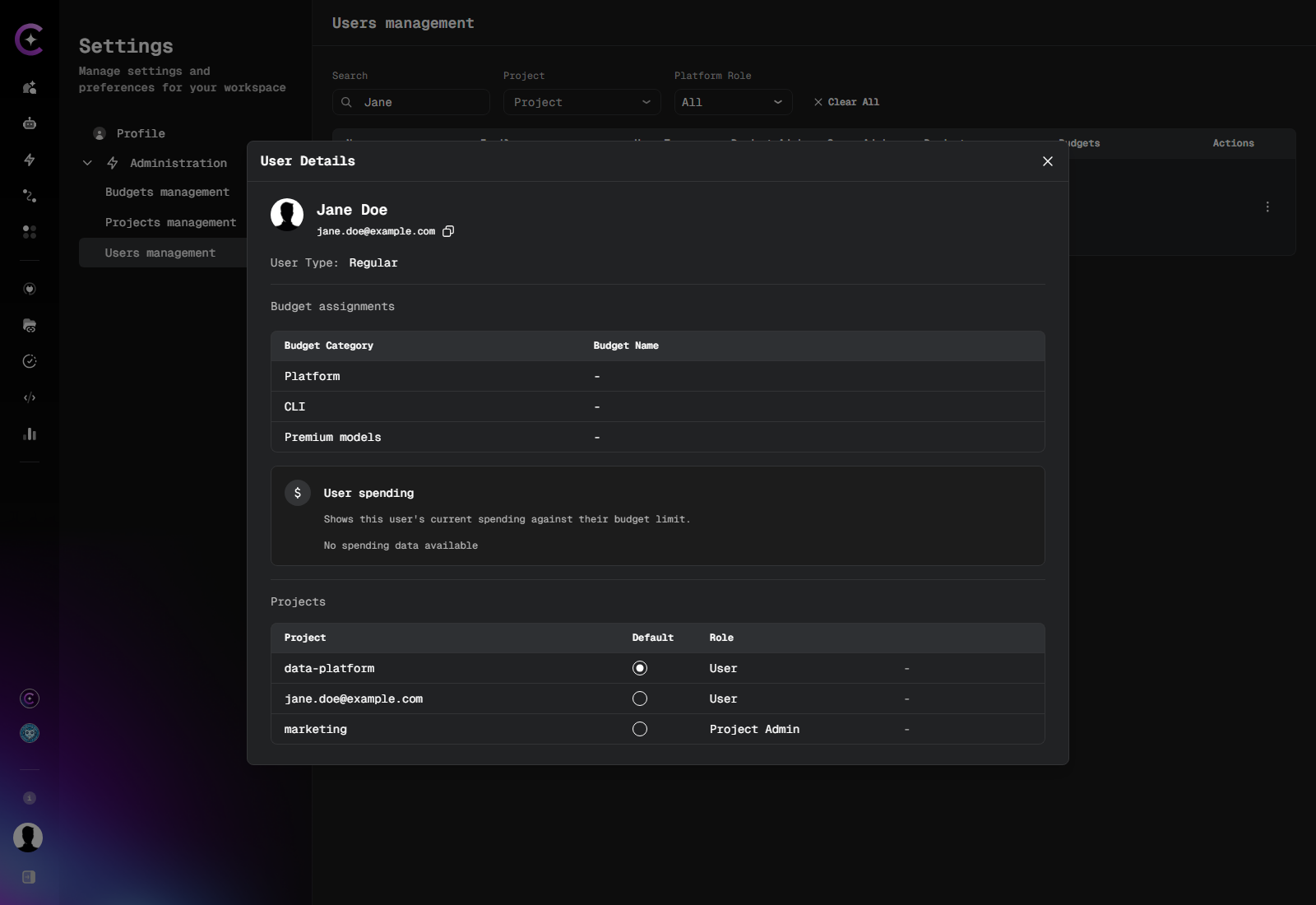
The panel shows:
- Avatar and display name
- User Type:
RegularorExternal - Email: user's email address
- Platform Roles block — Admin, Maintainer, and Auditor toggles (visible to Platform Admins and Maintainers only)
- Projects table — list of projects the user is assigned to, with their role in each and the user's default project
- Budget Spending widget — current budget consumption for the selected user (see below)
Platform Roles
The Platform Roles block is visible to Platform Admins and Maintainers in the User Details panel. It displays toggles for the three elevated flags: Admin, Maintainer, and Auditor.
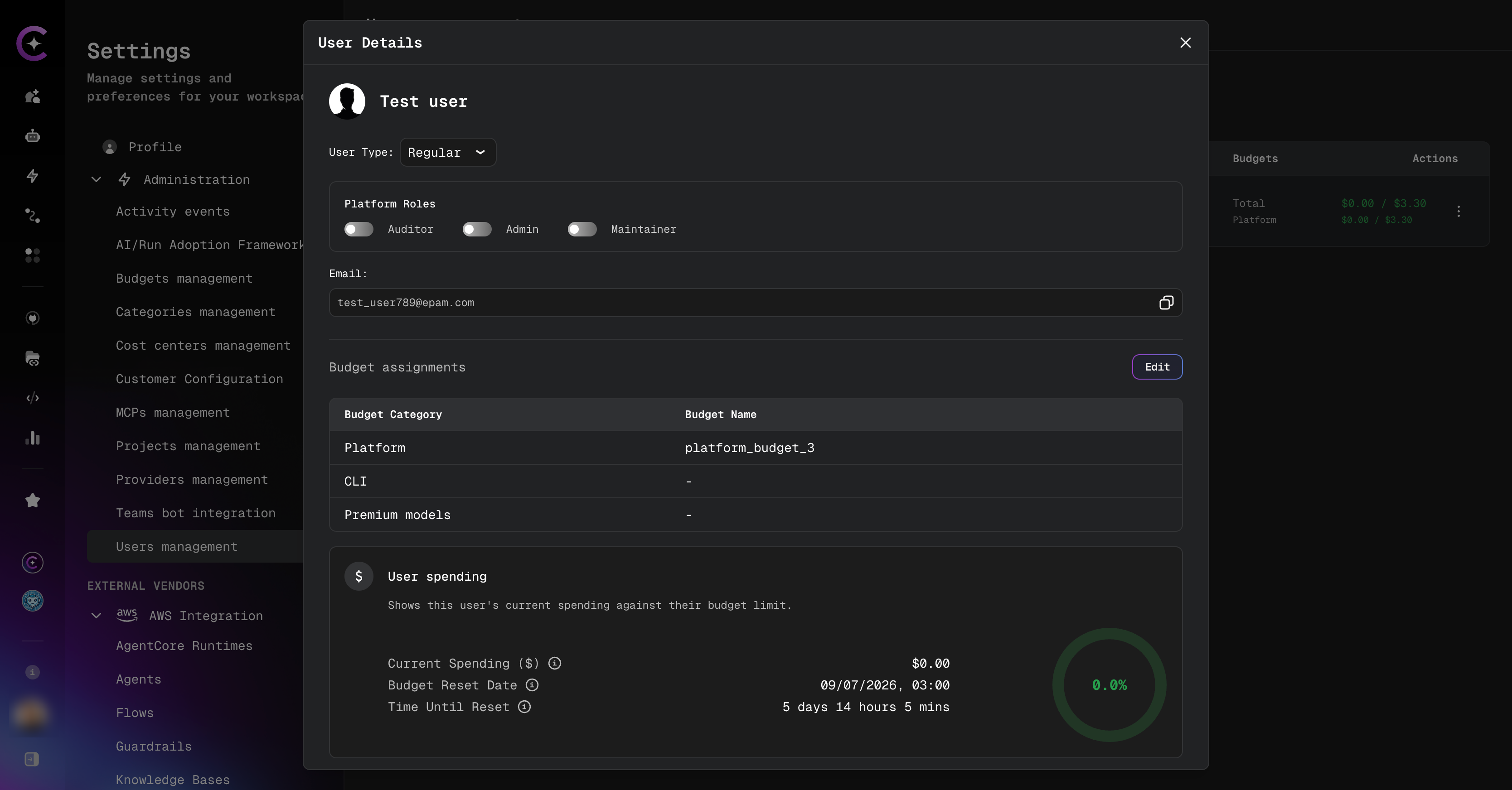
To assign the Auditor flag to a user:
- Open the User Details panel for the target user.
- In the Platform Roles block, toggle the Auditor switch on.
- Click Save.
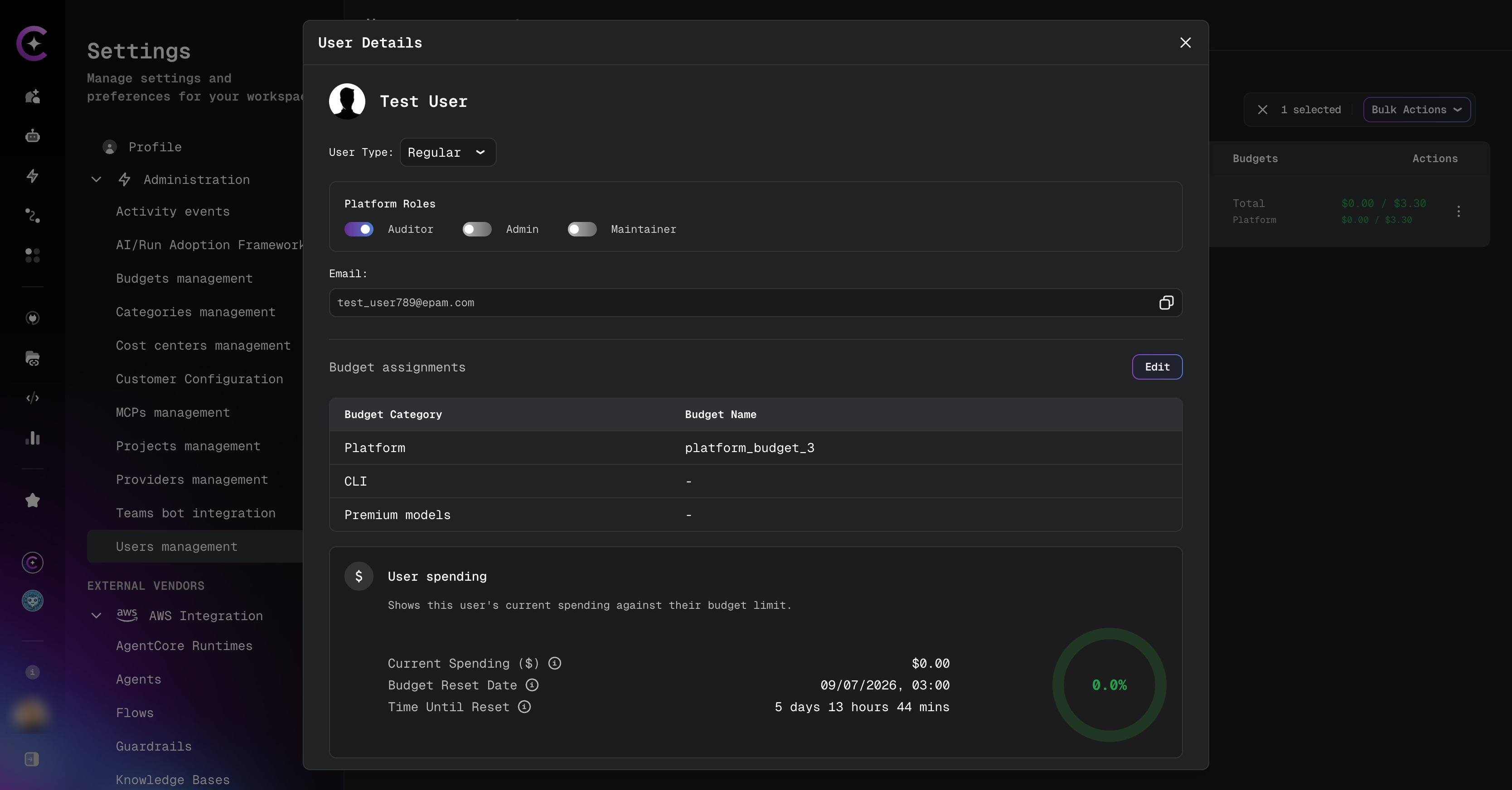
To remove the flag, toggle the switch off and save.
If the user already holds Admin or Maintainer status, the Auditor switch is shown disabled. The tooltip reads: "Admin and Maintainer already include full platform access — the Auditor flag has no effect for this user."
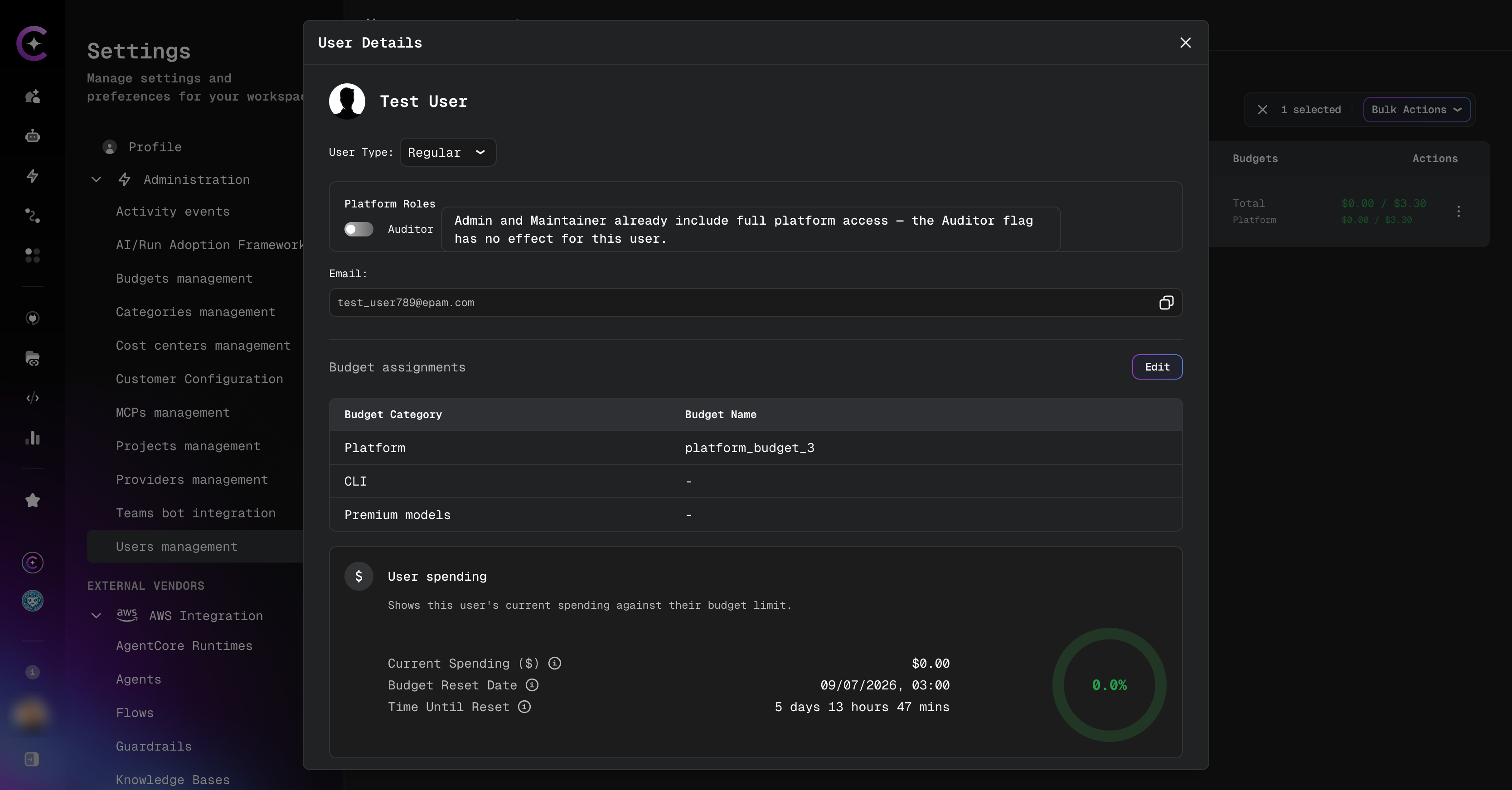
The stored flag value is not modified.
Budget Spending
The Budget Spending widget is displayed at the bottom of the User Details panel and shows the current budget consumption for the selected user across all three budget categories.
| Column | Description |
|---|---|
| Category | Budget category: Platform, CLI, or Premium models |
| Current Spending | Amount spent in the current budget period (USD) |
| Budget Limit | The configured maximum spend for the period (USD) |
| Budget Reset | The date and time when the budget counter resets |
| Time Until Reset | Days, hours, and minutes remaining until the next budget reset |
| Progress | Visual progress bar showing consumption relative to the budget limit |
Each row represents one budget category. A row is shown only for categories that have a budget configured for the user.
If the widget shows no data, no budget has been configured for the selected user. Budget limits are set up by a platform administrator via the LiteLLM integration. See LiteLLM Budget Configuration for details.
The Budget Spending widget requires:
- Platform-managed mode enabled (
ENABLE_USER_MANAGEMENT=True). See Platform-managed Mode Configuration. - Budget management enabled (
viteEnableBudgetManagement: true). See Platform Administration.
Manage a User's Project Assignments
From the User Details panel you can add or remove project memberships without leaving the user record.
Add a Project Assignment
- In the User Details panel, click Add Project.
- Select a project from the Project dropdown.
- Optionally, turn on Set as default to make this project the user's default project in the same step.
- Click Add.
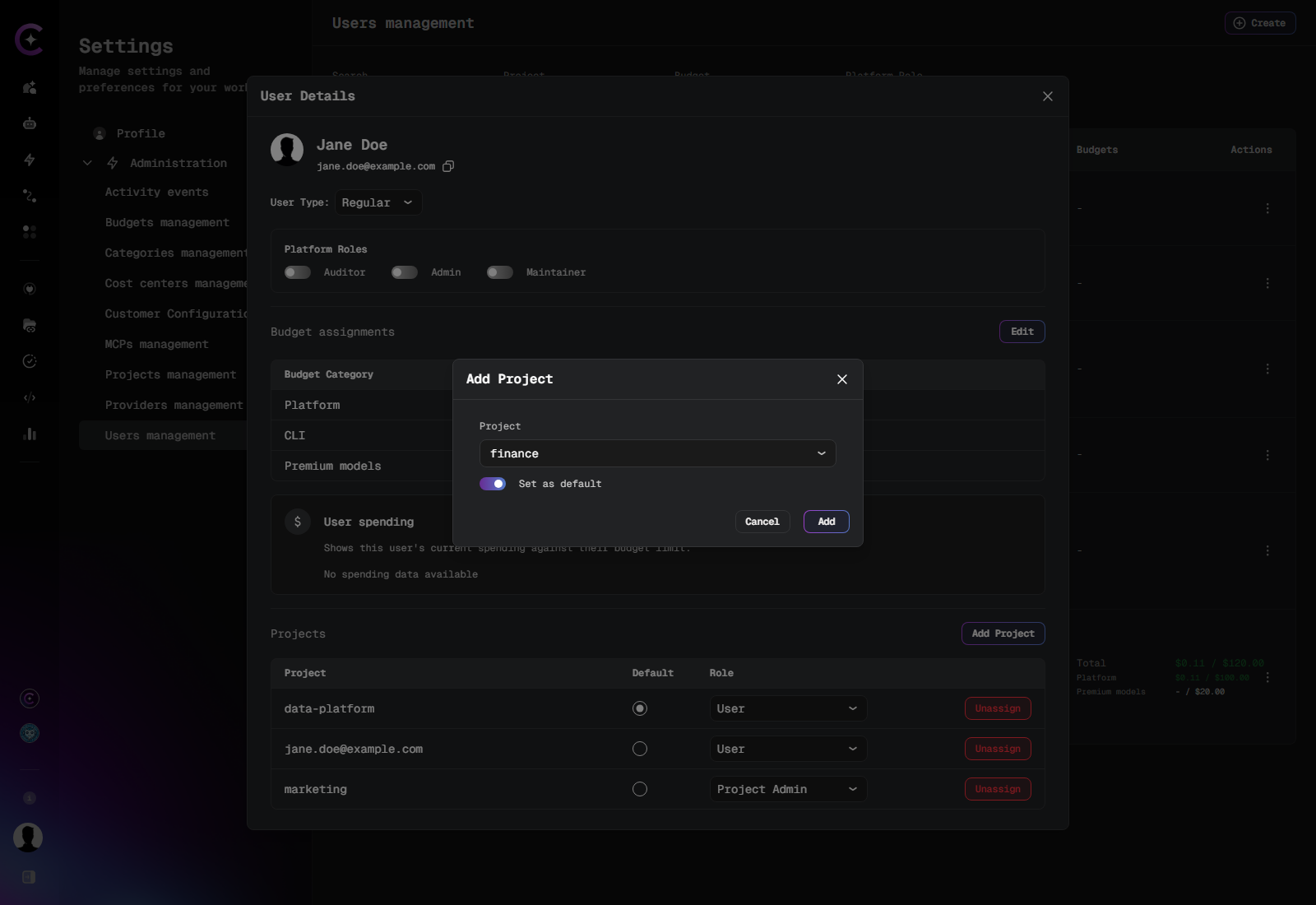
The new assignment appears in the Projects table immediately with the User role. To grant Project Admin, change the role in the Role column afterwards.
If the project is added but setting it as default fails, the message "User added to project, but the default project was not changed" is shown. The membership is kept and the previous default project stays in place.
Remove a Project Assignment
- In the User Details panel, locate the project in the Projects table.
- Click Unassign next to that project.
- Confirm the removal.
The user loses access to that project immediately. Their account is not affected. If the removed project was the user's default project, a new default is determined automatically — see How the Default Project Is Determined.
Default Project
Each user who belongs to at least one project has exactly one default project. The default project decides which project budget pays for the user's LLM usage when a request is not tied to a specific project — for example, chatting with a Marketplace assistant from a project the user is not a member of, or running a CLI agent without a configured project. For the full billing rules, see Default Project in Budget Management.
Assigning a default project is useful when a user works across several projects and the organization needs that user's spend charged to one predictable project budget — for example, the budget of the user's department.
The default project described here is unrelated to the Keycloak Assign Default Project mapper. That mapper only creates a personal project in Keycloak-managed mode.
How the Default Project Is Determined
| Priority | Default project |
|---|---|
| 1 | The project an administrator explicitly set as default |
| 2 | If none is set — the user's personal project (the project named after their email) |
| 3 | If the user has no personal project — the first of the user's projects by name |
Because of these fallbacks, the Users list and the User Details panel always mark one project as default for every user who has projects, even when no administrator has set one.
A user can have only one default project at a time. Setting a new default replaces the previous one; the previous project stays an ordinary membership with the same role.
The default project is always one of the user's own projects. When the membership of the default project is removed — individually, through Bulk Actions, or from the project's members list — the explicit default is cleared and the next rule in the table applies.
Viewing the Default Project
- Users list — in the Projects column, the default project is shown as the first badge and is prefixed with the label Default (tooltip: "Default project").
- User Details — the Projects table has a Default column. The radio button of the default project is selected.
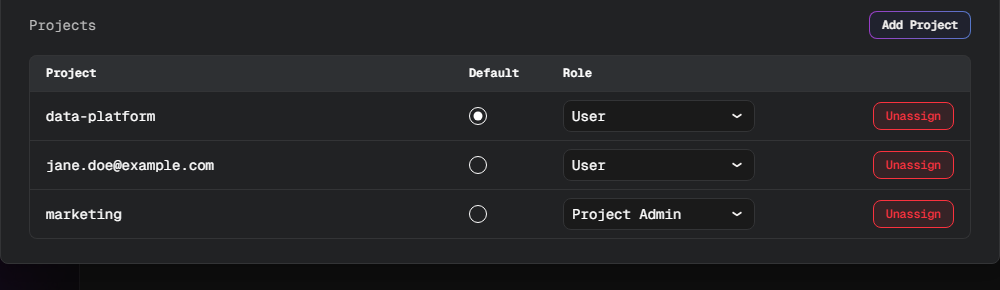
Set a User's Default Project
- Open the User Details panel for the user.
- In the Projects table, select the radio button in the Default column next to the project that should become the default.
The change is saved immediately — there is no confirmation dialog and no Save button. The message "Default project set successfully" confirms the change. If the change fails, the previous selection is restored and an error message is shown.
A project can also be made the default while adding it to the user — see Add a Project Assignment.
The new default applies to the user's subsequent requests within about a minute. Spend already recorded is not moved to the new project.
Permissions
| Role | View default project | Change default project |
|---|---|---|
| Platform Admin / Maintainer | ✅ | ✅ |
| Auditor | ✅ | ❌ |
| Project Admin | ❌ | ❌ |
| User | ❌ | ❌ |
Auditors see the Default column with all radio buttons disabled. Project Admins cannot set the default project for members of their projects, and users cannot choose their own default project. Setting a default for many users at once through Bulk Actions is not supported.