Budget Management
Part of the CodeMie Enterprise package, and may not be enabled on every deployment. If this capability is missing from the UI described below, contact the CodeMie platform administrator. See all Enterprise features.
The budgeting system manages and controls costs for LLM model usage. Budgets operate through integration with LiteLLM Proxy, which serves as the single point of cost tracking and enforcement.
Every LLM request is automatically routed through LiteLLM Proxy, which checks the user's current spending against the configured limits. When a limit is reached, the user receives a notification and requests are blocked until the budget period resets.
The budgeting system requires LiteLLM Proxy to be deployed. For platform configuration and environment variables, see Project Budget Management.
Budget Types
| Type | Description |
|---|---|
| Default | A pre-configured budget created automatically at platform startup from YAML configuration. Applied to every user who has no personal budget assigned — each user gets their own independent spending counter. Can be created separately for each category: Platform, CLI, and Premium Models |
| Personal | Assigned to a specific user manually. Overrides the default budget for that user |
| Project | Limits spending within a specific project, split across all three categories from a single total. Automatically distributed among project members. See Project Budgets |
The default budget is not a shared pool for all users. When the default budget is set to $100 — each employee has their own independent $100.
Budget Categories
Each budget belongs to one of three independent categories:
| Budget Category | When Applied |
|---|---|
| Platform | Non-premium requests from the browser UI, workflows, API, and similar sources |
| CLI | Non-premium requests from CLI agents (for example, codemie-code, codemie-claude, and codemie-codex) and desktop applications, such as Claude Code Desktop, in Gateway mode |
| Premium Models | All premium-model requests, regardless of source (UI or CLI) |
Premium models are defined in the LITELLM_PREMIUM_MODELS_ALIASES environment variable. See Configure Premium Model Aliases.
Only one budget is charged per request. If a project budget exists for the resolved category, it takes precedence over the default and user's personal budgets. For details on how project membership affects category resolution, see Budget Priority.
Budget Parameters
| Parameter | Required | Description |
|---|---|---|
| Name | Yes | Human-readable label for the budget |
| Description | No | Optional note on the budget's purpose |
| Category | Yes | Platform, CLI, or Premium Models |
| Reset period | Yes | How often spend counters reset (e.g., Monthly (30d), Weekly (7d)) |
| Soft limit | No | Warning threshold in USD. Requests are not blocked at this threshold. |
| Hard limit | Yes | Enforcement cap in USD. Requests are blocked once this amount is reached. Must be > 0 |
Project budgets are created from a single total that is distributed across all three categories at once, rather than one category at a time. See Budget Fields.
Pre-configured Budgets
Default budgets are created automatically at platform startup from YAML configuration. One default budget per category can be created: Platform, CLI, and Premium Models. Such budgets are marked with the Preconfigured flag in the UI.
Restrictions: cannot be modified via UI or API, cannot be deleted. Changes take effect only after updating the configuration and restarting the platform.
For configuration details, see LiteLLM Budget Configuration.
Access
Path: Profile → Settings → Administration → Budgets
Users with the Admin, Maintainer, or Auditor role can view the budget list and all associated spend data. Creating, editing, deleting, and syncing budgets is available to Maintainer only. Users with the Admin role (without Maintainer) can only view the list.
Budget management is a unique role. Project Admin cannot manage budgets in any project — neither their own nor others'. Regular users and Project Admins are redirected away from the Budgets section; Auditors have direct read-only access.
| Action | Maintainer | Admin | Project admin | Auditor |
|---|---|---|---|---|
| Create / update / delete any budget | Yes | No | No | No |
| View budget list | Yes | Yes | No | Yes |
| View own project budget | Yes | Yes | Yes | Yes (all) |
| Override a member's allocation | Yes | No | No | No |
For details on roles, see Roles & RBAC.
Working with Budgets
Budget Priority

For each category, the first matching budget is applied in the following priority order:
- Project budget — if the user's project has a budget configured for this category
- Personal budget — if the user has a personal budget explicitly assigned for this category
- Default budget — if neither project nor personal budget is assigned
Project context applies when the user belongs to a project that has at least one budget configured. In this case, all requests are resolved within the project — regardless of category:
- If the project covers the resolved category → the project budget is used
- If the project does not cover the resolved category → falls back to the project's Platform budget
- If the project has no Platform budget either → personal or default Platform budget is used
If the project has no budgets configured at all, personal and default budgets apply as normal.
The Platform budget acts as the universal fallback within a project. If a project has only a Platform budget, CLI and premium model requests are also charged against it. To track each category independently, configure a dedicated budget for each category on the project.
The project used in these rules is the project the request is attributed to. For requests that are not tied to a specific project, that is the user's default project — see Default Project.
Default Project
Every user who belongs to at least one project has one default project. Administrators and Maintainers assign it in Users Management — see Default Project in Users Management. If no default is assigned, the user's personal project is used; a user without a personal project falls back to the first of their projects by name.
The default project answers the question "which project pays" whenever a request is not bound to a project of its own. Each request is attributed to one project as follows:
| Request | Project the request is attributed to |
|---|---|
| Assistant, workflow, or data source that belongs to a project (not published to the Marketplace) | That project — the default is ignored |
| Marketplace assistant, user is a member of the assistant's project | The assistant's project |
| Marketplace assistant, user is not a member of the assistant's project | The user's default project |
| Actions not tied to a project asset — for example, AI generation of assistants, skills, and workflows | The user's default project |
| CLI agent or IDE request through the LLM proxy with a project configured in the CLI | The configured project |
| CLI agent or IDE request through the LLM proxy without a configured project | The user's default project |
After the project is chosen, the regular Budget Priority rules apply. If the attributed project has no active budget that covers the request — including the user's member allocation and the project's Platform fallback — the request is charged to the user's personal or default budget. CodeMie does not search the user's other projects for a budget, and the missing project budget does not by itself block the request.
Such requests are marked as a budget fallback in usage analytics: they carry the
budget_fallback_from attribute with the name of the project that had no budget, so they can be
told apart from ordinary personal usage. The project recorded with the spend is the project
whose budget was actually charged.
Changing or Removing the Default Project
- A new default project applies to the user's subsequent requests within about a minute. Spend that was already recorded stays with the project that was charged at the time.
- When the user is removed from their default project, that project is no longer charged. The next request is attributed using the personal-project and first-project-by-name fallbacks.
The default project is controlled by administrators only. Users cannot choose the billing project per chat or per conversation, and the charged project is not shown to users in the chat.
Personal Budgets
Creating a Budget
- Click + Create Budget
- Fill in Name, Category, Reset period, Soft/Hard limit
Budget ID is generated automatically from the name.
It is not possible to create a budget with budget_id = "default" through the UI — only through platform configuration.
Editing a Budget
Name, description, Soft/Hard limit, and reset period can be modified. Limit changes are synced with LiteLLM. Preconfigured budgets cannot be edited through the UI.
The category of a budget cannot be changed if there are active user assignments linked to it — this is a data integrity protection. To change the category, all assignments must be removed first.
Assigning a Personal Budget to a User
Path: Profile → Settings → Administration → User Management → select a user
Each user can be assigned a separate personal budget for each category (Platform / CLI / Premium Models). When an assignment is removed, the user automatically falls back to the default budget for the corresponding category (if configured).
Project Budgets
Path: Profile → Settings → Administration → Projects Management → select a project
A project budget caps spending for a whole project and splits that cap across the three categories. A single Create Budget dialog sets a total, distributes it across Platform, CLI, and Premium Models, and assigns a hard and soft limit to each. Spend is then reported per category and per member on the project page, where individual allocations can be overridden.
For the full workflow — creating the budget, tracking spend, distributing it among members, and overriding individual allocations — see Project Budgets.
To bill a project's spend back to the team that incurred it, or to roll several projects up to a single departmental bill, see Chargeback and Cost Centers.
No more than one budget per category per project.
Viewing User Budget Spend (Administrators)
The Users Management panel in Administration shows a consolidated Budgets column for every user.
Path: Profile → Settings → Administration → User Management
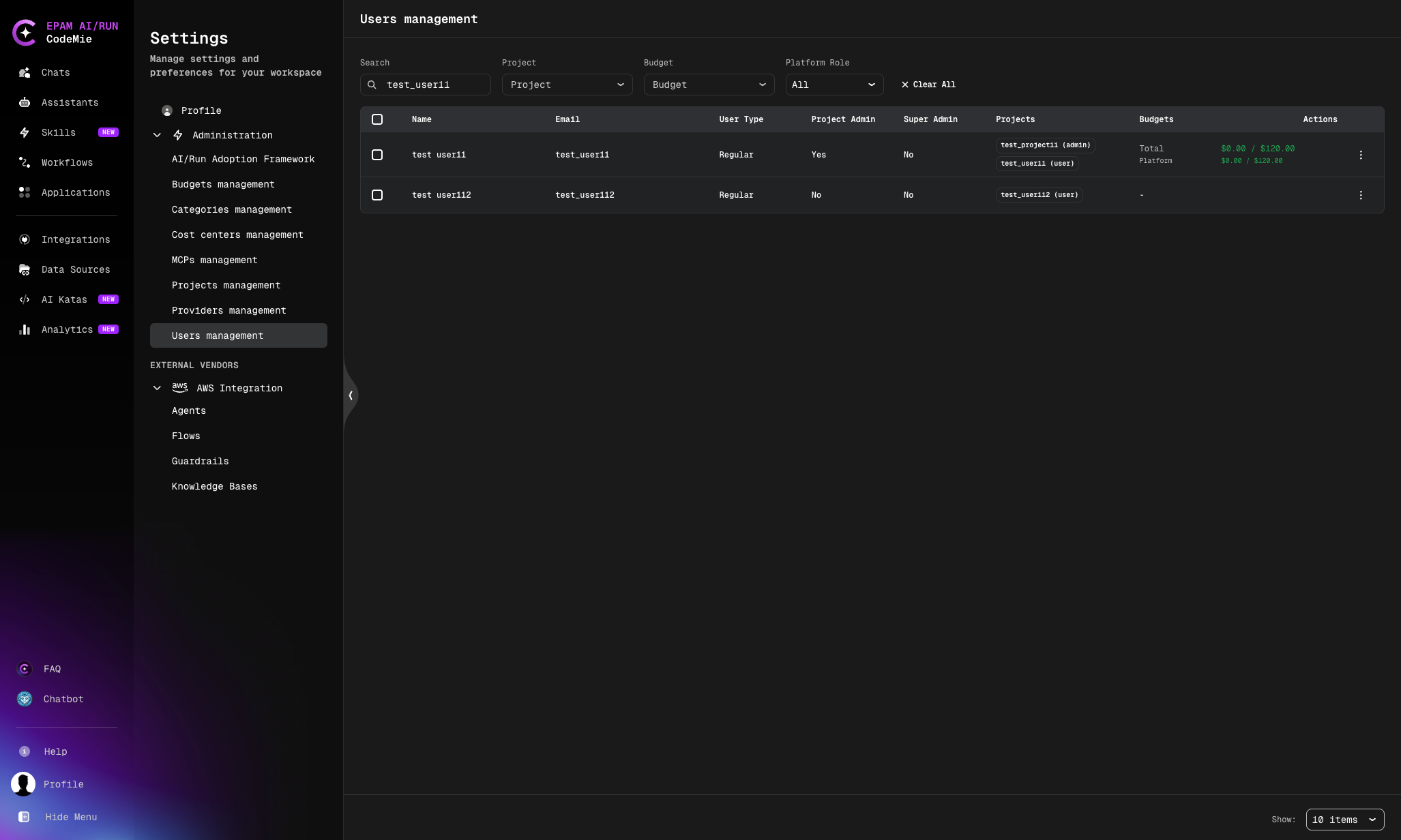
The column shows:
- Total spend / total budget across all categories
- Per-category breakdown: CLI, Platform, and Premium models
- Format:
$spent / $limit(a dash indicates no budget assigned for that category)
Use the Budget filter and Search field to quickly locate users by budget assignment.
Soft-Limit Notifications
When the soft-limit notification feature is enabled by a platform administrator, each budget can be configured to send an email to a designated owner the first time spending crosses the soft limit in a budget period.
Soft-limit notifications are controlled by platform-level flags. See Budget Soft-Limit Notifications for the environment variables and SMTP setup.
Configuring Notifications on a Budget
The notification owner email and the opt-in toggle appear in the budget form when BUDGET_SOFT_LIMIT_NOTIFICATION_ENABLED=true is set on the platform.
- Open the budget for editing (Platform administration → Budgets, or the project Budgets tab).
- In the Soft-Limit Notifications section, enter the Notification owner email — the address that receives the alert.
- Enable the Notify on soft limit toggle.
- Save the budget.
Behavior
- A notification is sent once per budget period — only when spending first crosses the soft limit. No further emails are sent until the period resets.
- If no soft limit is set on a budget, no notification is triggered regardless of the toggle state.
- If the platform's email dispatch flag (
BUDGET_SOFT_LIMIT_EMAIL_ENABLED) is off, the fields remain visible and editable but no email is sent. This mode allows per-budget configuration to be prepared before SMTP is operational.
Usage Scenarios
How Requests Are Routed to Budgets: Configuration Examples
| # | Configured Budgets | Platform requests | CLI requests | Premium model requests |
|---|---|---|---|---|
| 1 | Default Platform Budget | ✅ Default Platform (individual counter per user) | ✅ Default Platform (fallback — no CLI budget) | ✅ Default Platform (fallback — no Premium budget) |
| 2 | No budgets configured | ✅ Default Platform Budget (Default Platform Budget is pre-configured by default) | ✅ Default Platform (fallback — no CLI budget) | ✅ Default Platform (fallback — no Premium budget) |
| 3 | Default Platform Budget Default CLI Budget Default Premium Budget | ✅ Default Platform | ✅ Default CLI | ✅ Default Premium |
| 4 | Personal Platform Budget | ✅ Personal Platform | ❌ Blocked — no CLI budget | ❌ Blocked — no Premium budget |
| 5 | Personal Platform Budget Default CLI Budget | ✅ Personal Platform | ✅ Default CLI | ❌ Blocked — no Premium budget |
| 6 | Default Platform Budget Default CLI Budget Default Premium Budget Personal Premium Budget | ✅ Default Platform | ✅ Default CLI | ✅ Personal Premium (priority over default) |
| 7 | Project Platform Budget | ✅ Project Platform | ✅ Project Platform (fallback — no CLI budget) | ✅ Project Platform (fallback — no Premium budget) |
| 8 | Project CLI Budget | ✅ Project CLI (fallback — no Platform budget) | ✅ Project CLI | ✅ Project CLI (fallback — no Premium budget) |
| 9 | Project Premium Budget | ✅ Default Platform (global fallback → no Platform budget) | ✅ Default Platform (global fallback → no CLI or Platform budgets) | ✅ Project Premium |
| 10 | Project Platform Budget Project CLI Budget Project Premium Budget | ✅ Project Platform | ✅ Project CLI | ✅ Project Premium |
| 11 | Personal Platform Budget Project Platform Budget | ✅ Project Platform | ✅ Project Platform (fallback — no CLI budget) | ✅ Project Platform (fallback — no Premium budget) |
Project context and category fallback
In rows 7–10 and 11, the user is in a project context (project has at least one budget configured). Personal and default budgets are bypassed for all categories — except when the project has no Platform budget at all (row 9 — Premium-only project), in which case global personal/default Platform budget is used as the final fallback. The Platform budget is the universal fallback hub within a project: if a project lacks a budget for the resolved category (CLI or Premium), the request falls back to the project Platform budget. Row 2 applies when the user is in a shared project with no budgets configured at all — the system treats it as if there is no project.
Personal space
A personal space is technically a project (project_type = personal, name = user@email). When no project budget is assigned to it (typical case), it behaves identically to the "No project" context (rows 1–6). Row 11 shows the non-typical case where an admin has explicitly assigned a project budget to a user's personal space.
Webhooks and Workflows
LLM usage triggered by a Webhook or Workflow is charged to the budget of the user who created the integration.
Key takeaways
- If no budget exists for a category — requests for that category are blocked
- Budgets for Platform, CLI, and Premium Models categories are independent. Configuring a Platform budget does not automatically cover CLI or premium model requests — each category must be configured separately.
- Project budget has the highest priority and overrides personal and default budgets — but only when the project has at least one budget configured. If the project has no budgets at all, personal and default budgets apply normally.
- When a project budget is active, the user's personal and default budgets are not affected and are not charged.
- Requests that are not tied to a project — Marketplace assistants used by non-members, AI generation, and CLI requests without a configured project — are charged to the user's default project. If that project has no budget for the request, the personal or default budget is charged instead.
- ⚠️ Platform budget is the universal fallback within a project context. If a project has budgets for some categories but not others, requests to uncovered categories fall back to the project's Platform budget — not to personal or default budgets. The only exception is a Premium-only project (no Platform budget configured): in this case both Platform and CLI requests fall back to personal/default Platform budget, as the system always resolves uncovered categories through the Platform fallback path. To track each category separately within a project, configure Platform, CLI, and Premium Models budgets on the project explicitly.
Spending Data Update Frequency
Spending data comes from two independent sources with different update frequencies.
Analytics Tab
| Data Type | Source | Update Frequency |
|---|---|---|
| Tokens, requests, history | Elasticsearch | Real-time — each LLM request is written to ES directly |
| Spending in $ | LiteLLM → ES via Spend Collector | Scheduled — once per day by default |
User Profile (Personal Budget / Spending)
Data is fetched directly from LiteLLM in near real-time, subject to the LiteLLM customer cache (default delay up to 5 minutes).
Analytics display delays have no effect on budget blocking — enforcement and statistics are two independent mechanisms.
Budget Enforcement and Cache Overshoot
Hard limits are enforced in real time, but due to two-level caching, requests sent within a cache window after the limit is reached may still be processed. This is expected behavior — a deliberate architectural trade-off between performance and enforcement precision.
How enforcement works on each request
LLM Request
    │
    ▼
CodeMie Backend
    │
    ├─ 1. check_user_budget(user_id)
    │       │
    │       ├─ CACHE HIT?  → use cached spend
    │       │               ← does NOT query LiteLLM for current value
    │       └─ CACHE MISS? → GET /customer/info → refresh cache
    │
    └─ 2. If spend < max_budget → forward request to LiteLLM
              │
              ▼
         LiteLLM Proxy
              │
              └─ Secondary enforcement here, also with internal cache
Two levels of caching delay
Level 1 — customer_cache in CodeMie Backend
When CodeMie checks the user's budget, it reads a cached spend value. The TTL is controlled by LITELLM_CUSTOMER_CACHE_TTL (default: 5 minutes). Requests sent during this window after the actual limit is reached will still pass — because the cached value shows the balance as under-limit.
Level 2 — LiteLLM internal cache
LiteLLM also caches budget and customer state internally. Spend counter updates after request completion happen asynchronously, adding a second window of potential overshoot.
Why the limit may be exceeded by a small amount (example)
| Time | Action | Cached spend | Actual spend |
|---|---|---|---|
| T+0 | Cache refreshed: spend = $8.70, limit = $10 | $8.70 | $8.70 |
| T+1 | Request 1 ($0.40) → check: OK | $8.70 (cache valid) | $9.10 |
| T+2 | Request 2 ($0.45) → check: OK | $8.70 (cache valid) | $9.55 |
| T+3 | Request 3 ($0.50) → check: OK | $8.70 (cache valid) | $10.05 ← over limit |
| T+4 | Request 4 ($0.30) → check: OK | $8.70 (cache valid) | $10.35 ← overshoot |
| T+5 | Cache expires → query LiteLLM | $10.35 (refreshed) | $10.35 |
| T+6 | Request 5 → check: $10.35 > $10 → BLOCKED |
The actual overshoot depends on the cost and number of requests processed within the cache TTL window after the actual limit was reached.
This is not a bug. Enforcement precision is bounded by LITELLM_CUSTOMER_CACHE_TTL (default: 5 minutes). The maximum possible overshoot equals the total spend of all requests processed during that window. To reduce overshoot exposure, set a hard limit slightly below your actual budget ceiling.
Behavior When a Limit Is Reached
- The UI displays the notification: "Budget limit has been reached. Please contact your administrator."
- All LLM requests for that category are blocked until the period resets or an administrator manually resets the counter
- Manual reset: Profile → Settings → Administration → User Management → user card → Reset Budget (Maintainer only)
Recommendations
| Goal | Recommendation |
|---|---|
| Getting started | Create default budgets for all three categories (Platform, CLI, Premium) — otherwise users without a personal budget will be blocked in uncovered categories |
| Users working across several projects | Assign each user a default project in Users Management — usage that is not tied to a specific project is then charged to that project's budget instead of the personal budget |
| Team cost control without blocking individual members | Create a project budget with Enforce member spend limits = Disabled — the overall limit is controlled at the team level without blocking individual members |
| Strict per-user control within a project | Enable Enforce member spend limits — each member receives a fixed quota with blocking on overspend |
| Architects / Team leads | Use Override with Enforce member spend limits enabled to individually increase a specific member's quota |
| Adding new members to a project | After adding members, run a manual Rebalance — the budget is not recalculated automatically on member addition |
| Premium models | Create a separate default Premium Models budget and specify the model list in the platform configuration |
| Emergency unblocking | Reset Budget on the user card — resets the spending counter (Maintainer only) |
| Accurate per-category cost tracking within a project | Configure a dedicated budget for each category (Platform, CLI, Premium Models) on the project. Without all three budgets, requests to categories that are not configured fall back to the project Platform budget — making it impossible to distinguish platform, CLI, and premium model costs in project analytics |
Platform Limitations
The following summarizes known constraints in the current version of the budgeting system.
- Default budgets are created only through YAML configuration; one per category (Platform, CLI, Premium Models). Cannot be modified via UI
- One budget per category per project
- The category of a budget cannot be changed if there are active user assignments — all assignments must be removed first
- Budget ID is generated automatically from the name and cannot be edited after creation
- Budget creation and modification require the Maintainer role; Project Admin cannot manage budgets
- No global platform-wide spending cap across all projects
- Direct budget configuration via the LiteLLM API is not recommended — it may cause unpredictable platform behavior
- When a project budget is recreated, the LiteLLM spending counter resets; historical spend in analytics (Elasticsearch) is preserved
- Enforcement precision is bounded by
LITELLM_CUSTOMER_CACHE_TTL(default: 5 minutes); a small overshoot past the hard limit is expected
See Also
- Project Budgets — creating project budgets, tracking spend, and member allocations
- Chargeback and Cost Centers — internal billing and rolling spend up across projects
- Project Budget Management — platform configuration, environment variables, and Helm setup
- LiteLLM Budget Configuration — predefined global budgets and enforcement flags
- Roles & RBAC — role definitions and access control