Chrome Extension
EPAM AI/Run CodeMie for the browser adds an AI assistant to Chrome. It opens in a side panel, can read the page you're looking at, and can act on it when you ask. It signs you in with your normal work account, so there's nothing extra to set up — no separate password, no API key.
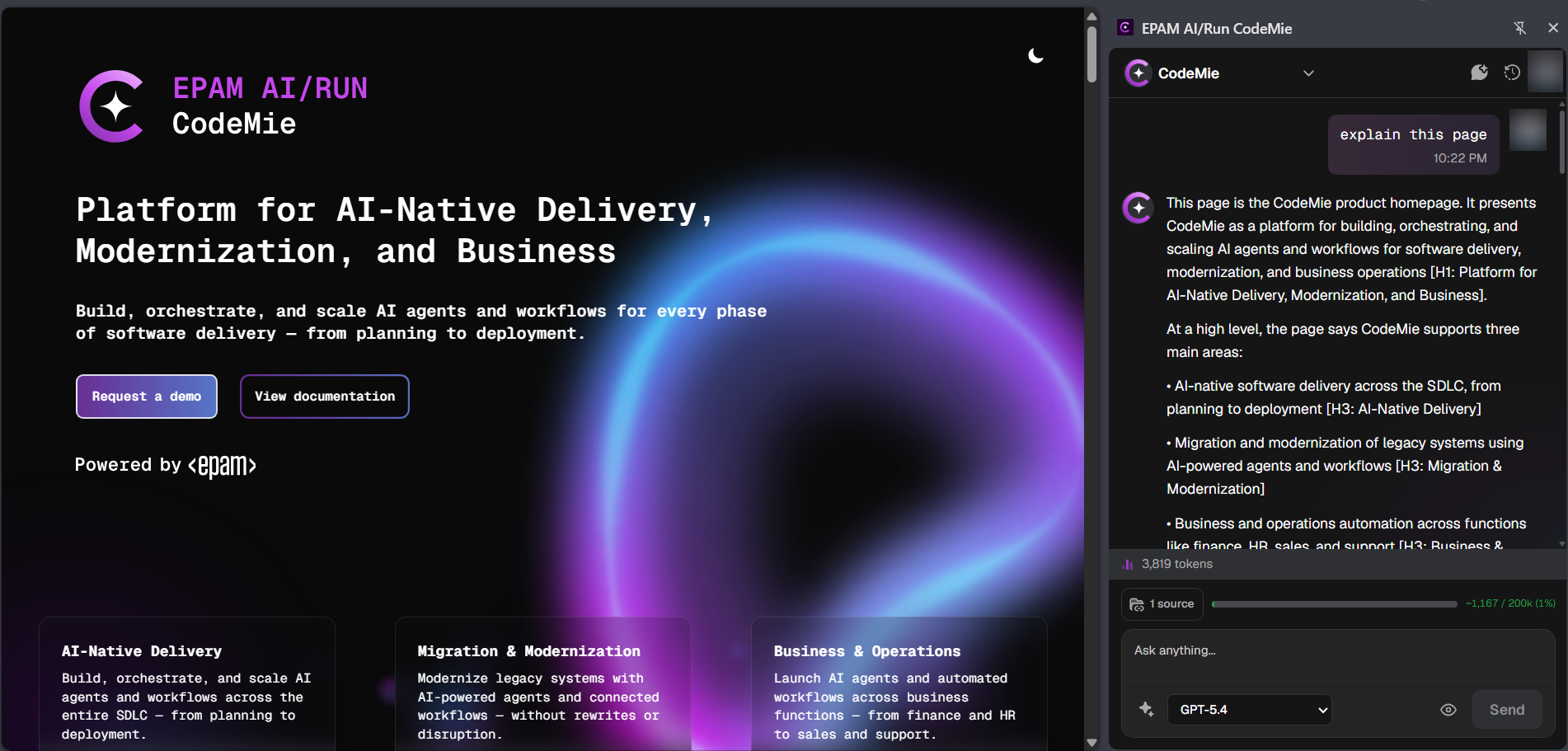
What you can do
| You can... | Like this |
|---|---|
| Ask about the page you're on | Get a summary, ask a question, or pull out details — answers are based on what's actually on the page |
| Ask about a PDF | Open a PDF from a web link and ask questions about it |
| Ask about text you select | Highlight text on a page, then ask the assistant about it from the right-click menu or the floating Ask CodeMie button |
| Let it act for you | The assistant can click, type, and fill things in for you. By default it asks before doing anything that changes the page |
| Record and replay | Record a set of actions once, then replay them later with one click |
| Bring in more context | Add web search results or other open tabs when one page isn't enough |
| Use connected tools | Some assistants come with extra tools built in — the panel can use them for you automatically |
| Keep your conversations | Chats with a chosen assistant are saved to your account and follow you across your devices |
Works on regular web pages and on PDFs opened from a web link. It can't read internal Chrome pages, the New Tab page, or the Chrome Web Store page — and it can't open PDF files saved on your own computer.
By default, the assistant asks before it clicks or types anything on a page. Turning on Auto-approve skips that check, so only turn it on for pages you trust.
Choosing an assistant
Switch between assistants using the name at the top-left of the panel — pick one of your own, or one shared by your team.
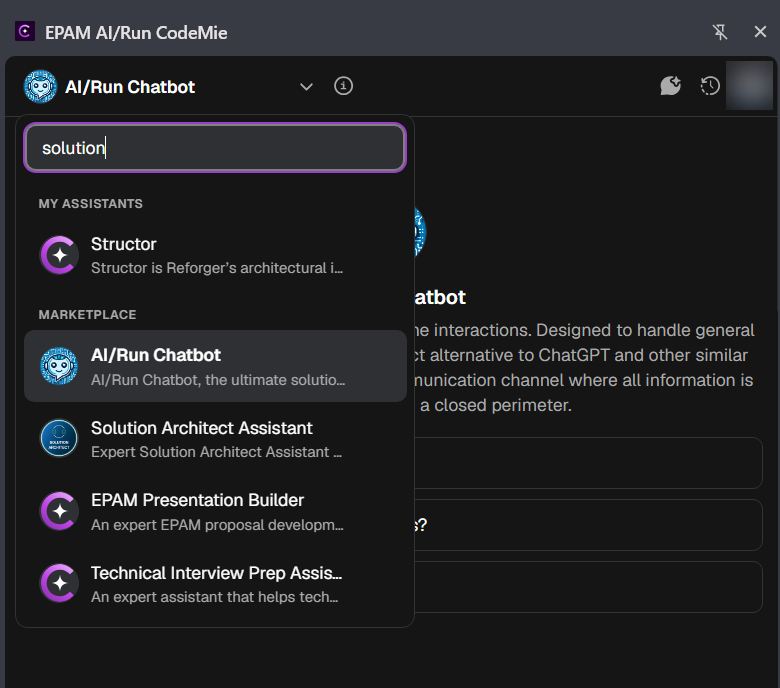
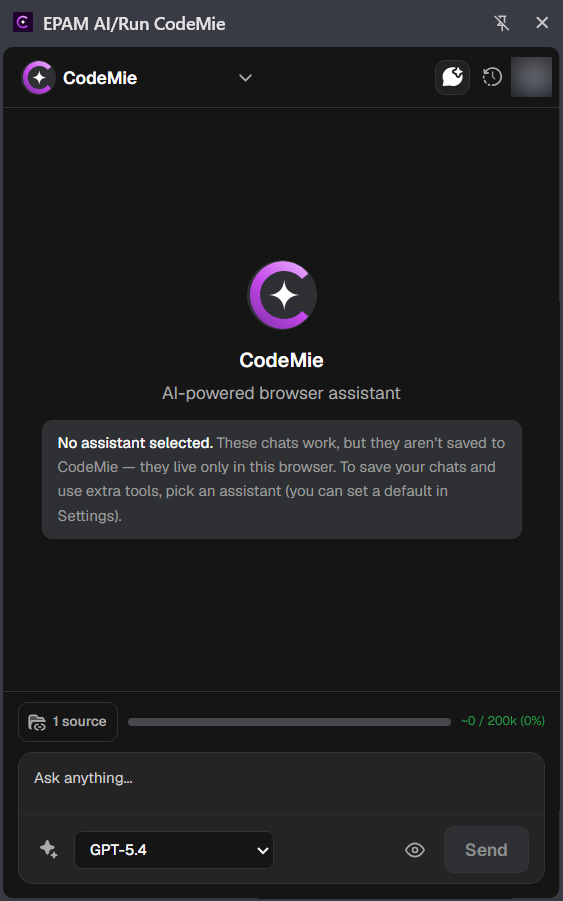
Chats with a chosen assistant are saved and follow you across devices. Chats with no assistant chosen only last for your current browser session — they aren't saved anywhere. A temporary chat is never saved, even for that session. Pick an assistant if you want your chat history to stick around and to unlock any extra tools that assistant comes with. You can set a default assistant in settings.
Controls
Above the input box is a button showing how many sources are in use (for example "2 sources"). Click it to open the sources panel and control what the assistant knows about when it answers. The model picker is a separate dropdown inside the input box itself.
| Toggle | What it does |
|---|---|
| Use page | Lets the assistant see the page you're on |
| Smart search | Finds the most relevant parts of a long page instead of reading all of it |
| Knowledge | Searches your own saved pages and notes, and adds anything relevant to your question |
| Tabs | Lets the assistant also look at your other open tabs |
Anything you save to Knowledge stays on your own computer until you delete it or remove the extension. Turning Knowledge on may send matching notes to your CodeMie instance as part of your question.
Built-in guides
The extension has its own step-by-step guides covering every feature — getting started, chatting, acting on a page, knowledge and speech, tabs, and settings. Click your avatar in the top-right of the panel and open Guide & tutorials.
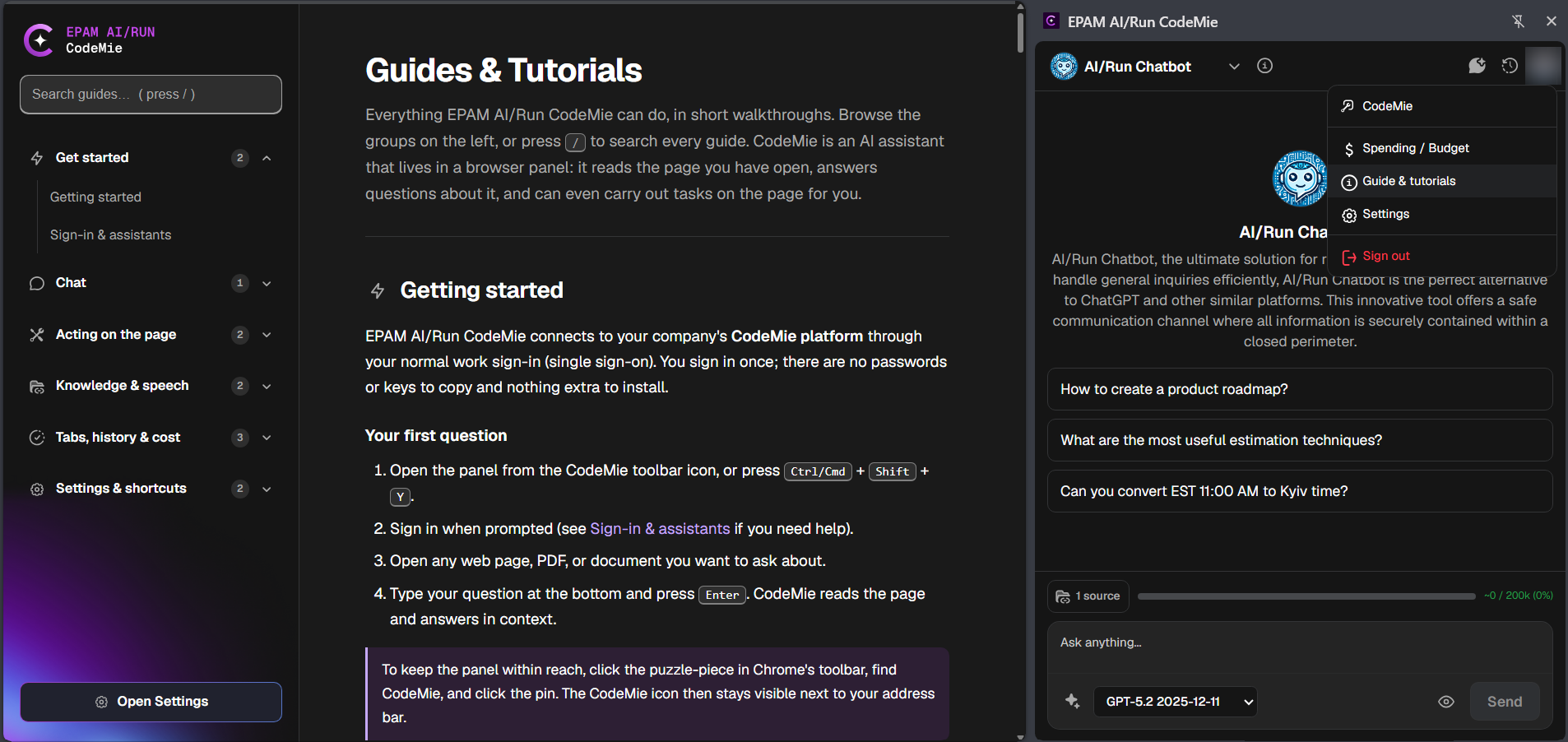
These in-app guides always match the version you have installed, so they're the best day-to-day reference. This page just covers installing the extension and how your data is handled.
Requirements
- Google Chrome 114 or newer
- An account on your organization's CodeMie
- The address of that CodeMie instance — ask your CodeMie administrator if you don't have it
Next steps
- Installation and setup — install the extension, connect it to your CodeMie instance, and sign in
- Privacy policy — what the extension reads, what it sends, and where that data goes