Installation and Setup
Installing takes a few minutes. Most of it is the normal Chrome install process. The only CodeMie-specific part is typing in your organization's CodeMie address and signing in. You'll need to sign in again if you restart Chrome or don't use the extension for a while.
Before you start
- Google Chrome 114 or newer
- An account on your organization's CodeMie
- The address of that CodeMie instance — ask your CodeMie administrator if you don't have it
Step 1: Install the extension
Open EPAM AI/Run CodeMie in the Chrome Web Store, click Add to Chrome, then Add extension to confirm. Chrome will show you what the extension can access before you install — take a look, then continue.
Step 2: Pin it to the toolbar
Chrome hides new extensions behind the puzzle-piece icon. Click that icon, find EPAM AI/Run CodeMie, and click the pin. The CodeMie icon then stays visible next to the address bar.
Step 3: Open the sign-in screen
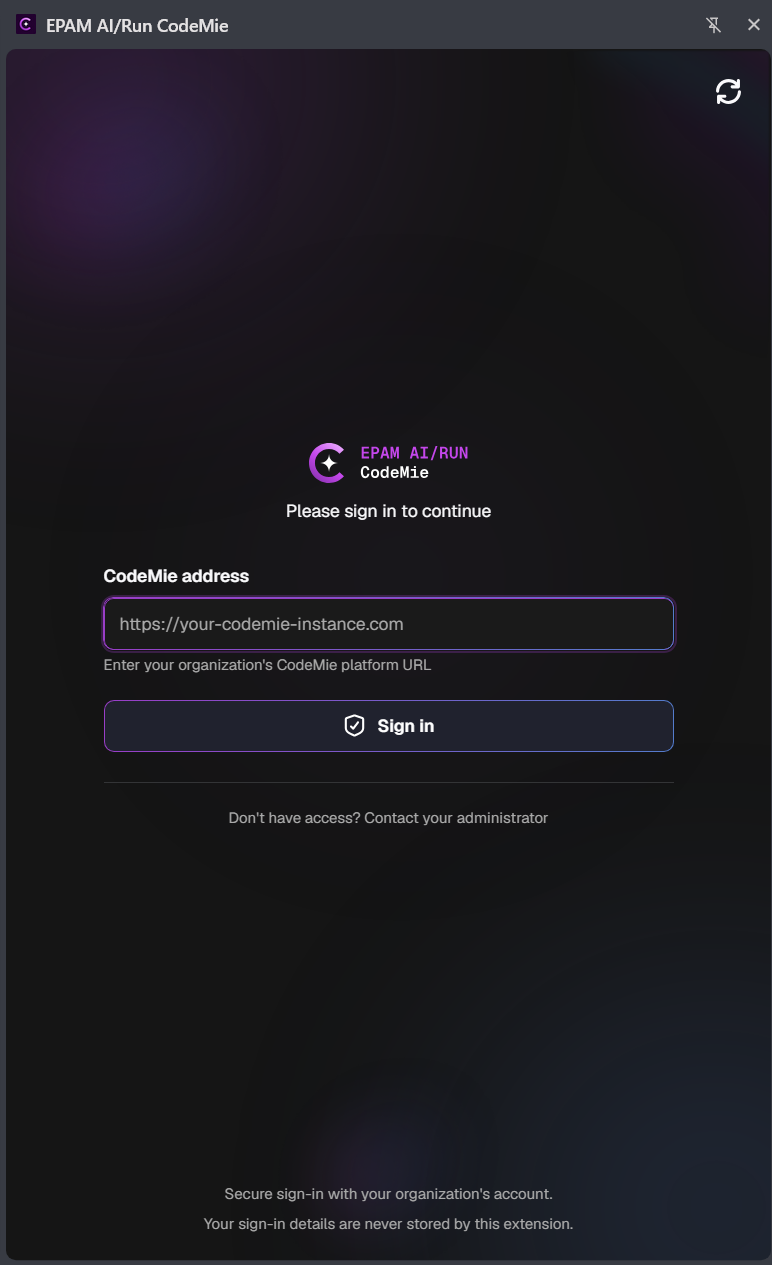
Click the CodeMie toolbar icon to open the side panel. On the sign-in screen, type your organization's
CodeMie address into the CodeMie address box — for example https://your-codemie-instance.example.
Step 4: Sign in
Click Sign in. This opens your organization's normal sign-in page in a new tab — sign in there as you usually would. Next time, the extension remembers the address you used.
While signing in, you might briefly see a blank tab open and close on its own. That's expected — it's how the extension finishes signing you in. You can close it if it stays open.
You'll need to sign in again after closing and reopening Chrome, or if you haven't used the extension for a while — sign-in doesn't refresh itself automatically.
Step 5: Open the panel
Click the CodeMie toolbar icon anytime, or use a keyboard shortcut:
| Action | Windows and Linux | macOS |
|---|---|---|
| Open the panel | Ctrl + Shift + Y | Cmd + Shift + Y |
| Close the panel | Ctrl + Shift + U | Cmd + Shift + U |
Open any regular web page, type a question at the bottom of the panel, and press Enter.
If the shortcut doesn't do anything, another extension is probably already using it. Change it at
chrome://extensions/shortcuts.
Optional settings
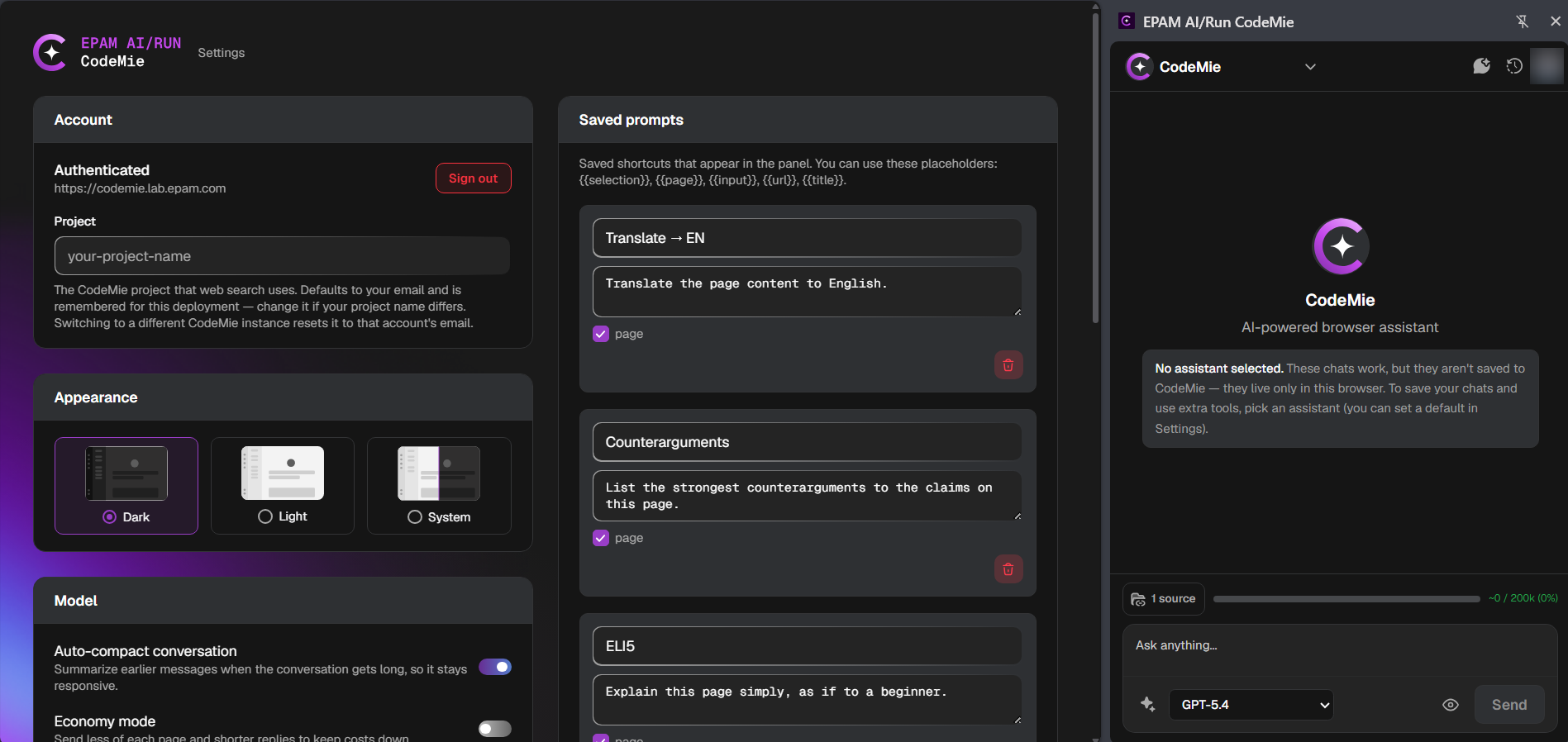
The settings page also lets you control:
- Account — see who you're signed in as, and set which project web search uses
- Appearance — light, dark, or match your system
- Model — how long conversations are automatically shortened, and which model handles long pages
- Chat history — which assistant new chats start with, and whether chats without one are saved
- Act on the page — turn page actions on or off, and limit how many steps the assistant can take
- Browser — turn the floating "Ask CodeMie" button on or off when you select text
- Saved prompts — save prompts you use often as quick shortcuts
- Advanced — extra options, including what's shared for usage tracking
- Text-to-speech — pick a voice, and choose whether answers are read aloud automatically
- Per-site overrides — use a different model or instructions on specific websites
Troubleshooting
| Problem | What to try |
|---|---|
| The panel does nothing on this page | The assistant only works on regular web pages and PDFs opened from a link. It can't open internal Chrome pages, the Chrome Web Store, or PDFs saved on your computer. If a PDF doesn't seem to work, reload the page or open the PDF's original link |
| Sign-in sends me back to the login screen | Your sign-in has probably expired, or Chrome restarted. Just sign in again |
| Sign-in fails right away | Check the CodeMie address for typos, and ask your administrator to confirm your account is active |
| The keyboard shortcut doesn't work | Another extension is probably using it. Change it at chrome://extensions/shortcuts |
| Answers don't seem to use the page | Click the sources button above the input box and make sure Use page is switched on |
Next steps
- Privacy policy — what the extension reads and where that data goes
- Click your avatar in the top-right of the panel and open Guide & tutorials for full feature walkthroughs