Projects Management
Projects are isolated workspaces that group your assistants, workflows, data sources, and integrations. Every user can create their own projects and manage team membership within them. Platform Admins can view and manage all projects across the platform. Auditors have read-only visibility of all platform projects and their spending data; create, edit, delete, and member management controls are not available to them.
To access Projects Management, click the Profile icon in the bottom-left corner → Settings → Administration → Projects management.
Projects Management is only available when Platform-managed mode is enabled. If the Projects management tab is not visible, ask your administrator to follow the Platform-managed Mode Configuration guide.
Projects List
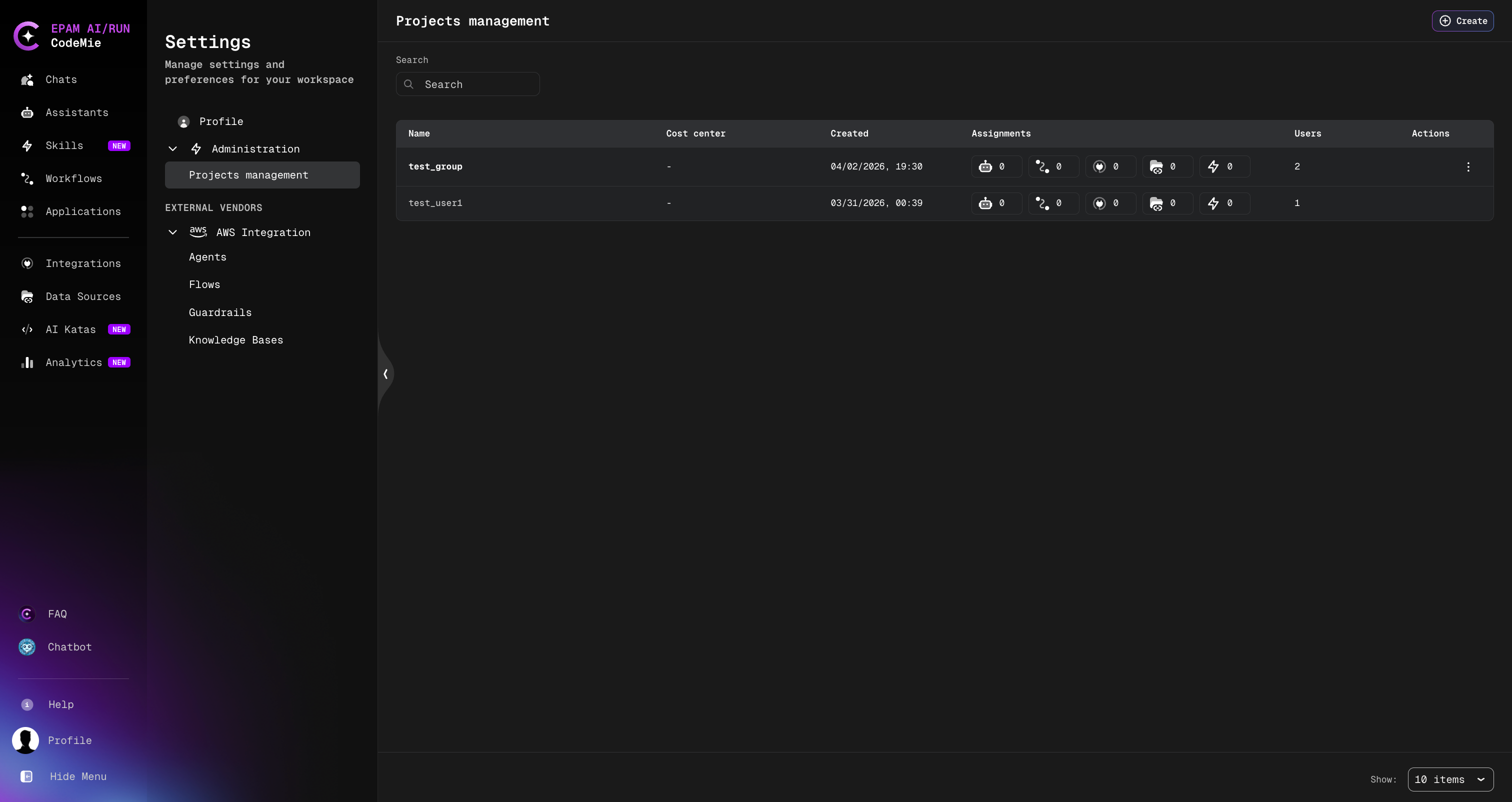
The projects list displays all projects you have access to. For each project, the table shows:
- Name — the project name (always lowercase)
- Last update — date and time of the most recent change
- Created — date the project was created
- Assignments — entity counts for linked items (users, assistants, workflows, data sources, and other resources), shown as icons with numbers
- Users — total number of members in the project
- Actions — row-level actions: View, Edit, Delete, and Change ownership (available to Platform Admins and Project Admins; not shown for personal projects)
Create a Project
- Click the Create button in the top-right corner of the Projects Management page.
- In the Create Project dialog, fill in:
- Name (required) — a unique project name. Must be lowercase only.
- Description (required) — a plain-text description of the project.
- Click Create.
The new project appears in the list immediately without a page reload.
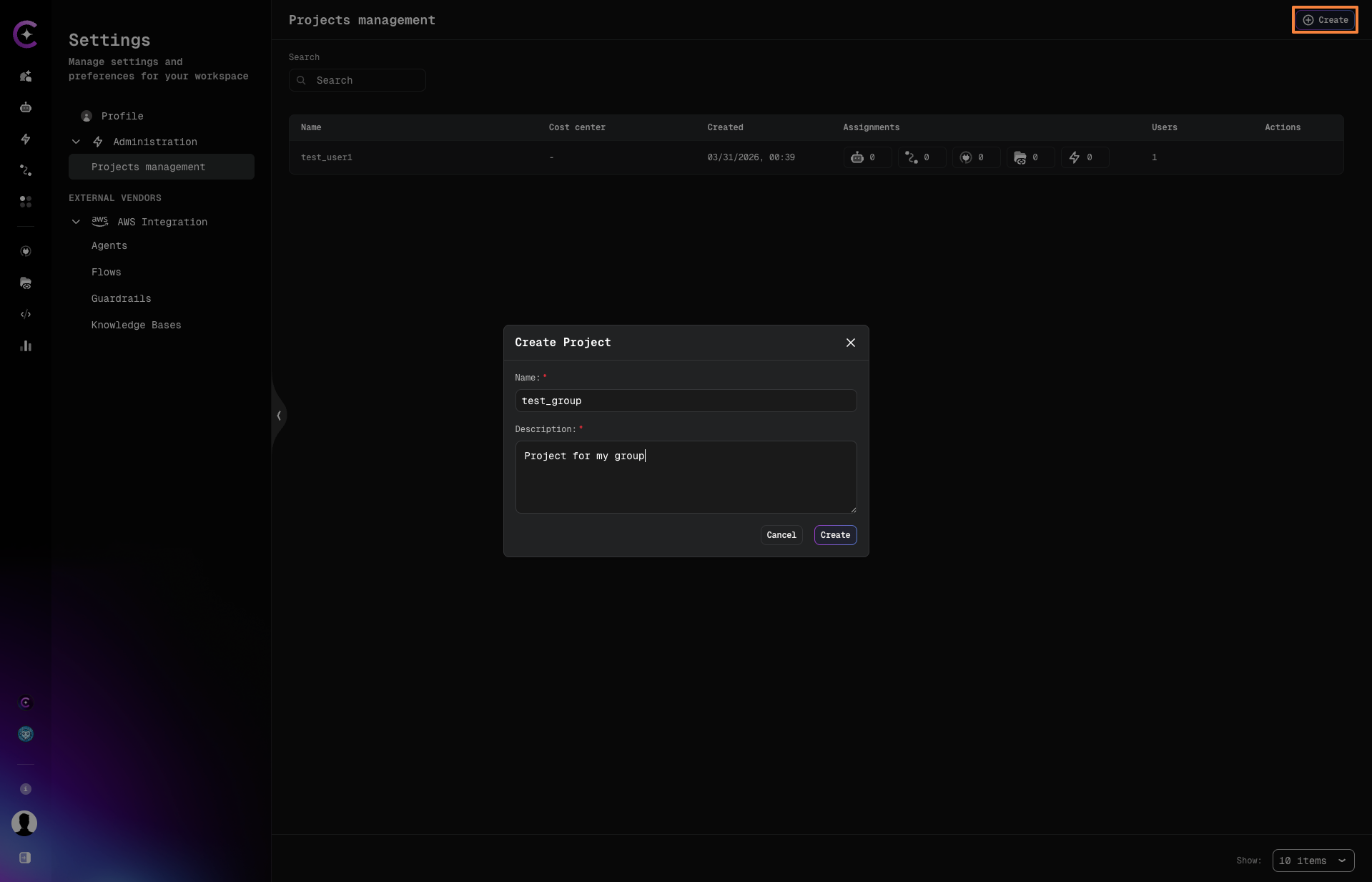
Project names must be lowercase. Uppercase characters are not accepted.
Open a Project
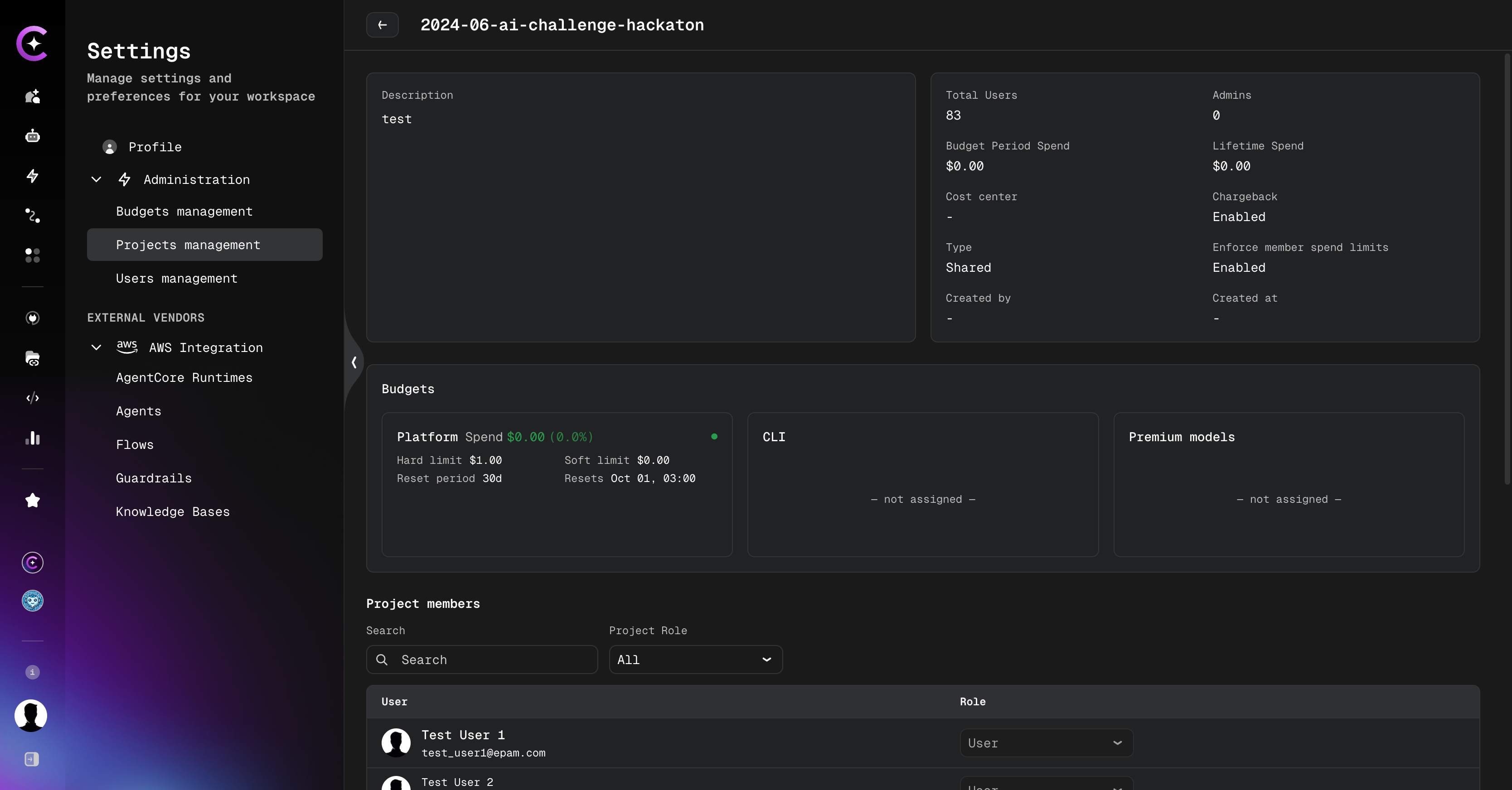
Click the ⋮ (Actions) menu on any project row and select View, or click directly on the project name. This opens the project detail page.
The project detail page is organized into tabs. The tabs available depend on the user's role and the features enabled for the deployment:
| Tab | Visible to | Requires |
|---|---|---|
| Overview | All project members | — |
| Members | All members (not on personal projects) | — |
| Models | Project Admins and Platform Admins | features:projectModelOverride flag enabled |
| Budgets | Members with budget view access | features:budgetManagement flag enabled |
| Integrations | Project Admins and Platform Admins | — |
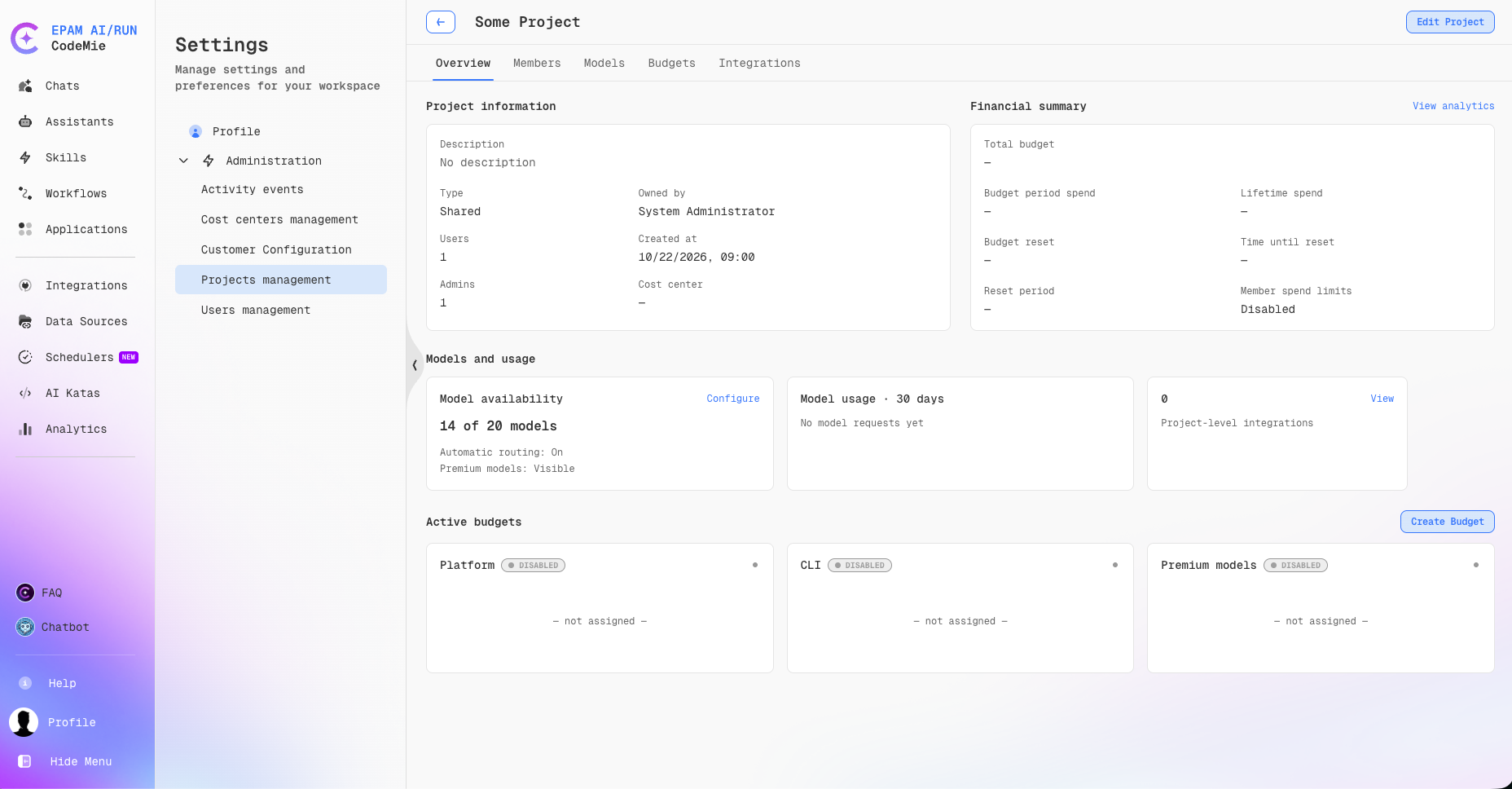
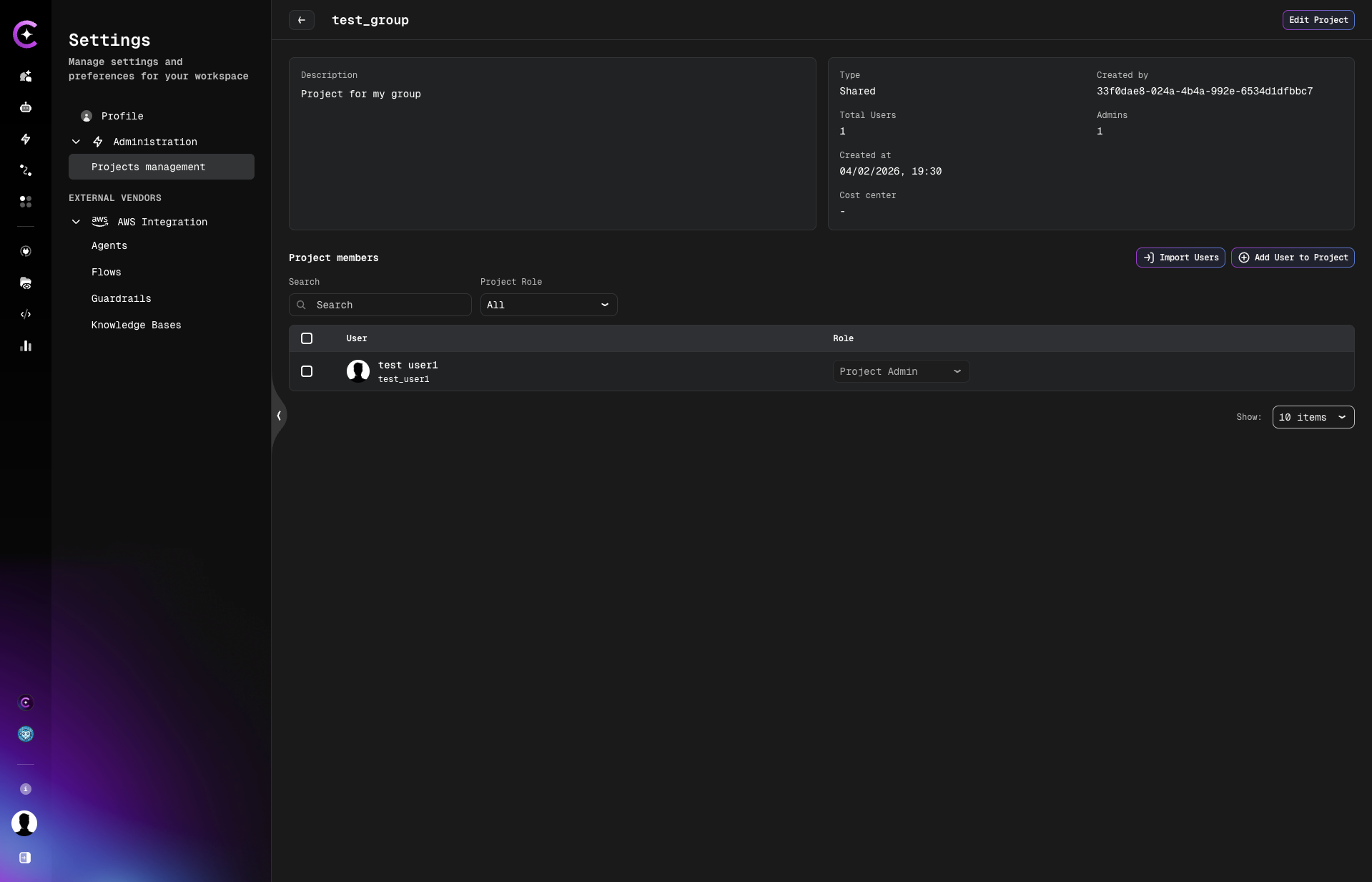
The Overview tab shows:
- Project description, type, created by, and timestamps
- Total users count and last access date
- Quick-action links to other project tabs
Edit a Project
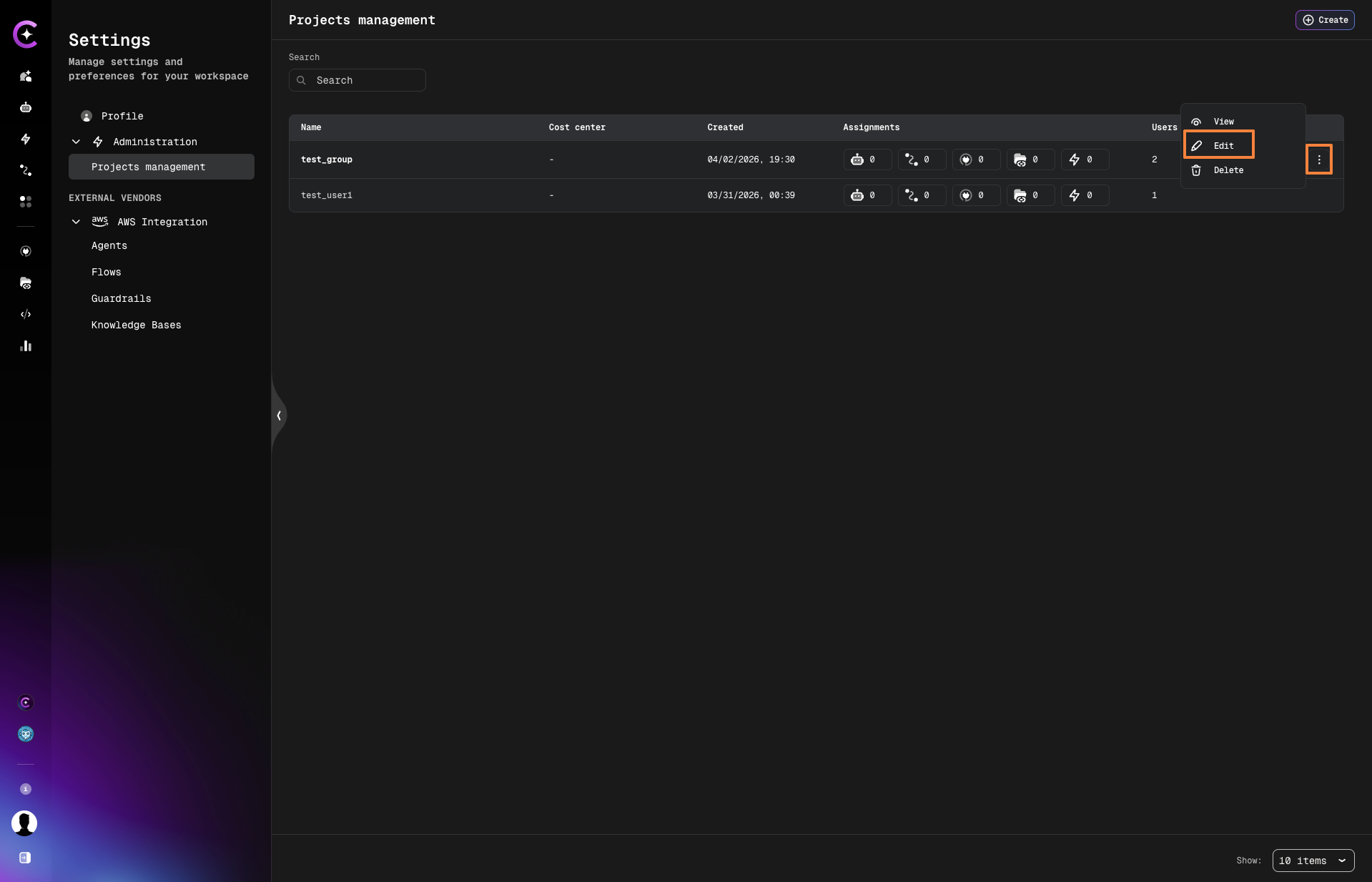
- Click the ⋮ (Actions) menu on a project row and select Edit.
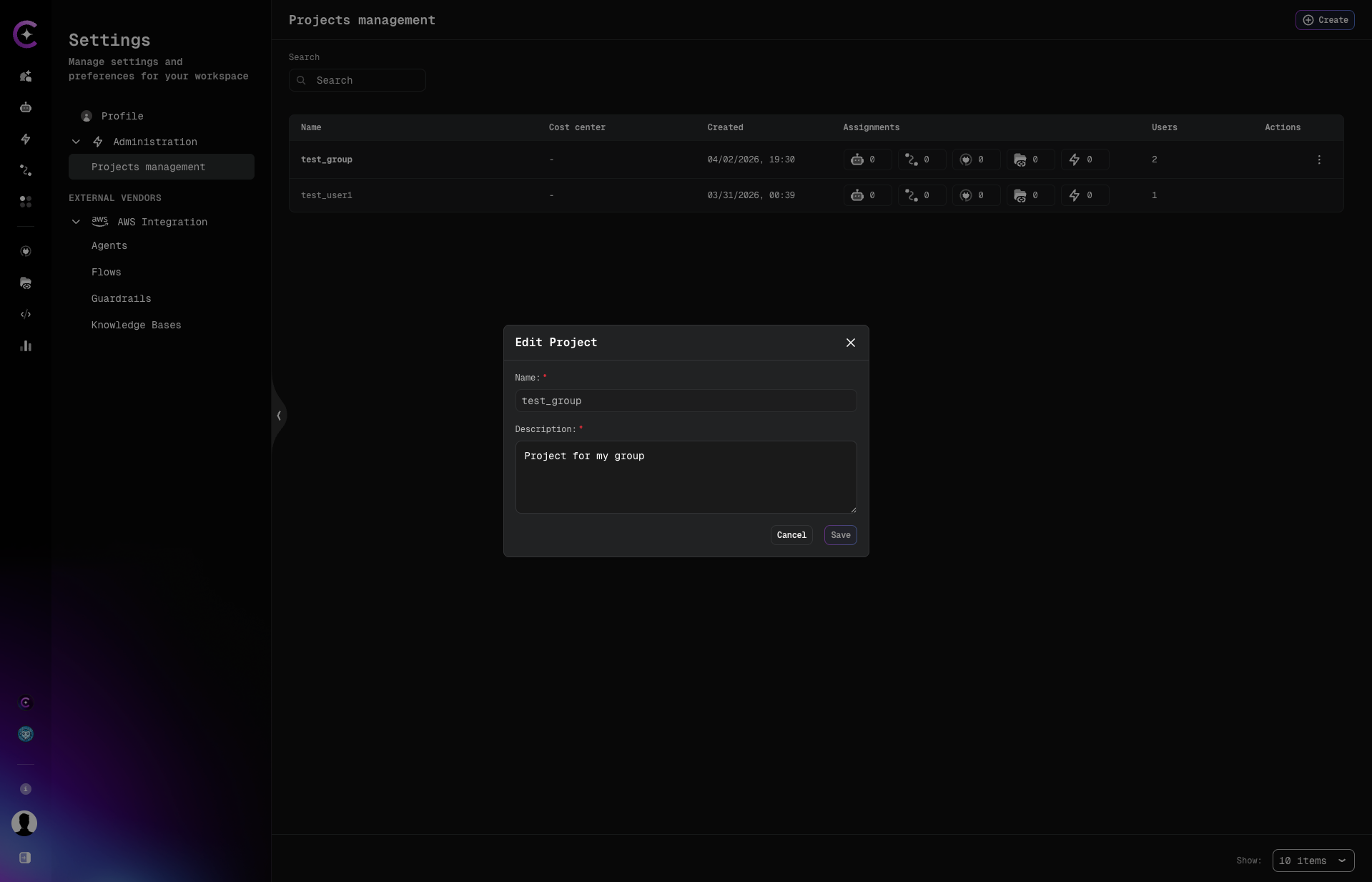
- In the Edit Project dialog, update the Description.
- Click Save.
The project name cannot be changed after creation. If you need a different name, delete the project and create a new one with the desired name.
Delete a Project
A project can only be deleted if it contains no associated entities (no users, assistants, workflows, data sources, or other items). If the project is not empty, deletion will be blocked and an error will list the blocking entities.
- Click the ⋮ (Actions) menu on the project row and select Delete.
- Confirm the deletion.
The project is removed from the list immediately.
Change Project Ownership
Platform Admins and Project Admins can transfer ownership of any project to another registered user. Personal projects cannot have their ownership changed.
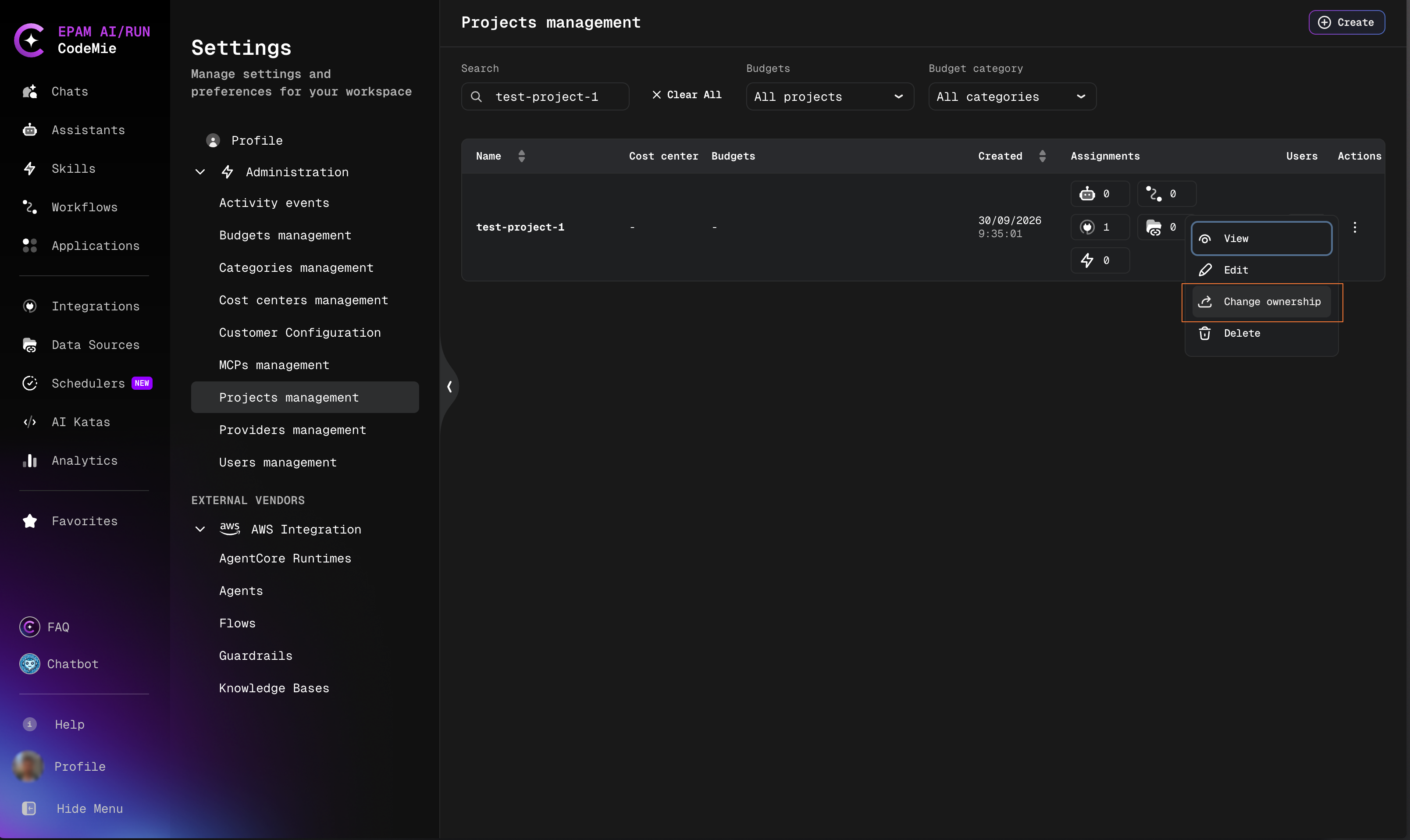
- Click the ⋮ (Actions) menu on the project row and select Change ownership.
- In the Change Ownership dialog, the current owner is displayed.
- In the New owner field, type to search by name or email, then select the target user from the results.
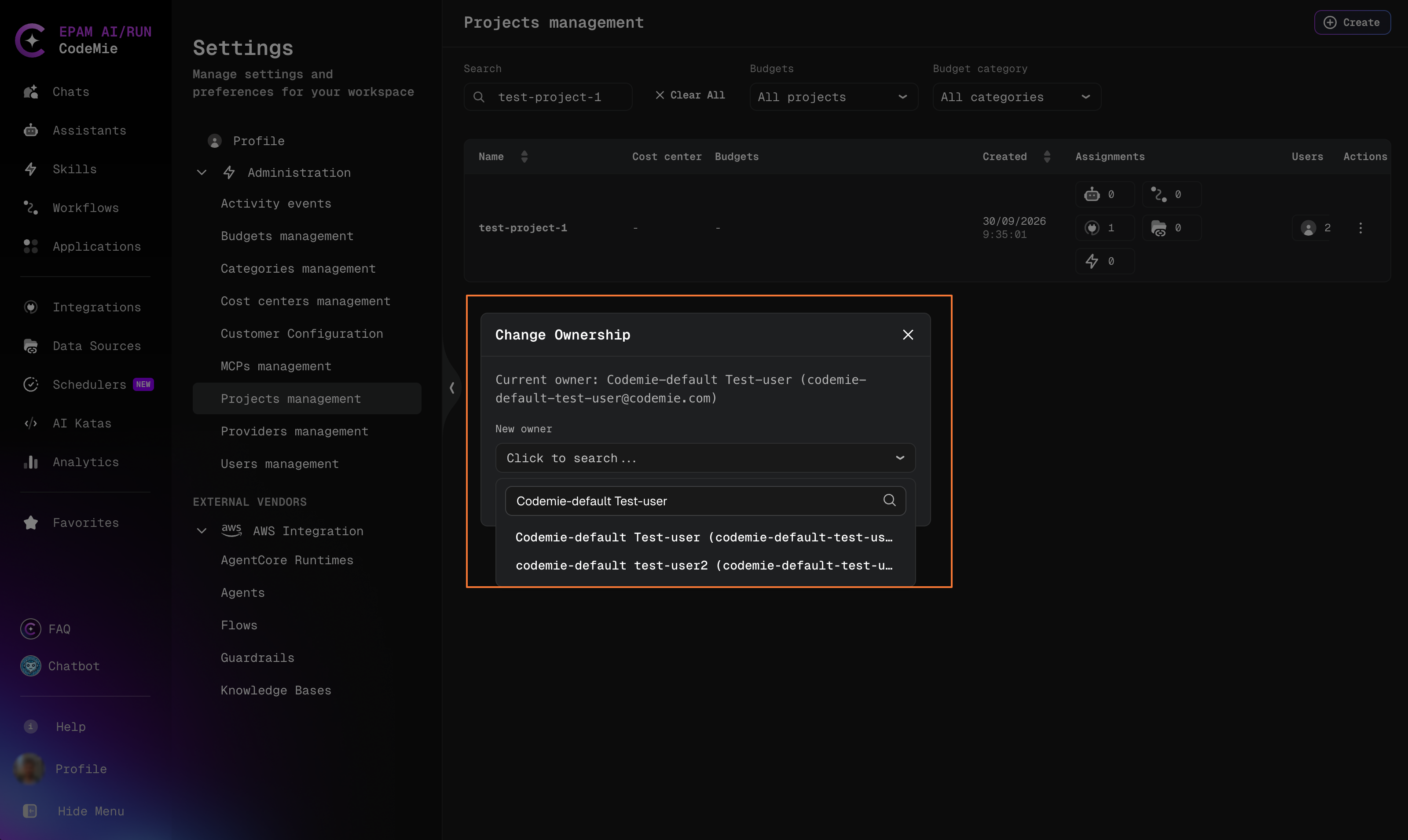
- Click Confirm.
A confirmation message appears and the projects list refreshes automatically to reflect the updated owner.
The Change ownership option does not appear in the actions menu for personal projects.
Managing Project Members
From the project detail page, you can add, import, change roles for, and remove members.
Add a User
- Click Add User to Project on the project detail page.
- In the Select user field, search for a user by name or email.
- Select the user from the dropdown.
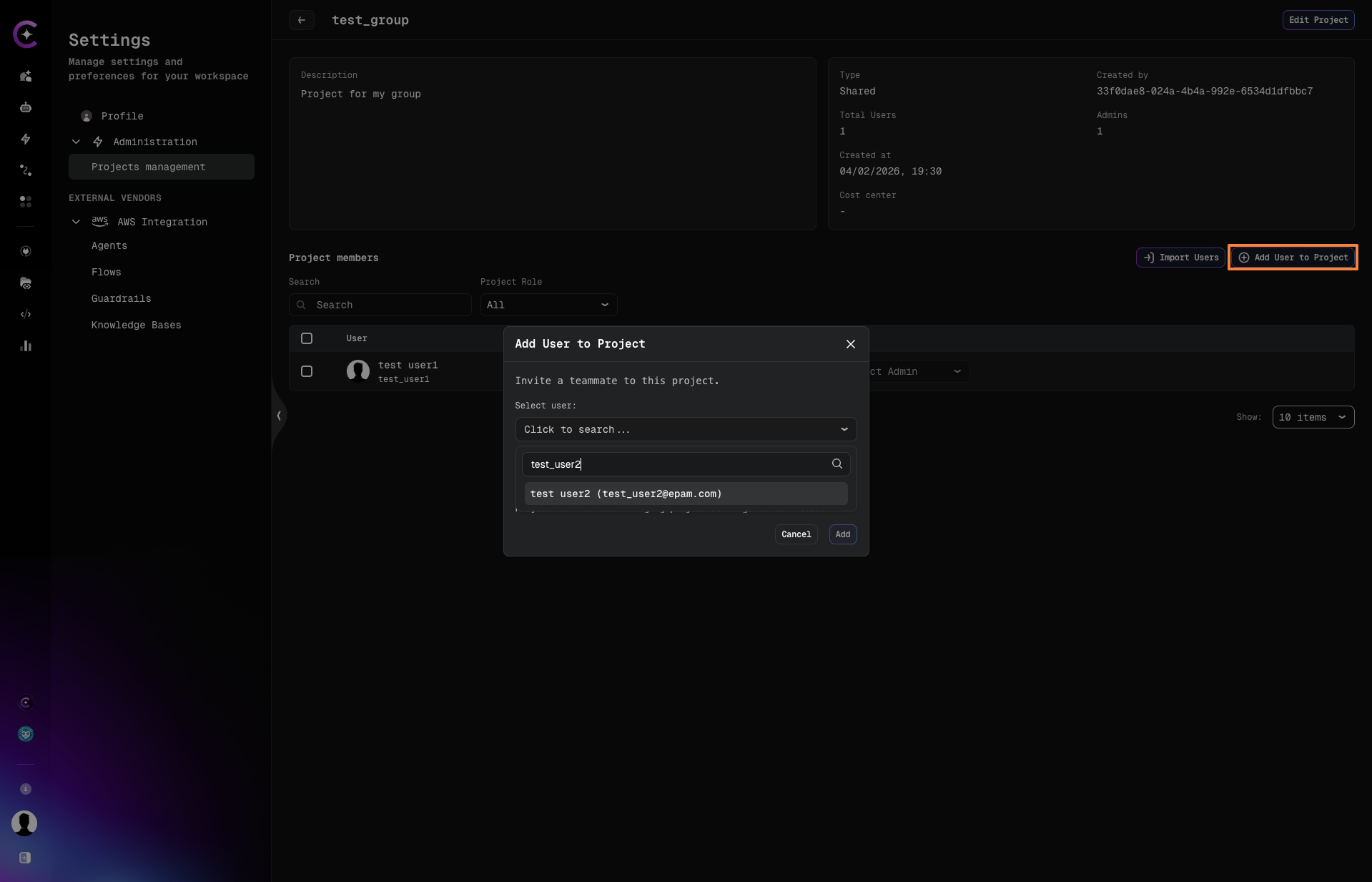
- In the Role dropdown, choose the role to assign:
- User — standard project access
- Project Admin — can manage project members and settings
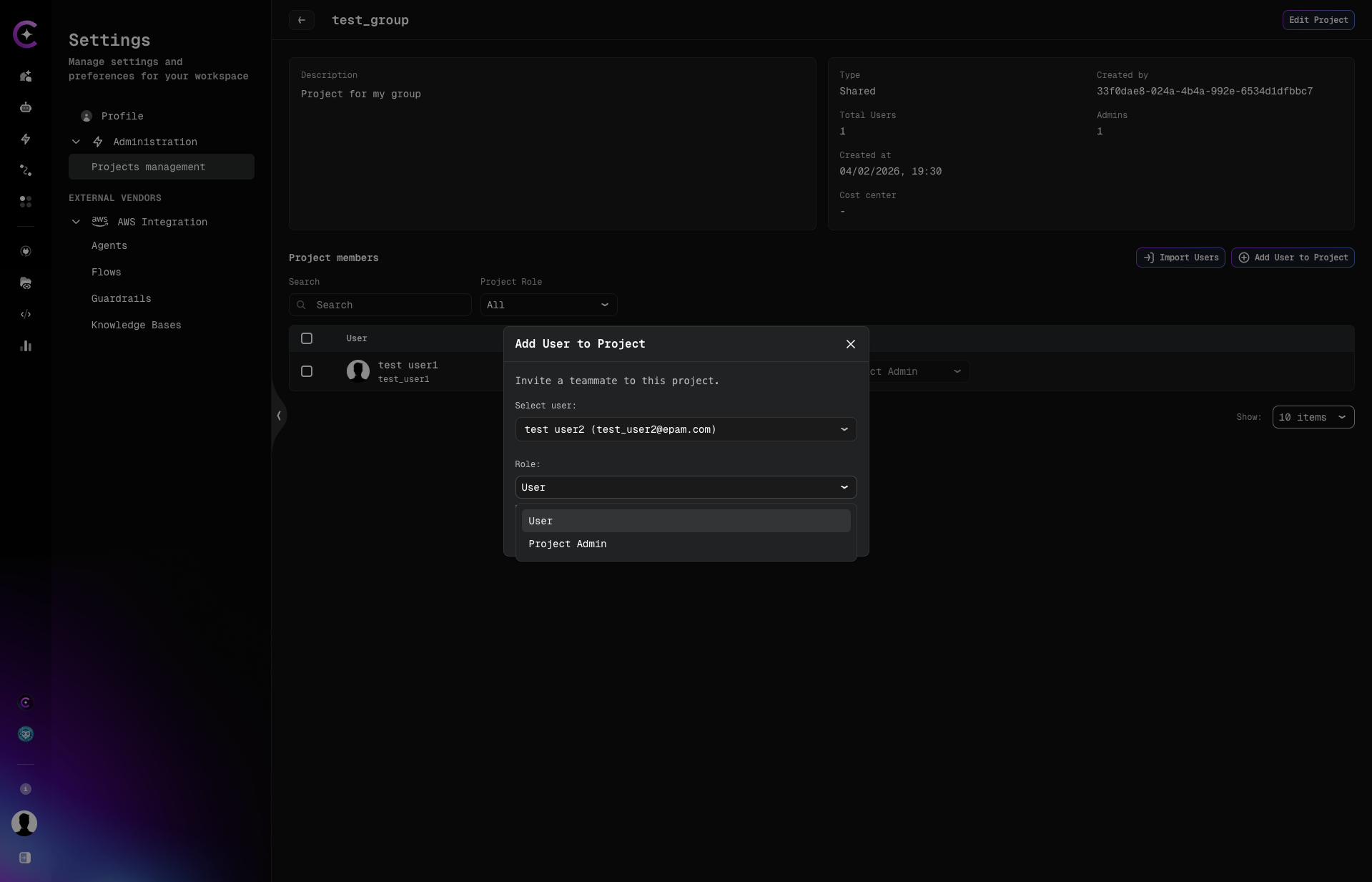
- Click Add.
The user appears in the Project Members table immediately.
If a user does not appear in the search results, they have not logged in to CodeMie yet. Ask them to sign in first — their account will be available in the search after their first login.
Import Users via CSV
To add multiple users at once:
-
Click Import Users on the project detail page.
-
In the Import Users to project dialog, upload a CSV file by clicking Upload or drop file, or drag and drop a file onto the upload area.
Use the Download template link to get a correctly formatted file.
-
Click Import.
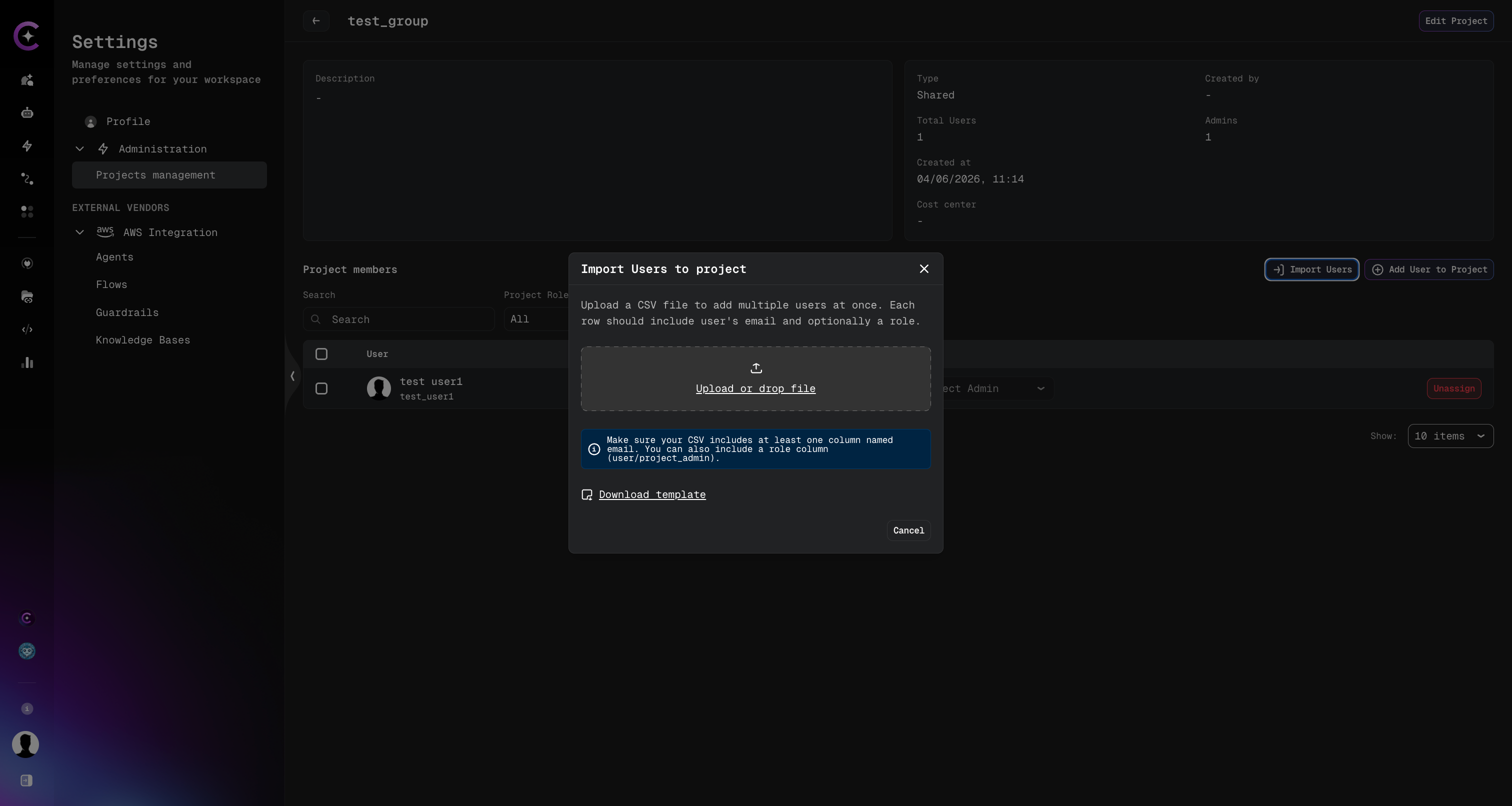
The file must have two columns:
| Column | Required | Values |
|---|---|---|
email | Yes | User's email address |
role | Yes | project_admin or user |
Example:
email,role
example@domain.com,project_admin
example2@domain.com,user
Each row represents one user to be added to the project.
Change a Member's Role
In the Project Members table, use the Role dropdown next to a user's name to switch their role between User and Project Admin. The change takes effect immediately.
Remove a Member
- In the Project Members table, click the Unassign button (or the action icon) next to the member you want to remove.
- Confirm the action in the Unassign User? dialog by clicking Unassign.
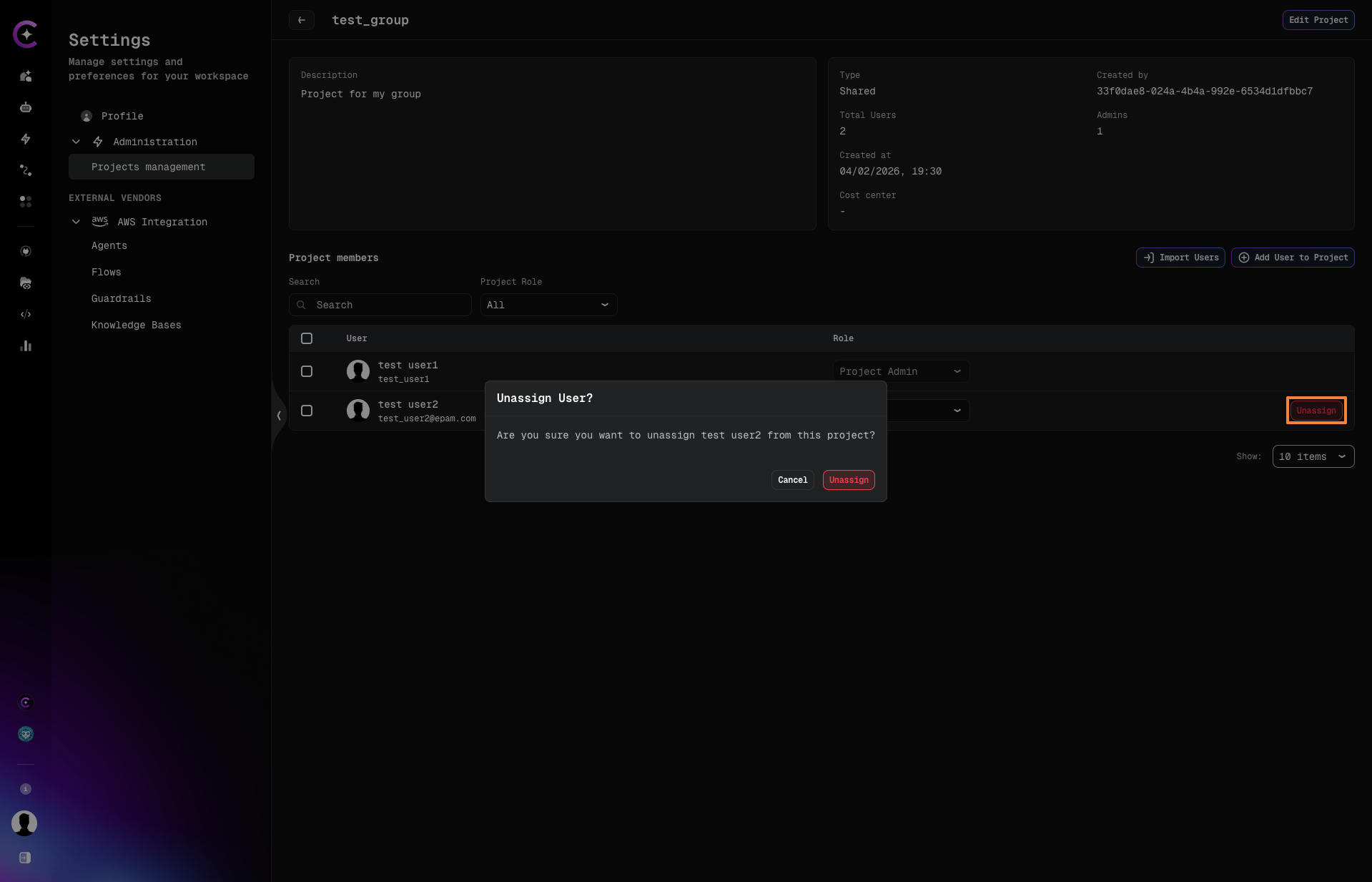
The user is removed from the project immediately. Their account is not deleted — they simply lose access to this project.
If this project was the user's default project, it stops being charged for the user's usage and a new default is determined automatically. See Default Project.
Model Configuration
The Models tab is only visible when the features:projectModelOverride flag is enabled in
customer-config.yaml. See Customer Feature Configuration for
how to enable it. The Models tab is not shown on personal projects.
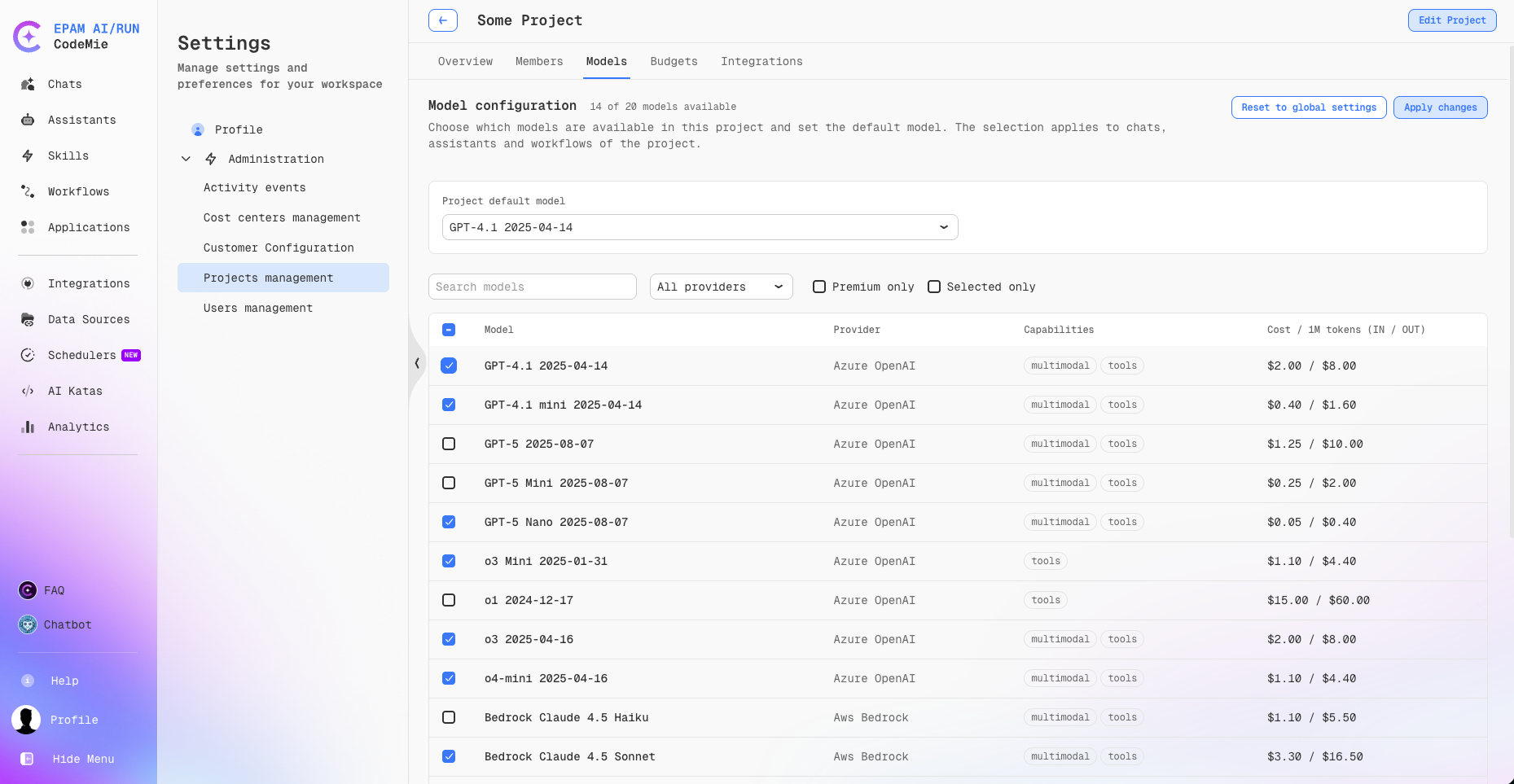
The Models tab on the project detail page lets Project Admins and Platform Admins control which LLM models are available within a project and set a project-level default model. The configuration applies to all chats, assistants, and workflows that belong to the project — including shared assistants, marketplace assistants, and workflows shared across projects.
How model availability works:
- By default, every project has access to the full platform model catalog. Narrowing is opt-in — no existing project loses access when the feature is enabled.
- Model configuration works as an exclusion set: models are deselected to rule them out. Any model newly added to the platform catalog becomes available to all projects automatically, without re-opening project settings.
- Once a project has a custom model configuration, that configuration replaces the global defaults entirely — it does not merge with them.
- A mandatory Project default model must be selected from the allowed models when saving a custom configuration.
- When an assistant or workflow in the project is configured to use a model that has since been ruled out, it silently falls back to the project's default model at runtime, without error.
- When starting a chat from the sidebar without a project-specific context, the model selector shows the global model list rather than a single project's restricted list.
When LiteLLM Proxy is deployed, model restrictions are enforced at the API level: the project's per-category virtual keys are regenerated with the updated allow-list on each save, so narrowing takes effect on the next request without any restart or redeploy.
Access
Path: Profile → Settings → Administration → Projects Management → select a project → Models
The Models tab is accessible to users with the Project Admin role within the project, and to Platform Admins across all projects.
Project Default Model
At the top of the Models tab, the Project default model selector sets the model pre-selected when members open a new chat or create an assistant in the project. Only models currently enabled in the project's configuration appear in this dropdown.
Selecting a default model is required when saving a custom model configuration. If a Premium model is selected as the default, a note appears indicating the model incurs additional usage charges with a link to the models catalog.
Model Configuration Table
Below the default model selector, the model configuration table lists all platform models available for selection, including routing models (auto-routing profiles such as "Claude Router Standard v1"). The routing Premium option is filtered out automatically when no premium models are enabled for the project.
| Column | Description |
|---|---|
| Checkbox | Enables or disables the model for the project |
| Model | Model name; a Premium badge marks premium models |
| Provider | Cloud provider (e.g., Azure OpenAI, Anthropic) |
| Capabilities | Supported capabilities (multimodal, tools) |
| Cost / 1M tokens (IN / OUT) | Per-million-token cost for input and output |
Use the Search models field, the Provider dropdown, and the Premium only or Selected only checkboxes to filter the list. The header checkbox toggles all currently visible rows on or off.
At least one chat model must remain enabled. Attempting to save with all chat models disabled is rejected with a validation message.
Models that have been removed from the platform catalog appear as no longer available in the configuration table. They remain in the list for visibility but cannot be re-enabled, and are not offered in the model selector for members.
Applying and Resetting Changes
After making changes, click Apply changes to save the configuration. If navigation away from the Models tab is attempted with unsaved changes, a dialog prompts to apply the changes, discard them, or stay on the page.
To restore the project to the platform-wide defaults, click Reset to global settings. This stages the global defaults in the form without saving immediately — click Apply changes to confirm the reset. This button is disabled when no project-specific configuration is active.
The counter next to Model configuration shows how many models are currently enabled out of
the total available (for example, 12 of 18 models available).
Overview Tab — Models and Usage
When the feature is enabled, the project Overview tab gains a Models and usage section showing a real-time summary of the project's model configuration:
| Indicator | Description |
|---|---|
| Model availability | Number of enabled models out of the full catalog (e.g., "12 of 18 models") |
| Automatic routing | Whether routing models (auto-routing profiles) are on or off for the project |
| Premium models | "Visible" if at least one premium model is enabled; "Not visible" otherwise |
A Configure link on the Model availability card navigates directly to the Models tab.