Customer Feature Configuration
Control which features, UI elements, and integrations are available to users in your CodeMie deployment through the customer-config.yaml configuration file.
Some components — banner, chatDisclaimer, features:webSearch, and releaseNotesRecentCount — can also be changed at runtime from Settings → Administration → Customer Configuration without a redeploy. The values in customer-config.yaml serve as their deployment defaults. See Dynamic Customer Configuration.
Component Overview
Use this table to quickly find where each component appears in the UI.
| Component ID | Where It Appears | When Enabled Shows | When Disabled Hides | Notes |
|---|---|---|---|---|
| CORE FEATURES | ||||
adminActions | Settings → Administration | Menu items: AI/Run Adoption, Categories, MCPs, Projects, Providers | Entire Administration menu | |
feedbackAssistant | Help Center, Quick actions (top-right) | Feedback assistant card/button | Feedback collection interface | |
mcpConnect | Assistant/Workflow config → Tools | "MCP Servers" option in dropdown | MCP integration option | |
mcpCustomServersDisabled | Assistant/Workflow config → MCP Servers | Catalog-referenced and custom MCP servers | Possibility to configure custom MCP servers | |
skills | Navigation, Chat config, Assistant config | Skills menu, skill selector, management pages | Entire Skills subsystem | Major feature gate |
aiAdoption | Analytics page, Settings → Administration | Analytics dashboard with 4 dimensions | Analytics dashboard and config | Enterprise package only |
features:cliAnalytics | Analytics page | CLI Analytics tab: per-session coding-agent cost, tooling, repository, and efficiency analytics | CLI Analytics tab | Enterprise package only; disabled by default; can also be toggled with FEATURE_CLI_ANALYTICS |
features:showAllProjects | Settings → Administration → project selector | All projects returned by admin project picker (no limit or search minimum) | Admin project picker limited to 5 results with 3-char search minimum | |
defaultConversationAssistant | New chat creation | Pre-selects specified assistant | Default behavior (no pre-selection) | Requires slug parameter |
features:personalLiteLLMIntegrations | Integrations → User tab | LiteLLM as a personal integration option for regular users | LiteLLM from personal integrations (only maintainers and administrators can manage) | Disabled by default |
subWorkflowNode | Workflow visual editor → Action nodes | Sub-workflow node UI | Sub-workflow node UI | Disabled by default; enable with features:subWorkflow |
features:subWorkflow | Workflow editor and execution | Sub-workflow configuration and execution | Sub-workflow controls; API and runtime access return 403 | Disabled by default; enable with subWorkflowNode |
| PLATFORM-MANAGED MODE | ||||
features:budgetManagement | Project detail pages, Settings → Administration | Budget columns and budget management section | Budget tracking UI | |
| DYNAMIC TOOLS (Chat Interface) | ||||
features:webSearch | Chat → Dynamic tools settings (gear icon) | "Web Search" toggle | Web search option | If both disabled, entire section hidden. Editable at runtime |
features:dynamicCodeInterpreter | Chat → Dynamic tools settings (gear icon) | "Code Interpreter" toggle | Code interpreter option | If both disabled, entire section hidden |
| BANNER, DISCLAIMER AND RELEASE NOTES | ||||
banner | All pages (top banner) | Banner message with an optional link | No banner shown | Default: disabled. Editable at runtime |
chatDisclaimer | Chat → below the message input | Non-dismissible disclaimer text with clickable links | No disclaimer shown | Default: disabled. Editable at runtime |
releaseNotesRecentCount | Release Notes page | Number of recent releases listed before older ones are grouped | — | Default: "10". Editable at runtime |
| MCP CONFIGURATION | ||||
mcpAuthTimeoutSeconds | MCP OAuth flow | MCP OAuth timeout duration | Uses default timeout | Integer, default: 60 — configurable via customer-config.yaml |
| CONTENT SECURITY | ||||
allowedImageDomains | Assistant output (chat messages, agent thoughts, markdown preview) | Images from listed domains render normally | Blocked-image badge in place of every external image | String, default: "" — comma-separated hostnames; empty denies all external images |
| TOOL PERMISSIONS | ||||
tool_permissions | Assistant config → Tools section; Chat prompt (if override allowed) | "Tool Calls" policy dropdown (Manual/Guarded/Auto) and "Allow override" toggle | Tool call policy controls — all tool calls auto-approve | min_tool_call_policy sets a customer-wide floor that clamps the effective policy |
| HELP CENTER LINKS | ||||
videoPortal | Help Center → Learning Resources | Link card with "Open Guide" button | Link card | |
youtubeChannel | Help Center → Learning Resources | YouTube channel link card | Link card | |
userGuide | Help Center → Learning Resources | Documentation link card | Link card | |
userSurvey | Help Center → Learning Resources | Survey form link card | Link card | |
| CONTEXTUAL HELP (Conditional Display) | ||||
helpLinks:assistants:creating | Create Assistant page (top-right) | Help documentation link | No documentation link | Triggers: Page load |
helpLinks:assistants:tools | Assistant config → Tools section | Help documentation link | No documentation link | Triggers: User opens tools |
helpLinks:workflows:creating | Create Workflow page (top-right) | Help documentation link | No documentation link | Triggers: Page load |
helpLinks:workflows:configuration | Workflow editor → YAML tab | Help documentation link | No documentation link | Triggers: User switches to YAML |
helpLinks:integrations:selection:<type> | Integration creation form | Help link for selected type | No documentation link | Triggers: User selects type from dropdown |
helpLinks:datasources:selection:<type> | Data source creation form | Help link for selected type | No documentation link | Triggers: User selects type from dropdown |
| ASSISTANT FEATURES | ||||
features:favorites | Assistants list, Skills list, Workflows list | Favorite/Unfavorite action buttons | Favorite actions hidden | |
features:pinnedAssistants | Assistants list, Navigation sidebar | Pin/Unpin actions and Pinned Assistants sidebar section | Pin actions and sidebar section hidden | |
features:favoritesPage | Main navigation | Favorites page and navigation link | Favorites page and nav link hidden | Default: disabled |
| DATASOURCE FEATURES | ||||
features:schedulersView | Main navigation | Schedulers navigation item | Schedulers navigation item hidden | Enabled by default; configurable via Customer Configuration UI |
features:sharepointCodeMieOAuth | Data Sources → SharePoint setup form | "Sign in with Microsoft (CodeMie Project)" authentication option | SharePoint PKCE auth option hidden | Requires SHAREPOINT_PKCE_ENABLED=true |
| INTEGRATED APPLICATIONS | ||||
applications:<your-app-id> | Applications menu | Application card with icon | Application card | Type: module, iframe, or link |
| PRECONFIGURED ASSISTANTS | ||||
| Any assistant ID | Assistants list, New chat dropdown, Help Center → AI Help | Assistant appears in all locations | Assistant hidden from all locations | Default: enabled if not configured |
Configuration Parameters
All parameters are organized into two main sections: components and preconfigured_assistants.
Component Structure
Every component entry shares the same base shape:
components:
  - id: "componentId"   # Unique identifier (kebab-case)
    settings:
      enabled: true     # Required — shows (true) or hides (false) the component
Additional fields depend on the component category and are shown before each section below.
Parameter availableForExternal
See External User (availableForExternal) in the glossary.
Parameter slug
See Slug in the glossary.
Component Categories
Help Center
Controls the Help Center menu - links to learning materials and support resources shown in the global UI. See Help Center user guide for details on how users access these resources.
Where it appears: Help Center page (accessible via navbar → Help icon or /help route)
How it works:
- When
enabled: true- Link appears in the "Learning Resources" section of Help Center - When
enabled: false- Link is hidden from Help Center page - Each component adds a clickable card with name, description, and "Open Guide" button
Fields used in this section:
settings:
  enabled: true                  # Required
  name: "Display Name"           # Card label shown in Help Center
  url: "https://example.com"     # URL opened when user clicks the card
  availableForExternal: true     # Optional — false hides from external users
Example Configuration:
components:
  # Internal video portal with learning materials
  # Hidden from external users (contractors, partners)
  # Example: https://videoportal.epam.com/channel/z1Je1k9Jv5/videos
  - id: "videoPortal"
    settings:
      name: "Video Portal"
      enabled: true
      url: "https://videoportal.company.com/channel/codemie/videos"
      availableForExternal: false

  # Public YouTube channel with CodeMie tutorials and demos
  # Visible to all users including external
  - id: "youtubeChannel"
    settings:
      name: "YouTube Channel"
      enabled: true
      url: "https://www.youtube.com/@YourCompanyCodeMie"

  # Main documentation site - always visible
  - id: "userGuide"
    settings:
      name: "Documentation"
      enabled: true
      url: "https://docs.codemie.ai"

  # User feedback survey - collect user satisfaction data
  # Hidden from external users
  - id: "userSurvey"
    settings:
      name: "User Survey Form"
      enabled: true
      availableForExternal: false
      url: "https://forms.office.com/your-survey-form-url"
Platform Features
Core platform functionality and UI features.
Fields used in this section:
settings:
  enabled: true         # Required
  slug: "assistant-id"  # Only for defaultConversationAssistant — pre-selects this assistant in new chats
components:
  # WHERE: Settings → Administration menu
  # ENABLED: Shows menu items - AI/Run Adoption Framework, Categories management,
  #          MCPs management, Projects management, Providers management
  # DISABLED: Hides entire Administration menu section
  - id: "adminActions"
    settings:
      enabled: true

  # WHERE: 1) Help Center page → "Share Your Feedback" section
  #        2) Quick actions button (top-right corner)
  # ENABLED: Shows feedback assistant card/button, opens chat with feedback assistant
  # DISABLED: Hides feedback collection interface
  - id: "feedbackAssistant"
    settings:
      enabled: true

  # WHERE: Assistant/Workflow configuration → Tools/Integrations selection
  # ENABLED: Shows "MCP Servers" option in tools dropdown, allows connecting MCP servers
  # DISABLED: Hides MCP integration option, users cannot add MCP servers as tools
  - id: "mcpConnect"
    settings:
      enabled: true

  # WHERE: Assistant/Workflow configuration → MCP Servers
  # ENABLED: Restricts users to catalog-referenced MCP servers only.
  #          Custom inline MCP server configuration is not permitted.
  # DISABLED: Users can configure both catalog-referenced and custom MCP servers
  - id: "mcpCustomServersDisabled"
    settings:
      enabled: false

  # WHERE: Chat conversation → After each assistant message
  # ENABLED: Shows thumbs up/down buttons below assistant responses
  # DISABLED: Hides like/dislike rating buttons
  - id: "likeForm"
    settings:
      enabled: false

  # WHERE: Confluence data source configuration pages
  # ENABLED: Shows integration setup notifications and guidance messages
  # DISABLED: Hides Confluence-specific help messages
  - id: "confluenceIntegrationMessage"
    settings:
      enabled: true

  # WHERE: Assistant configuration → Remote Assistant connection settings
  # ENABLED: Allows connecting to assistants hosted on external infrastructure
  # DISABLED: Hides remote assistant connection options
  - id: "remoteAssistant"
    settings:
      enabled: true

  # WHERE: New chat creation
  # ENABLED: Pre-selects specified assistant (by slug) when user starts new chat
  # DISABLED: Uses default behavior (no pre-selection)
  # NOTE: Requires 'slug' parameter pointing to assistant ID
  - id: "defaultConversationAssistant"
    settings:
      enabled: true
      slug: "ai-run-chatbot"

  # WHERE: Cloud provider integrations configuration
  # ENABLED: Shows AWS-specific integration options (Bedrock, AWS services)
  # DISABLED: Hides AWS integration options
  - id: "vendorIntegrationAWS"
    settings:
      enabled: true

  # WHERE: Workflow editor page → Editor mode toggle
  # ENABLED: Shows visual drag-and-drop editor (React Flow) alongside YAML editor
  # DISABLED: Shows YAML editor only (no visual builder)
  - id: "visualWorkflowEditor"
    settings:
      enabled: true

  # WHERE: Workflow visual editor → Action nodes
  # ENABLED: Shows the Sub-workflow node UI when features:subWorkflow is also enabled
  # DISABLED: Hides the Sub-workflow node UI
  # NOTE: Disabled by default; keep aligned with features:subWorkflow
  - id: "subWorkflowNode"
    settings:
      enabled: false

  # WHERE: Workflow editor, Sub-workflow API endpoints, and workflow execution
  # ENABLED: Allows users to configure and execute Sub-workflow nodes
  # DISABLED: Hides Sub-workflow controls; API and runtime requests are rejected
  # NOTE: Disabled by default; keep aligned with subWorkflowNode to avoid 403 responses
  - id: "features:subWorkflow"
    settings:
      enabled: false

  # WHERE: Dashboard page
  # ENABLED: Allows users to customize dashboard layout and widgets
  # DISABLED: Shows static dashboard layout (no customization)
  - id: "feature:dashboardCustomization"
    settings:
      enabled: true

  # WHERE: Workflow execution results display
  # ENABLED: Renders workflow state outputs as formatted markdown
  # DISABLED: Shows raw text output
  - id: "feature:renderStateOutputAsMarkdown"
    settings:
      enabled: true

  # WHERE: Custom assistant creation → Icon selection
  # ENABLED: Allows AI-generated icons for custom assistants
  # DISABLED: Uses default icons only
  - id: "features:generatedAssistantIcons"
    settings:
      enabled: true

  # WHERE: Integrations → User tab
  # ENABLED: Regular users see LiteLLM as a personal integration option and can
  #          create and manage their own LiteLLM credentials
  # DISABLED: LiteLLM is unavailable in personal integrations; only maintainers
  #           and administrators can manage LiteLLM integrations
  # NOTE: Disabled by default; enable only when users should self-manage their LiteLLM keys
  - id: "features:personalLiteLLMIntegrations"
    settings:
      enabled: true

  # WHERE: Project detail pages, Settings → Administration → Budget management
  # ENABLED: Shows budget columns in project lists and budget management section on project detail pages
  # DISABLED: Hides all budget tracking UI
  - id: "features:budgetManagement"
    settings:
      enabled: true

  # WHERE: Settings → Administration → project selector dropdown (admin-only)
  # ENABLED: Admin project picker returns all projects with no result limit and no minimum search length
  # DISABLED: Admin project picker returns up to 5 results and requires at least 3 characters to search
  - id: "features:showAllProjects"
    settings:
      enabled: true
Advanced Features
Fields used in this section:
settings:
  enabled: true
  name: "Feature Name"       # Label shown in navigation or UI
  description: "..."         # Tooltip or subtitle (optional)
  availableForExternal: true # Optional — false hides from external users
components:
  # WHERE: 1) Main navigation → "Skills" menu item (with "NEW" badge)
  #        2) Chat configuration → Skills selector
  #        3) Assistant configuration → Skills attachment
  # ENABLED: Shows entire Skills subsystem - navigation, management pages, skill selection
  # DISABLED: Hides all Skills UI - navigation item removed, skill selection unavailable
  # NOTE: This is a major feature gate affecting multiple UI areas
  - id: "skills"
    settings:
      enabled: true
      name: "Skills"
      description: "Modular knowledge units that provide domain-specific instructions to assistants"

  # WHERE: 1) Analytics page → AI Adoption dashboard
  #        2) Settings → Administration → AI Adoption Config
  #        3) Main navigation (Enterprise package only)
  # ENABLED: Shows analytics dashboard with maturity tracking across 4 dimensions:
  #          user engagement, asset reusability, expertise distribution, feature adoption
  # DISABLED: Hides analytics dashboard and adoption configuration pages
  # NOTE: Enterprise package feature only
  - id: "aiAdoption"
    settings:
      enabled: true
      name: "AI Adoption Analytics"
      description: "AI Adoption Framework analytics for measuring and tracking AI maturity across dimensions"
      availableForExternal: false

  # WHERE: Analytics page → CLI Analytics tab
  # ENABLED: Shows per-session coding-agent cost, tooling, repository, and efficiency analytics
  # DISABLED: Hides the CLI Analytics tab
  # NOTE: Enterprise package feature only. Requires the backend ClickHouse and OTel Collector
  #       environment variables — see CodeMie API Configuration Reference (CLI Analytics section).
  #       Can also be toggled at runtime with FEATURE_CLI_ANALYTICS=true, which overrides `enabled`.
  #       `deliveryFramework` classifies sessions by the prefix of the coding-agent skill/framework
  #       identifier, falling back to `fallbackLabel` when no rule matches.
  - id: "features:cliAnalytics"
    settings:
      enabled: false
      name: "CLI Analytics"
      description: "CLI Analytics tab and OTEL proxy: per-session coding-agent cost, tooling, repository and efficiency analytics"
      availableForExternal: false
      deliveryFramework:
        rules:
          - regex: "^sdlc-factory:"
            label: "CodeMie AI Factory"
          - regex: "^superpowers:"
            label: "Superpowers"
          - regex: "^bmad-"
            label: "BMAD"
          - regex: "^opsx:"
            label: "OpenSpec"
          - regex: "^speckit\\."
            label: "Spec Kit"
        fallbackLabel: "Pure chat"

  # WHERE: Chat interface → Dynamic tools settings (gear icon in chat input)
  # ENABLED: Shows "Web Search" toggle, enables Google Search, Tavily Search, Web Scraper
  # DISABLED: Hides web search option from dynamic tools
  # NOTE: If both webSearch and dynamicCodeInterpreter are disabled, entire tools section is hidden
  - id: "features:webSearch"
    settings:
      enabled: true
      name: "Web Search"
      description: "Enable web search capabilities including Google Search, Tavily Search, and Web Scraper"

  # WHERE: Chat interface → Dynamic tools settings (gear icon in chat input)
  # ENABLED: Shows "Code Interpreter" toggle, enables Python code execution
  # DISABLED: Hides code interpreter option from dynamic tools
  # NOTE: If both webSearch and dynamicCodeInterpreter are disabled, entire tools section is hidden
  - id: "features:dynamicCodeInterpreter"
    settings:
      enabled: true
      name: "Code Interpreter"
      description: "Enable Python code execution and data analysis capabilities"

  # WHERE: Assistants list, Skills list, Workflows list
  # ENABLED: Shows favorite/unfavorite action buttons on items
  # DISABLED: Hides favorite actions
  - id: "features:favorites"
    settings:
      enabled: true
      name: "Favorites"
      description: "Enable favorite/unfavorite actions for assistants, skills, and workflows"

  # WHERE: Assistants list, Navigation sidebar
  # ENABLED: Shows pin/unpin actions and Pinned Assistants section in sidebar
  # DISABLED: Hides pin actions and pinned assistants sidebar section
  - id: "features:pinnedAssistants"
    settings:
      enabled: true
      name: "Pinned Assistants"
      description: "Enable pin/unpin actions for assistants and the pinned assistants sidebar section"

  # WHERE: Main navigation
  # ENABLED: Shows dedicated Favorites page and its navigation link
  # DISABLED: Hides Favorites page and navigation link
  # NOTE: Disabled by default
  - id: "features:favoritesPage"
    settings:
      enabled: false
      name: "Favorites Page"
      description: "Enable the dedicated Favorites page and its navigation link"

  # WHERE: Main navigation sidebar
  # ENABLED: Shows Schedulers navigation item
  # DISABLED: Hides Schedulers navigation item
  # NOTE: Enabled by default; can be overridden in Customer Configuration UI
  - id: "features:schedulersView"
    settings:
      enabled: true
      name: "Schedulers"
      description: "Controls whether the Schedulers navigation item is visible in the UI"

  # WHERE: Data Sources → SharePoint setup form
  # ENABLED: Shows "Sign in with Microsoft (CodeMie Project)" authentication option
  # DISABLED: Hides SharePoint PKCE auth option
  # NOTE: Requires SHAREPOINT_PKCE_ENABLED=true in API configuration
  - id: "features:sharepointCodeMieOAuth"
    settings:
      enabled: true
      name: "SharePoint CodeMie OAuth"
      description: "Show Sign in with Microsoft (CodeMie Project) authentication option for SharePoint datasource"
MCP Auth Configuration
Controls the timeout for MCP OAuth flows.
Fields used in this section:
settings:
  enabled: true
  value: 60         # Integer — timeout in seconds
components:
  # Controls how long (in seconds) the MCP OAuth flow waits before timing out
  # NOTE: Default is 60 seconds
  - id: "mcpAuthTimeoutSeconds"
    settings:
      enabled: true
      value: 60
Tool Call Permissions
Customer-level toggle gating whether tool-call confirmation is enforced, plus a customer-wide floor on how strict that enforcement must be.
Where it appears: Assistant configuration → Tools section (policy dropdown: Manual / Guarded / Auto, plus an "Allow override" toggle). When override is allowed on the assistant, the same policy dropdown also appears in the chat prompt.
How it works:
- When
enabled: false- all tool calls auto-approve, regardless of any assistant, request, or conversation-level policy. - When
enabled: true- the effective policy resolves in this order: request override → conversation policy → assistant config. If the assistant setsallow_override: false, request and conversation overrides are ignored and only the assistant config applies. min_tool_call_policysets a customer-wide floor - the resolved policy is clamped to be at least as strict as this value (manual>guarded>auto).
Fields used in this section:
settings:
  enabled: true                   # Required — enables tool-call confirmation enforcement
  min_tool_call_policy: "guarded" # Optional — floor policy (manual | guarded | auto); resolved policy is clamped to at least this strict
Example Configuration:
components:
  # WHERE: Assistant configuration → Tools section (policy dropdown + "Allow override" toggle);
  #        same dropdown appears in chat prompt when override is allowed
  # ENABLED: Effective policy resolves from request override -> conversation policy -> assistant config
  #          (assistant config only if allow_override is false); min_tool_call_policy clamps the result
  # DISABLED: All tool calls auto-approve regardless of policy
  # NOTE: min_tool_call_policy is a customer-wide floor (manual | guarded | auto)
  - id: "tool_permissions"
    settings:
      enabled: true
      min_tool_call_policy: "guarded"
Image Allow-List for LLM Output
Domain allow-list gating every image rendered from LLM or assistant output. Images whose host is not on the list are replaced with a badge and no image element is created, so the browser issues no request to that host.
Where it appears: Assistant replies in chat, agent thought segments, the shared markdown renderer, and the markdown editor preview.
How it works:
- The value is a comma-separated list of hostnames. A plain entry such as
cdn.example.commatches that host only; a leading-dot entry such as.example.commatches the apex domain and all of its subdomains. - Entries left with fewer than two labels after the leading dot is removed are discarded, so values such as
comhave no effect. - An empty value denies every external image. This is the shipped default.
- Images served from the platform origin or the backend API origin — including uploaded attachments — are always allowed and need no entry. Inline
data:image/*content is also always allowed. - Matching happens in the browser. The backend stores the string and returns it unchanged through
GET /v1/config.
Fields used in this section:
settings:
  enabled: true
  value: "cdn.example.com,.assets.example.org" # String — comma-separated hostnames; empty denies all external images
Example Configuration:
components:
  # WHERE: Assistant output — chat messages, agent thoughts, shared markdown renderer, markdown editor preview
  # ENABLED: Images from listed hostnames render; all others are replaced with a blocked-image badge
  # DISABLED: Badge shown in place of every external image
  # NOTE: Default is an empty string (deny all external images). Leading-dot entries match apex plus subdomains.
  - id: "allowedImageDomains"
    settings:
      enabled: true
      value: "raw.githubusercontent.com,.example.com,cdn.customer.io"
Until this value is populated, all external images in assistant output stop rendering. Rollout guidance and the full matching order are documented in Image Allow-List for LLM Output.
Read-Only Runtime Fields
The following fields appear in the /v1/config API response but are not configurable via customer-config.yaml. They reflect backend environment variables set in the codemie-api Helm chart.
These values are served automatically from the backend configuration. No customer-config.yaml action is required.
| Field | Backend env var | Default | Description |
|---|---|---|---|
idpProvider | IDP_PROVIDER | keycloak | Identity provider in use |
mcpAuthOrigin | CALLBACK_API_BASE_URL | (none) | Origin URL for MCP OAuth callbacks |
Datasource Features
Controls navigation visibility and authentication options for datasource-related features.
Where it appears: Main navigation sidebar, Data Sources → creation/edit form
Fields used in this section:
settings:
  enabled: true         # Required
  name: "Display Name"  # Label shown in the Customer Configuration UI
  description: "..."    # Tooltip or helper text in the Customer Configuration UI
Schedulers Navigation
Controls whether the Schedulers item is visible in the left navigation sidebar.
- When
enabled: true(default) — Schedulers navigation item appears in the sidebar - When
enabled: false— Schedulers navigation item is hidden
This flag can be toggled directly in the Customer Configuration UI under Settings → Administration → Customer Configuration.
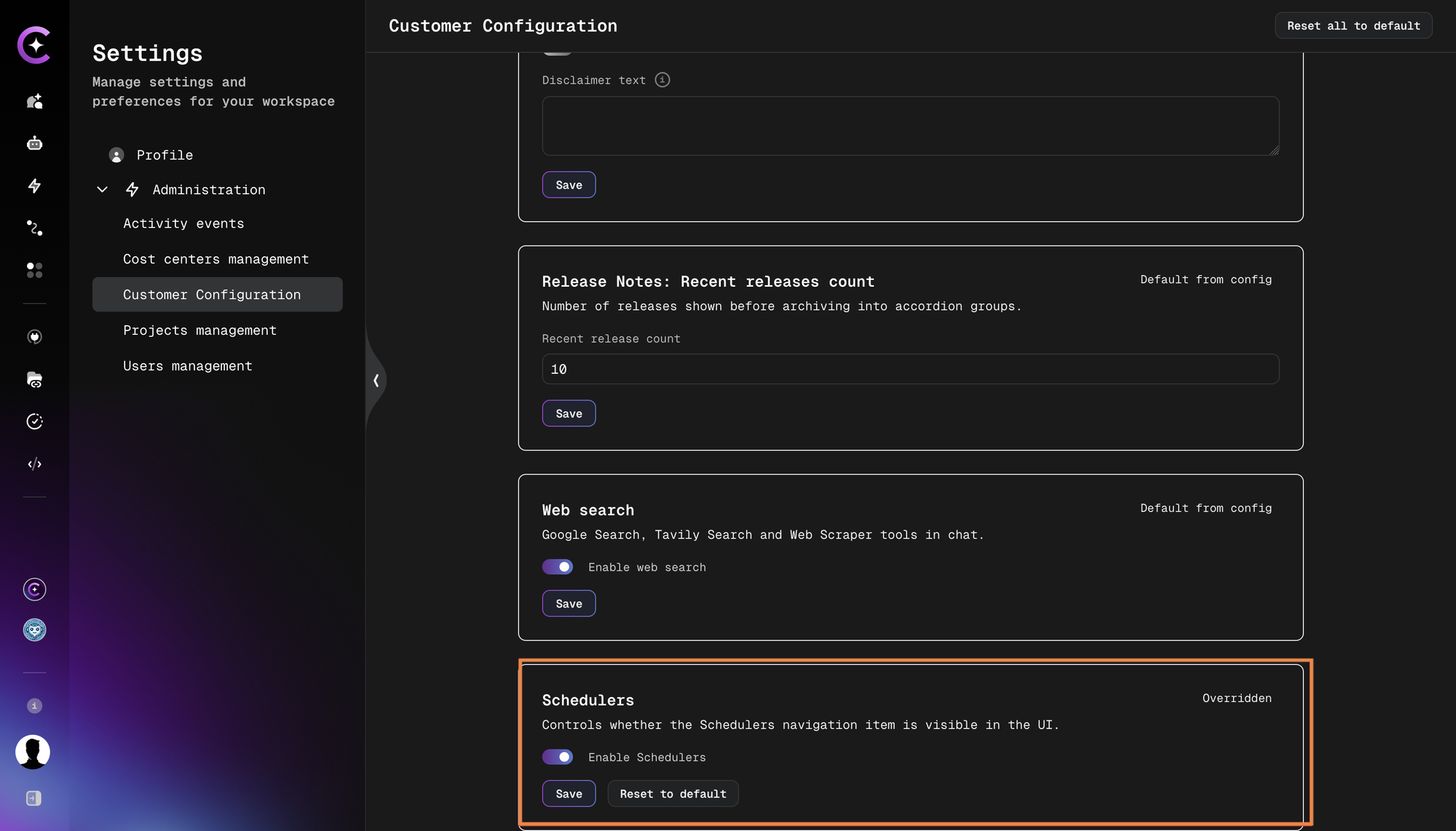
components:
  # WHERE: Main navigation sidebar
  # ENABLED: Shows Schedulers navigation item
  # DISABLED: Hides Schedulers navigation item
  # NOTE: Enabled by default; can be overridden in Customer Configuration UI
  - id: "features:schedulersView"
    settings:
      enabled: true
      name: "Schedulers"
      description: "Controls whether the Schedulers navigation item is visible in the UI"
SharePoint CodeMie OAuth
Controls authentication options available in the datasource setup UI.
Where it appears: Data Sources → creation/edit form for the relevant datasource type
Fields used in this section:
settings:
  enabled: true         # Required
  name: "Display Name"  # Label shown in the UI
  description: "..."    # Tooltip or helper text
Integrated Applications
Applications and extensions that expand platform functionality.
Where it appears: Main navigation → "Applications" menu (shows all enabled applications)
How it works:
- When
enabled: true- Application appears in Applications menu with icon and description - When
enabled: false- Application is hidden from Applications menu - Each application specifies an integration
type:module- JavaScript module loaded via Module Federation — embeds external app into the platformiframe- External application embedded in iframelink- Navigation link to external application (opens in new tab or route)
Fields used in this section:
settings:
  enabled: true
  name: "App Name"           # Label in the Applications menu
  description: "..."         # Shown under the app name
  url: "https://..."         # Entry point URL or JavaScript bundle path
  type: "module|iframe|link" # Integration type (see above)
  icon_url: "https://..."    # Optional — app icon displayed in the menu
  arguments: {}              # Optional — app-specific JSON config for extensions using Module Federation
  created_by: "Team Name"    # Optional — attribution shown in the app card
  availableForExternal: true # Optional — false hides from external users
components:
  - id: "applications:your-app-id"
    settings:
      enabled: true
      name: "Your App Name"
      description: "Short description shown under the app name in the Applications menu"
      url: "https://your-app.example.com/assets/remote.js"
      type: "module"
      icon_url: "https://your-app.example.com/icon.svg"
      created_by: "Your Team"
      arguments:
        apiUrl: "https://your-app.example.com/"
        keycloakConfigPath: "https://your-app.example.com/keycloak.json"
Contextual Help Links
Context-sensitive documentation links that appear on specific pages throughout the UI. These links are shown only when relevant - for example, integration-specific help appears when user selects that integration type.
How it works:
- When
enabled: true- Help link/button appears on the relevant page with specified name - When
enabled: false- Help link is hidden (page functions normally without documentation link) - Links open in new tab to external documentation
Naming Convention:
helpLinks:<section>:<action>:<type>- e.g.,helpLinks:integrations:selection:jira
Where they appear:
:creating- Create/New page (e.g., Create Assistant, Create Workflow):selection:<type>- After user selects specific type from dropdown:overview- Main section page or list view
Fields used in this section:
settings:
  enabled: true              # Required
  name: "Link Label"         # Text shown on the help button or link
  url: "https://..."         # Documentation URL (opens in new tab)
  availableForExternal: true # Optional — false hides from external users
Assistants
Where: Assistant creation and configuration pages
components:
  # WHERE: Create Assistant page (top-right corner, help icon or "?" button)
  # ENABLED: Shows help button linking to assistant creation guide
  # DISABLED: No documentation link (page functions normally)
  - id: "helpLinks:assistants:creating"
    settings:
      enabled: true
      name: "How to create Assistant"
      url: "https://docs.codemie.ai/user-guide/assistants/create-assistant"

  # WHERE: Assistant configuration → Tools section
  # ENABLED: Shows help link when user configures tools for assistant
  # DISABLED: No documentation link in tools section
  - id: "helpLinks:assistants:tools"
    settings:
      enabled: true
      name: "How to properly connect Tools"
      url: "https://docs.codemie.ai/user-guide/tools_integrations/tools/overview"

  # WHERE: Assistant configuration → Integrations section
  # ENABLED: Shows help link when user adds integrations to assistant
  # DISABLED: No documentation link in integrations section
  - id: "helpLinks:assistants:integrations"
    settings:
      enabled: true
      name: "How to properly connect Integrations"
      url: "https://docs.codemie.ai/user-guide/tools_integrations/integrations/#alternative-ways-to-create-integrations"
Workflows
Where: Workflow creation and editor pages
components:
  # WHERE: Create Workflow page (top-right corner)
  # ENABLED: Shows help button linking to workflow creation guide
  # DISABLED: No documentation link on creation page
  - id: "helpLinks:workflows:creating"
    settings:
      enabled: true
      name: "How to create Workflows"
      url: "https://docs.codemie.ai/user-guide/workflows/create-workflow/"

  # WHERE: Workflow editor → YAML configuration tab
  # ENABLED: Shows help link in YAML editor for configuration reference
  # DISABLED: No documentation link in YAML editor
  - id: "helpLinks:workflows:configuration"
    settings:
      enabled: true
      name: "How to work with YAML Configuration"
      url: "https://docs.codemie.ai/user-guide/workflows/configuration/"
Integrations (Tools)
Where: Integration/Tool creation pages
How it works: When user selects integration type from dropdown (e.g., "Jira"), the corresponding help link appears next to the form fields.
Pattern: helpLinks:integrations:selection:<type> - appears after user selects that specific type
components:
  - id: "helpLinks:integrations:overview"
    settings:
      enabled: true
      availableForExternal: true
      name: "How to work with Integrations"
      url: "https://docs.codemie.ai/user-guide/tools_integrations/"

  - id: "helpLinks:integrations:selection:jira"
    settings:
      enabled: true
      availableForExternal: true
      name: "How to create Jira integration"
      url: "https://docs.codemie.ai/user-guide/tools_integrations/tools/jira"

  - id: "helpLinks:integrations:selection:git"
    settings:
      enabled: true
      availableForExternal: true
      name: "How to create Git integration"
      url: "https://docs.codemie.ai/user-guide/tools_integrations/tools/git-overview"

  - id: "helpLinks:integrations:selection:kubernetes"
    settings:
      enabled: true
      availableForExternal: true
      name: "How to create Kubernetes integration"
      url: "https://docs.codemie.ai/user-guide/tools_integrations/tools/kubernetes"

  - id: "helpLinks:integrations:selection:aws"
    settings:
      enabled: true
      availableForExternal: true
      name: "How to create AWS integration"
      url: "https://docs.codemie.ai/user-guide/tools_integrations/tools/aws"

  - id: "helpLinks:integrations:selection:gcp"
    settings:
      enabled: true
      availableForExternal: true
      name: "How to create GCP integration"
      url: "https://docs.codemie.ai/user-guide/tools_integrations/tools/gcp"

  - id: "helpLinks:integrations:selection:keycloak"
    settings:
      enabled: true
      availableForExternal: true
      name: "How to create Keycloak integration"
      url: "https://docs.codemie.ai/user-guide/tools_integrations/tools/keycloak"

  - id: "helpLinks:integrations:selection:azure"
    settings:
      enabled: true
      availableForExternal: true
      name: "How to create Azure integration"
      url: "https://docs.codemie.ai/user-guide/tools_integrations/tools/azure/"

  - id: "helpLinks:integrations:selection:elastic"
    settings:
      enabled: true
      availableForExternal: true
      name: "How to create Elastic integration"
      url: "https://docs.codemie.ai/user-guide/tools_integrations/tools/elastic"

  - id: "helpLinks:integrations:selection:openapi"
    settings:
      enabled: true
      availableForExternal: true
      name: "How to create OpenAPI integration"
      url: "https://docs.codemie.ai/user-guide/tools_integrations/tools/openapi-tool"

  - id: "helpLinks:integrations:selection:plugin"
    settings:
      enabled: true
      availableForExternal: true
      name: "How to create Plugin integration"
      url: "https://docs.codemie.ai/user-guide/tools_integrations/tools/plugin"

  - id: "helpLinks:integrations:selection:sonar"
    settings:
      enabled: true
      availableForExternal: true
      name: "How to create Sonar integration"
      url: "https://docs.codemie.ai/user-guide/tools_integrations/tools/sonarqube"

  - id: "helpLinks:integrations:selection:email"
    settings:
      enabled: true
      availableForExternal: true
      name: "How to create Email integration"
      url: "https://docs.codemie.ai/user-guide/tools_integrations/tools/email-sender-tool"

  - id: "helpLinks:integrations:selection:sql"
    settings:
      enabled: true
      availableForExternal: true
      name: "How to create SQL integration"
      url: "https://docs.codemie.ai/user-guide/tools_integrations/tools/sql"

  - id: "helpLinks:integrations:selection:telegram"
    settings:
      enabled: true
      availableForExternal: true
      name: "How to create Telegram integration"
      url: "https://docs.codemie.ai/user-guide/tools_integrations/tools/telegram"

  - id: "helpLinks:integrations:selection:zephyrscale"
    settings:
      enabled: true
      availableForExternal: true
      name: "How to create Zephyr Scale integration"
      url: "https://docs.codemie.ai/user-guide/tools_integrations/tools/quality-assurance-with-jira-zephyr-scale-addon"

  - id: "helpLinks:integrations:selection:xray"
    settings:
      enabled: true
      availableForExternal: true
      name: "How to create X-ray integration"
      url: "https://docs.codemie.ai/user-guide/tools_integrations/tools/xray"

  - id: "helpLinks:integrations:selection:servicenow"
    settings:
      enabled: true
      availableForExternal: true
      name: "How to create ServiceNow integration"
      url: "https://docs.codemie.ai/user-guide/tools_integrations/tools/servicenow"

  - id: "helpLinks:integrations:selection:mcp"
    settings:
      enabled: true
      availableForExternal: true
      name: "How to create MCP integration"
      url: "https://docs.codemie.ai/user-guide/tools_integrations/tools/mcp/adding-an-mcp-server"

  - id: "helpLinks:integrations:selection:scheduler"
    settings:
      enabled: true
      availableForExternal: true
      name: "How to create Scheduler integration"
      url: "https://docs.codemie.ai/user-guide/tools_integrations/tools/scheduler"

  - id: "helpLinks:integrations:selection:webhook"
    settings:
      enabled: true
      availableForExternal: true
      name: "How to create Webhook integration"
      url: "https://docs.codemie.ai/user-guide/tools_integrations/tools/webhook"
Data Sources
Where: Data Source creation pages
How it works: When user selects data source type from dropdown (e.g., "Confluence"), the corresponding help link appears next to the form fields.
Pattern: helpLinks:datasources:selection:<type> - appears after user selects that specific type
components:
  - id: "helpLinks:datasources:overview"
    settings:
      enabled: true
      availableForExternal: true
      name: "How to work with Data Sources"
      url: "https://docs.codemie.ai/user-guide/data-source/"

  - id: "helpLinks:datasources:selection:confluence"
    settings:
      enabled: true
      availableForExternal: true
      name: "How to create Confluence data source"
      url: "https://docs.codemie.ai/user-guide/data-source/datasources-types/add-confluence-pages"

  - id: "helpLinks:datasources:selection:git"
    settings:
      enabled: true
      availableForExternal: true
      name: "How to create Git data source"
      url: "https://docs.codemie.ai/user-guide/data-source/datasources-types/add-git-data-sources"

  - id: "helpLinks:datasources:selection:jira"
    settings:
      enabled: true
      availableForExternal: true
      name: "How to create Jira data source"
      url: "https://docs.codemie.ai/user-guide/data-source/datasources-types/add-jira-data-source"

  - id: "helpLinks:datasources:selection:xray"
    settings:
      enabled: true
      availableForExternal: true
      name: "How to create X-ray data source"
      url: "https://docs.codemie.ai/user-guide/data-source/datasources-types/add-xray-data-source"

  - id: "helpLinks:datasources:selection:file"
    settings:
      enabled: true
      availableForExternal: true
      name: "How to create File data source"
      url: "https://docs.codemie.ai/user-guide/data-source/datasources-types/add-file-datasource"

  - id: "helpLinks:datasources:selection:azure_devops_wiki"
    settings:
      enabled: true
      availableForExternal: true
      name: "How to create Azure Devops Wiki data source"
      url: "https://docs.codemie.ai/user-guide/data-source/datasources-types/add-aws-knowledge-bases"

  - id: "helpLinks:datasources:selection:provider"
    settings:
      enabled: true
      availableForExternal: true
      name: "How to create Provider data source"
      url: "https://docs.codemie.ai/user-guide/data-source/datasources-types/add-provider-datasource"

  - id: "helpLinks:datasources:selection:google"
    settings:
      enabled: true
      availableForExternal: true
      name: "How to create Google data source"
      url: "https://docs.codemie.ai/user-guide/data-source/datasources-types/add-google-data-source"
Katas
Where: Katas main page or section
components:
  # WHERE: Katas page (top section, info icon or help button)
  # ENABLED: Shows help link explaining what Katas are and how to use them
  # DISABLED: No documentation link on Katas page
  - id: "helpLinks:katas:overview"
    settings:
      enabled: true
      availableForExternal: true
      name: "How to work with Katas"
      url: "https://docs.codemie.ai/user-guide/ai-katas"
Preconfigured Assistants
Built-in assistants that come pre-configured with the platform.
Where they appear:
- Assistants list page (main list of all available assistants)
- New chat → Assistant selection dropdown
- Help Center → AI Help section (for specific assistants like onboarding, chatbot)
How it works:
- When
enabled: true- Assistant appears in all locations (list, dropdown, Help Center) - When
enabled: false- Assistant is hidden from all UI locations - When not configured - Defaults to enabled (assistant is visible)
Configuration Options:
enabled(required) - Controls whether the assistant is available to usersindex_name(optional) - Links assistant to Elasticsearch data source for RAG (Retrieval-Augmented Generation)
Default Behavior:
- If assistant is not listed in configuration → defaults to enabled (available to users)
- If assistant is listed with
enabled: false→ assistant is hidden from users - Only configure assistants you want to explicitly control visibility for
preconfigured_assistants:
  # General Purpose
  - id: "codemie-onboarding"
    settings:
      enabled: true
      index_name: "codemie-onboarding"

  - id: "ai-run-chatbot"
    settings:
      enabled: true

  - id: "keycloak-manager"
    settings:
      enabled: true

  - id: "prompt-engineer"
    settings:
      enabled: true

  # Migration Assistants (AMNA)
  - id: "amna-junit-project-fixer"
    settings:
      enabled: true

  - id: "amna-dotnet-project-fixer"
    settings:
      enabled: true

  - id: "amna-aws-eb-bean"
    settings:
      enabled: true

  - id: "amna-js-project-fixer"
    settings:
      enabled: true

  - id: "amna-sct-tsql-to-pgsql-converter"
    settings:
      enabled: true

  # Template Assistants (AMNA)
  - id: "amna-template-ba-assistant"
    settings:
      enabled: true

  - id: "amna-template-code-reviewer-assistant"
    settings:
      enabled: true

  - id: "amna-template-epic-user-story-composer-assistant"
    settings:
      enabled: true

  - id: "amna-template-gitlab-cicd-assistant"
    settings:
      enabled: true

  - id: "amna-template-developer-via-plugin-engine-assistant"
    settings:
      enabled: true

  - id: "amna-template-qa-checklist-assistant"
    settings:
      enabled: true

  - id: "amna-template-qa-test-case-assistant"
    settings:
      enabled: true

  - id: "amna-template-release-manager-assistant"
    settings:
      enabled: true
How It Works
The customer configuration is deployed through Helm charts using a Kubernetes ConfigMap. The deployment consists of three key components:
Add all three values to your values.yaml:
# 1. ConfigMap — stores your customer configuration
extraObjects:
  - apiVersion: v1
    kind: ConfigMap
    metadata:
      name: codemie-custom-customer-config
    data:
      customer-config.yaml: |
        ---
        components:
          - id: "componentId"
            settings:
              enabled: true
              # ... component settings
        preconfigured_assistants:
          - id: "assistant-id"
            settings:
              enabled: true

# 2. Volume — exposes the ConfigMap as a volume
extraVolumes: |
  - name: codemie-customer-config
    configMap:
      name: codemie-custom-customer-config

# 3. Volume mount — makes the config readable by the app
extraVolumeMounts: |
  - name: codemie-customer-config
    mountPath: /app/config/customer
Full Configuration Example
Click to expand complete configuration example
extraObjects:
- apiVersion: v1
kind: ConfigMap
metadata:
name: codemie-custom-customer-config
data:
customer-config.yaml: |
---
components:
# Help & Learning Resources
- id: "videoPortal"
settings:
name: "Internal Video Portal"
enabled: true
url: "https://videoportal.company.com/channel/codemie/videos"
availableForExternal: false
- id: "youtubeChannel"
settings:
name: "YouTube Channel"
enabled: true
url: "https://www.youtube.com/@YourCompanyCodeMie"
- id: "userGuide"
settings:
name: "Documentation"
enabled: true
url: "https://docs.codemie.ai"
- id: "userSurvey"
settings:
name: "User Survey Form"
enabled: true
availableForExternal: false
url: "https://forms.office.com/your-survey-form-url"
# Platform Features
- id: "adminActions"
settings:
enabled: true
- id: "feedbackAssistant"
settings:
enabled: true
- id: "mcpConnect"
settings:
enabled: true
- id: "mcpCustomServersDisabled"
settings:
enabled: false
- id: "likeForm"
settings:
enabled: false
- id: "confluenceIntegrationMessage"
settings:
enabled: true
- id: "remoteAssistant"
settings:
enabled: true
- id: "defaultConversationAssistant"
settings:
enabled: true
slug: "ai-run-chatbot"
- id: "vendorIntegrationAWS"
settings:
enabled: true
- id: "visualWorkflowEditor"
settings:
enabled: true
- id: "feature:dashboardCustomization"
settings:
enabled: true
- id: "feature:renderStateOutputAsMarkdown"
settings:
enabled: true
- id: "features:generatedAssistantIcons"
settings:
enabled: true
- id: "features:personalLiteLLMIntegrations"
settings:
enabled: true
- id: "features:budgetManagement"
settings:
enabled: true
- id: "features:showAllProjects"
settings:
enabled: true
# Banner, Chat Disclaimer and Release Notes
# NOTE: Can be overridden at runtime in Settings → Administration → Customer Configuration
- id: "banner"
settings:
enabled: true
message: "Scheduled maintenance on Saturday 00:00–02:00 UTC"
linkLabel: "Learn more"
linkRoute: "/help"
- id: "chatDisclaimer"
settings:
enabled: true
text: "AI responses may be inaccurate. See the [usage policy](https://example.com/policy)."
- id: "releaseNotesRecentCount"
settings:
enabled: true
recentReleaseCount: "10"
# MCP Auth Configuration
- id: "mcpAuthTimeoutSeconds"
settings:
enabled: true
value: 60
# Tool Call Permissions
- id: "tool_permissions"
settings:
enabled: true
min_tool_call_policy: "guarded"
# Image Allow-List for LLM Output
- id: "allowedImageDomains"
settings:
enabled: true
value: "raw.githubusercontent.com,.example.com,cdn.customer.io"
# Advanced Features
- id: "skills"
settings:
enabled: true
name: "Skills"
description: "Modular knowledge units that provide domain-specific instructions to assistants"
- id: "aiAdoption"
settings:
enabled: true
name: "AI Adoption Analytics"
description: "AI Adoption Framework analytics for measuring and tracking AI maturity across dimensions"
availableForExternal: false
- id: "features:webSearch"
settings:
enabled: true
name: "Web Search"
description: "Enable web search capabilities including Google Search, Tavily Search, and Web Scraper"
- id: "features:dynamicCodeInterpreter"
settings:
enabled: true
name: "Code Interpreter"
description: "Enable Python code execution and data analysis capabilities"
- id: "features:favorites"
settings:
enabled: true
name: "Favorites"
description: "Enable favorite/unfavorite actions for assistants, skills, and workflows"
- id: "features:pinnedAssistants"
settings:
enabled: true
name: "Pinned Assistants"
description: "Enable pin/unpin actions for assistants and the pinned assistants sidebar section"
- id: "features:favoritesPage"
settings:
enabled: false
name: "Favorites Page"
description: "Enable the dedicated Favorites page and its navigation link"
- id: "features:schedulersView"
settings:
enabled: true
name: "Schedulers"
description: "Controls whether the Schedulers navigation item is visible in the UI"
# Integrated Applications
- id: "applications:angular-upgrade-app"
settings:
enabled: true
name: "Angular Upgrade Assistant"
type: "module"
url: "https://your-app.com/angular-upgrade.js"
description: "Assists with Angular version upgrades"
created_by: "Your Team"
icon_url: "https://your-cdn.com/angular-icon.svg"
- id: "applications:aice"
settings:
enabled: true
name: "AICE"
url: "https://aice.company.com"
type: "iframe"
description: "Advanced code analysis and exploration solution"
created_by: "AICE Team"
icon_url: "https://raw.githubusercontent.com/alk-epam/test-repo/main/aice.svg"
- id: "applications:mflens"
settings:
enabled: true
name: "MFLens"
url: "https://mflens.company.com"
type: "iframe"
description: "Mainframe code analysis and modernization"
created_by: "MFLens Team"
icon_url: "https://your-cdn.com/mflens-icon.svg"
- id: "applications:technology-copilot"
settings:
enabled: true
name: "Technology Copilot"
description: "Create requisite documents or validate them against best practices"
icon_url: "https://raw.githubusercontent.com/epam-gen-ai-run/ai-run-install/refs/heads/main/docs/assets/ai/ai-run-technology-copilot-logo.svg"
url: "https://technology.company.com/copilot.js"
type: "module"
arguments:
apiUrl: "https://technology.company.com/"
keycloakConfigPath: "https://technology.company.com/keycloak.json"
# Contextual Help Links - Assistants
- id: "helpLinks:assistants:creating"
settings:
enabled: true
name: "How to create Assistant"
url: "https://docs.codemie.ai/user-guide/assistants/create-assistant"
- id: "helpLinks:assistants:tools"
settings:
enabled: true
name: "How to add Tools to Assistant"
url: "https://docs.codemie.ai/user-guide/assistants/assistant-tools"
- id: "helpLinks:assistants:integrations"
settings:
enabled: true
name: "How to add Integrations to Assistant"
url: "https://docs.codemie.ai/user-guide/assistants/integration-tools"
# Contextual Help Links - Workflows
- id: "helpLinks:workflows:creating"
settings:
enabled: true
name: "How to create Workflow"
url: "https://docs.codemie.ai/user-guide/workflows/create-workflow"
- id: "helpLinks:workflows:configuration"
settings:
enabled: true
name: "Workflow YAML Configuration"
url: "https://docs.codemie.ai/user-guide/workflows/configuration"
# Contextual Help Links - Integrations
- id: "helpLinks:integrations:overview"
settings:
enabled: true
availableForExternal: true
name: "How to work with Integrations"
url: "https://docs.codemie.ai/user-guide/tools_integrations/"
- id: "helpLinks:integrations:selection:jira"
settings:
enabled: true
availableForExternal: true
name: "How to create Jira integration"
url: "https://docs.codemie.ai/user-guide/tools_integrations/tools/jira"
- id: "helpLinks:integrations:selection:git"
settings:
enabled: true
availableForExternal: true
name: "How to create Git integration"
url: "https://docs.codemie.ai/user-guide/tools_integrations/tools/git-overview"
- id: "helpLinks:integrations:selection:kubernetes"
settings:
enabled: true
availableForExternal: true
name: "How to create Kubernetes integration"
url: "https://docs.codemie.ai/user-guide/tools_integrations/tools/kubernetes"
- id: "helpLinks:integrations:selection:aws"
settings:
enabled: true
availableForExternal: true
name: "How to create AWS integration"
url: "https://docs.codemie.ai/user-guide/tools_integrations/tools/aws"
- id: "helpLinks:integrations:selection:gcp"
settings:
enabled: true
availableForExternal: true
name: "How to create GCP integration"
url: "https://docs.codemie.ai/user-guide/tools_integrations/tools/gcp"
- id: "helpLinks:integrations:selection:keycloak"
settings:
enabled: true
availableForExternal: true
name: "How to create Keycloak integration"
url: "https://docs.codemie.ai/user-guide/tools_integrations/tools/keycloak"
- id: "helpLinks:integrations:selection:azure"
settings:
enabled: true
availableForExternal: true
name: "How to create Azure integration"
url: "https://docs.codemie.ai/user-guide/tools_integrations/tools/azure"
- id: "helpLinks:integrations:selection:elastic"
settings:
enabled: true
availableForExternal: true
name: "How to create Elasticsearch integration"
url: "https://docs.codemie.ai/user-guide/tools_integrations/tools/elastic"
- id: "helpLinks:integrations:selection:openapi"
settings:
enabled: true
availableForExternal: true
name: "How to create OpenAPI integration"
url: "https://docs.codemie.ai/user-guide/tools_integrations/tools/openapi"
- id: "helpLinks:integrations:selection:plugin"
settings:
enabled: true
availableForExternal: true
name: "How to create Plugin integration"
url: "https://docs.codemie.ai/user-guide/tools_integrations/tools/plugin"
- id: "helpLinks:integrations:selection:sonar"
settings:
enabled: true
availableForExternal: true
name: "How to create SonarQube integration"
url: "https://docs.codemie.ai/user-guide/tools_integrations/tools/sonarqube"
- id: "helpLinks:integrations:selection:email"
settings:
enabled: true
availableForExternal: true
name: "How to create Email integration"
url: "https://docs.codemie.ai/user-guide/tools_integrations/tools/email-sender-tool"
- id: "helpLinks:integrations:selection:sql"
settings:
enabled: true
availableForExternal: true
name: "How to create SQL integration"
url: "https://docs.codemie.ai/user-guide/tools_integrations/tools/sql"
- id: "helpLinks:integrations:selection:telegram"
settings:
enabled: true
availableForExternal: true
name: "How to create Telegram integration"
url: "https://docs.codemie.ai/user-guide/tools_integrations/tools/telegram"
- id: "helpLinks:integrations:selection:zephyrscale"
settings:
enabled: true
availableForExternal: true
name: "How to create Zephyr Scale integration"
url: "https://docs.codemie.ai/user-guide/tools_integrations/tools/quality-assurance-with-jira-zephyr-scale-addon"
- id: "helpLinks:integrations:selection:xray"
settings:
enabled: true
availableForExternal: true
name: "How to create X-ray integration"
url: "https://docs.codemie.ai/user-guide/tools_integrations/tools/xray"
- id: "helpLinks:integrations:selection:servicenow"
settings:
enabled: true
availableForExternal: true
name: "How to create ServiceNow integration"
url: "https://docs.codemie.ai/user-guide/tools_integrations/tools/servicenow"
- id: "helpLinks:integrations:selection:mcp"
settings:
enabled: true
availableForExternal: true
name: "How to create MCP integration"
url: "https://docs.codemie.ai/user-guide/tools_integrations/tools/mcp/adding-an-mcp-server"
- id: "helpLinks:integrations:selection:scheduler"
settings:
enabled: true
availableForExternal: true
name: "How to create Scheduler integration"
url: "https://docs.codemie.ai/user-guide/tools_integrations/tools/scheduler"
- id: "helpLinks:integrations:selection:webhook"
settings:
enabled: true
availableForExternal: true
name: "How to create Webhook integration"
url: "https://docs.codemie.ai/user-guide/tools_integrations/tools/webhook"
# Contextual Help Links - Data Sources
- id: "helpLinks:datasources:overview"
settings:
enabled: true
availableForExternal: true
name: "How to work with Data Sources"
url: "https://docs.codemie.ai/user-guide/data-source/"
- id: "helpLinks:datasources:selection:confluence"
settings:
enabled: true
availableForExternal: true
name: "How to create Confluence data source"
url: "https://docs.codemie.ai/user-guide/data-source/datasources-types/add-confluence-data-source"
- id: "helpLinks:datasources:selection:git"
settings:
enabled: true
availableForExternal: true
name: "How to create Git data source"
url: "https://docs.codemie.ai/user-guide/data-source/datasources-types/add-git-data-sources"
- id: "helpLinks:datasources:selection:jira"
settings:
enabled: true
availableForExternal: true
name: "How to create Jira data source"
url: "https://docs.codemie.ai/user-guide/data-source/datasources-types/add-jira-data-sources"
- id: "helpLinks:datasources:selection:xray"
settings:
enabled: true
availableForExternal: true
name: "How to create X-ray data source"
url: "https://docs.codemie.ai/user-guide/data-source/datasources-types/add-xray-data-source"
- id: "helpLinks:datasources:selection:file"
settings:
enabled: true
availableForExternal: true
name: "How to create File data source"
url: "https://docs.codemie.ai/user-guide/data-source/datasources-types/add-file-data-source"
- id: "helpLinks:datasources:selection:azure_devops_wiki"
settings:
enabled: true
availableForExternal: true
name: "How to create Azure DevOps Wiki data source"
url: "https://docs.codemie.ai/user-guide/data-source/datasources-types/add-azure-devops-wiki-data-source"
- id: "helpLinks:datasources:selection:provider"
settings:
enabled: true
availableForExternal: true
name: "How to create Provider data source"
url: "https://docs.codemie.ai/user-guide/data-source/datasources-types/add-provider-data-source"
- id: "helpLinks:datasources:selection:google"
settings:
enabled: true
availableForExternal: true
name: "How to create Google data source"
url: "https://docs.codemie.ai/user-guide/data-source/datasources-types/add-google-workspace-data-source"
# Contextual Help Links - Katas
- id: "helpLinks:katas:overview"
settings:
enabled: true
name: "What are Katas"
url: "https://docs.codemie.ai/user-guide/katas/"
preconfigured_assistants:
# General Purpose
- id: "codemie-onboarding"
settings:
enabled: true
index_name: "codemie-onboarding"
- id: "ai-run-chatbot"
settings:
enabled: true
- id: "keycloak-manager"
settings:
enabled: true
- id: "prompt-engineer"
settings:
enabled: true
# Migration Assistants (AMNA)
- id: "amna-junit-project-fixer"
settings:
enabled: true
- id: "amna-dotnet-project-fixer"
settings:
enabled: true
- id: "amna-aws-eb-bean"
settings:
enabled: true
- id: "amna-js-project-fixer"
settings:
enabled: true
- id: "amna-sct-tsql-to-pgsql-converter"
settings:
enabled: true
# Template Assistants (AMNA)
- id: "amna-template-ba-assistant"
settings:
enabled: true
- id: "amna-template-code-reviewer-assistant"
settings:
enabled: true
- id: "amna-template-epic-user-story-composer-assistant"
settings:
enabled: true
- id: "amna-template-gitlab-cicd-assistant"
settings:
enabled: true
- id: "amna-template-developer-via-plugin-engine-assistant"
settings:
enabled: true
- id: "amna-template-qa-checklist-assistant"
settings:
enabled: true
- id: "amna-template-qa-test-case-assistant"
settings:
enabled: true
- id: "amna-template-release-manager-assistant"
settings:
enabled: true
extraVolumes: |
- name: codemie-customer-config
configMap:
name: codemie-custom-customer-config
extraVolumeMounts: |
- name: codemie-customer-config
mountPath: /app/config/customer
Deployment
To apply customer configuration changes, follow the Update Guide.