Access CodeMie Skills from CLI
Part of the CodeMie Enterprise package, and may not be enabled on every deployment. If this capability is missing from the UI described below, contact the CodeMie platform administrator. See all Enterprise features.
CodeMie CLI lets you install any CodeMie skill into Claude Code so you can invoke it directly
as a slash command from your coding session. You can also run skills directly from the terminal
at any time using codemie skill run.
Prerequisites
- CodeMie CLI installed and configured (
codemie setupcompleted)
Step 1: Register Skills
Run the setup wizard to select which skills you want to use:
codemie setup skills
Read the Disclaimer
The wizard opens with an important notice:
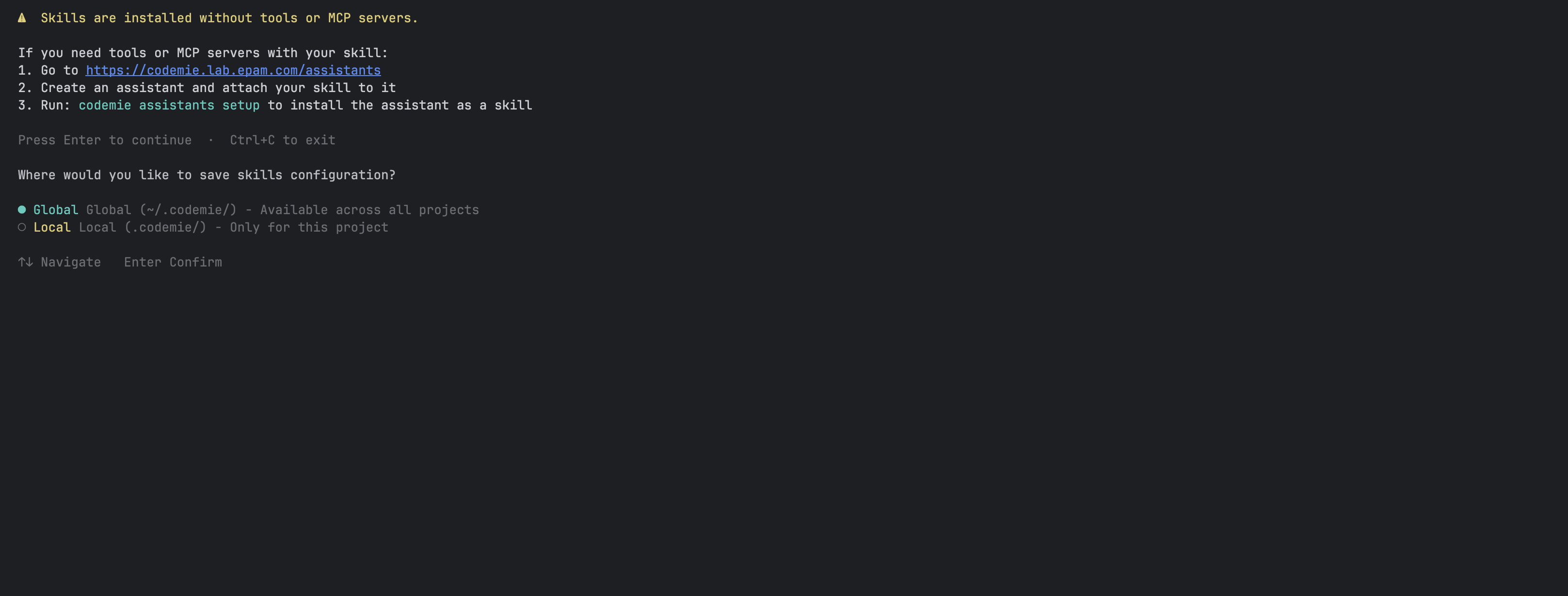
Skills are installed without tools or MCP servers. If your skill requires tools or MCP
servers, attach it to an assistant instead and use codemie setup assistants.
If you need tools or MCP servers with your skill:
- Go to your CodeMie platform and create an assistant
- Attach your skill to that assistant
- Run
codemie setup assistantsto install the assistant as a skill
Press Enter to continue or Ctrl+C to exit.
Choose Scope
After the disclaimer, select where to save the skills configuration:
| Scope | Saved to | Use when |
|---|---|---|
| Global | ~/.codemie/codemie-cli.config.json | Skills should be available in all projects |
| Local | ./.codemie/codemie-cli.config.json | Skills are specific to this repository |
Local configuration overrides global for the current directory.
Use ↑/↓ to navigate, Enter to confirm.
Select Skills
A selection screen lists all available skills across four tabs:
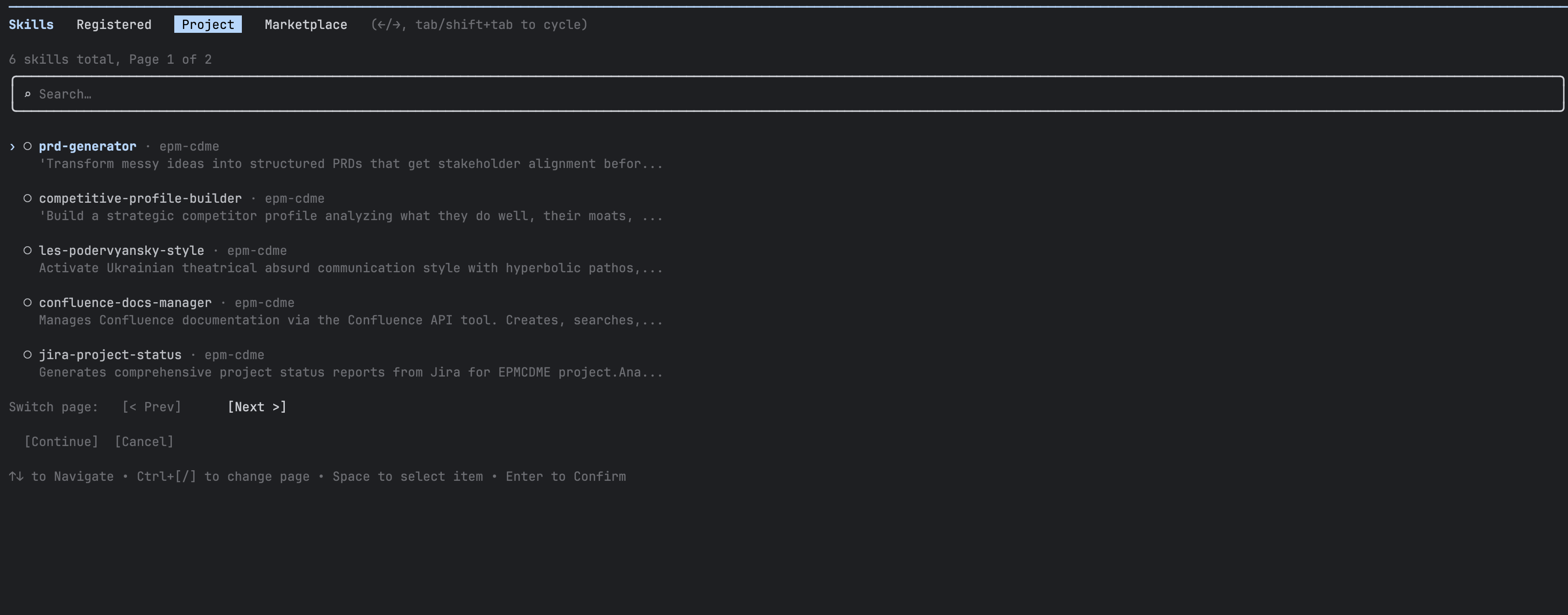
- Skills — all skills available to you
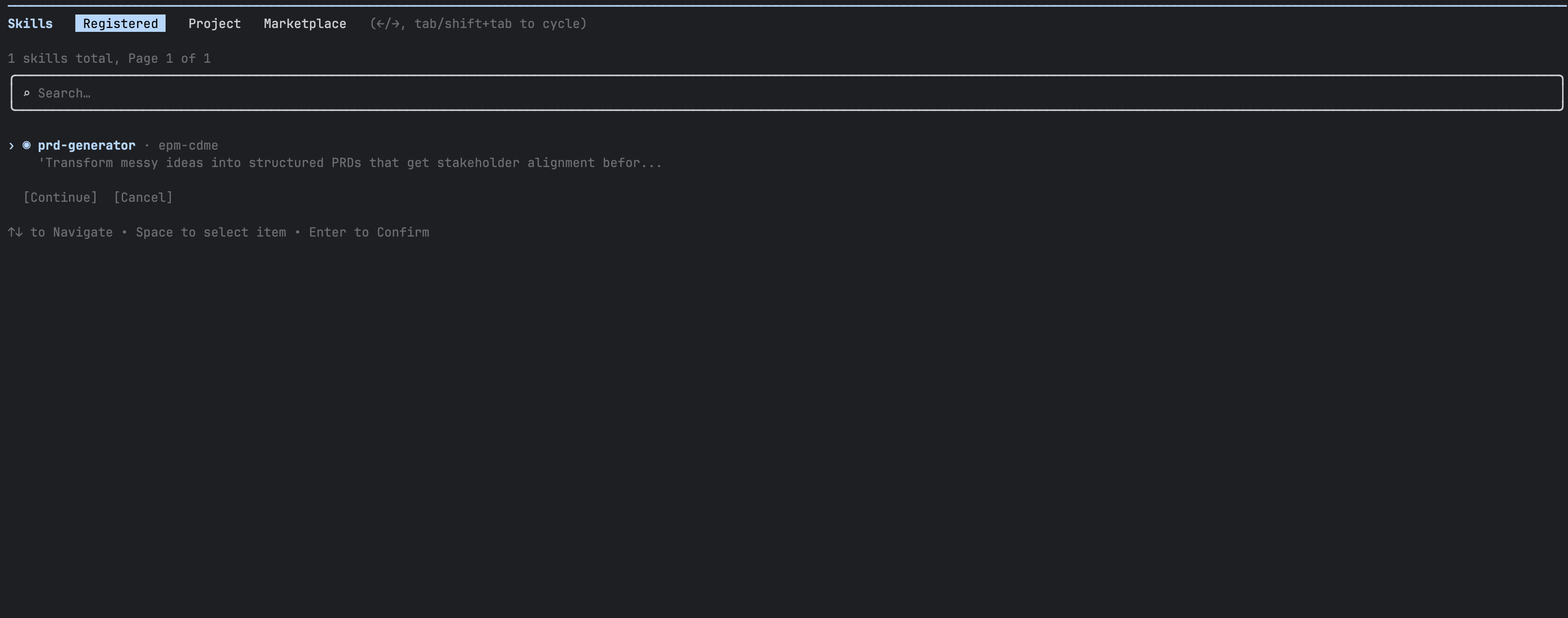
- Registered — skills you have already set up
- Project — skills shared within your project
- Marketplace — skills available from the marketplace
Use ←/→ to switch between tabs, ↑/↓ to move through the list, Space to select or
deselect, and Enter to confirm.
After confirming, the CLI registers the selected skills and shows a summary:
✓ Registered 1 skill(s)

Skills saved to: global (~/.codemie/codemie-cli.config.json)
Skills are available in Claude Code as /skill-name commands.
Step 2: Use Skills in Claude Code
Once registered, the skill appears in the Registered tab and is available as a slash command:
Launch Claude Code as usual:
codemie-claude
Then invoke a skill by typing / followed by its name:
/prd-generator Transform my feature idea into a structured PRD
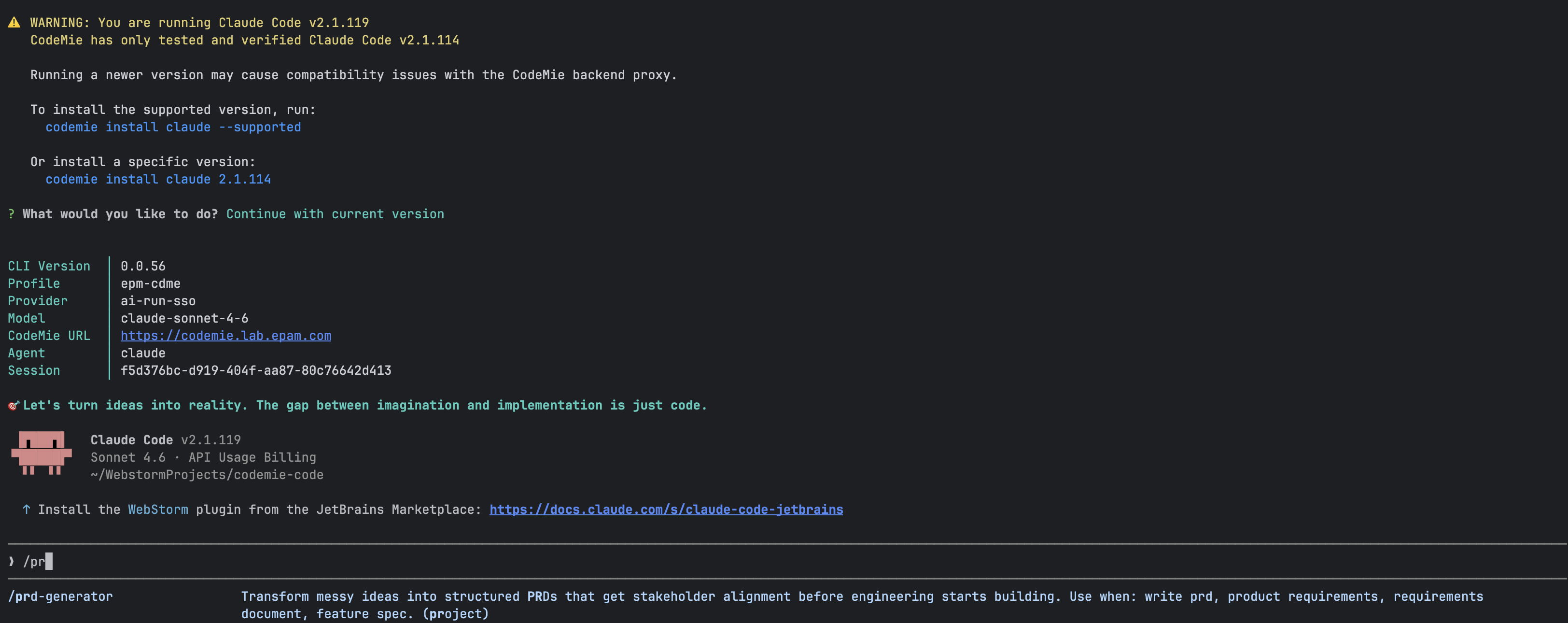
Not sure of the skill's name? Re-run codemie setup skills and check the Registered tab,
or type / in Claude Code to see all available slash commands.
Step 3: Run a Skill from the Terminal
You can also execute skills directly from the terminal without opening Claude Code.
Single-Message Mode
Pass the skill ID and message as arguments to get a single response:
codemie skill run "<skill-id>" "Help me write a PRD for this feature"
Only the skill's response is printed — useful in scripts or when called from other tools.
Pipe a message from stdin
echo "Summarize this pull request" | codemie skill run "<skill-id>"
cat prompt.txt | codemie skill run "<skill-id>"
Options:
| Flag | Short | Description |
|---|---|---|
--conversation-id <id> | Continue a previous conversation. History is stored in ~/.codemie/sessions/. Also accepts the CODEMIE_SESSION_ID environment variable | |
--verbose | -v | Enable debug output |
Not sure of the skill's ID? It is embedded in the generated SKILL.md file at
~/.claude/skills/<skill-slug>/SKILL.md (global) or .claude/skills/<skill-slug>/SKILL.md (local).
Managing Registered Skills
Re-run codemie setup skills at any time to add or remove skills. To remove a skill, open
the wizard again and deselect it — this removes it from the list and cleans up its
configuration files.
Skills registered via codemie setup skills are always exposed as slash commands
(/skill-name). If you need a skill available as a subagent (@name), attach it to an
assistant and use codemie setup assistants instead.