Jira
AI/Run CodeMie integrates with Atlassian Jira to enable automated issue tracking, project management, and task organization within your development workflow.
Two authentication methods are available for the Jira integration:
- Personal Access Token (PAT) — a Jira API token is created manually and pasted into the integration form. This is the classic approach and works for both Jira Cloud and Jira Self-hosted.
- OAuth 2.0 (Atlassian 3LO) — an administrator configures the Atlassian OAuth application once (shared
client_idandclient_secret), and each member authorizes under their own Atlassian account. Tokens are per-user: calls run as the member who connected, so no one borrows another member's token. This option is only available for Jira Cloud and requires the platform's Jira OAuth feature to be enabled by an administrator.
The OAuth 2.0 sign-in option is shown in the integration form only when the platform administrator has enabled it. If the toggle is not visible, the JIRA_OAUTH_ENABLED flag is off. Contact the platform administrator to enable it. See the OAuth Integration Setup admin guide.
1. Create Atlassian API Token
- Jira Cloud
- Jira Self-hosted
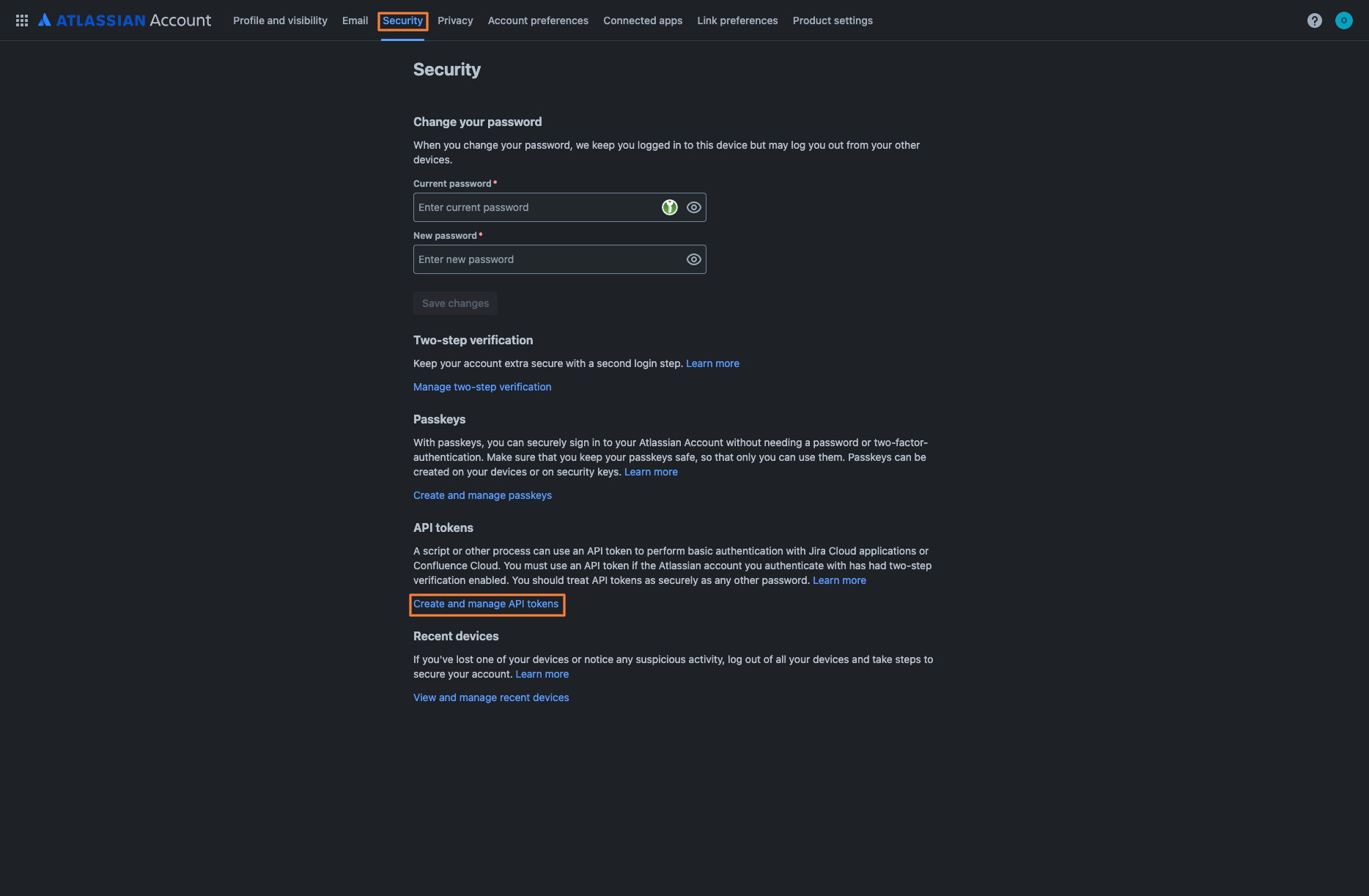
1.1. Go to your Atlassian Account settings and navigate to the Security tab.
1.2. Scroll down to the API tokens section and click Create and manage API tokens:
1.3. Click Create API token button and provide a name for your token. Set an expiration date for security:
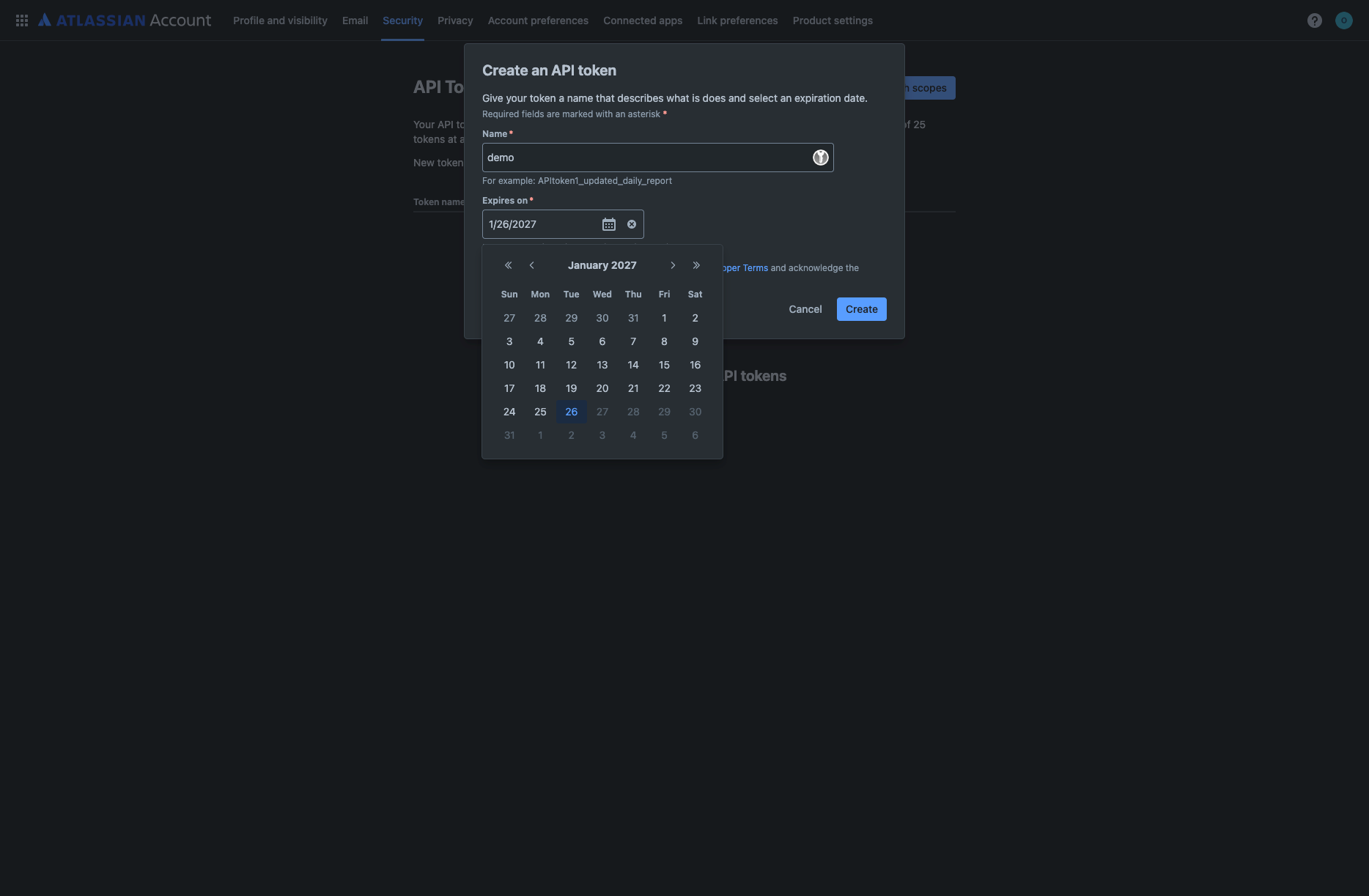
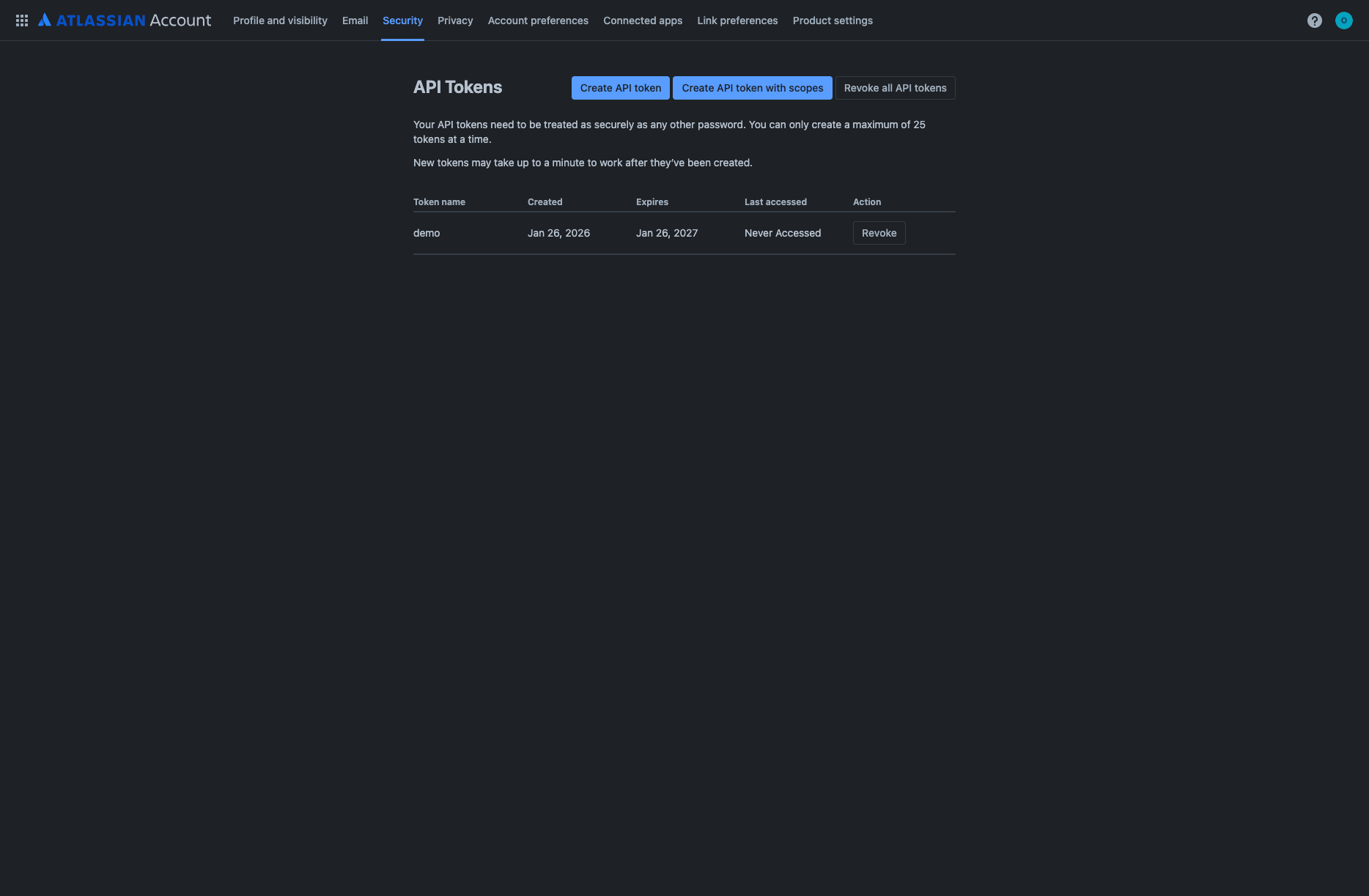
1.4. Click Create. The system will display your newly created API token:
1.5. Copy the generated API token using the Copy button and store it securely:
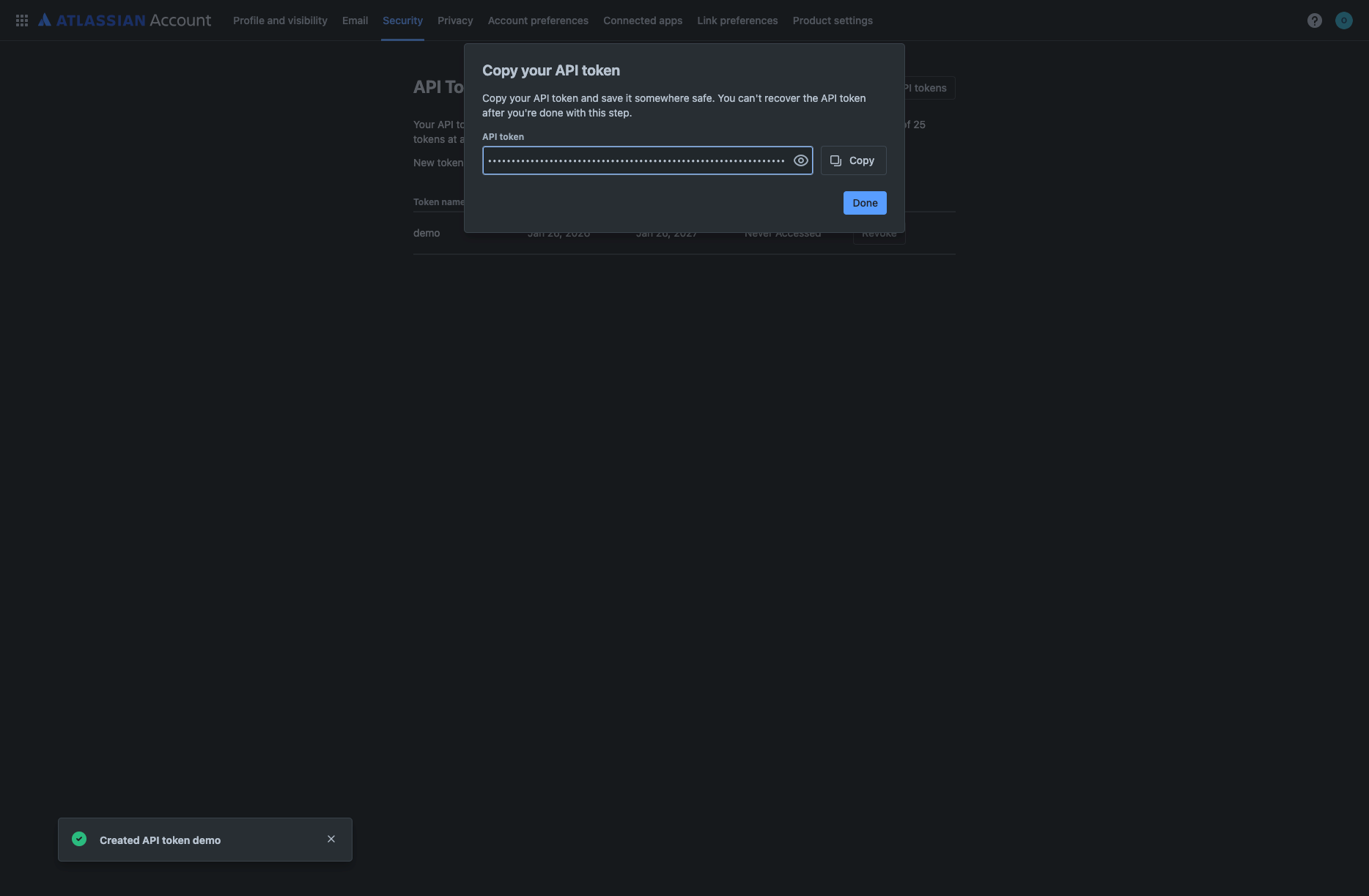
API tokens should be treated as passwords. Keep them secure and never share them publicly.
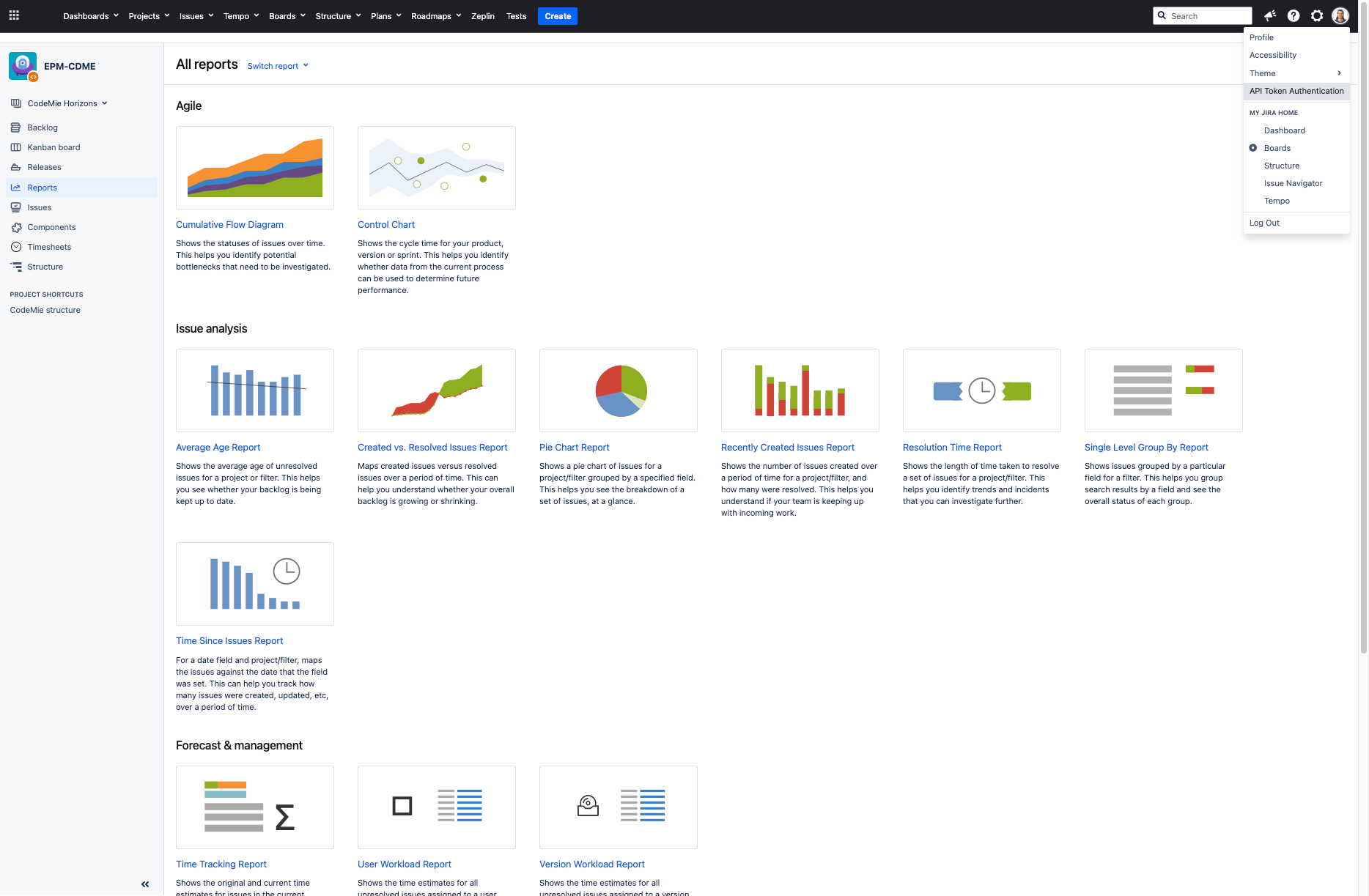
1.1. Log in to your Jira instance and click on your profile icon in the top-right corner. Select API Token Authentication from the menu:
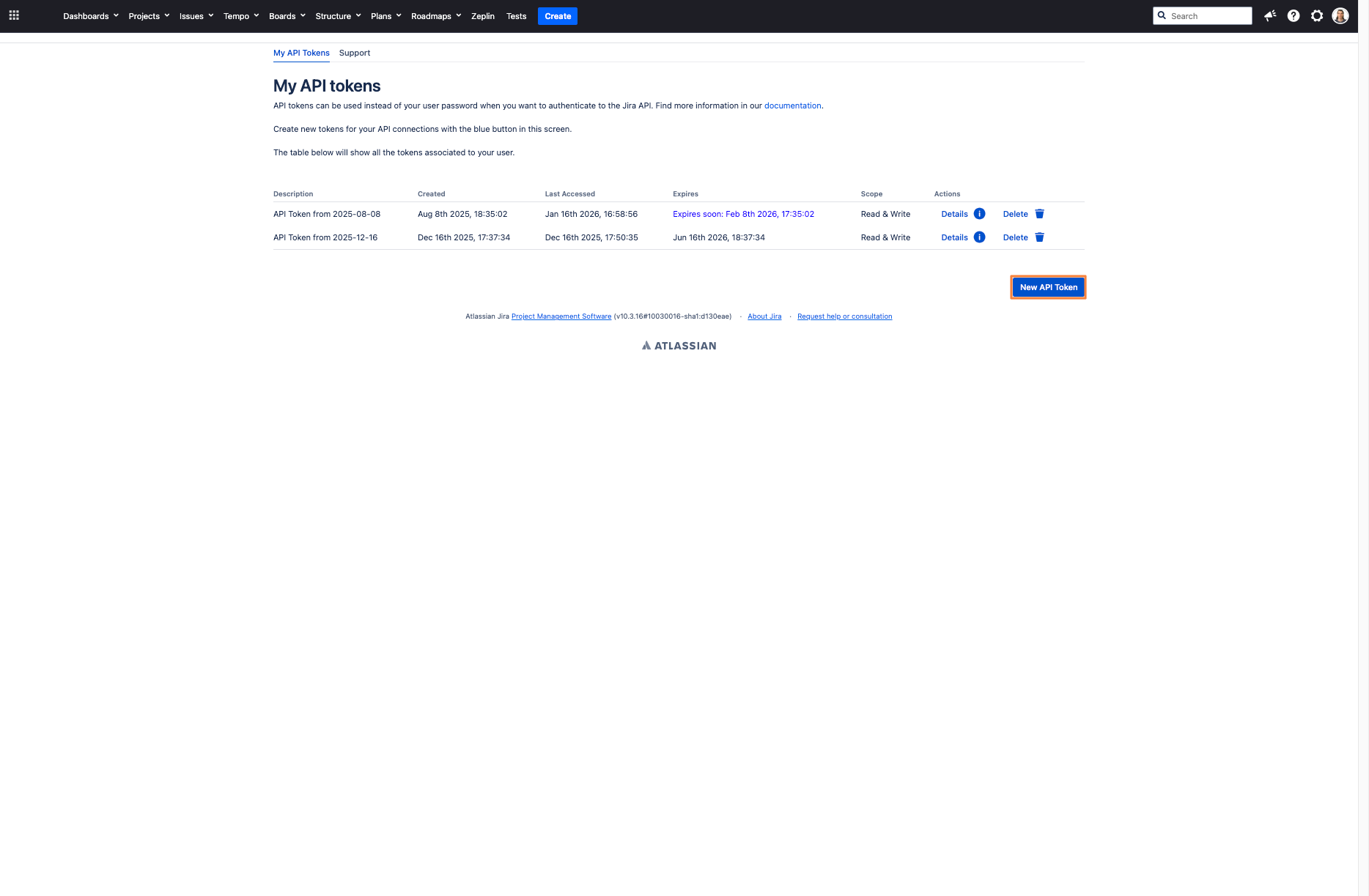
1.2. On the My API Tokens page, click the New API Token button:
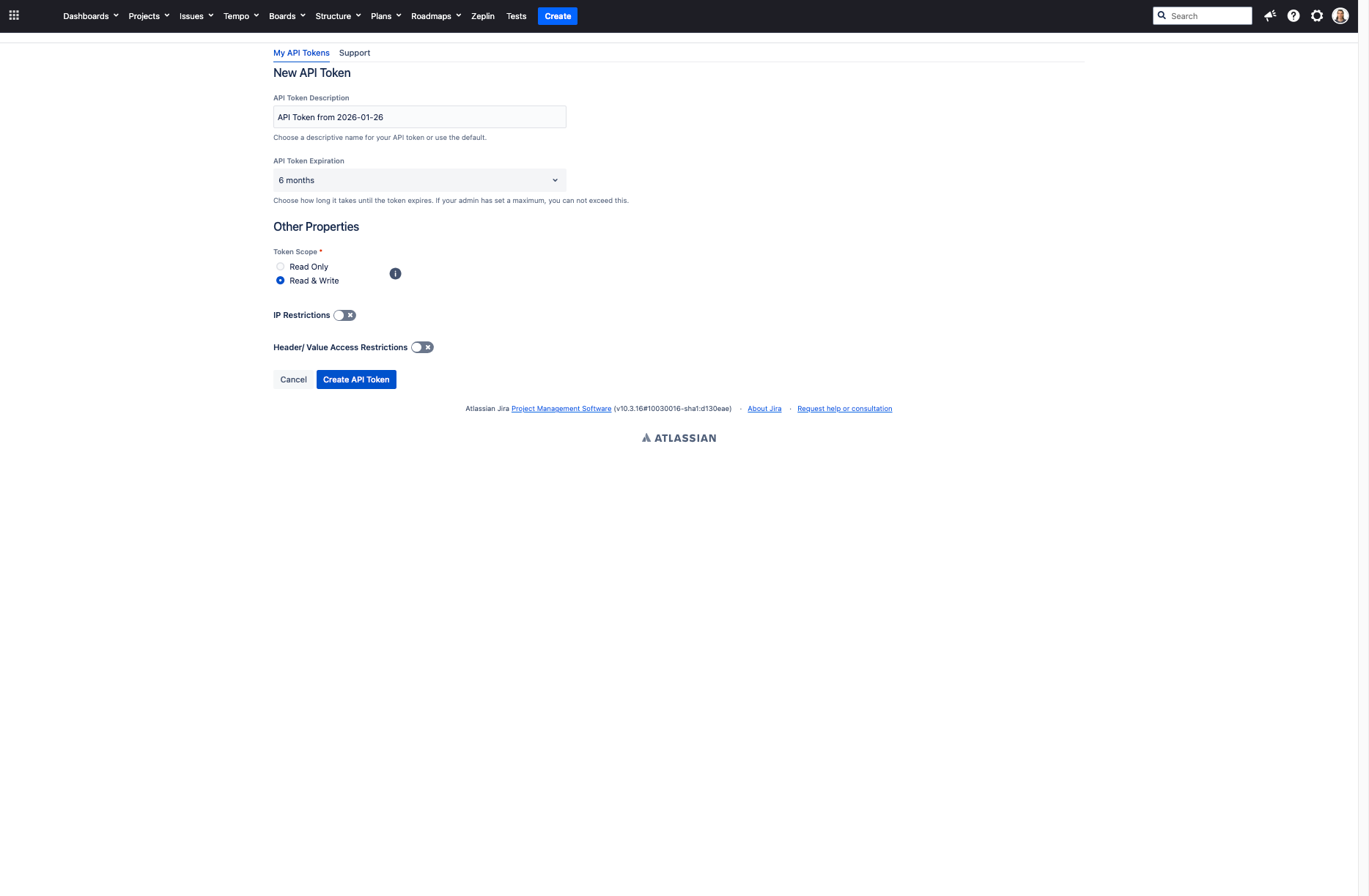
1.3. Fill in the token details:
- API Token Description: Enter a descriptive name for your token (e.g., "API Token from 2026-01-26")
- API Token Expiration: Select expiration period (e.g., "6 months")
- Token Scope: Choose Read & Write for full access
- Configure IP Restrictions and Header/Value Access Restrictions if needed
Then click Create API Token:
1.4. Copy the generated API token from the screen. The token will be displayed in two fields (e.g., "nEO" and "mLyv0"). Copy both parts and store them securely:
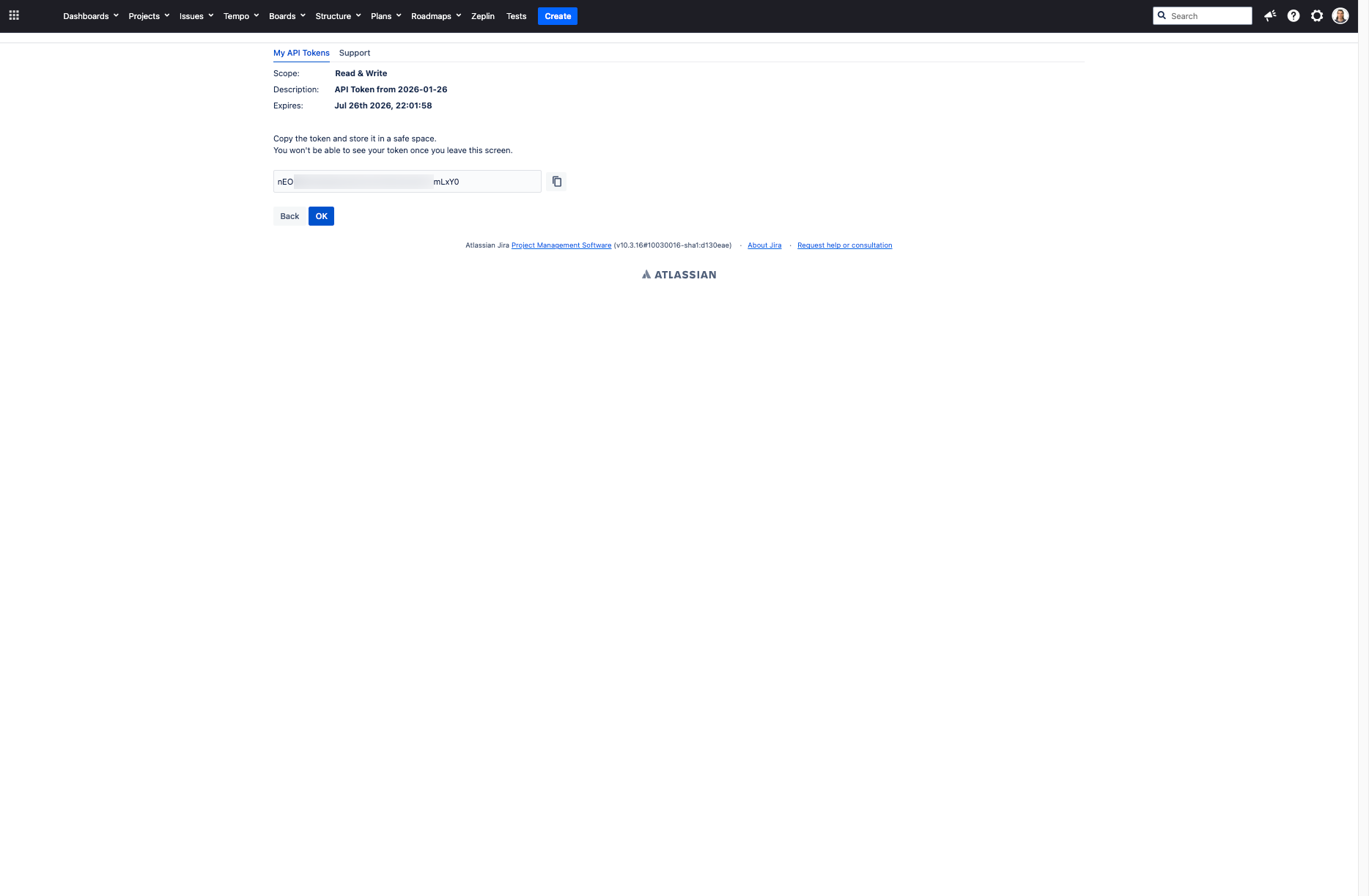
API tokens should be treated as passwords. Keep them secure and never share them publicly. You won't be able to see your token once you leave this screen.
2. Configure Integration in CodeMie
2.1. In the CodeMie main menu, click the Integrations button.
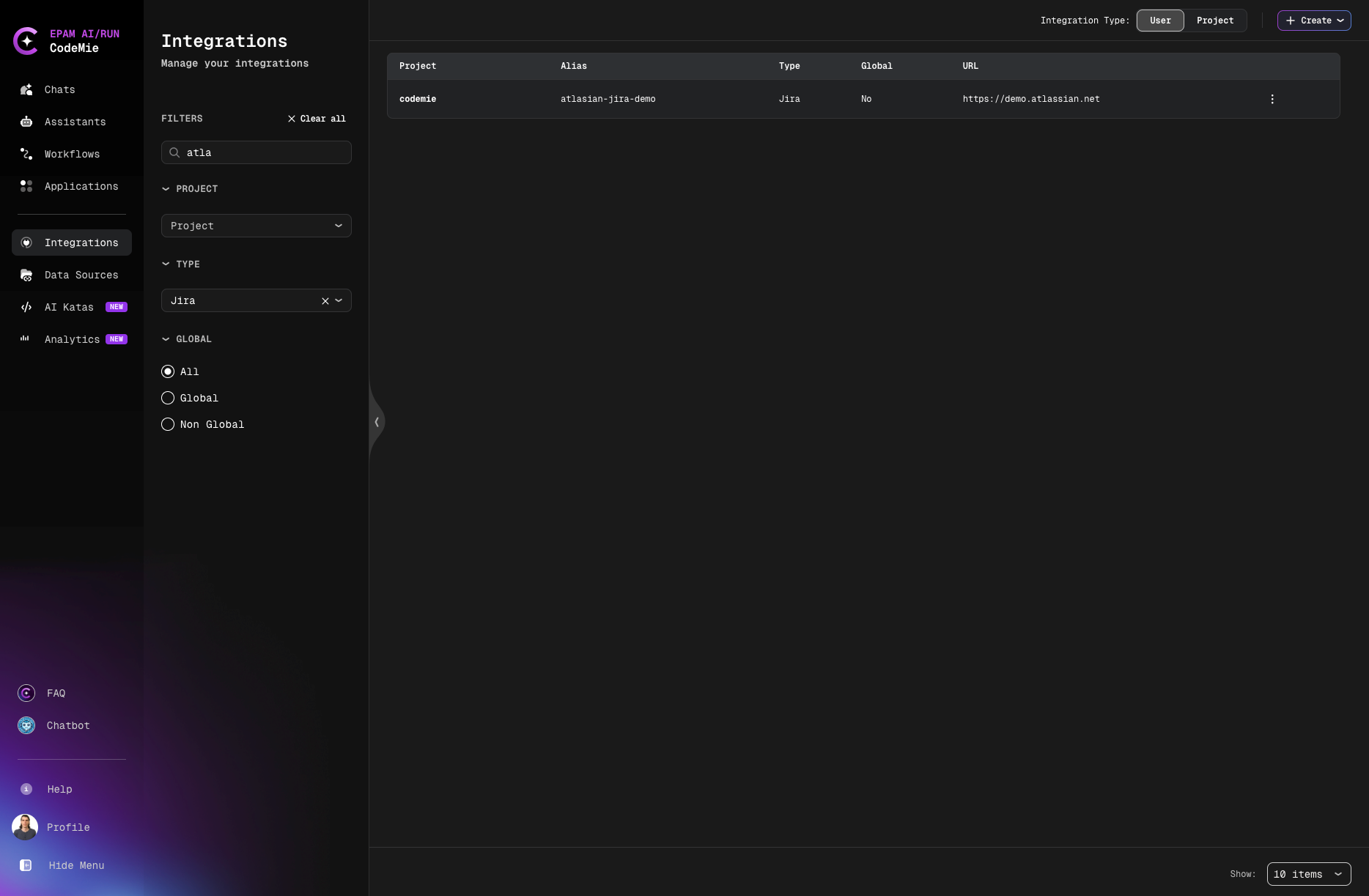
2.2. Select User or Project integration type and click + Create button.
2.3. Set Credential Type to Jira and fill in the Project Name, Global Integration toggle, and Alias fields. Then choose an authentication method:
- Personal Access Token
- OAuth 2.0 (Atlassian)
Fill in the following fields:
- URL: The Jira instance URL. For Jira Cloud, the correct value depends on the API token type (see the warning below):
- For Jira Cloud with a classic (unscoped) token:
https://<your-domain>.atlassian.net - For Jira Cloud with a scoped token:
https://api.atlassian.com/ex/jira/<your-cloud-id> - For Jira Self-hosted:
https://<your-jira-server-url>
- For Jira Cloud with a classic (unscoped) token:
- Is Jira Cloud:
- ✅ Check this box if using Jira Cloud
- ❌ Leave unchecked if using Jira Self-hosted
- Username/email for Jira: The Atlassian account email (e.g.,
user@example.com). - Token: Paste the API token created in step 1.
Atlassian Cloud offers two kinds of API tokens, and each requires a different URL value. CodeMie sends requests to exactly the URL provided, so the URL and token type must match:
- A classic (unscoped) token works with the site URL:
https://<your-domain>.atlassian.net. - A scoped token (created with specific permissions) only works through the Atlassian API gateway:
https://api.atlassian.com/ex/jira/<your-cloud-id>.
To find the cloud ID, open https://<your-domain>.atlassian.net/_edge/tenant_info in a browser while signed in to Atlassian. The returned cloudId value is the <your-cloud-id> used in the gateway URL.
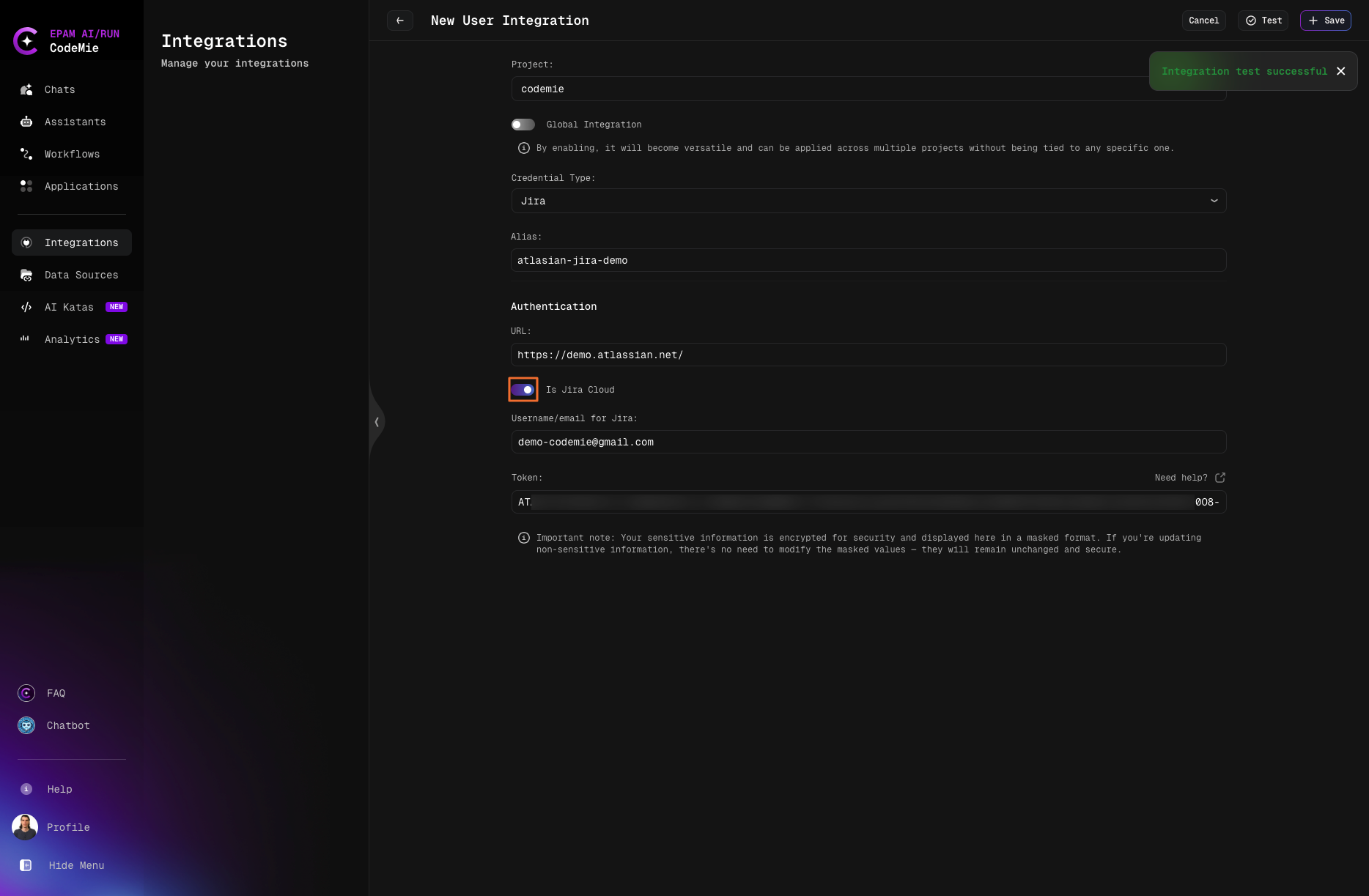
Click Test (optional) to verify the connection, then click Save.
The OAuth 2.0 option is only available when the platform administrator has enabled it (the JIRA_OAUTH_ENABLED flag). If the Use OAuth 2.0 sign-in toggle is not shown, contact the platform administrator.
OAuth 2.0 integrations are per-user: the OAuth application credentials (Client ID, Client Secret, Callback Base URL) are entered in the integration form when creating the integration, and each member then connects under their own Atlassian account. Calls to Jira run as the individual member — no shared token.
Steps:
2.3.1. Enable the Use OAuth 2.0 sign-in toggle in the integration form. The form shows the OAuth application fields: Client ID, Client Secret, and Callback Base URL. Fill these in with the values from the Atlassian OAuth application registered for this platform.
2.3.2. Click Sign in with Jira. A browser popup opens the Atlassian authorization page.
2.3.3. Log in to Atlassian and grant the requested permissions. The popup closes automatically on success.
2.3.4. The form shows a confirmation that the account is connected. The Atlassian cloud_id is resolved automatically — no URL field is required.
2.3.5. Click Save to create the integration.
A successful sign-in is required before the integration can be saved. The save button remains disabled until the OAuth connection is completed.
Both User-level and Project-level integrations are supported. User-level integrations are available across all projects; Project-level integrations are specific to a single project.
2a. Connect from Chat (OAuth only)
When a run first uses a Jira integration that a member has not yet connected, the chat displays a "Connect your Jira account" prompt with a Sign in button.
To connect:
- Click Sign in in the chat prompt. The Atlassian authorization popup opens.
- Log in and grant the requested permissions. The popup closes on success.
- Resend the message that triggered the prompt. The run retries with the newly connected account.
This in-chat connect gate appears only for OAuth integrations. Members using a personal access token integration do not see this prompt.
3. Create Assistant with Jira Tool
3.1. Click Explore Assistant, then click Create Assistant and fill in the following parameters:
- Project Name: Select the name of your project.
- Name: Specify the assistant name (e.g., "Jira Task Manager").
- Description: Specify description (e.g., "Assistant for managing Jira tasks and issues").
- System Instructions: Specify system instructions for how the assistant should work with Jira.
- Available tools: Expand Project Management section, check Generic Jira, and select your Jira integration alias from the dropdown list.
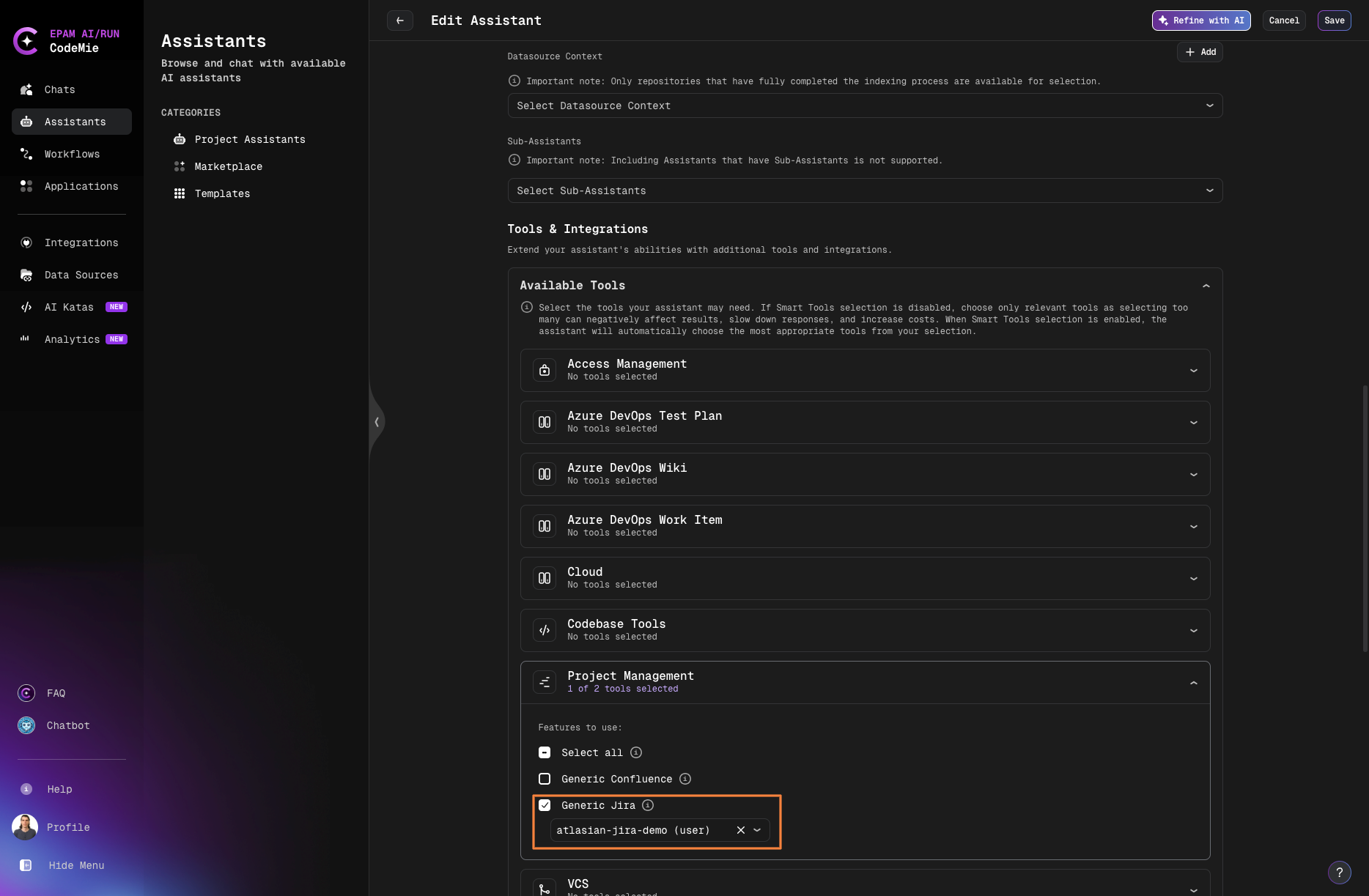
3.2. Click Create or Save to finalize your assistant.
4. Use Your Assistant
4.1. Click Explore Assistant, select My Assistant and choose your Jira assistant by name.
4.2. You can now interact with your Jira instance through natural language:
- Create new issues and tasks
- Create subtasks and assign them
- Search and filter issues
- Update issue status and assignees
- Add comments to issues
- Link related issues
- View project boards and backlogs
Example: You can ask the assistant to create tasks with natural language commands like "create me new task with name and text hello from codemie in project key KAN":
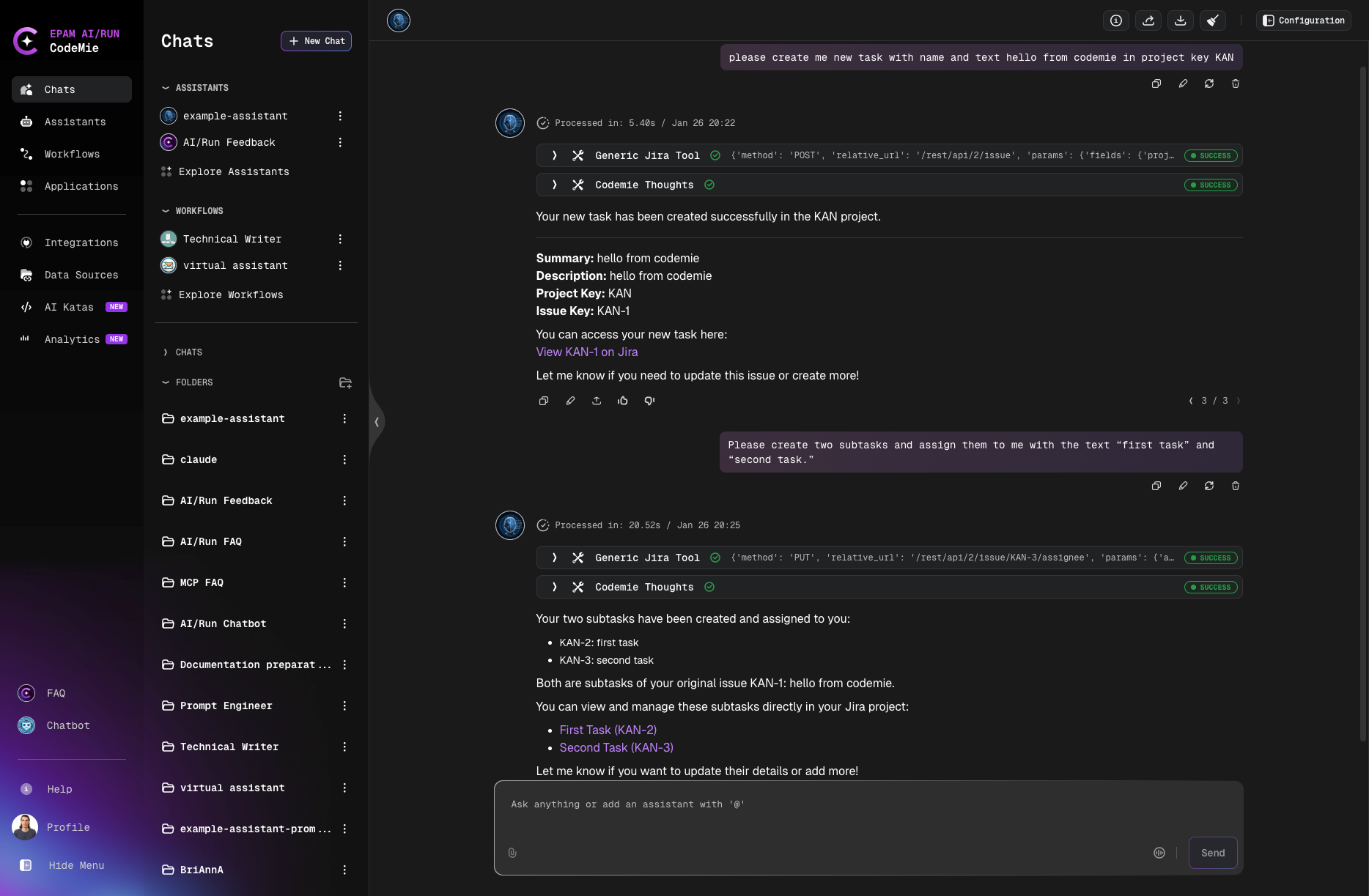
The assistant will create the tasks in Jira and provide you with links to view them directly in your Jira workspace.
5. Create Issue with Attachment Transfer
When creating a new Jira issue from an existing one, the assistant can copy attachments across tickets on request. Both attachment transfer and image text extraction are opt-in — the tool never copies files or runs image recognition unless explicitly asked.
Attachment transfer requires that the Jira integration has read access to the source ticket's project and write access to the target project.
Copy attachments
To copy all attachments from an existing ticket into a newly created one, include the request in the prompt:
"Create a bug in project BUG from PROJ-123 and copy its attachments"
The assistant creates the new issue and transfers all files (screenshots, logs, documents) from the source ticket. The files are identical to the originals.
Extract text from image attachments (OCR)
To extract text from image attachments, request it explicitly:
"Create a bug in project BUG from PROJ-123, copy its attachments, and extract text from any images"
The assistant runs image recognition on every image attachment and posts a single comment on the new issue containing the extracted content. This is a separate step from attachment copy — either option can be requested independently.
Both options can be combined or used independently:
- Copy attachments only:
"... copy attachments from ORIG-123" - Extract image text only (without copying files):
"... extract text from images in ORIG-123" - Both:
"... copy attachments and extract text from images in ORIG-123"
Image text extraction uses a vision model and incurs additional processing cost. Only request it when the extracted content is needed.
Use Cases
Project Management
Use the Jira integration to:
- Automatically create tasks from conversation context
- Track progress on development work
- Link code changes to Jira issues
- Update sprint planning and backlog
Issue Tracking
Streamline issue management by:
- Quickly searching for existing issues
- Creating detailed bug reports
- Assigning tasks to team members
- Monitoring issue resolution progress
Issue Cloning with Attachment Transfer
Speed up ticket creation workflows by:
- Creating a new issue from an existing one with attachments copied across on request
- Optionally extracting text from image attachments via OCR — posted as a comment on the new issue
- Keeping full traceability between source and target tickets
Both attachment copy and image OCR are opt-in. See Create Issue with Attachment Transfer for details.
Workflow Automation
Integrate Jira with CodeMie workflows to:
- Automatically transition issues based on events
- Generate reports from Jira data
- Synchronize status across tools
- Trigger notifications on issue updates
Best Practices
- Use descriptive issue titles and descriptions for better AI understanding
- Configure appropriate permissions for the API token
- Regularly review and update integration credentials
- Leverage JQL (Jira Query Language) for advanced filtering
- Set up project-specific integrations for better access control