Kubernetes
AI/Run CodeMie can assist you with managing Kubernetes clusters. Generally, you need an API server endpoint and bearer-token to integrate AI/Run CodeMie with your cluster. In our example, we will be using Amazon Web Services.
To integrate Kubernetes cluster with AI/Run CodeMie, follow the steps below:
1. Get API Server Endpoint from AWS EKS
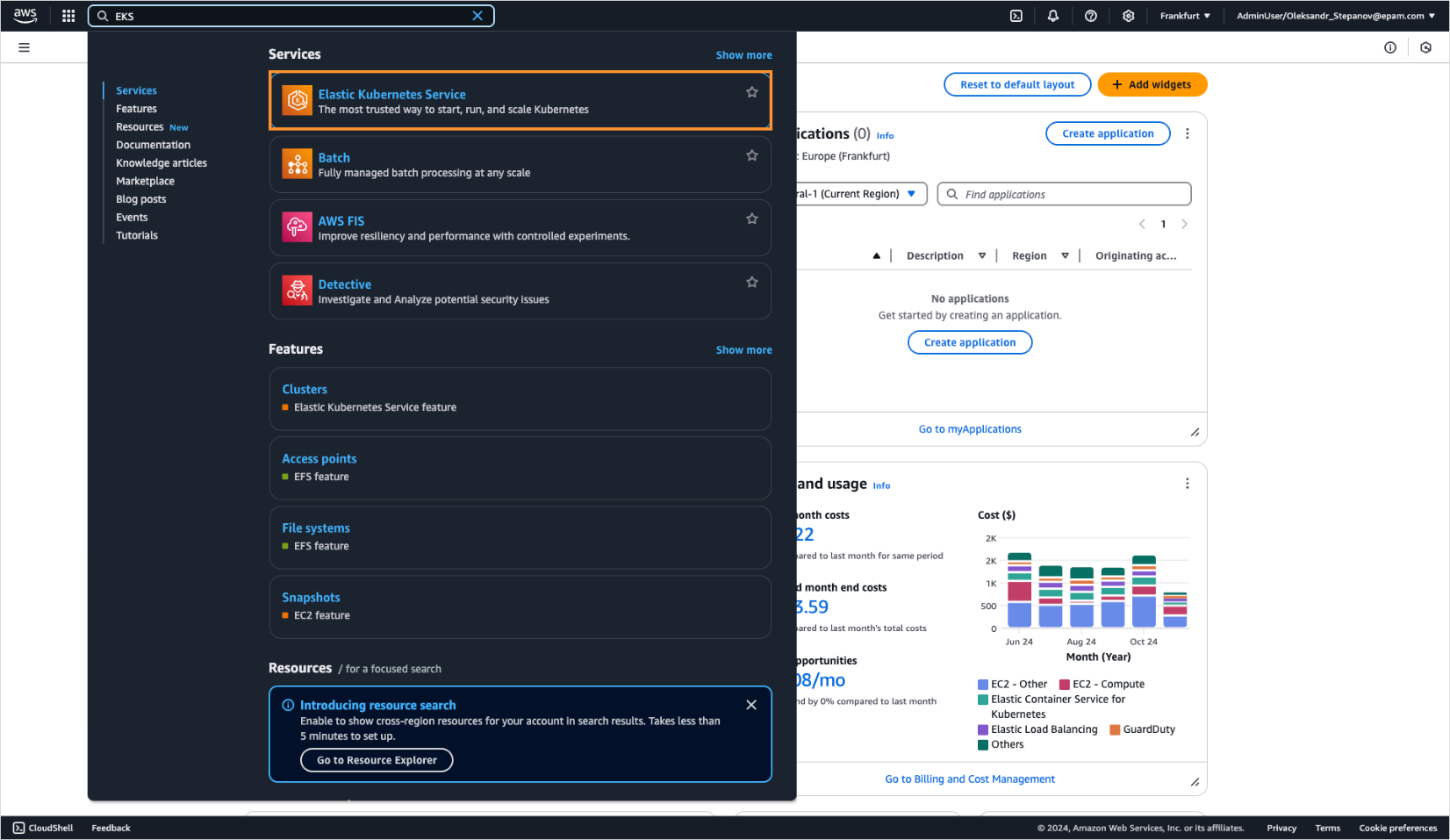
1.1. In AWS cloud, in the search bar, enter EKS and click it.
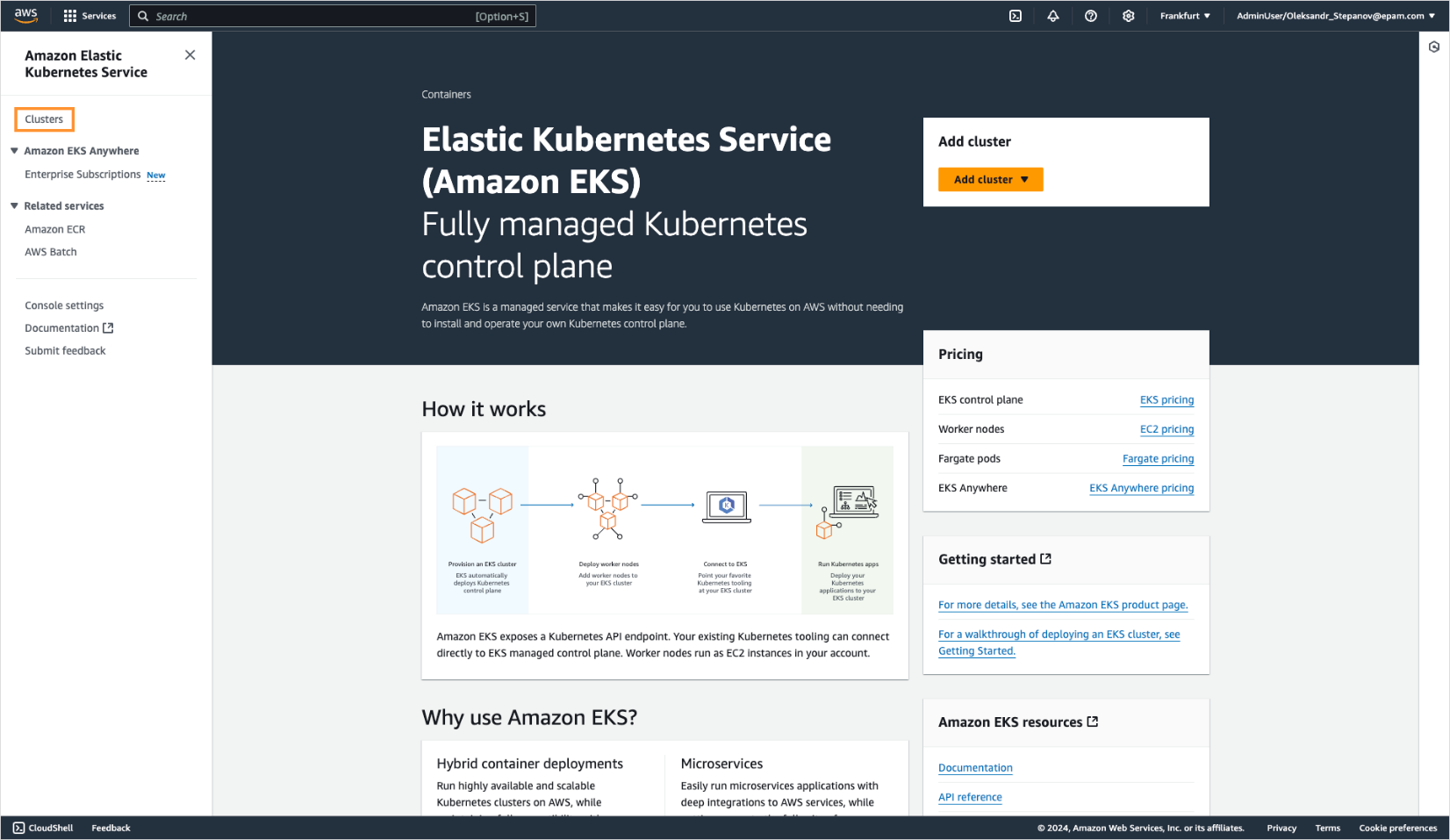
1.2. On the EKS page, select Clusters:
1.3. On the EKS page, click the Clusters button:
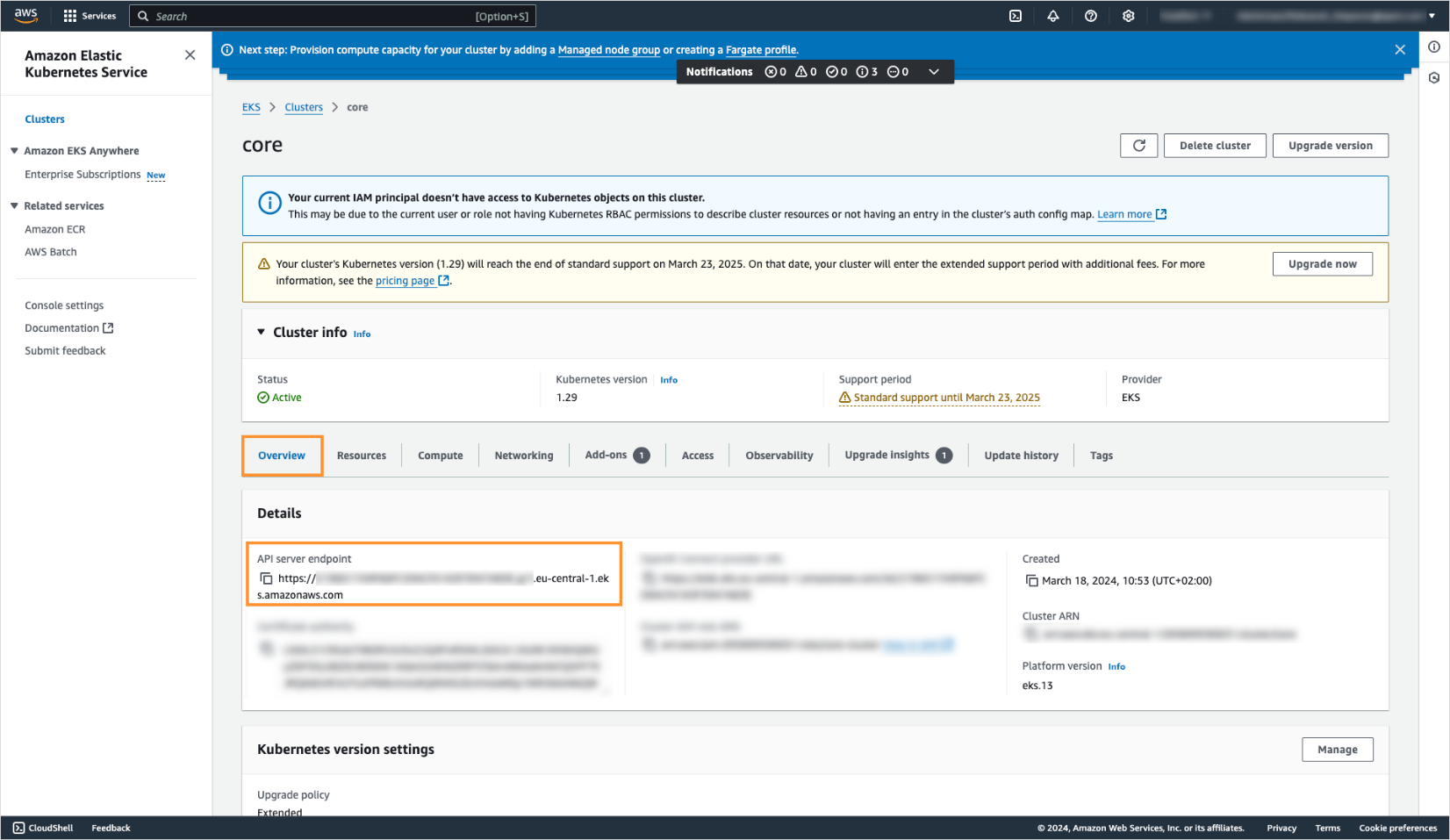
1.4. Select one of your clusters you want to integrate. Navigate to Overview → Details and copy API server endpoint (https://xxxxxxxxxxxxxxxxxxxxxxxxxxxx..xxxxxxxxxx.eks.amazonaws.com):
2. Create Bearer Token in Kubernetes
2.1. In Kubernetes cluster use commands below from your terminal to create bearerToken.
2.2. Create codemie service account:
cat <<EOF | kubectl apply -n kube-system -f -
apiVersion: v1
kind: ServiceAccount
metadata:
  name: codemie
  namespace: kube-system
EOF
2.3. Create ClusterRoleBinding to grant your codemie user with the cluster-admin role:
cat <<EOF | kubectl apply -n kube-system -f -
apiVersion: rbac.authorization.k8s.io/v1
kind: ClusterRoleBinding
metadata:
  name: codemie-crb
subjects:
  - kind: ServiceAccount
    name: codemie
    namespace: kube-system
roleRef:
  apiGroup: rbac.authorization.k8s.io
  kind: ClusterRole
  name: cluster-admin
EOF
2.4. Create a secret that will store the codemie bearer token:
cat <<EOF | kubectl apply -n kube-system -f -
apiVersion: v1
kind: Secret
metadata:
  name: codemie-token
  namespace: kube-system
  annotations:
    kubernetes.io/service-account.name: codemie
type: kubernetes.io/service-account-token
EOF
2.5. Run the command below to generate a bearer token for codemie user:
kubectl get -n kube-system secret/codemie-token -o jsonpath='{.data.token}' | base64 --decode
2.6. Copy the created bearerToken.
3. Configure Integration in AI/Run CodeMie
3.1. In the AI/Run CodeMie main menu, click the Integrations button.
3.2. Select User or Project and click the Create.
3.3. Fill in the required fields and click Create:
- Project Name: Specify project name.
- Credential Type: Kubernetes.
- Alias: Specify the integration name.
- Region: Specify the AWS Region to work in.
- Kubernetes URL: Paste the API server endpoint data copied from step 1.4.
- Kubernetes bearer token: Paste the codemie-token data copied from step 2.6.
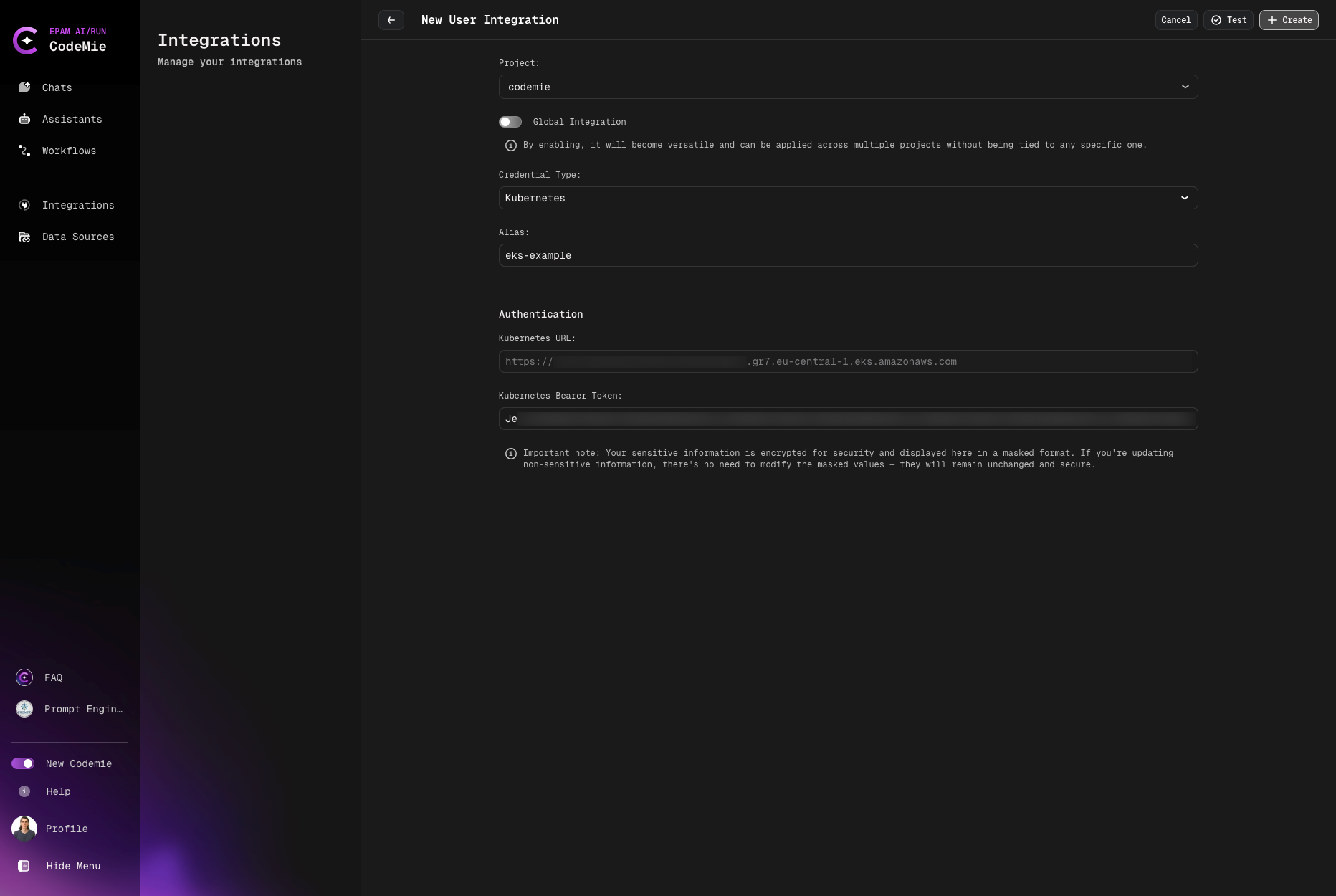
(Optional) you can "Test Integration" connection before creating.
4. Enable Kubernetes Tool in Assistant
4.1. Modify your assistant by enabling AWS integration or create a new assistant with this tool:
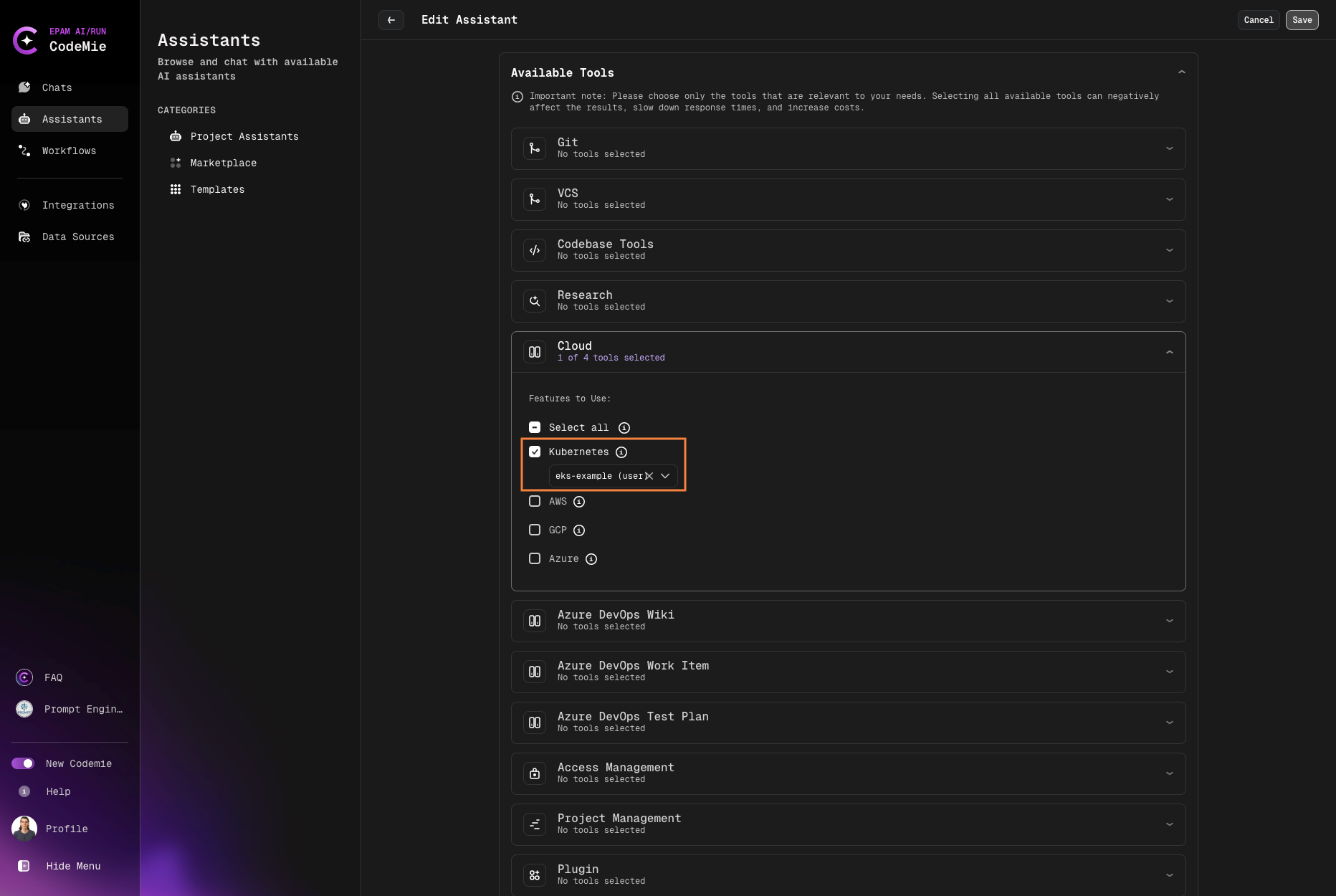
5. Verify Integration
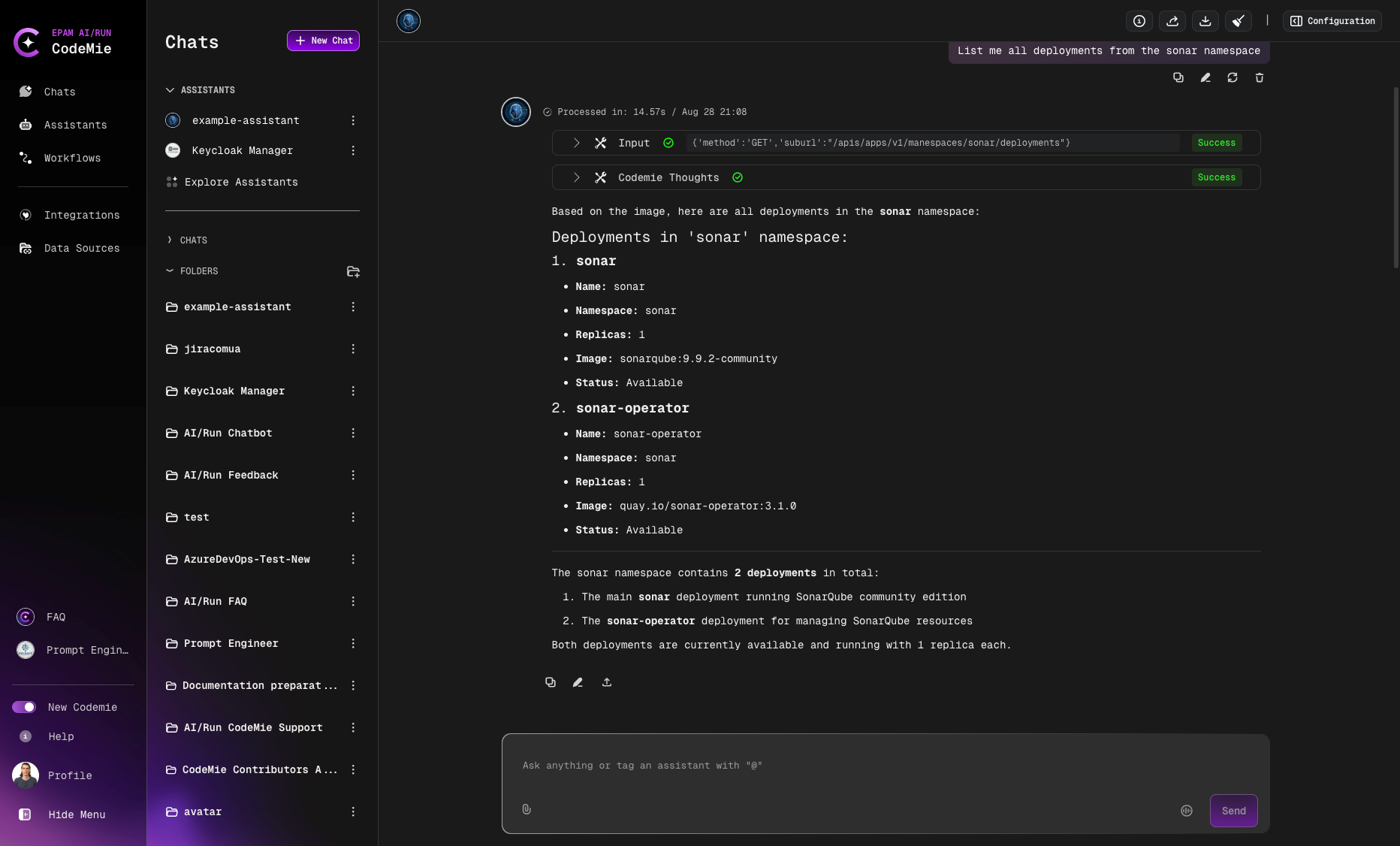
5.1. Verify K8S integration by asking assistant a relevant question: