Microsoft Teams Bot
The CodeMie Bot is a Microsoft Teams app that connects AI/Run CodeMie assistants directly into Teams conversations. Once installed and configured, an assistant can be reached from a personal chat, a group chat, or a channel — with streamed responses, Teams conversation history passed in as context, and file attachments in personal chats.
Setting it up has two parts: exposing assistants to the bot through an MS Teams Bot integration in CodeMie, and installing the app in Teams.
Expose Assistants to the Bot
Before an assistant can be used from Teams, it needs to be exposed to the bot through an MS Teams Bot integration in CodeMie — this determines which assistants are offered when running /setup inside Teams. The integration does not add a capability to an assistant the way a tool does — it only tells the bot which assistants it is allowed to expose.
Create the Integration
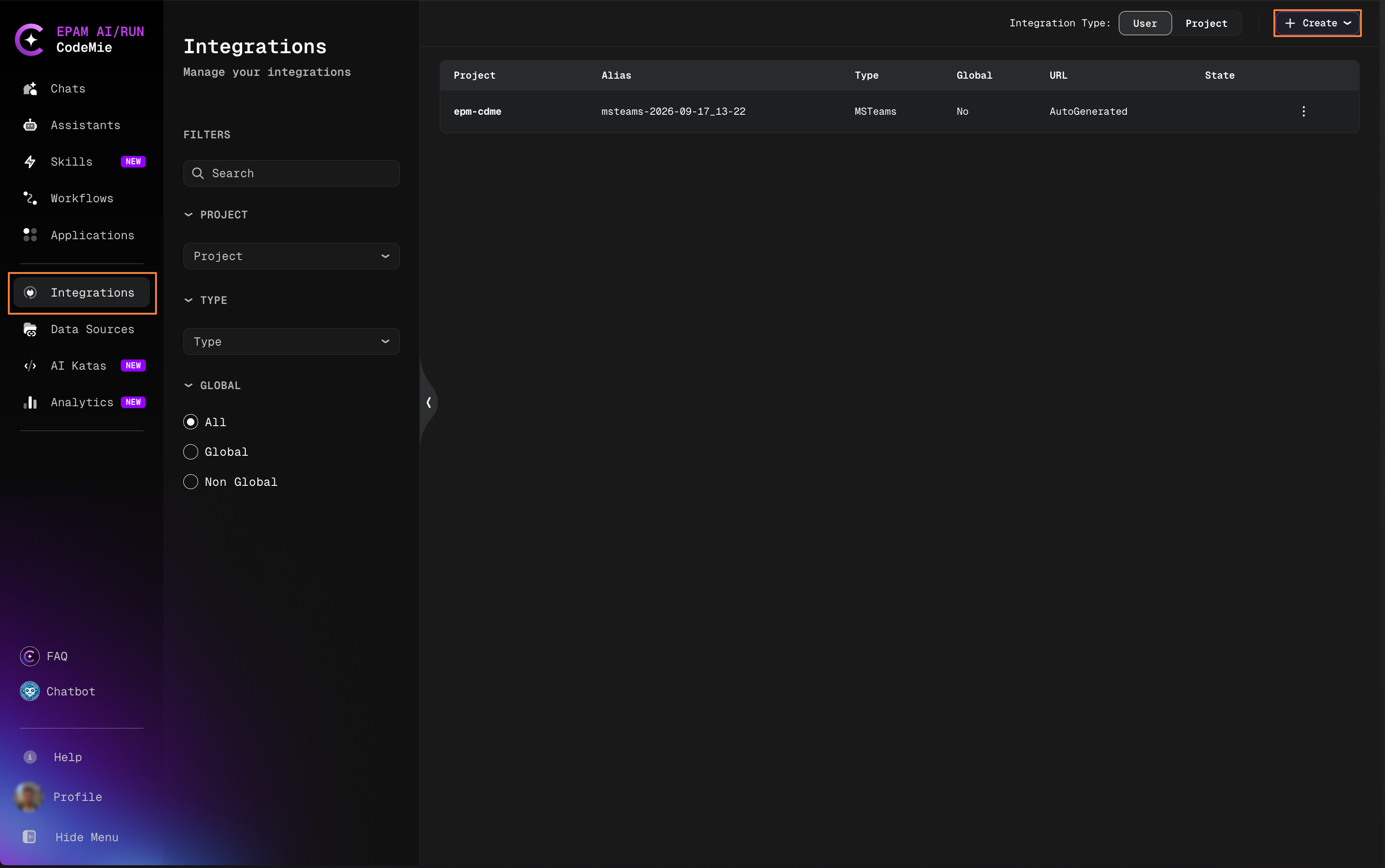
- In AI/Run CodeMie, open the Integrations tab, choose User or Project, and click + Create:
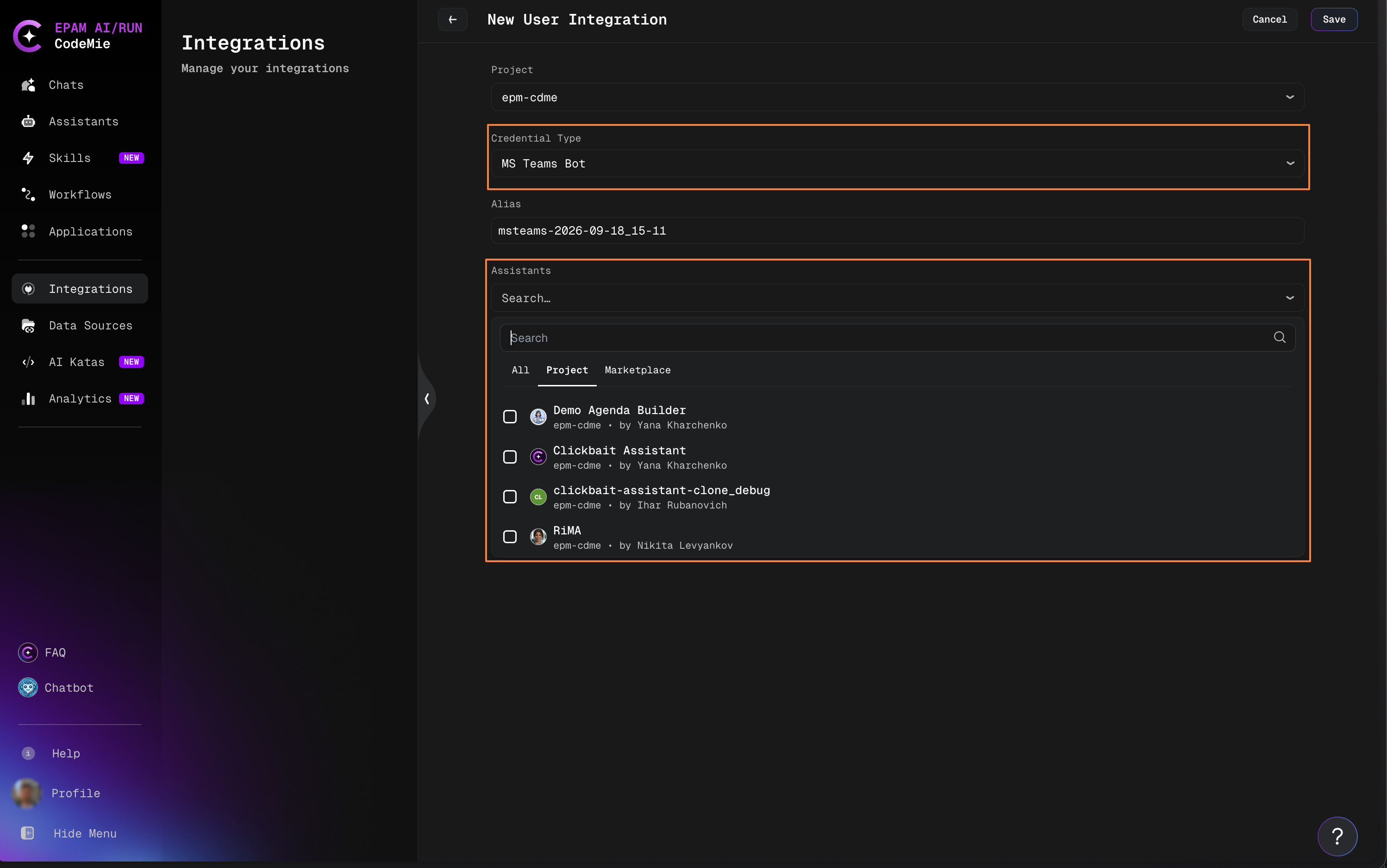
- Set Credential Type to MS Teams Bot, then select the assistants to expose in the Assistants field:
- Click Save.
Fields
| Field | Description |
|---|---|
| Project | The project the integration belongs to. |
| Credential Type | MS Teams Bot. |
| Alias | Name for the integration, shown in the integrations list. |
| Assistants | Multiselect of the assistants exposed to the bot for this integration's scope, searchable across All, Project, and Marketplace tabs. |
User vs. Project Scope
| Integration scope | Created under | Exposed to |
|---|---|---|
| User | Integrations → User | The Teams user who created it, in personal chats only |
| Project | Integrations → Project (requires isAdmin or applications_admin) | Any group chat or channel where /setup is run |
See Integrations for the full explanation of integration scopes, priority, and how a default is picked when more than one exists.
A group chat or channel can only use assistants that are shared with the project or marked global — a private personal assistant is not offered there even if it is selected in a User integration.
Install the Bot in Microsoft Teams
The bot can be added to Teams in one of two ways, depending on how the organization has made it available.
Option A: Add from the organization's app catalog
If an admin has already published the CodeMie Bot to the organization's app catalog, it can be added like any other Teams app:
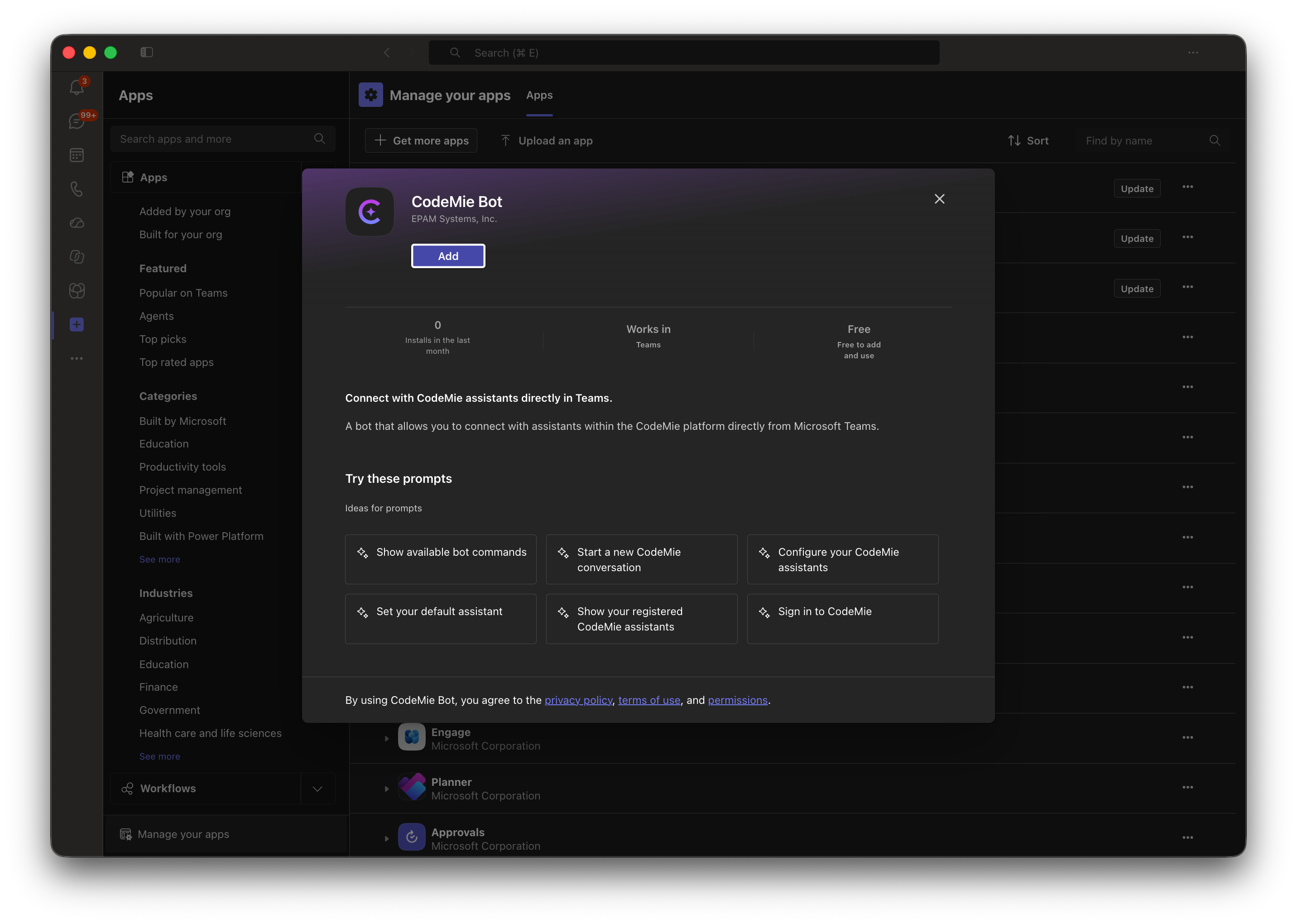
- In Teams, open Apps, then search for CodeMie Bot (or find it under Built for your org).
- Review the app details, then click Add for personal use, or Open to add the bot to a specific group chat or channel:
Option B: Sideload a custom app package
Before the bot is published to the org catalog — for example during evaluation or a self-hosted deployment — it can be sideloaded from a .zip app package.
Custom app upload must be allowed by tenant policy: Teams Admin Center → Teams apps → Setup policies → Upload custom apps. Contact a Teams admin if the upload option below is not available.
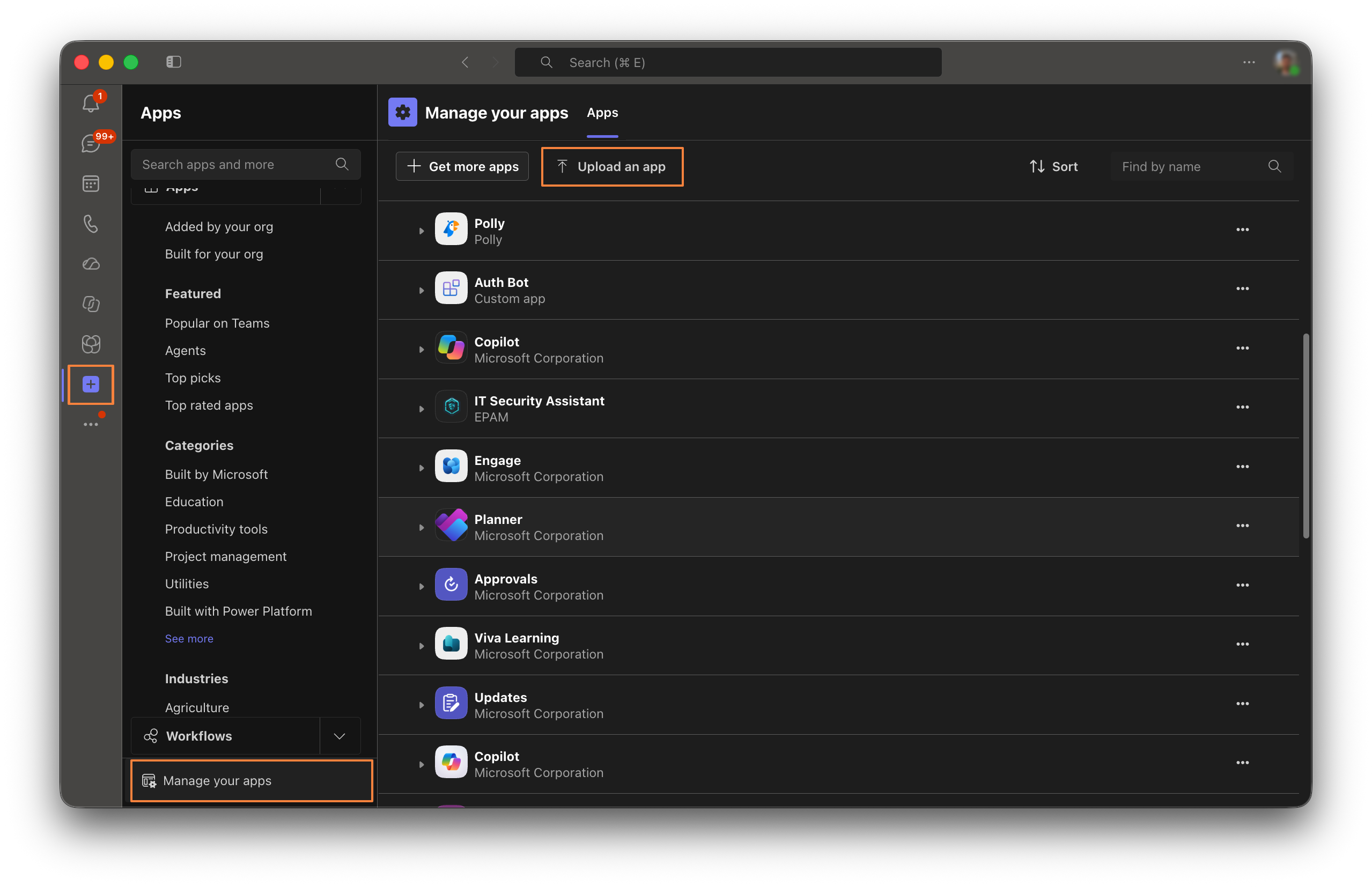
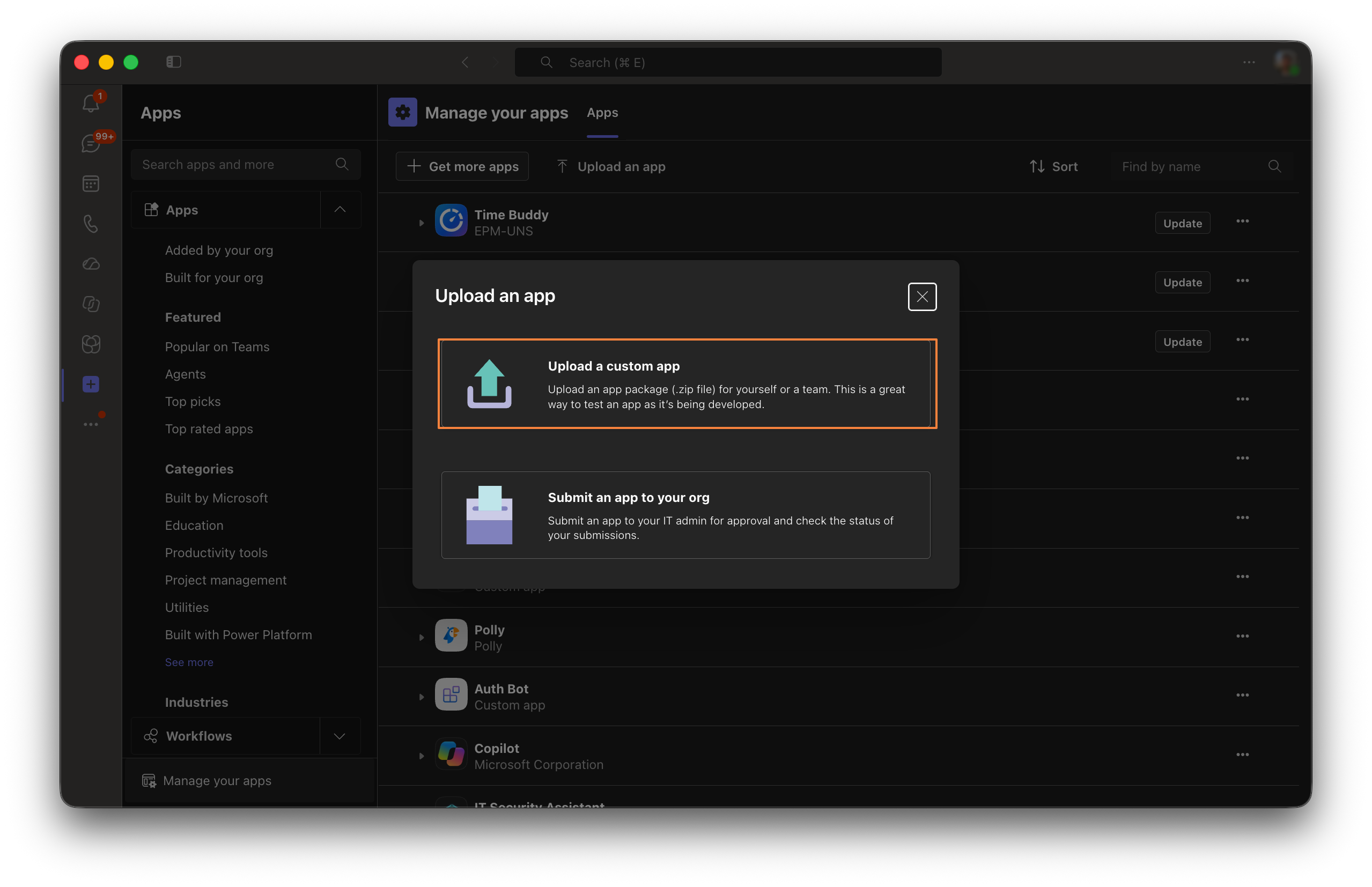
- In Teams, go to Apps → Manage your apps → Upload an app:
- Choose Upload a custom app, then select the built package
.zipfile:
- Review the app details and click Add.
Choosing where to add the bot
The bot supports three scopes:
- Personal — a 1:1 chat with the bot. File attachments are only supported here.
- Group chat — added to an existing group chat; the bot only responds when @mentioned.
- Team/channel — added to a channel; the bot only responds when @mentioned.
Sign In from Teams
On the first message sent to the bot, it replies with a sign-in card. Following it opens CodeMie's sign-in flow (brokered by Azure Bot Service), after which the bot can act on the signed-in user's behalf.
/signin— starts the sign-in flow again if needed./signout— ends the session; a subsequent message prompts to sign in again.
Register and Select Assistants
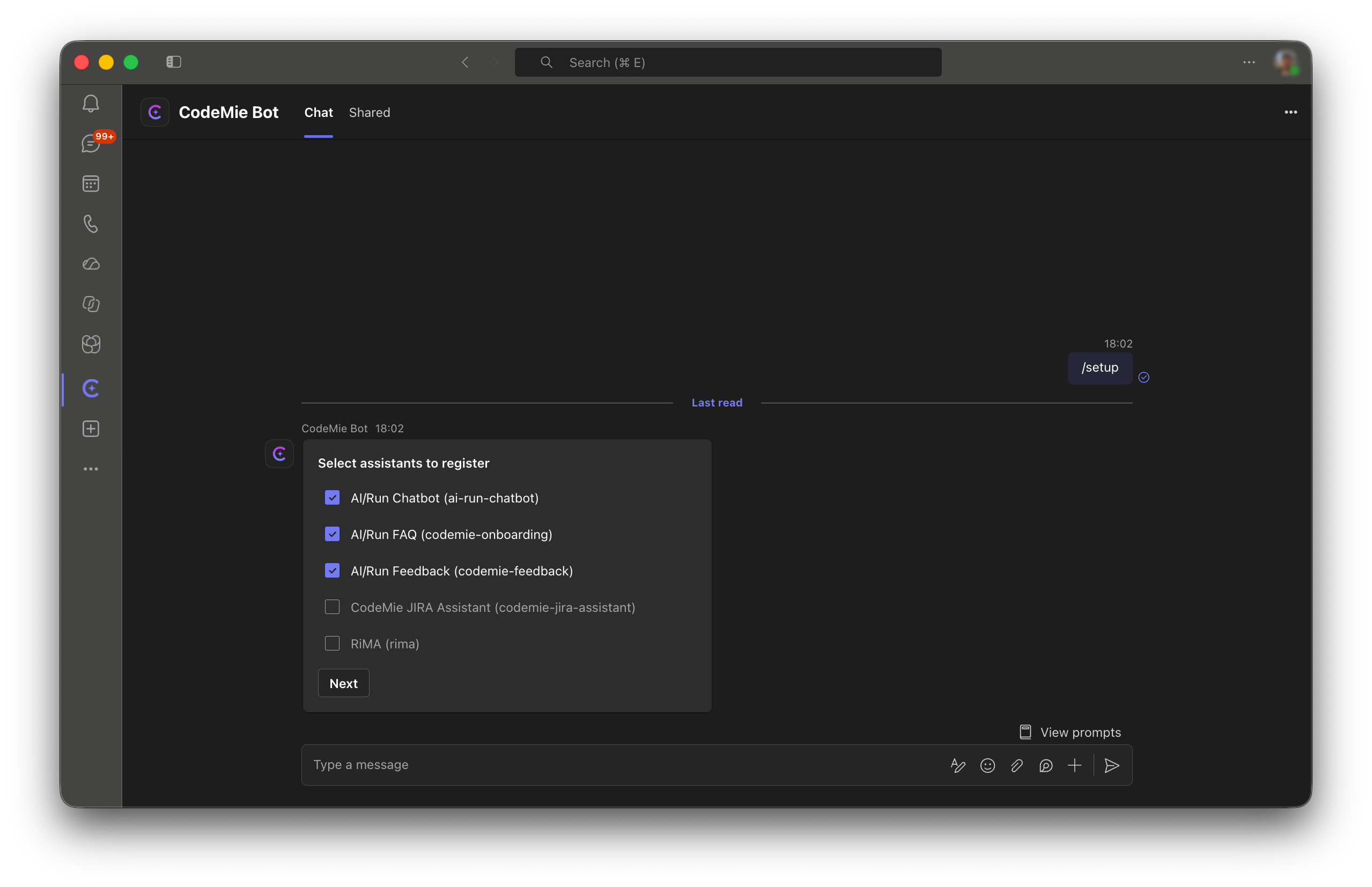
With at least one MS Teams Bot integration configured, run /setup in the chat, group chat, or channel to register assistants and pick a default:
- The bot replies with a Select assistants to register card listing the assistants exposed via the integration for the current scope. Check the ones to register and click Next:
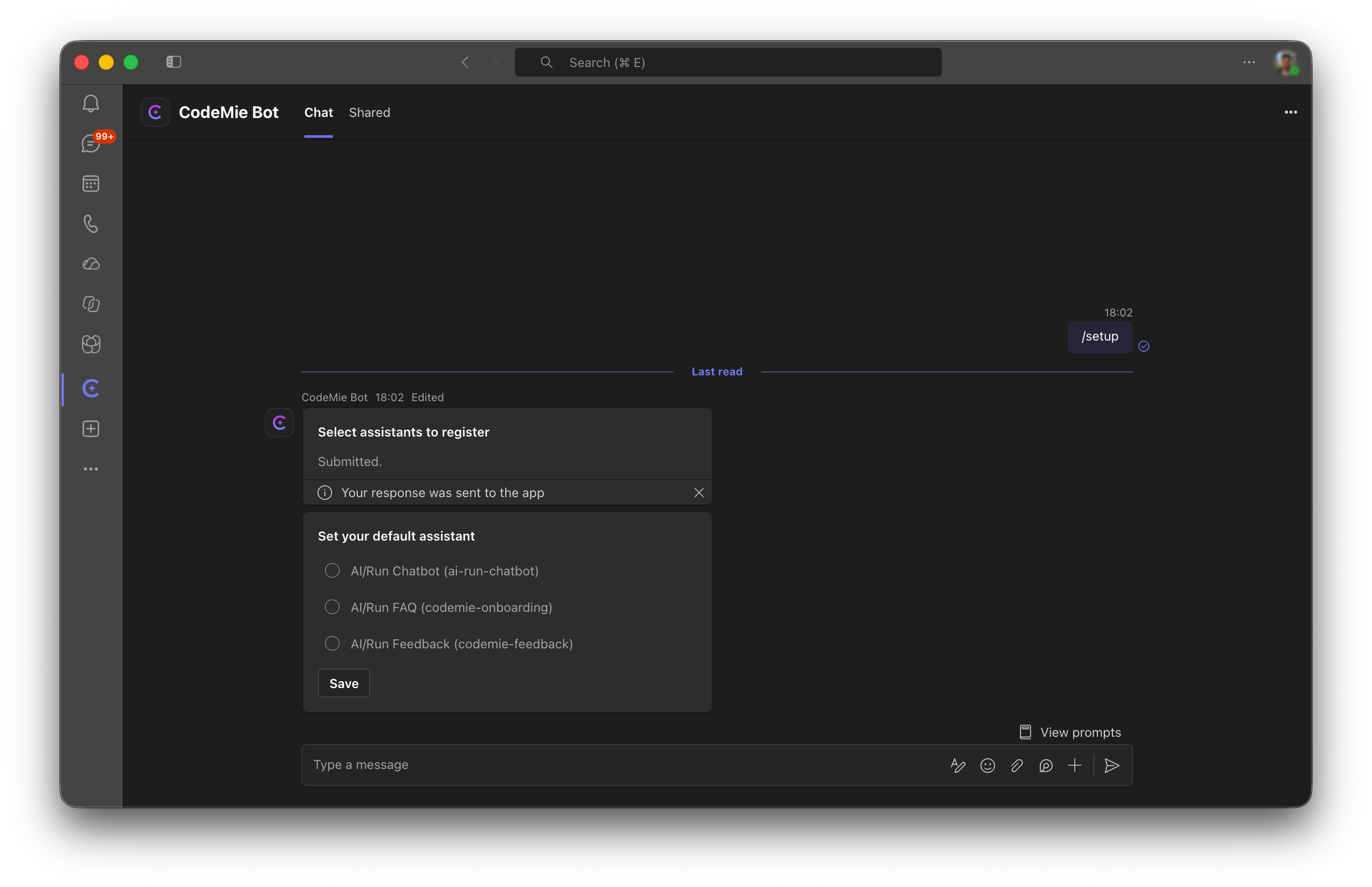
- If more than one assistant was selected, the bot replies with a Set your default assistant card listing the assistants just registered. Pick one and click Save. If only one assistant was selected, it is set as the default automatically and this step is skipped:
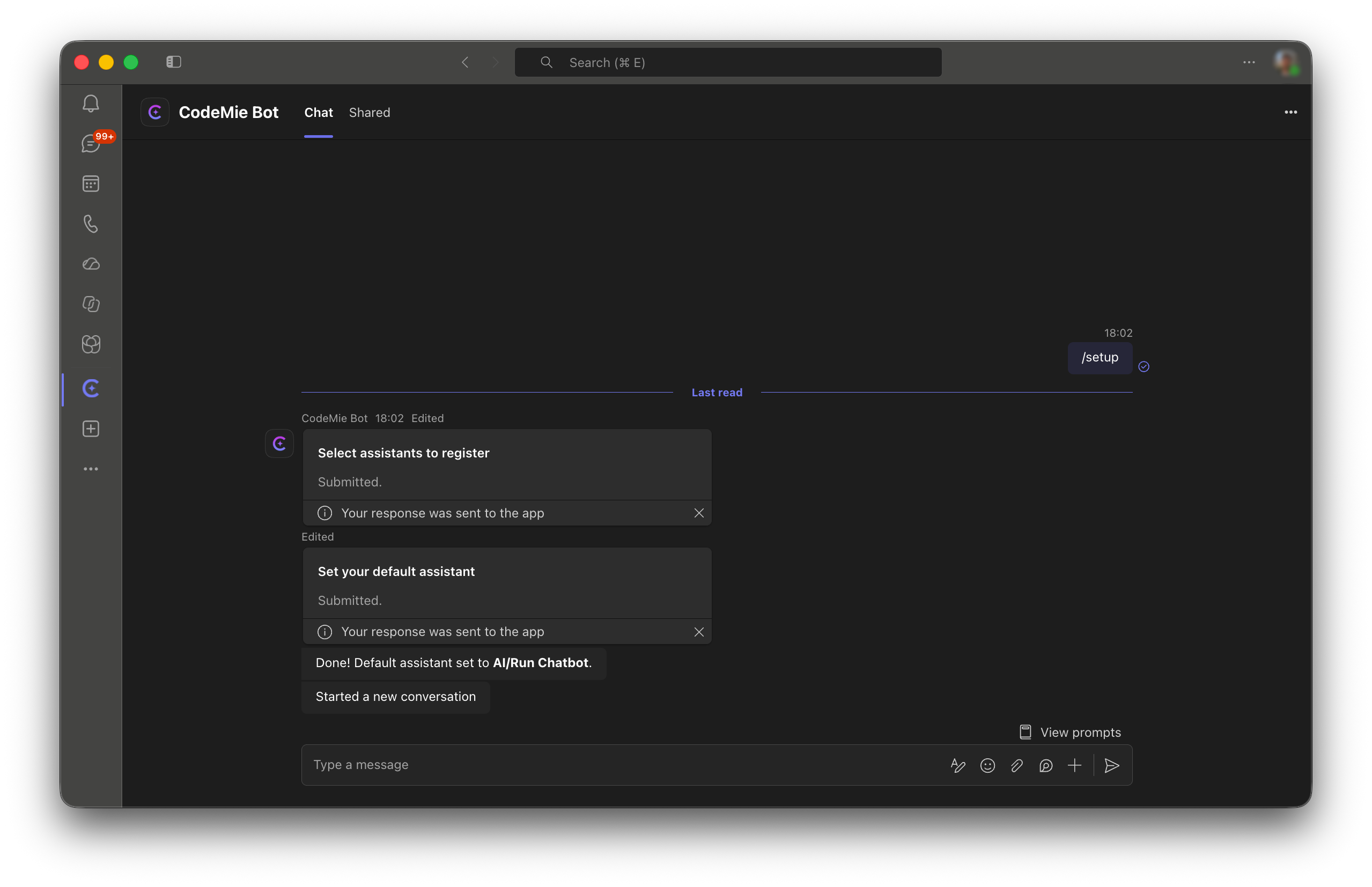
- Both cards are marked Submitted, the bot confirms the default assistant, and starts a new conversation automatically:
/setup— opens the assistant-registration flow above./default— reopens the default-assistant picker, limited to already-registered assistants./list— shows the assistants registered for the current scope, marking the default one; an assistant that is no longer exposed via the integration is marked as removed./new— starts a fresh conversation with the default assistant.
Each personal chat, group chat, and channel keeps its own independent registration and default.
Using the Bot in a 1:1 Personal Chat
Any message that is not a command is sent to the resolved assistant, with the response streamed back. File attachments are supported; a file sent without accompanying text is treated as a request to analyze or describe it.
Using the Bot in Group Chats and Channels
- The bot only responds when @mentioned.
/setupmust have been run for that group chat or channel before the bot responds to any message.- Attachments are not supported here; a message notes that attachments should be sent in a personal chat instead.
- When more than one assistant is registered for the scope, messages are automatically routed to the best-matching one; a specific assistant can be forced for a single message by prefixing it with
/<assistant-slug>(the slug shown by/list).
A group chat or channel can only use assistants that are shared with the project or marked global.
Command Reference
| Command | Description |
|---|---|
/help | Lists all available commands. |
/signin | Starts the sign-in flow. |
/signout | Ends the current session. |
/setup | Opens the assistant-registration card for the current scope. |
/default | Opens the default-assistant picker for the current scope. |
/list | Shows the assistants registered for the current scope. |
/new | Starts a new conversation with the default assistant. |
/<assistant-slug> | Prefix on a message to route that message to a specific registered assistant. |
FAQ
| Question | Answer |
|---|---|
| Why is "Upload a custom app" missing in Teams? | Sideloading is disabled by tenant policy — contact a Teams admin. |
| Why does the bot not respond in a group chat or channel? | The bot was not @mentioned, or /setup has not been run for that group chat or channel yet. |
| Why does the bot say "This group/channel has not been configured yet"? | Run /setup in that group chat or channel to register an assistant. |
| Why does the bot say "You're not signed in" in a group chat or channel? | Message the bot directly in a personal chat to complete sign-in, then try again. |
Why did an assistant registered with /setup disappear, or show as removed in /list? | The assistant is no longer exposed by the MS Teams Bot integration — check the integration's Assistants field in CodeMie. |
| Why does attachment upload fail in a group chat or channel? | Attachments are only supported in personal chats. |
Why doesn't typing / show a command autocomplete menu in a personal chat? | Slash-command autocomplete is not supported in personal chats — this is a Microsoft Teams limitation. Commands still work when typed in full, e.g. /setup. |
See Also
- Integrations — integration scopes and default selection