Azure DevOps
AI/Run CodeMie integrates with Microsoft Azure DevOps to enable automated project management, knowledge base operations, and quality assurance workflows directly from your assistants.
Available Tools
| Tool | Description |
|---|---|
| Azure DevOps Work Items | Create, update, search, and link work items across your Azure DevOps project |
| Azure DevOps Wiki | Read, create, modify, and search wiki pages in your Azure DevOps project |
| Azure DevOps Test Plans | Manage test plans, test suites, and test cases in your Azure DevOps project |
All three tools share the same AzureDevOps credential type and integration setup described below.
Prerequisites: Generate a Personal Access Token
All Azure DevOps tools authenticate with a Personal Access Token (PAT).
1.1 Navigate to Personal Access Tokens
- Log in to your Azure DevOps account at
https://dev.azure.com. - Click on your user icon in the top-right corner.
- Select Personal Access Tokens.
1.2 Create a New Token
- Click + New Token.
- Fill in the token creation form:
- Name: Enter a descriptive name (e.g.,
CodeMie Integration). - Organization: Select your organization from the dropdown.
- Expiration: Set an appropriate expiration date.
- Scopes: Select Full access or grant the following minimum scopes:
- Work Items: Read & write
- Wiki: Read & write
- Test Management: Read & write
- Name: Enter a descriptive name (e.g.,
- Click Create.
Copy the generated token immediately — it will not be displayed again. Store it securely.
Configure Integration in CodeMie
2.1 Open Integrations
In the CodeMie main menu, click Integrations.
2.2 Create a New Integration
- Select integration type: User or Project.
- Click + Create.
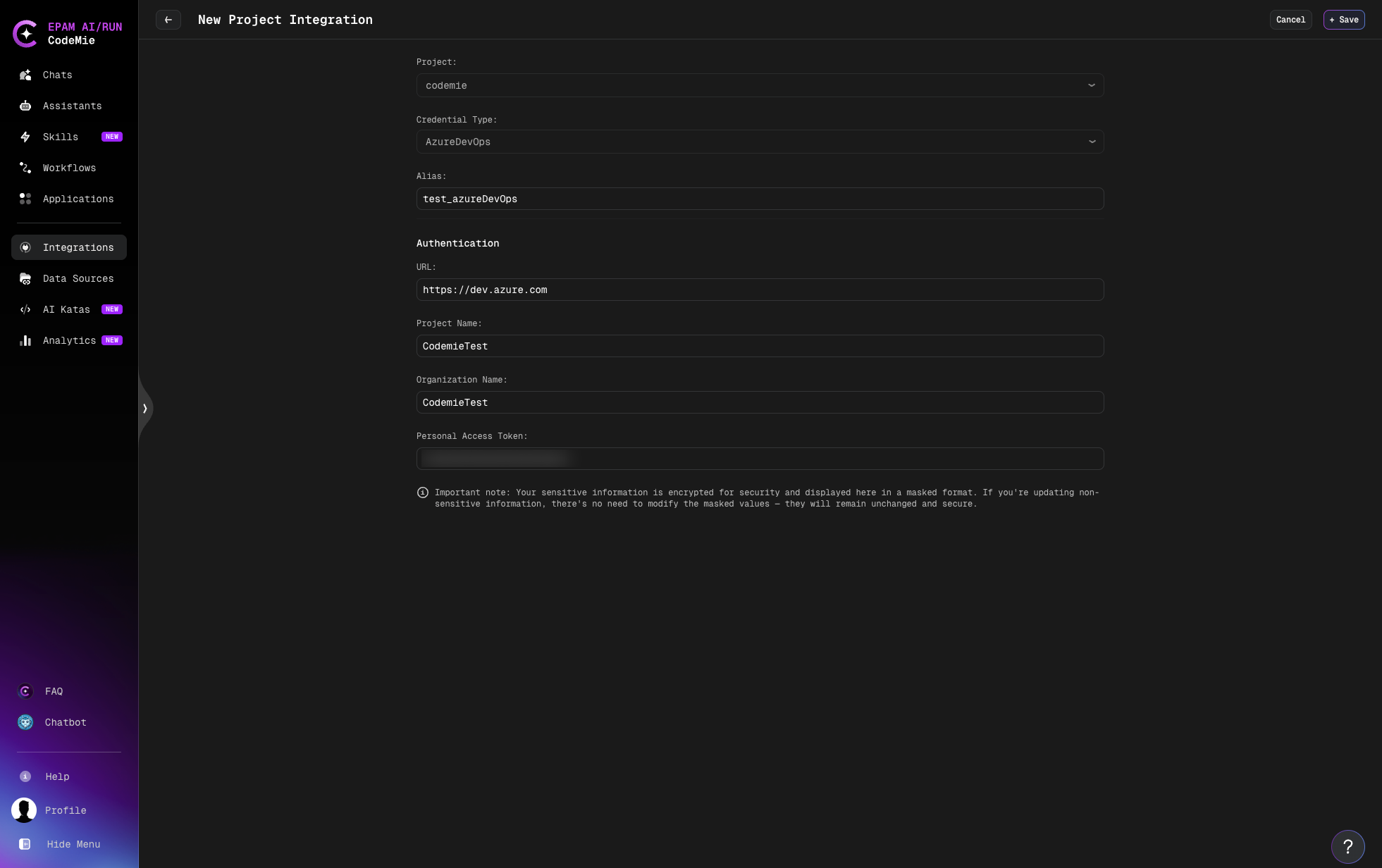
- Fill in the integration form:
- Project: Select your CodeMie project.
- Credential Type: Select AzureDevOps.
- Alias: Enter a recognizable name (e.g.,
azure-devops-prod). - URL: Enter your Azure DevOps organization URL (e.g.,
https://dev.azure.com). - Project Name: Enter your Azure DevOps project name (e.g.,
MyProject). - Organization Name: Enter your Azure DevOps organization name.
- Personal Access Token: Paste the PAT created in the previous step.
- Click Save.
Enable Global Integration if you want to reuse this integration across multiple CodeMie projects without creating separate credentials for each one.
Sensitive fields (PAT) are encrypted and displayed in masked format. When updating non-sensitive fields, leave the masked values unchanged — they will remain secure.
Once saved, this integration is available for selection when configuring any of the Azure DevOps tools in your assistant.