GitHub/GitLab/Bitbucket
AI/Run CodeMie assistants can work with Git repositories. Apart from integrating the Git tool for such purposes, assistants must also know what repository to deal with. To connect an assistant with a repository, it is required to provide the repository link or upload the codebase and specify the target branch to work with.
Integrating Version Control Systems allows assistants to navigate code repositories and perform various actions, whether it is simple code analysis or creating pull requests with code that solves the problem indicated in a Jira task. This integration is required when adding a code repository.
GitLab supports an additional OAuth 2.0 authentication method alongside the classic Personal Access Token. With OAuth, an administrator configures the GitLab OAuth application once (shared client_id / client_secret), and each member authorizes under their own GitLab account. Tokens are per-user: calls run as the member who connected, so no one borrows another member's token. The GitLab OAuth option requires the platform's GitLab OAuth feature to be enabled by an administrator.
The Use OAuth 2.0 sign-in toggle is shown in the integration form only when the platform administrator has enabled it. If the toggle is not visible, the GITLAB_OAUTH_ENABLED flag is off. Contact the platform administrator to enable it. See the OAuth Integration Setup admin guide.
To integrate the Version Control System tool in AI/Run CodeMie, follow the steps below:
1. Prepare Credentials
If the GitLab OAuth 2.0 option is available and preferred, skip this step — no token needs to be prepared in advance. Proceed directly to step 2 and select the Use OAuth 2.0 sign-in option.
- GitHub
- GitLab
- Bitbucket
GitHub supports two authentication methods. Choose the one that best fits your organization's security requirements.
Option A: Personal Access Token (PAT)
Generate a Personal Access Token in your GitHub account with the following scopes:
reporepo:statusrepo_deploymentpublic_reporepo:invitesecurity_eventsprojectread:project
Save the token value in a secure location. GitHub shows the token value only once after generation.
Option B: GitHub Application
GitHub Apps provide stronger security and finer-grained permissions compared to PATs. They authenticate as an installation rather than as a user, which is preferred for organizational use.
To use GitHub App authentication, you need:
-
Create a GitHub App in your GitHub organization or account:
- Go to Settings → Developer settings → GitHub Apps → New GitHub App
- Set the required repository permissions (Contents: Read & Write, Pull requests: Read & Write, Metadata: Read)
- After creating the app, note the App ID shown on the app's settings page
-
Generate a private key:
- On the GitHub App settings page, scroll to Private keys
- Click Generate a private key — a
.pemfile will be downloaded - Open the file and copy its full contents (including the
-----BEGIN RSA PRIVATE KEY-----header and footer)
-
Install the GitHub App on your organization or repository:
- Go to Settings → Developer settings → GitHub Apps → Edit → Install App
- Install it on the organization or specific repositories that CodeMie needs access to
- After installation, note the Installation ID from the installation URL (e.g.,
https://github.com/settings/installations/12345678)
The Installation ID is optional — if you leave it blank, CodeMie will auto-detect the first available installation for your App.
Generate a Personal Access Token in your GitLab account with the following scopes:
apiread_apiread_repositorywrite_repository
Save the token value in a secure location. GitLab shows the token value only once after generation.
Generate an App Password in your Bitbucket account with the following permissions:
repository:readrepository:writerepo:statusproject:readproject:writeapi:read
2. Configure Integration in CodeMie
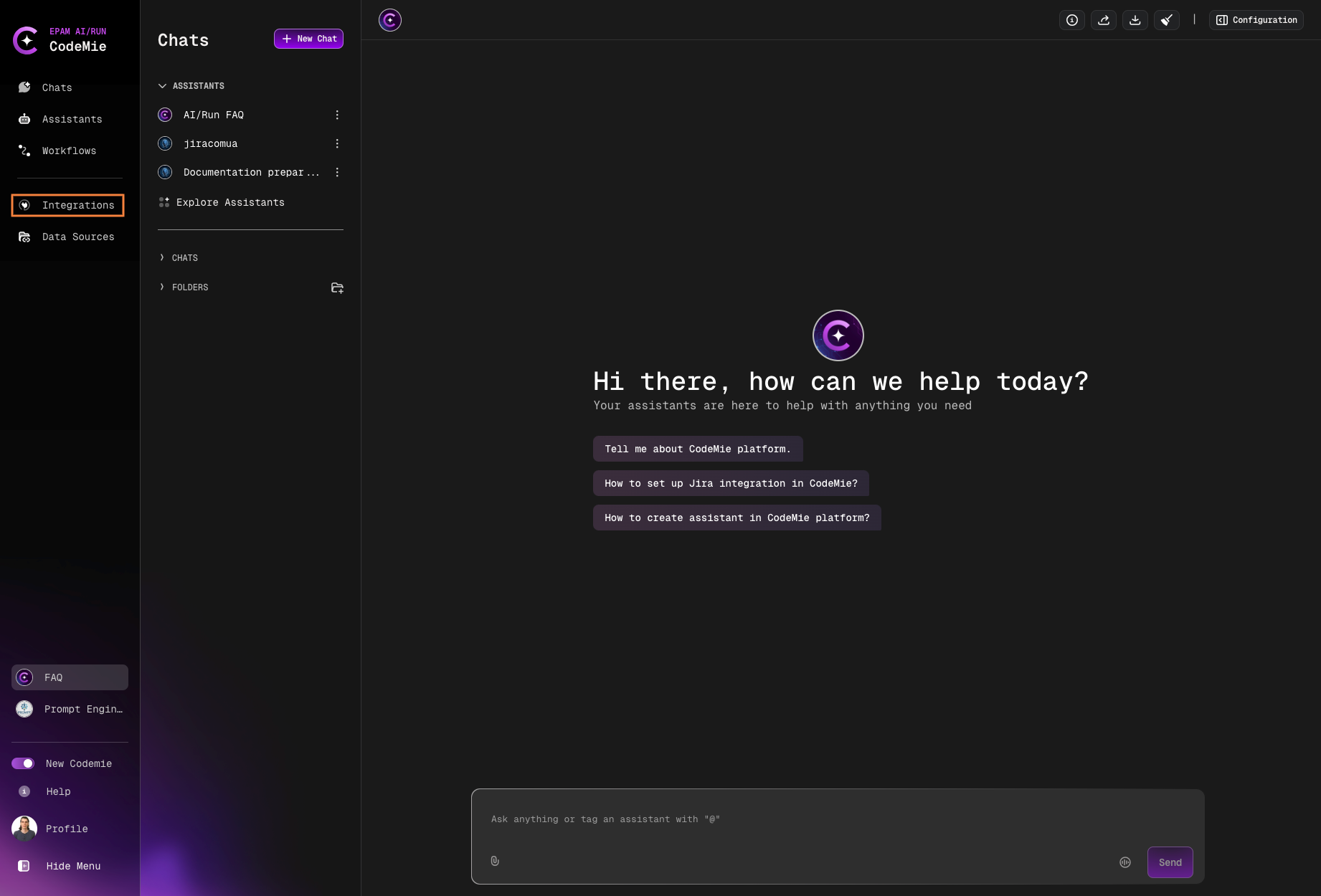
- In the AI/Run CodeMie main menu, click the Integrations button
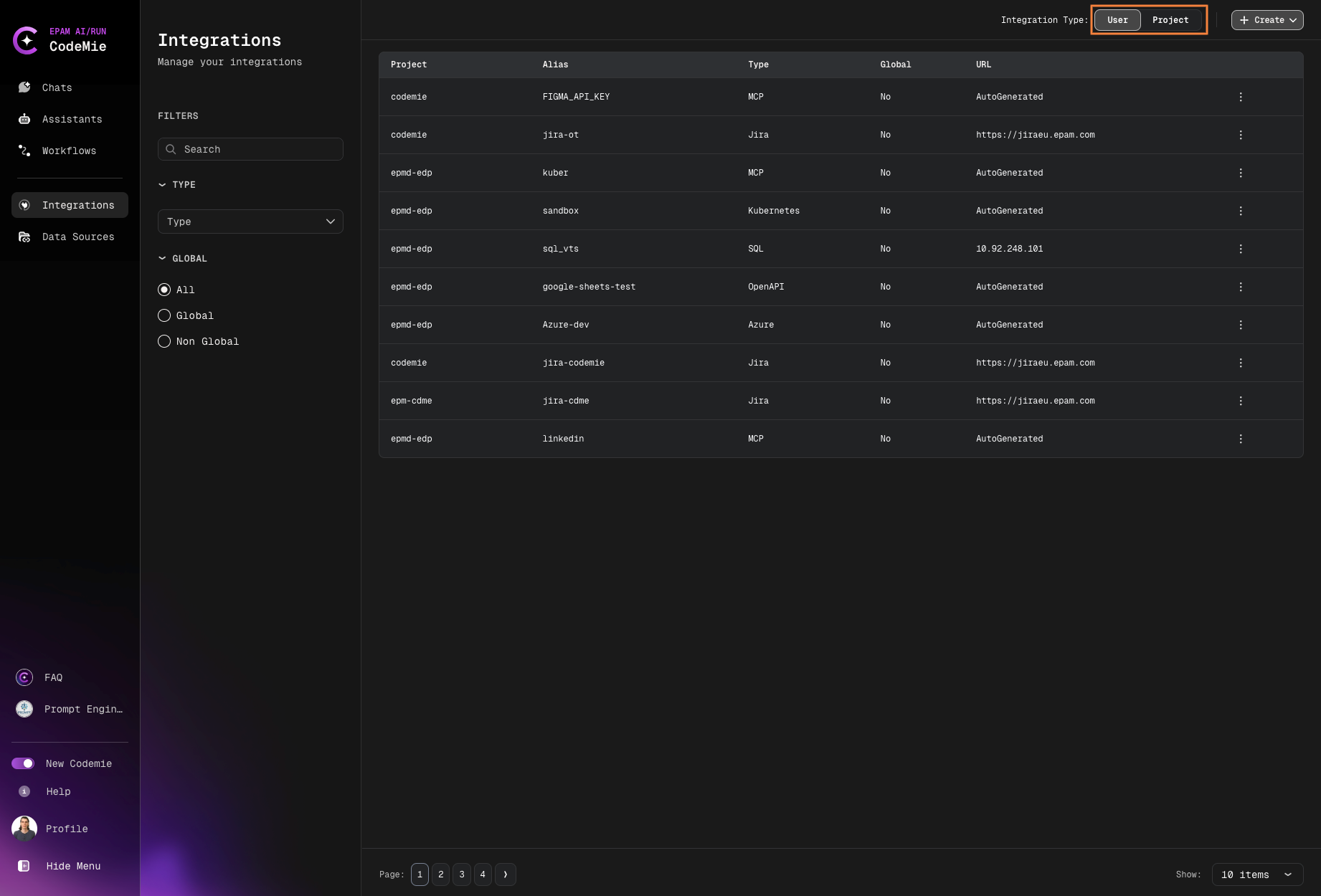
- Select User Integration or Project Integration (only for applications-admin, for that create request in support) and click + Create
-
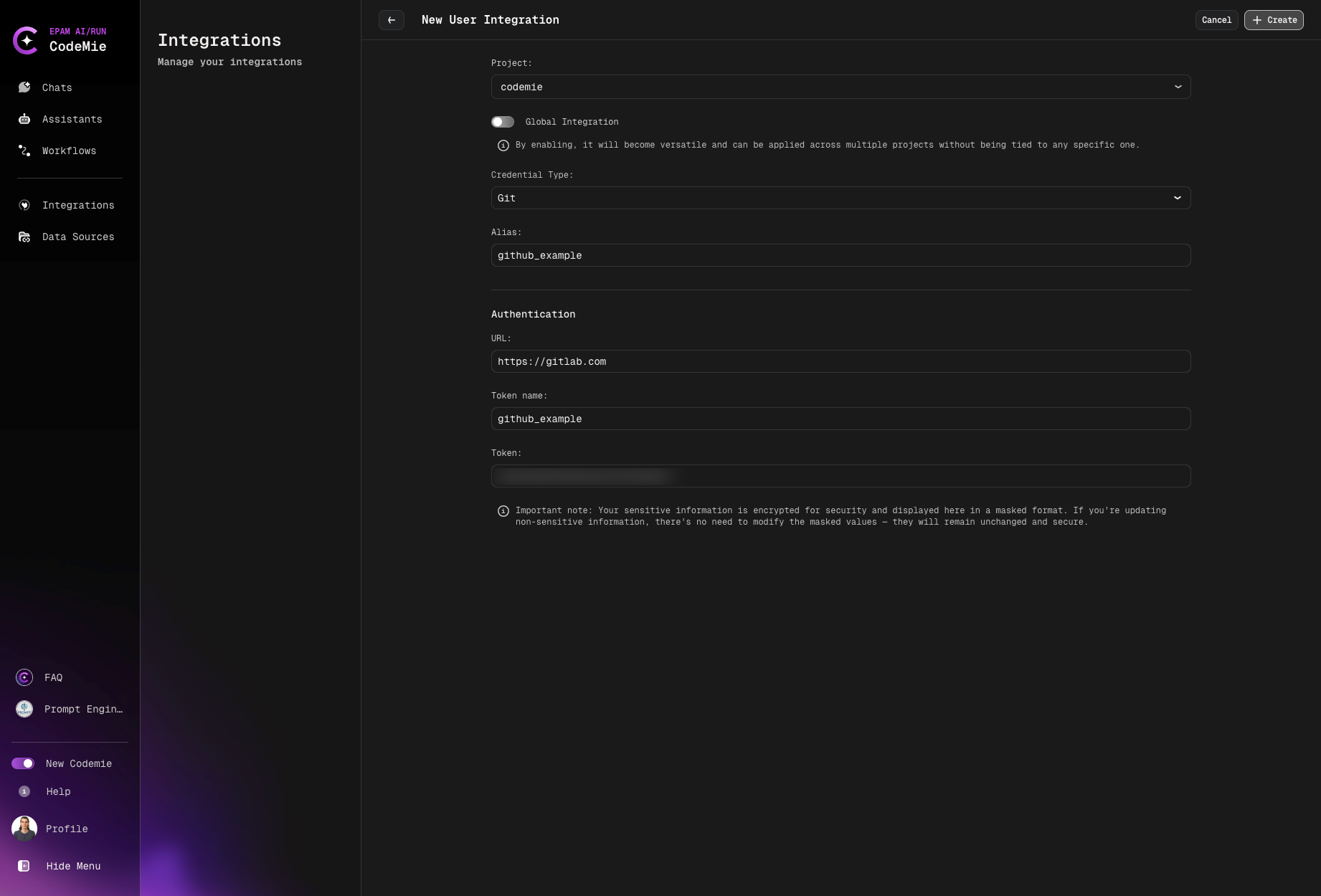
Set Credential Type to Git, enter an Alias, and set the URL to the GitLab instance URL or Git host (e.g.,
https://gitlab.example.comfor self-hosted GitLab, orhttps://github.comfor GitHub) -
Select the Authentication Type:
- Personal Access Token
- GitHub Application
- GitLab OAuth 2.0
Select Personal Access Token from the Authentication Type dropdown and fill in:
| Field | Description |
|---|---|
| Token Name | The username or token label (e.g., oauth2 for GitHub/GitLab, the Bitbucket username for Bitbucket) |
| Token | The token value generated in step 1 |
Select GitHub Application from the Authentication Type dropdown and fill in:
| Field | Description |
|---|---|
| GitHub App ID | The numeric App ID from your GitHub App settings page |
| GitHub App Private Key | The full contents of the .pem private key file, including the -----BEGIN and -----END lines |
| GitHub App Installation ID | The numeric installation ID (optional — auto-detected if left blank) |
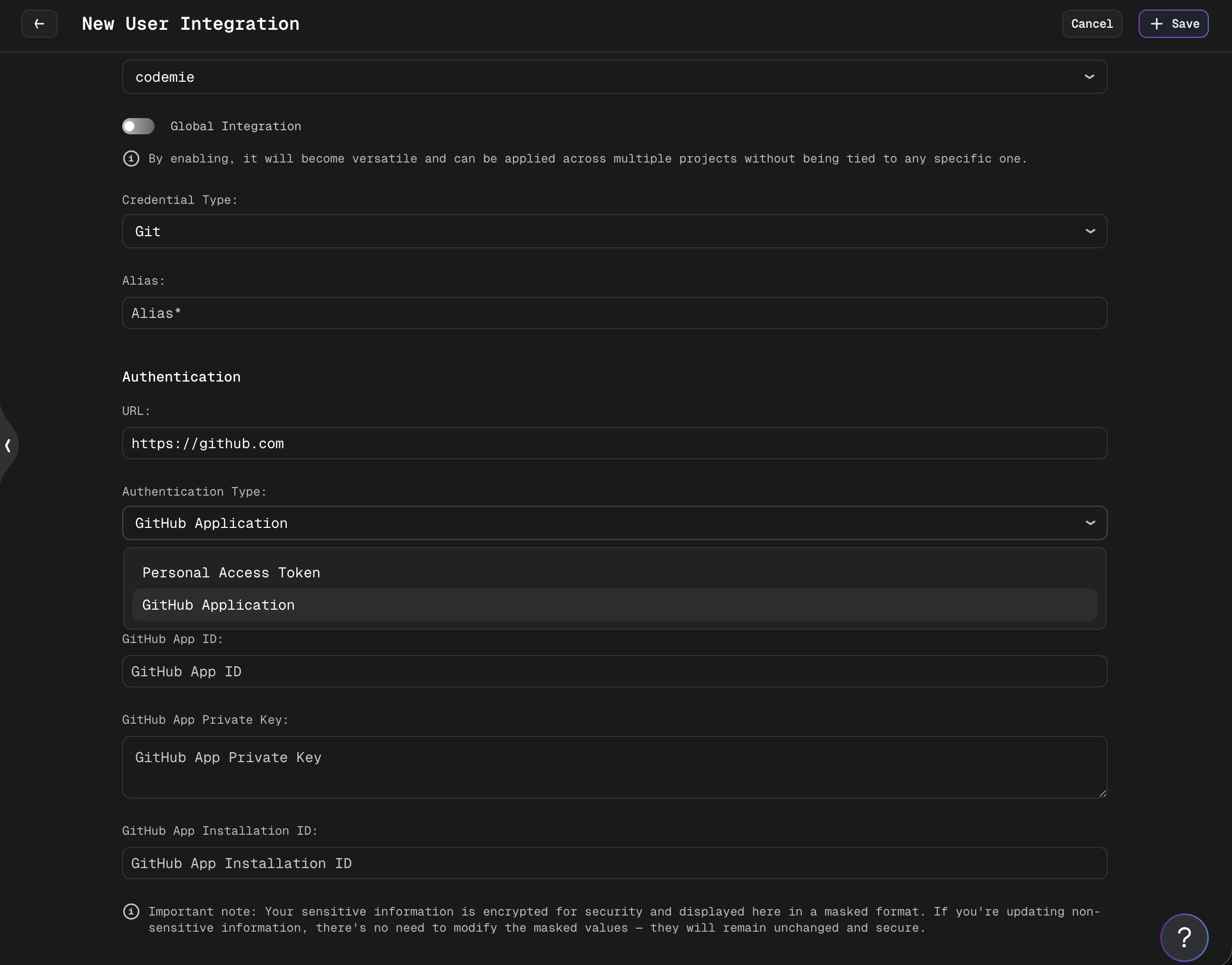
The private key is stored encrypted and displayed in masked format for security.
The GitLab OAuth 2.0 option is only available when the platform administrator has enabled it (the GITLAB_OAUTH_ENABLED flag). If the Use OAuth 2.0 sign-in toggle is not shown, contact the platform administrator.
OAuth 2.0 integrations are per-user: the OAuth application credentials (Client ID, Client Secret, Callback Base URL, GitLab Instance URL) are entered in the integration form when creating the integration, and each member then connects under their own GitLab account. Calls to GitLab run as the individual member — no shared token.
Steps:
-
Enable the Use OAuth 2.0 sign-in toggle in the integration form. The form shows the OAuth application fields: Client ID, Client Secret, Callback Base URL, and GitLab Instance URL. Fill these in with the values from the GitLab OAuth application.
noteThe GitLab Instance URL identifies which GitLab instance the OAuth application is registered on (e.g.,
https://gitlab.comorhttps://gitlab.example.com). The platform administrator must add every self-hosted instance toGITLAB_OAUTH_ALLOWED_INSTANCE_URLS— the backend rejects authorization for any instance not on the allowlist. If sign-in fails with an "instance not allowed" error, contact the platform administrator. -
Click Sign in with GitLab. A browser popup opens the GitLab authorization page.
-
Log in to GitLab and grant the requested permissions. The popup closes automatically on success.
-
The form shows a confirmation that the account is connected.
-
Click Save to create the integration.
A successful sign-in is required before the integration can be saved. The save button remains disabled until the OAuth connection is completed.
- Click Save to create the integration
The project name for the integration must match the project of the indexed repository.
That's it. Now code repositories can be added to the AI/Run CodeMie account.
2a. Connect from Chat (GitLab OAuth only)
When a run first uses a Git integration with GitLab OAuth that a member has not yet connected, the chat displays a "Connect your GitLab account" prompt with a Sign in button.
To connect:
- Click Sign in in the chat prompt. The GitLab authorization popup opens.
- Log in and grant the requested permissions. The popup closes on success.
- Resend the message that triggered the prompt. The run retries with the newly connected account.
This in-chat connect gate appears only for GitLab OAuth integrations. Members using a Personal Access Token integration do not see this prompt.