Pinned Assistants
Pin assistants to the navigation sidebar to open a new chat in one click, without navigating to the Assistants list.
Pin an Assistant
You can pin an assistant from any of these locations:
- Assistants → Project Assistants or Marketplace — click the Pin button (pin icon) on the assistant card
- Favorites tab or Favorites page — click the Pin button on a favorite assistant card
- Assistant Details page — click the Pin button on the details page
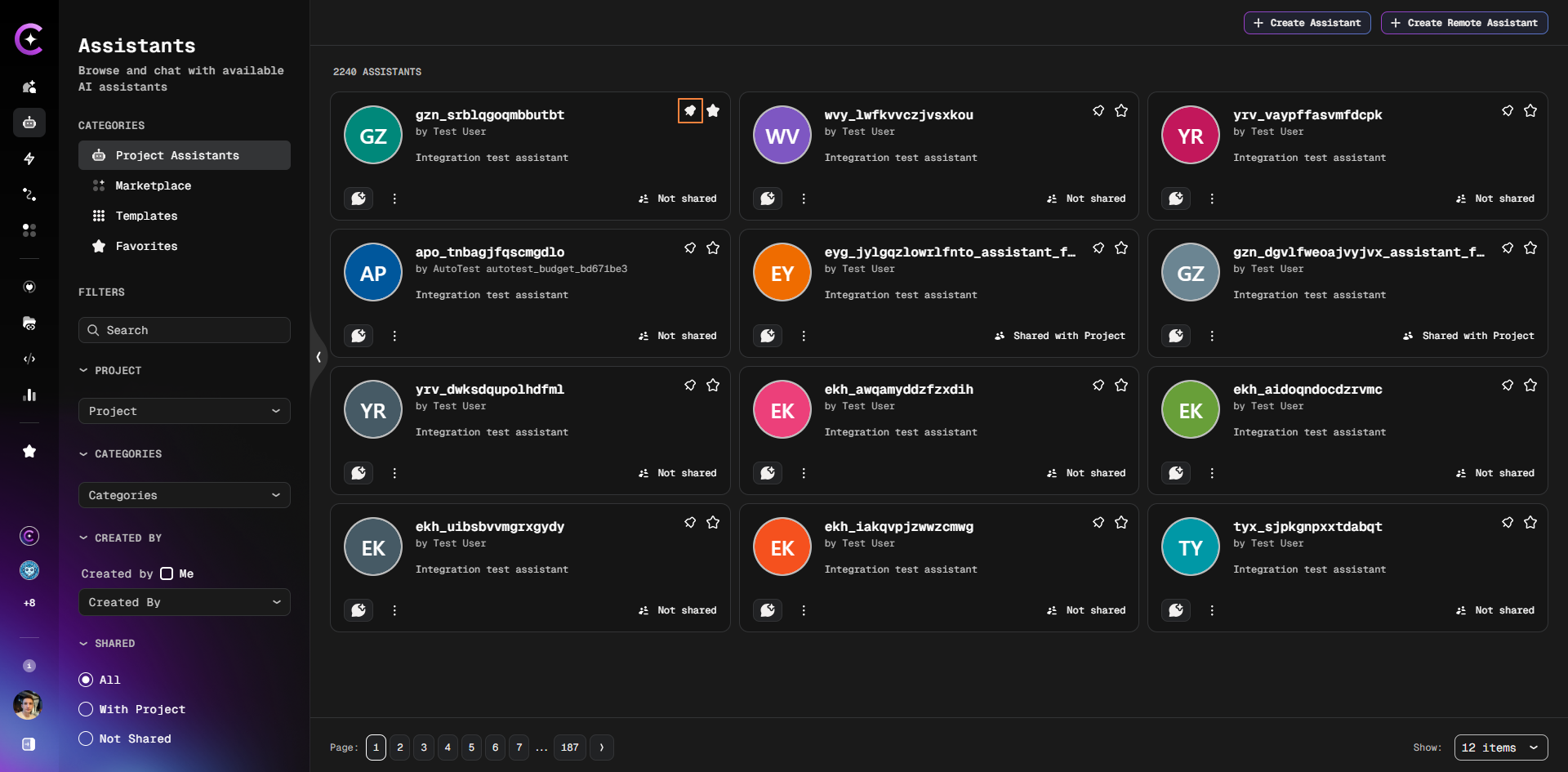
A confirmation toast appears automatically. The assistant is added to the Pinned section in the navigation sidebar.
Access Pinned Assistants
Pinned assistants appear as a row of avatar icons in the navigation sidebar:
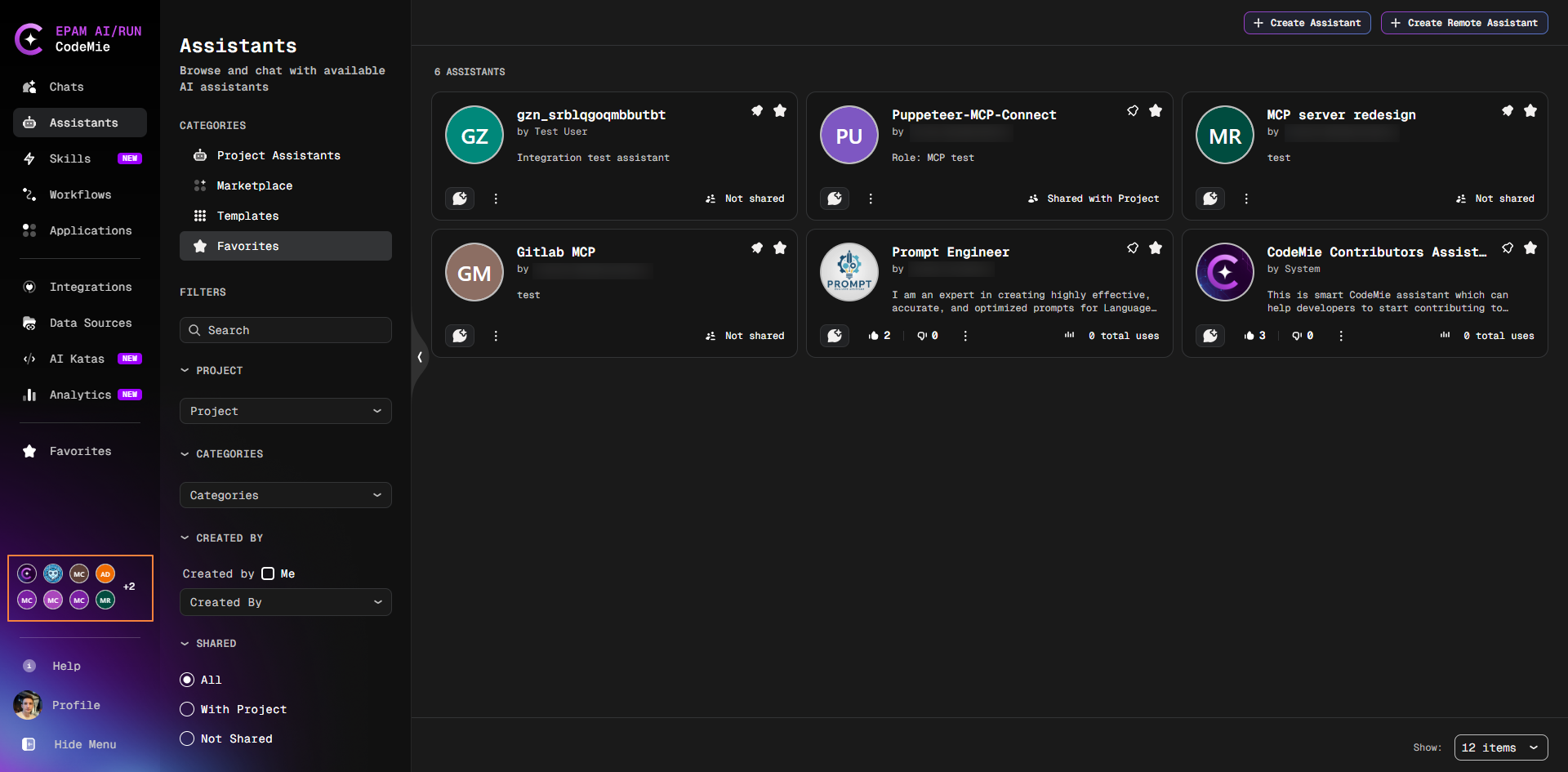
- Click an individual avatar — opens a new chat with that assistant immediately
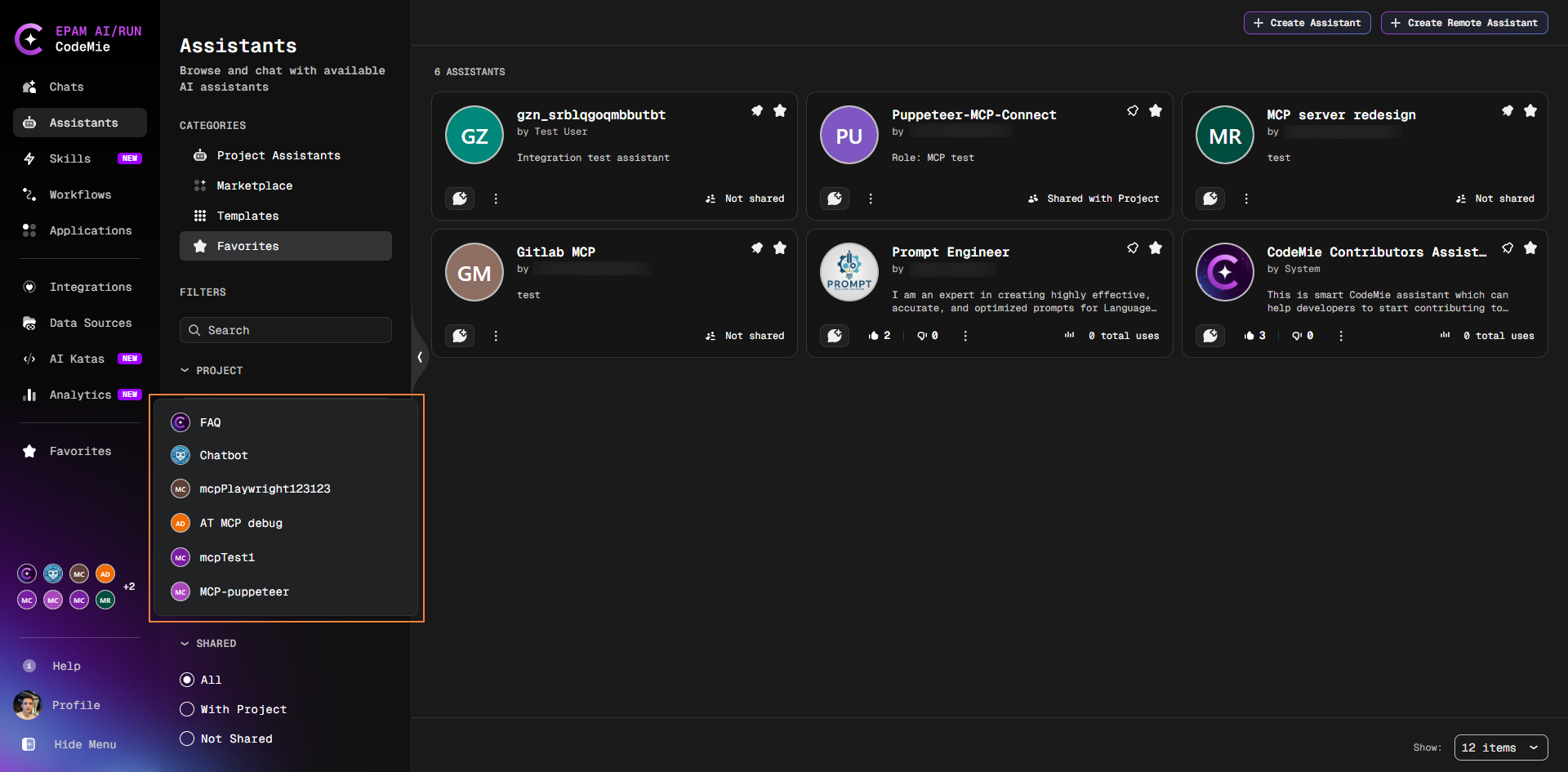
- Click the pinned section block — opens a dropdown listing all your pinned assistants
Dropdown
The dropdown gives you full access to all pinned assistants and two actions per entry:
- Start a chat — click the assistant name
- Unpin — click the unpin option next to the assistant name and confirm the popup that appears
+N Button (Collapsed Menu)
When the navigation menu is collapsed, the pinned section shows a +N button instead of the row. Click it to open the same dropdown.
Pinned assistant names and avatars update automatically when you rename the assistant — no need to re-pin after renaming.
Unpin an Assistant
You can unpin an assistant from any of these locations:
- Navigation sidebar dropdown — click the pinned section block (or the +N button when collapsed) to open the dropdown, then click the unpin option next to the assistant name
- Assistants → Project Assistants or Marketplace — click the Pin button on the card (toggles off)
- Favorites tab or Favorites page — click the Pin button on the card
- Assistant Details page — click the Pin button on the details page
Unpinning requires confirmation in a popup. The assistant is removed from the navigation sidebar and remains available in the Assistants list.
Administrator Configuration
The pinned assistants feature is controlled by the administrator. See Customer Feature Configuration for the features:pinnedAssistants setting.