Chat Input Settings
The chat input toolbar provides controls for customizing assistant behavior per conversation: file attachments, the Tools Settings panel, the LLM model selector, and the Skills button. Changes take effect immediately and apply to all subsequent messages in the current chat.
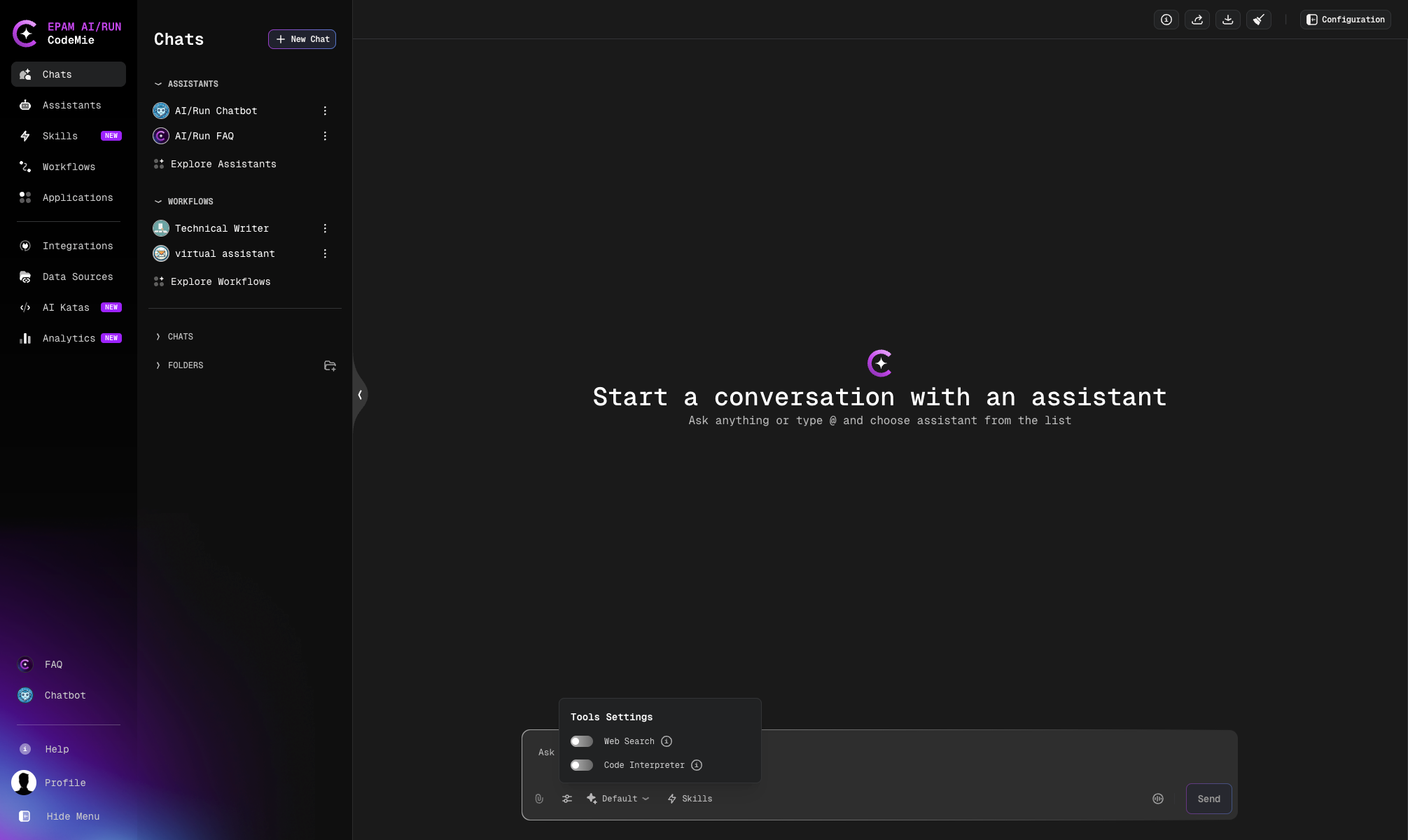
These controls are not available in workflow chats or on shared (read-only) pages. They are also temporarily disabled while a response is being generated.
Tools Settings
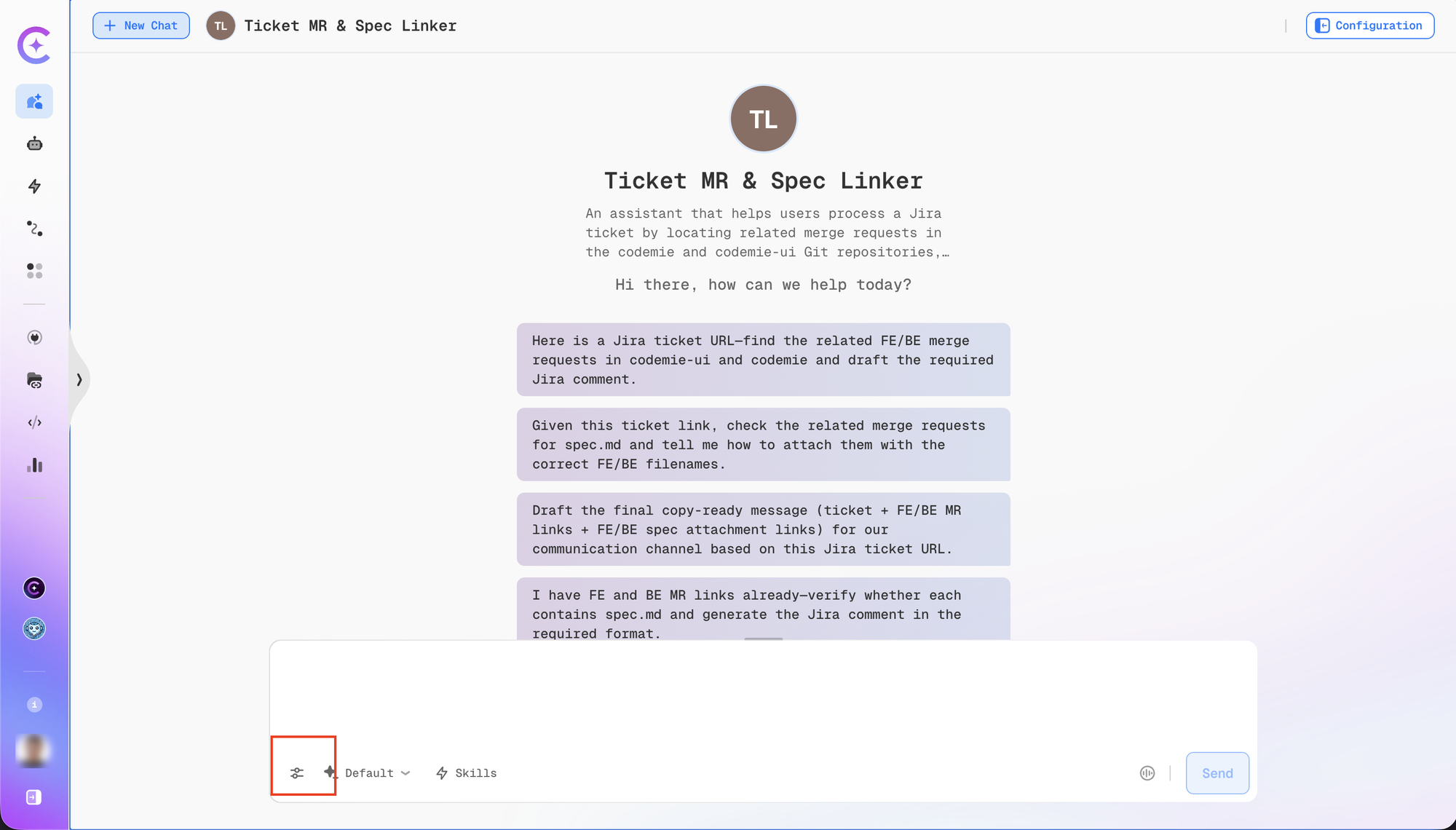
Click the sliders icon in the chat input toolbar to open the Tools Settings panel. The icon shows a numeric badge indicating how many tools are currently active. The tooltip reads: "Configure dynamic tools for this conversation".
The panel contains toggles for Web Search and Code Interpreter. Each toggle is only shown if an administrator has enabled the corresponding feature for your environment. If both features are disabled, the sliders icon is hidden entirely.
Web Search
Enables real-time internet search during the conversation. When active, the assistant can search Google Search, Tavily Search, and the web to include up-to-date information in its responses.
| State | Behavior |
|---|---|
| On | Assistant searches the web to supplement its answers |
| Off | Assistant relies only on its training data and uploaded files |
Toggle Web Search on when you need current information, live data, or answers about recent events. Toggle it off for deterministic responses based on the assistant's knowledge.
Code Interpreter
Activates a Python execution environment within the conversation. When enabled, the assistant can write and run Python code to perform calculations, analyze data, and generate visualizations.
| State | Behavior |
|---|---|
| On | Assistant can execute Python code and return results |
| Off | Assistant describes logic in text only, without executing code |
Toggle Code Interpreter on for data analysis, chart generation, or numerical calculations.
Your Tools Settings are saved per conversation. When you return to a chat, the same toggle state is restored automatically.
LLM Model Selector
The model selector button sits next to the Tools Settings icon in the chat input toolbar. It lets you override the default LLM model for the current conversation. The tooltip reads: "Select LLM model for this conversation".
The button shows Default when no model override is active, or a truncated model name when one is selected.
Clicking it opens a searchable panel with the following options:
- Assistant Default — clears any override and uses the model configured when the assistant was created
- Recommended — the platform's recommended default model
- All available LLM models, searchable by name
The selected model applies to all subsequent messages in the current conversation until you change it or select Assistant Default to revert.
Some entries in the model list are routers rather than a single fixed model — for example,
one labeled with an SY prefix, or a LiteLLM router configured by your administrator.
Selecting one lets CodeMie route each call in the conversation to either a higher-quality or a
lower-cost model, depending on the request, instead of always using the same model.
File Attachments
The paperclip icon in the chat input toolbar lets you attach files to your message. Uploaded files remain accessible throughout the conversation and can be referenced in subsequent messages without re-uploading.
The paperclip icon is only shown when file attachments are enabled for the assistant. If the icon is not visible, the assistant's creator has disabled file uploads in the assistant configuration. See File Attachments in the assistant configuration guide.
See Supported File Formats for the full list of supported formats, size limits, and CSV handling capabilities.
Skills
The Skills button (lightning bolt icon, labelled Skills) lets you attach additional skills to the current conversation without modifying the assistant's configuration. A badge on the button shows how many skills are currently active.
See Skills in Chat for full details on selecting, managing, and removing skills from a conversation.