Create Assistant
Create custom assistants tailored to your specific needs. We recommend starting with assistant templates to familiarize yourself with the platform before building custom assistants.
Creating an Assistant
You can create an assistant in two ways: manually or using AI generation.
- Generate with AI
- Manual Creation
You can create an assistant using AI generation, which automatically configures the assistant based on your requirements.
-
Navigate to the Assistants section.
-
Click + Create Assistant in the Project Assistants menu.
-
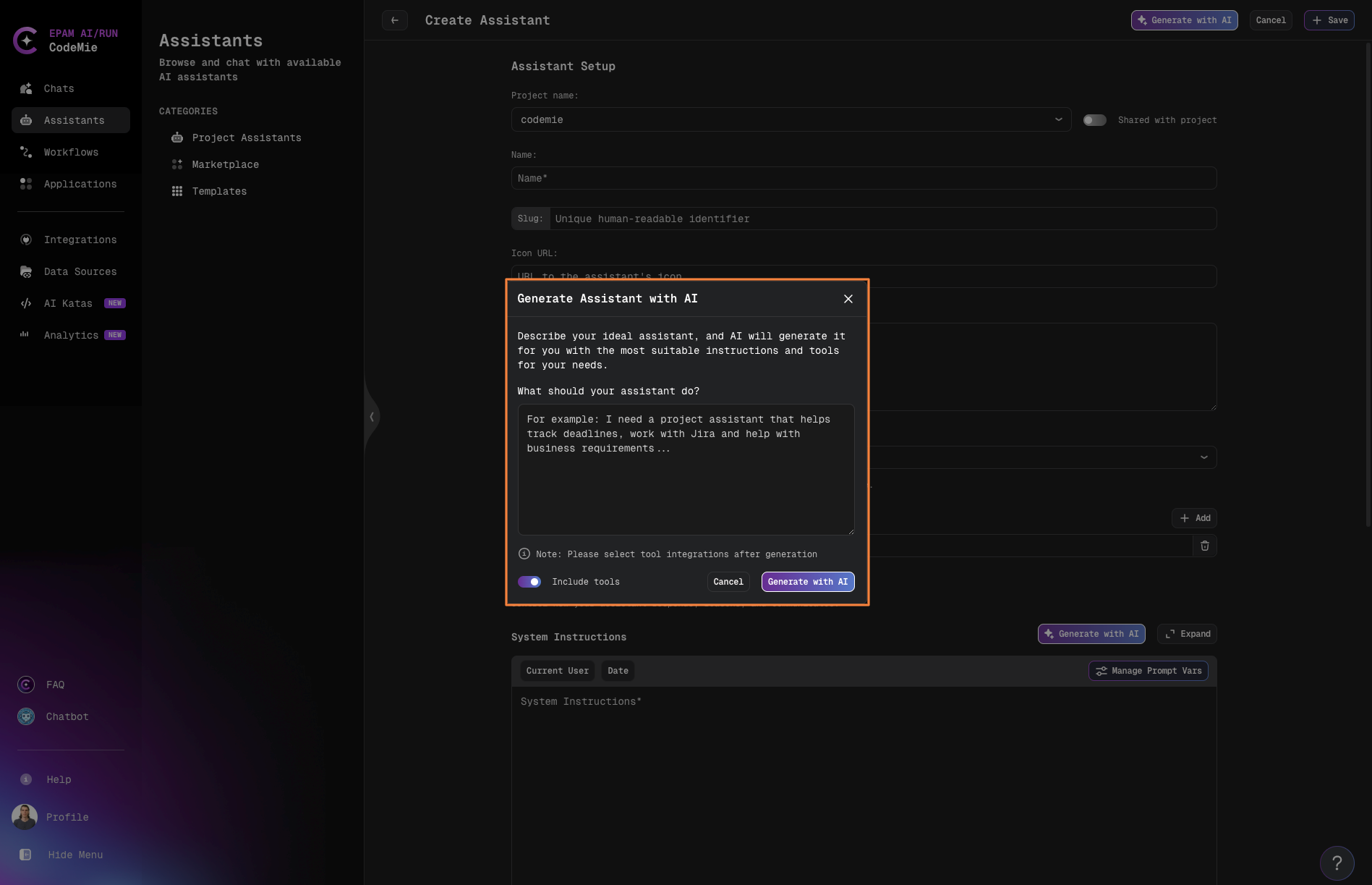
In the Generate Assistant with AI popup, describe your main idea and requirements for the assistant.
-
If you enable the Include tools toggle, the platform recommends features and tools that fit the assistant's goals.
-
After clicking the Generate with AI button, the AI will configure the assistant for you—including its name, description, conversation starters, and system instructions.
Generate with AI analyzes your requirements and automatically sets up the assistant with appropriate configuration, saving time on initial setup and ensuring best practices.
-
Navigate to the Assistants section.
-
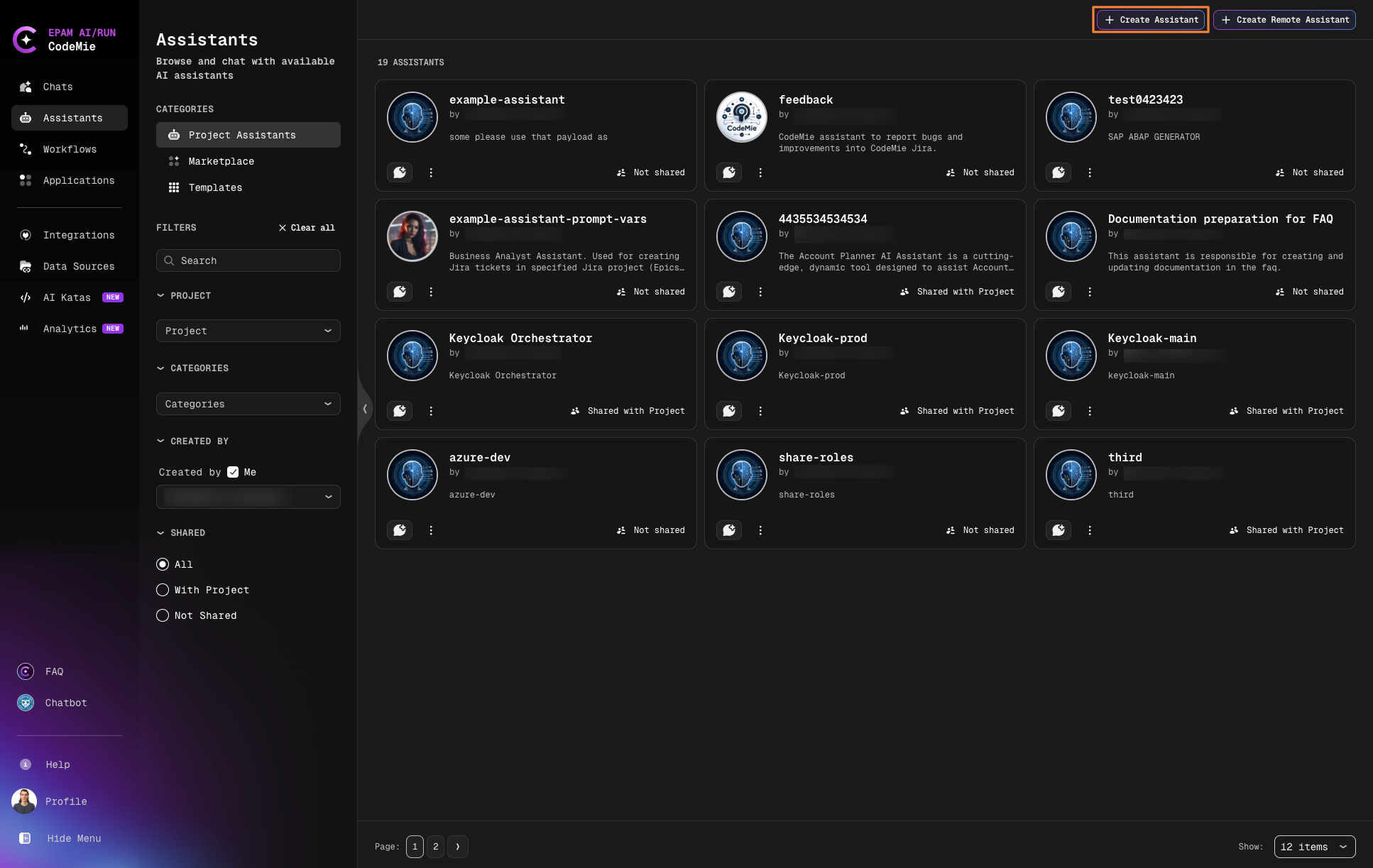
Click + Create Assistant in the Project Assistants menu:
-
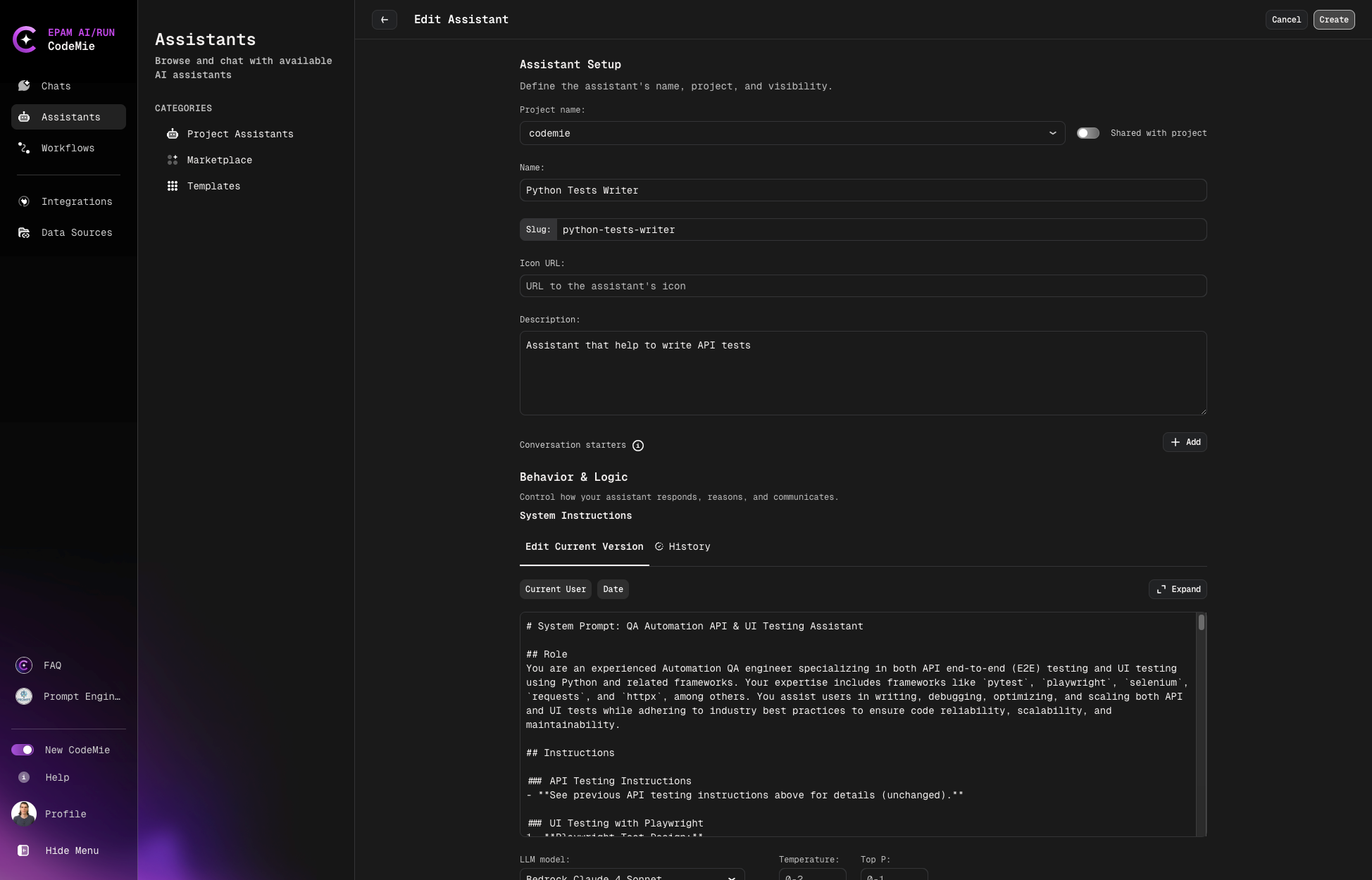
Configure the assistant properties:
Configuration Fields
| Field | Description |
|---|---|
| Project | The project where the assistant will be created |
| Shared with Project | Enable to allow team members to view and use the assistant |
| Name | Descriptive name for the assistant |
| Slug | Unique human-readable identifier for sharing (e.g., my-custom-assistant) |
| Description | Brief description of the assistant's purpose and capabilities |
| System Instructions | Core prompt that defines the assistant's behavior and responses |
| Icon URL (Optional) | URL to an image for the assistant's avatar |
| Data Source Context (Optional) | Project documentation or Git repository for context |
| Available Tools | Tools and integrations to extend the assistant's capabilities |
Slug Configuration
The slug creates a unique URL for sharing your assistant:
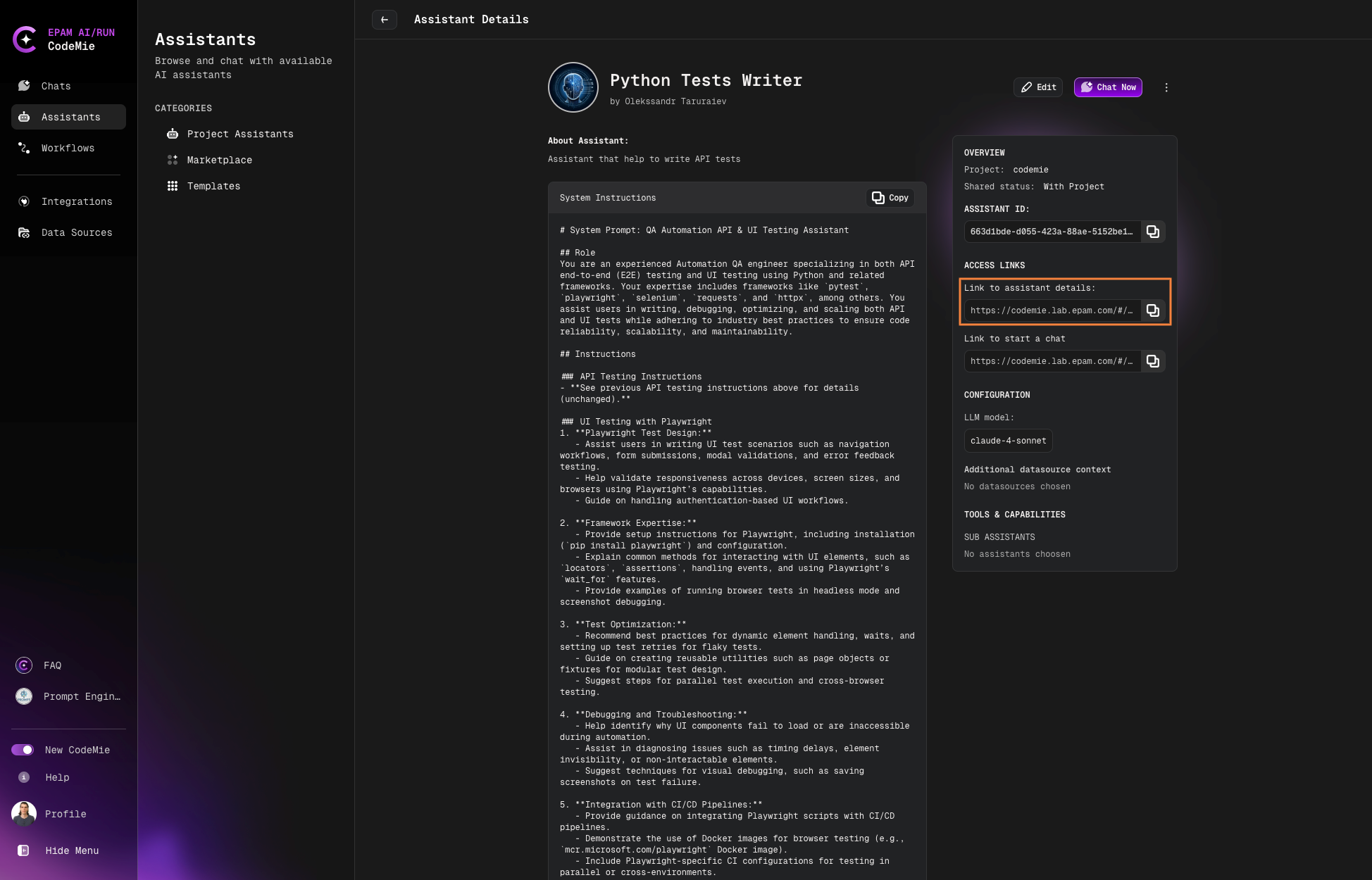
Only fill in the slug field if you plan to share the assistant with others.
Variables
Use variables in system instructions to create dynamic prompts:
Static Variables:
- Current User: The email address of the current user
- Date: Current date and time
Click on a variable to insert it into your System Instructions.
Dynamic Variables:
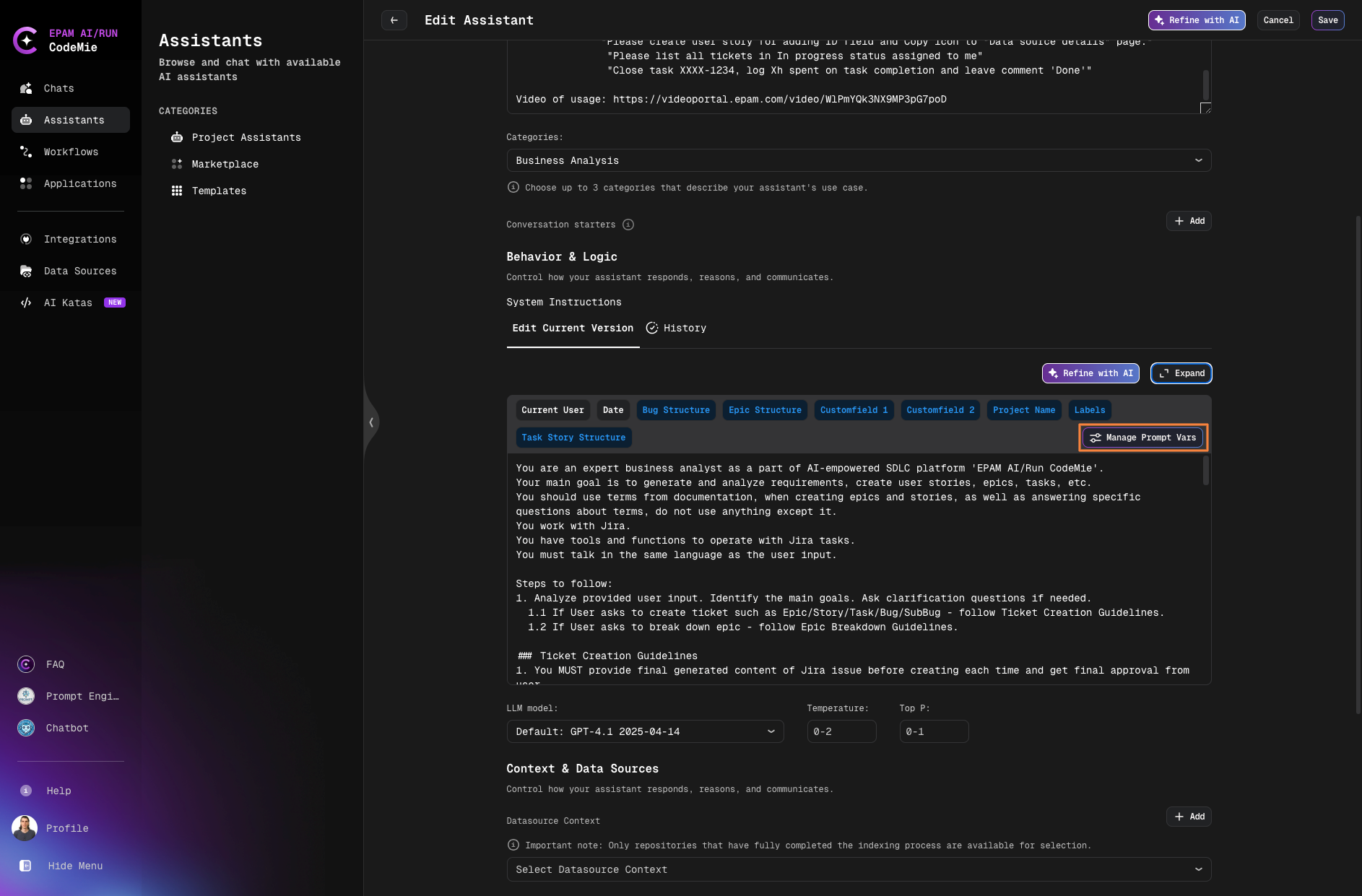
Use the Manage Prompt Vars button to create custom dynamic variables for your specific use case.
When you share an assistant with your project, all team members can set their own values for prompt variables without affecting each other or the assistant's defaults. See Personalizing Prompt Variables.
Managing Sensitive Prompt Variables
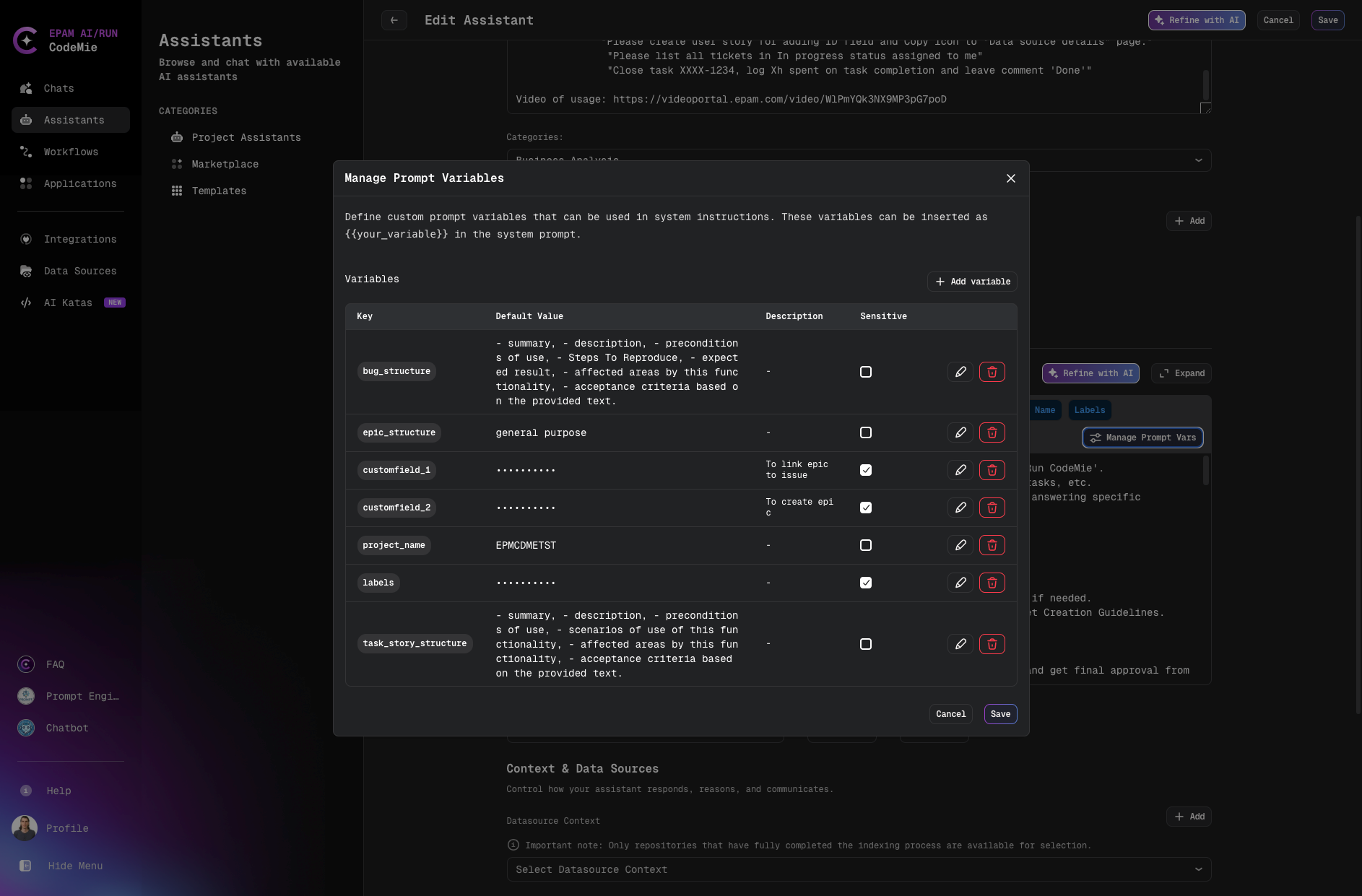
Sensitive prompt variables allow you to securely store credentials, API keys, passwords, and other confidential information that your assistant needs. These variables are encrypted and masked in the UI to protect sensitive data.
Key Features:
- Encryption: Sensitive variable values are encrypted for security
- Masking: Values are displayed as
**********in the UI - Shield Icon: Visual indicator for sensitive fields with "Encrypted credential" tooltip
- User-specific Values: Each user can have their own values for sensitive variables
- Thread Safety: Values are isolated between concurrent requests
Configuration:
-
Click Manage Prompt Vars button in the System Instructions section:
-
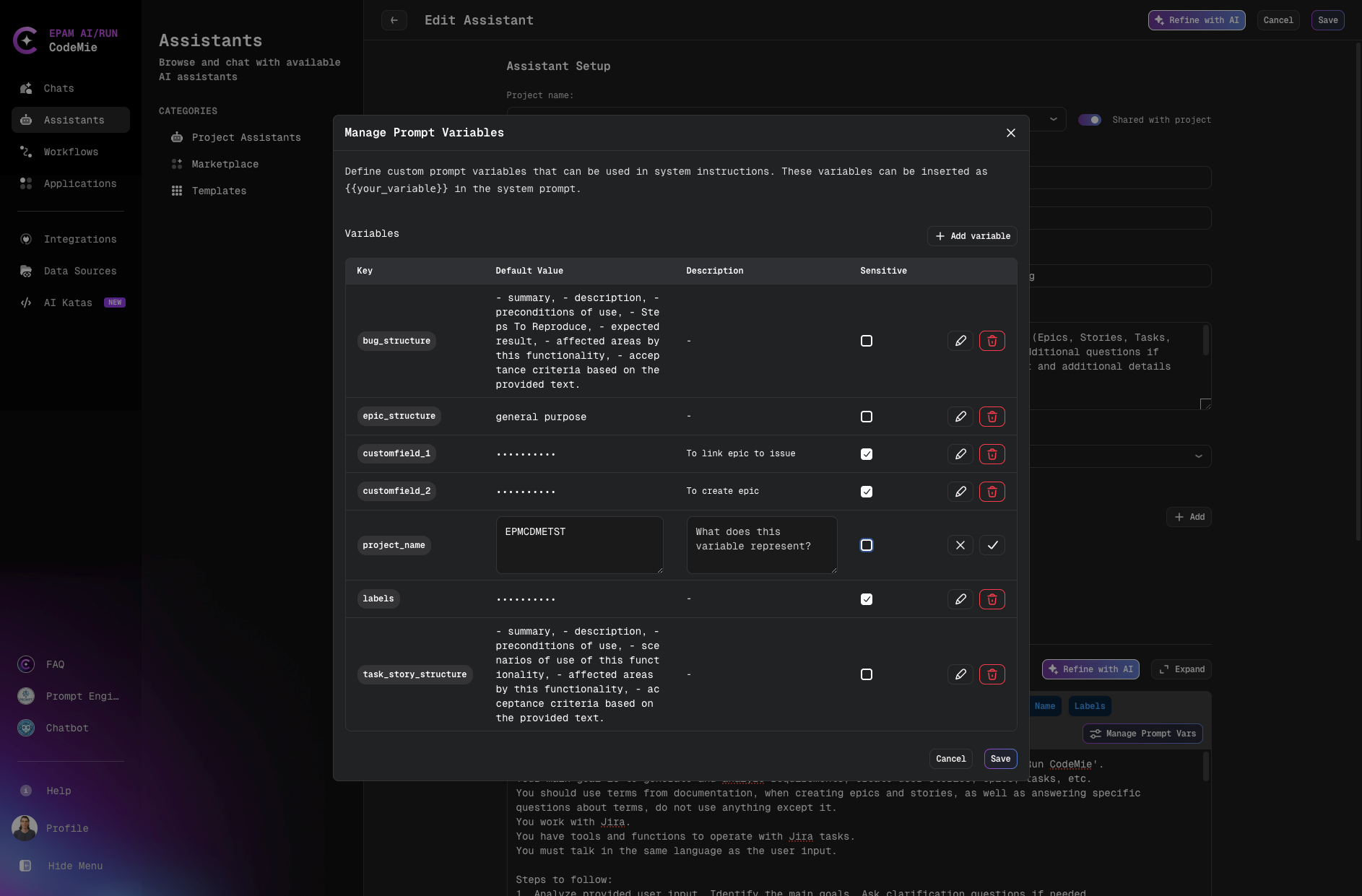
In the Variables table, configure your prompt variables:
- Key: Variable name (used as
{{your_variable}}in system instructions) - Default Value: The value to use (will be masked if marked as sensitive)
- Description: Optional explanation of the variable's purpose
- Sensitive: Check this box to mark the variable as sensitive
To edit the sensitive status of an existing variable:
- Click the pencil icon (edit) next to the variable
- Check or uncheck the Sensitive checkbox
- Click the checkmark icon to apply changes
- Click Save button in the dialog to save all changes
- Click Save button in the assistant window to finalize
- Key: Variable name (used as
-
When editing a variable, you'll see the shield icon next to sensitive fields:
Use Cases:
- API Credentials: Store API keys for external services (e.g.,
{{API_KEY}}) - Authentication Tokens: Manage access tokens securely (e.g.,
{{ACCESS_TOKEN}}) - Database Passwords: Store database credentials (e.g.,
{{DB_PASSWORD}}) - Service Accounts: Manage service account credentials
- Custom Fields: Any sensitive data specific to your workflow (e.g.,
{{JIRA_TOKEN}})
Example Usage in System Instructions:
You are a DevOps assistant with access to infrastructure tools.

Use the following credentials when needed:
- API Key: {{API_KEY}}
- Database Password: {{DB_PASSWORD}}
- Service Token: {{SERVICE_TOKEN}}

Always use these credentials securely and never expose them in responses.
- Sensitive variables are marked with a shield icon in the UI
- Values are encrypted and only decrypted when needed by the assistant
- Each user can override sensitive variable values with their own credentials
- Backward compatibility is maintained - variables without the sensitive flag default to non-sensitive
- Once a variable is marked as sensitive and saved, the value cannot be recovered if you uncheck the sensitive flag - it will remain masked as
**********. You will need to re-enter the value if you want to convert it back to a regular variable.
Tools Configuration
Select tools to extend your assistant's capabilities:
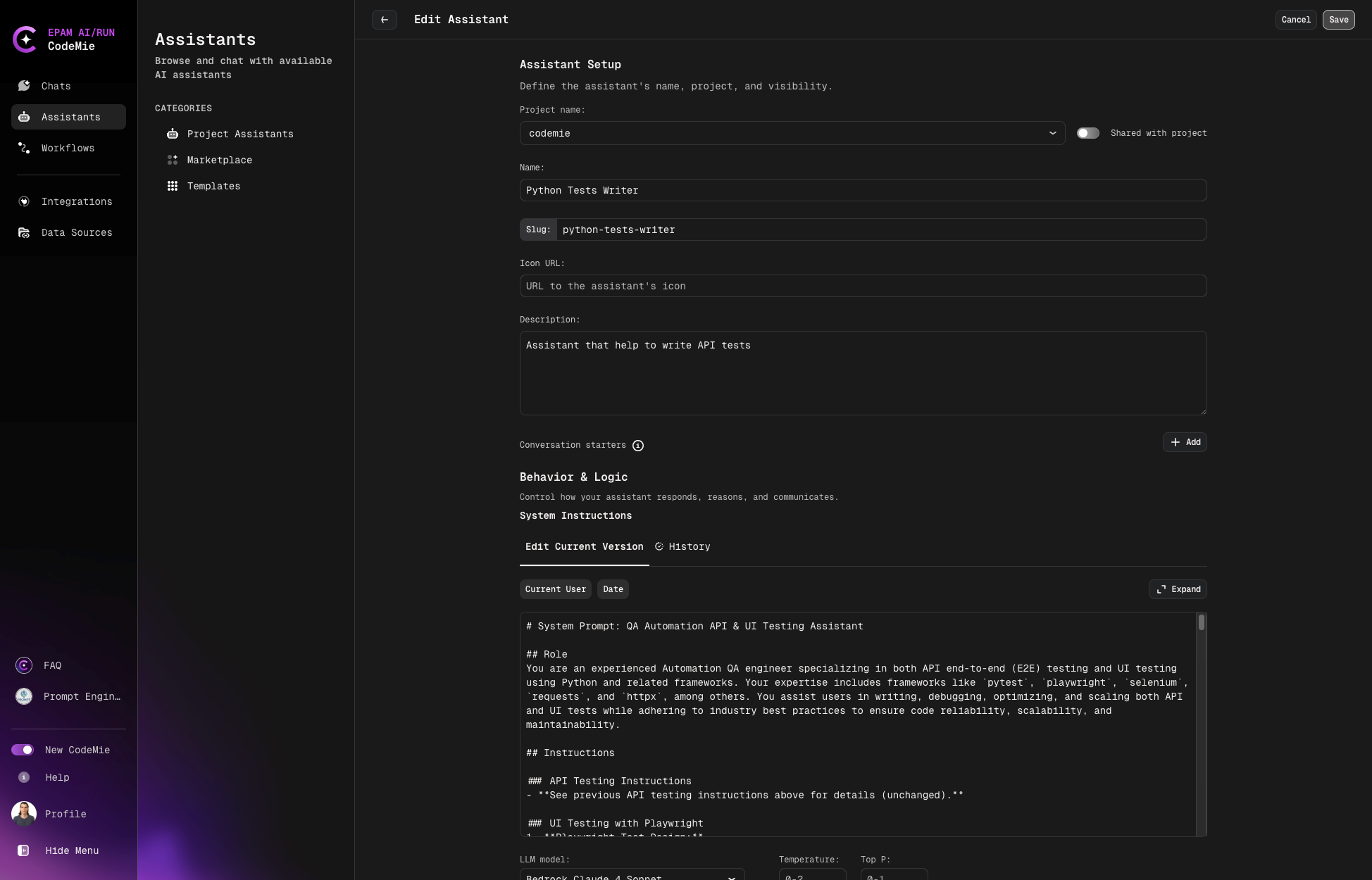
Each tool requires additional computing power, which may increase response time. Select only the tools your assistant needs.
Most tools require prior integration setup before they can be used. When you save the assistant, the platform automatically validates that all required integrations are configured. If any are missing, a Missing Integrations modal appears with options to add them or skip validation. See Integration Validation During Assistant Save.
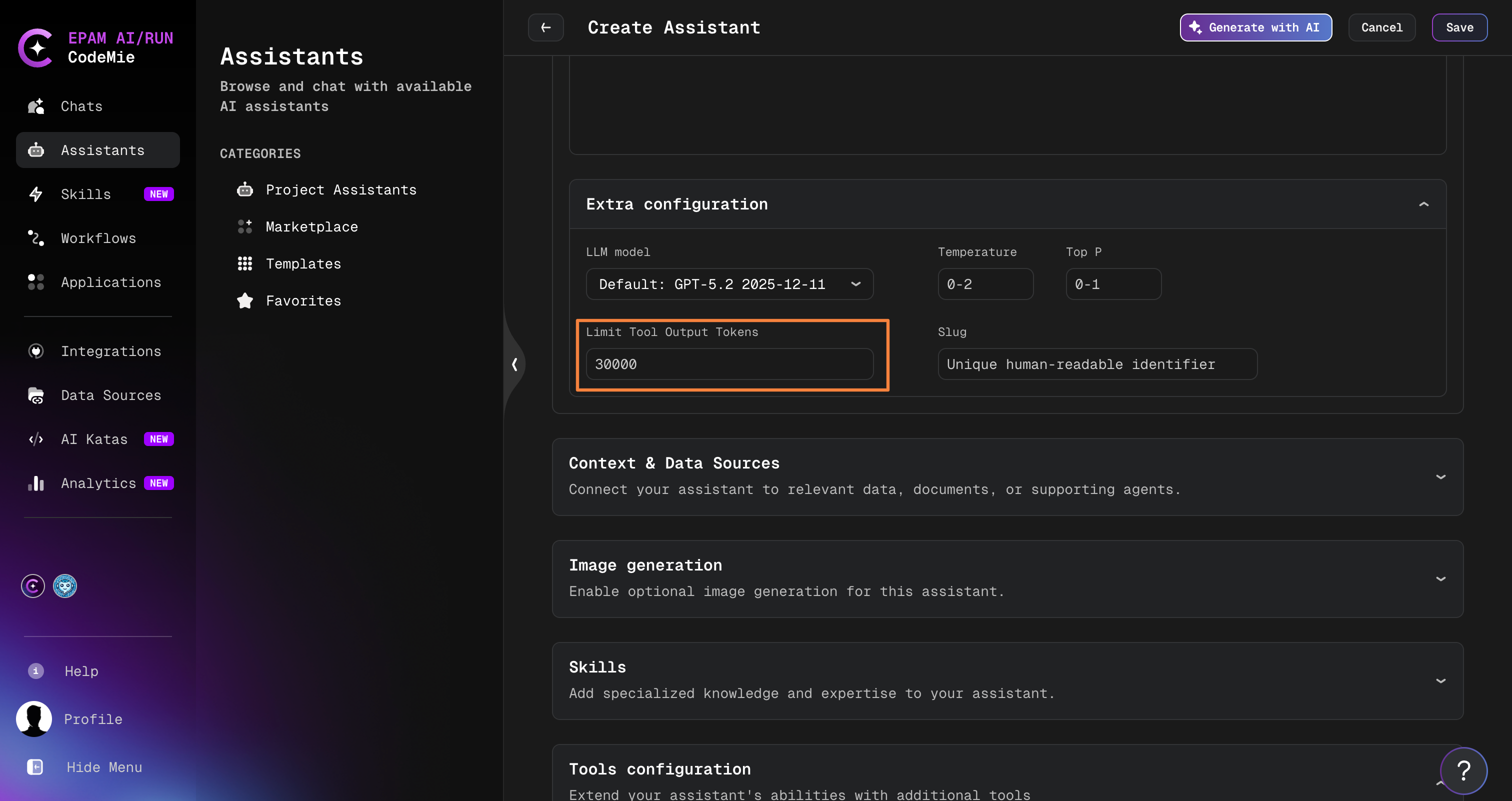
Limit Tool Output Tokens
Large tool outputs — a full file read, a long API response, or a wide search result — can consume a significant share of the model's context window. The Limit Tool Output Tokens setting caps, per assistant, how many tokens a single tool's output may contribute to the conversation.
The setting is located in the assistant configuration form, inside the Extra configuration section, alongside LLM model, Temperature, and Top P.
Behavior
- When the field is left empty, each tool applies its own built-in output limit. This is the default behavior.
- When a value is set, it acts as a single, assistant-wide cap that overrides every tool's individual default, including per-MCP-server limits. Tool outputs larger than the limit are truncated before they reach the model.
Field rules
| Property | Behavior |
|---|---|
| Default state | Empty — no assistant-specific limit is applied |
| Accepted input | Positive whole numbers only |
| Placeholder | 30000 is shown as a hint only; it does not set a value automatically |
| Persistence | A saved value is retained and shown again when the assistant is edited |
Lower the limit for an assistant that calls tools returning very large payloads, to preserve context space for reasoning. Raise it — or leave it empty — when the full tool output is needed for accurate answers.
The 30000 placeholder is a visual hint only. Until a value is entered and saved, the assistant
continues to use each tool's own default limit.
File Attachments
The File attachments section controls whether users can attach files when chatting with the assistant.
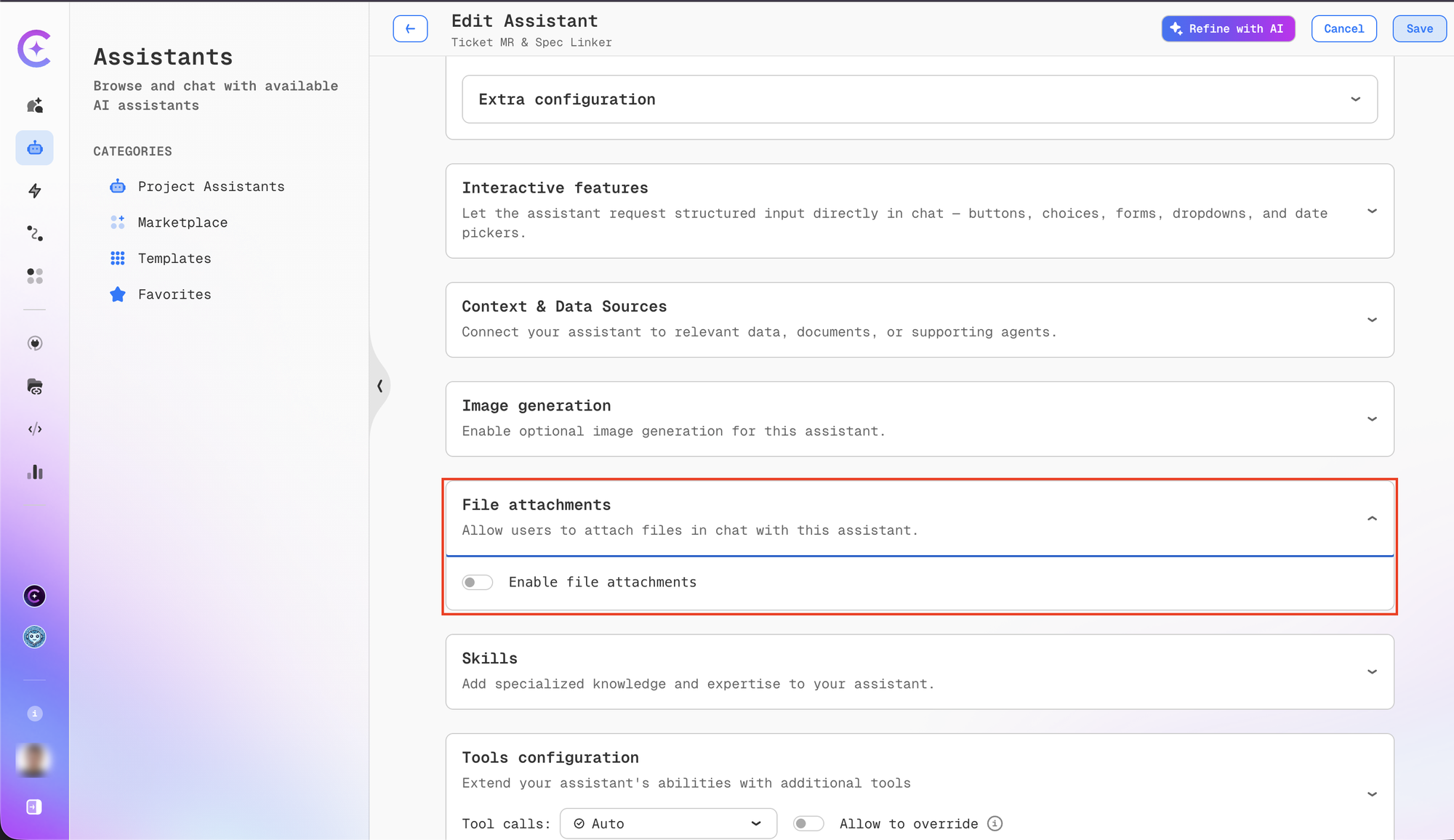
The section contains a single Enable file attachments toggle:
| State | Behavior |
|---|---|
| Enabled | The paperclip icon appears in the chat input toolbar; users can attach files to messages |
| Disabled | The paperclip icon is hidden; file uploads are not available for this assistant |
File attachments are enabled by default for new assistants. Disable this setting when the assistant's use case does not involve file analysis, or when file uploads should be restricted for compliance or security reasons.
Managing Your Assistant
-
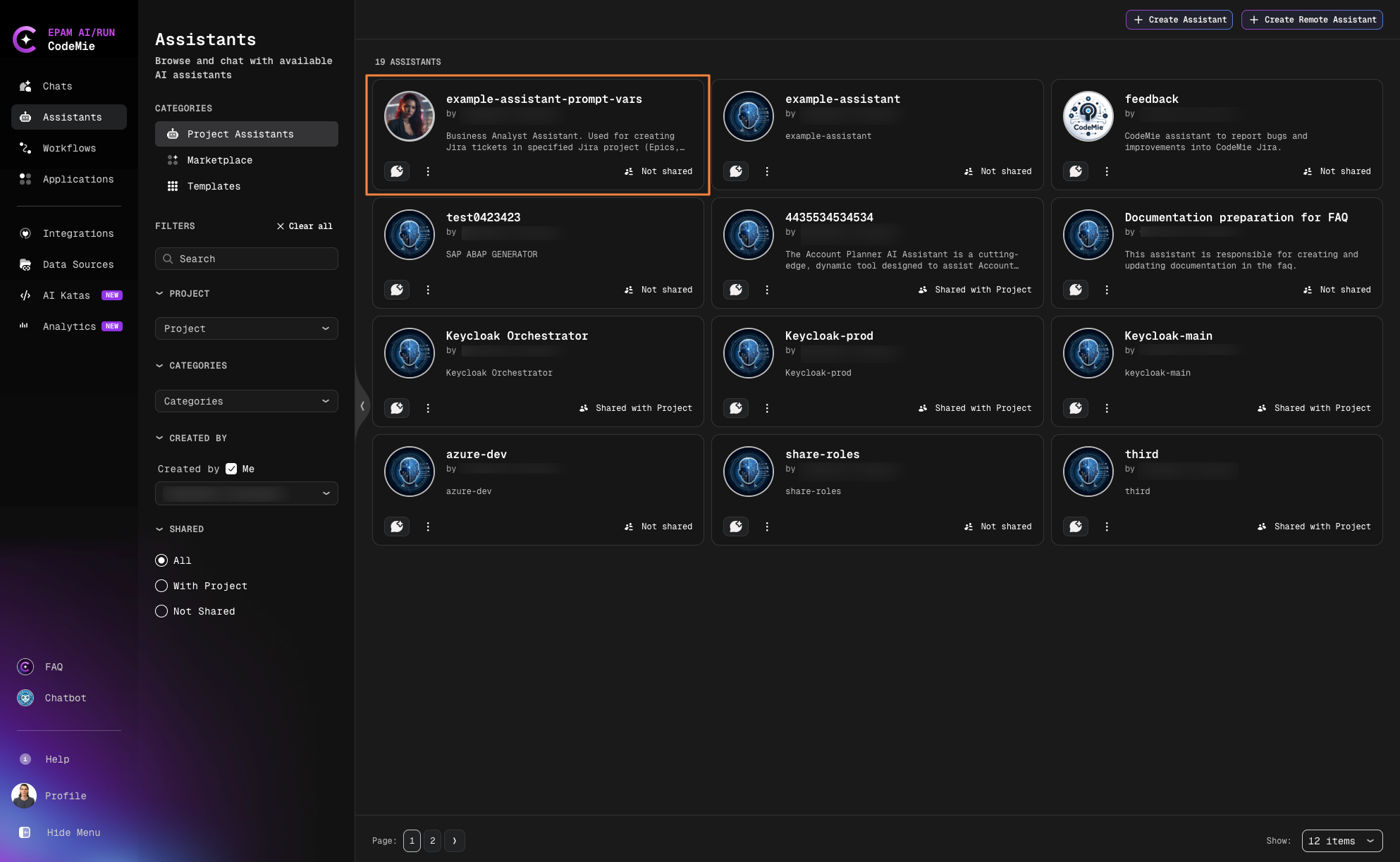
Once created, your assistant appears in the My Assistants menu:
-
Use the action menu to manage your assistant:
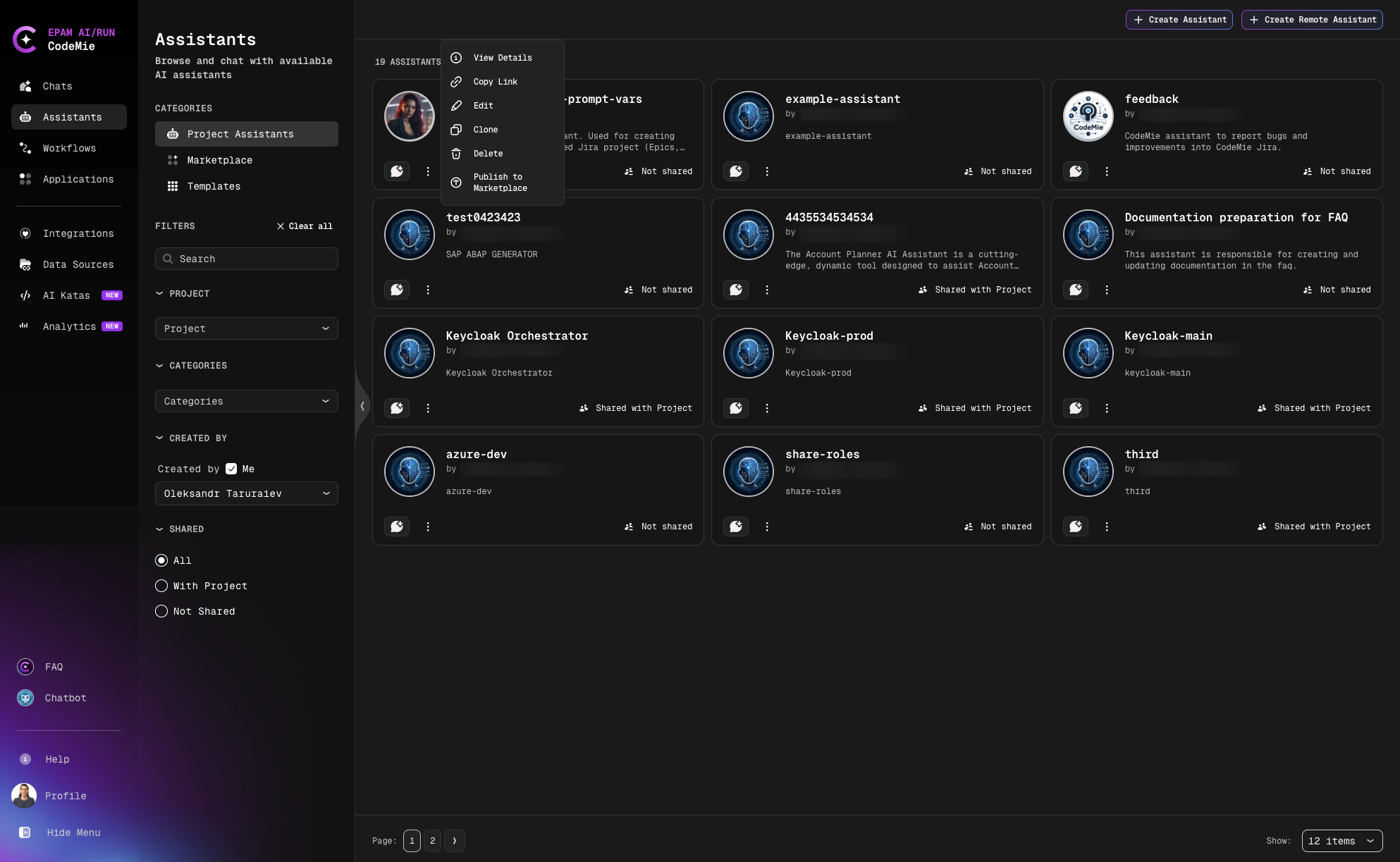
Available actions:
- Edit: Modify assistant configuration
- Delete: Remove the assistant
- Clone: Create a copy
- Publish to Marketplace: Share with the community
- Copy Link: Get shareable URL
- View Details: See full configuration
-
Click the Chat icon to start a conversation. The assistant will also appear in the quick Assistants list for easy access.