Favorites
Mark assistants, skills, and workflows as favorites to quickly access them without searching through the full list.
Mark an Item as a Favorite
You can favorite items from the following tabs:
- Assistants — Project Assistants or Marketplace tabs
- Skills — Project Skills or Marketplace tabs
- Workflows — My Workflows or All Workflows tabs
Each card has a star icon in the top-right corner. Click it to mark the item as a favorite:
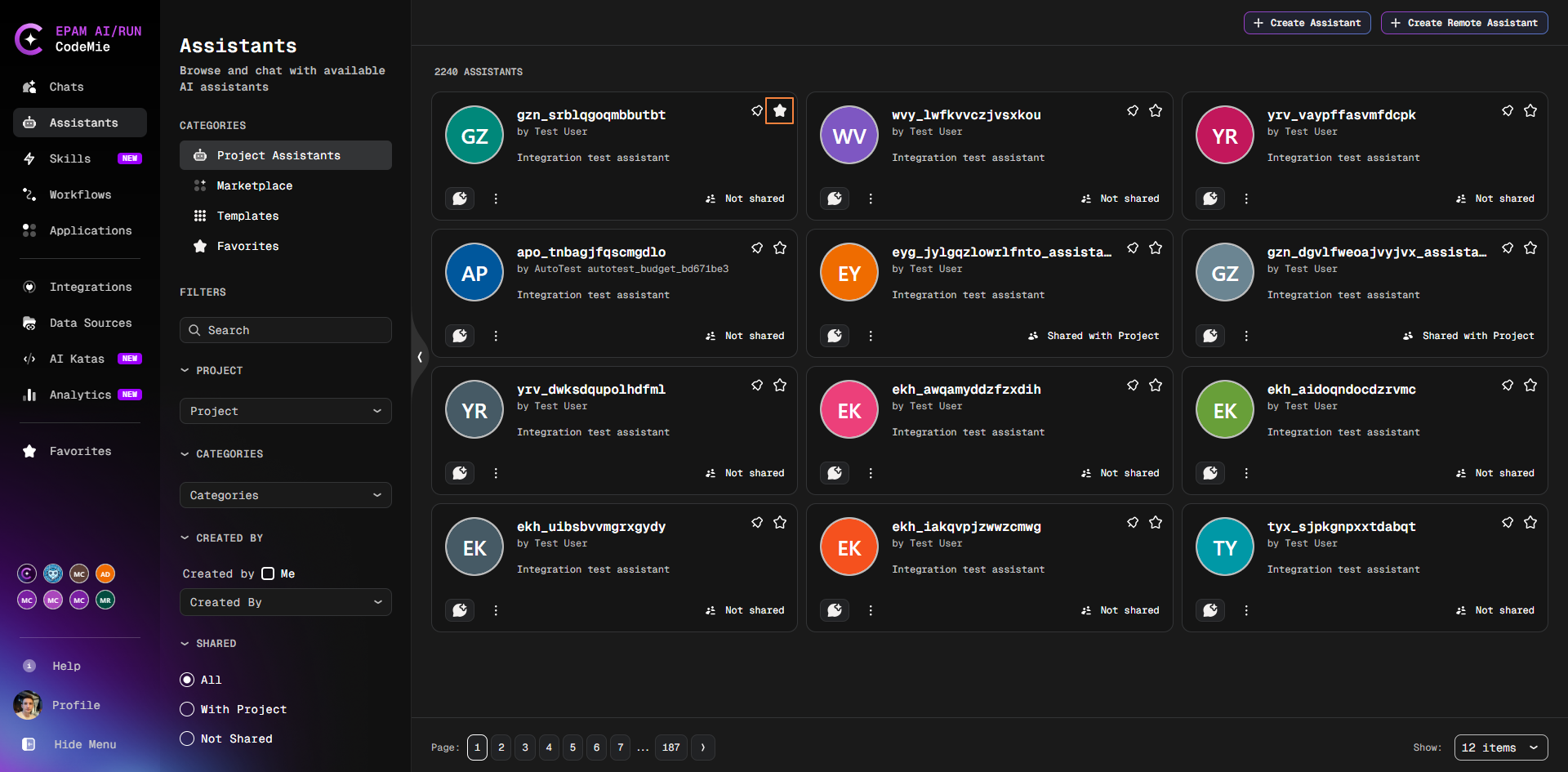
The star icon fills in to confirm the item is saved. Click it again to remove the item from favorites.
Favorites are personal — only you see your favorite items.
View Favorites Within a Section
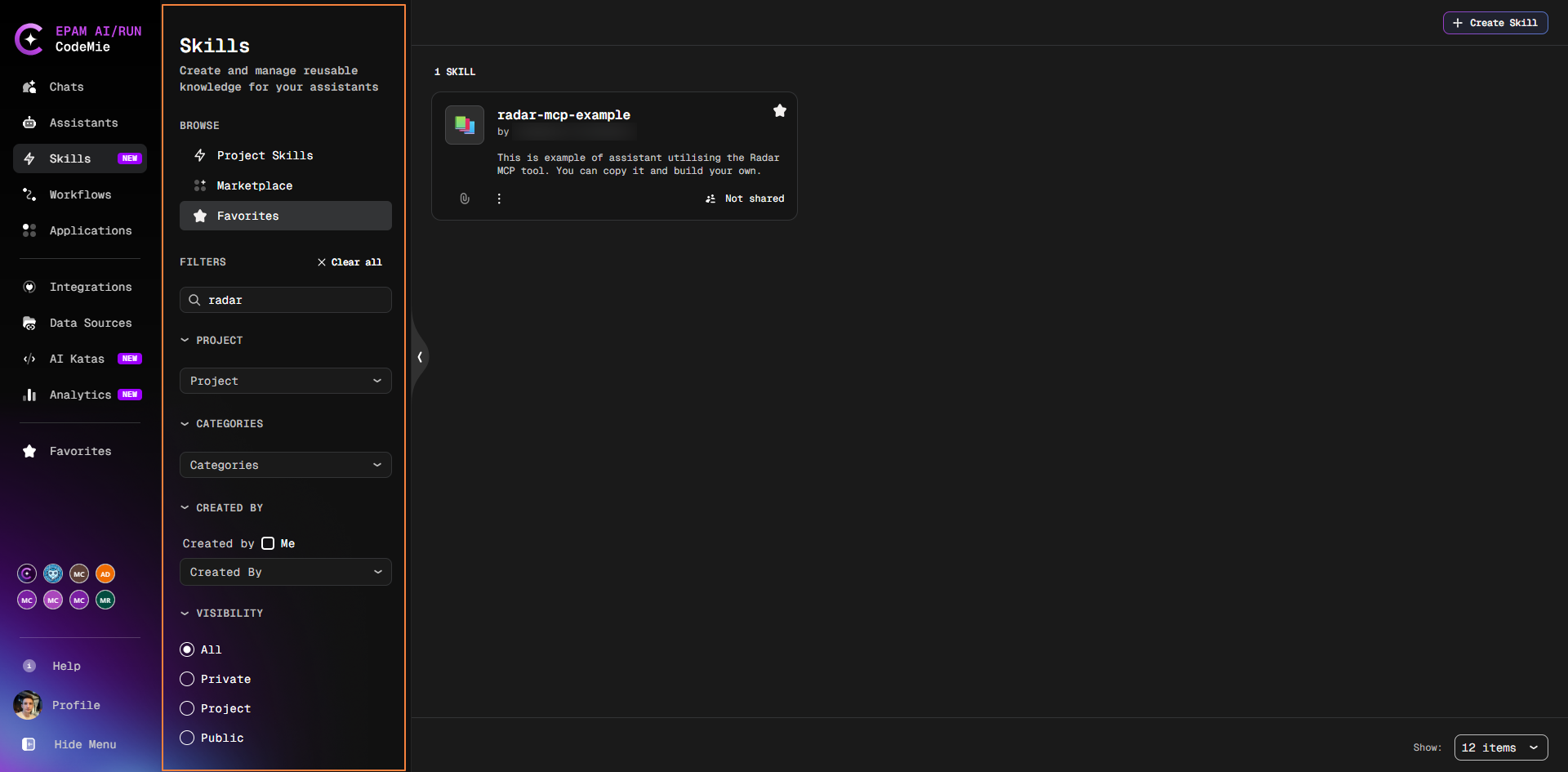
Each section (Assistants, Skills, Workflows) has a Favorites tab in the left filter panel under Browse. Click it to show only your favorite items in that section:
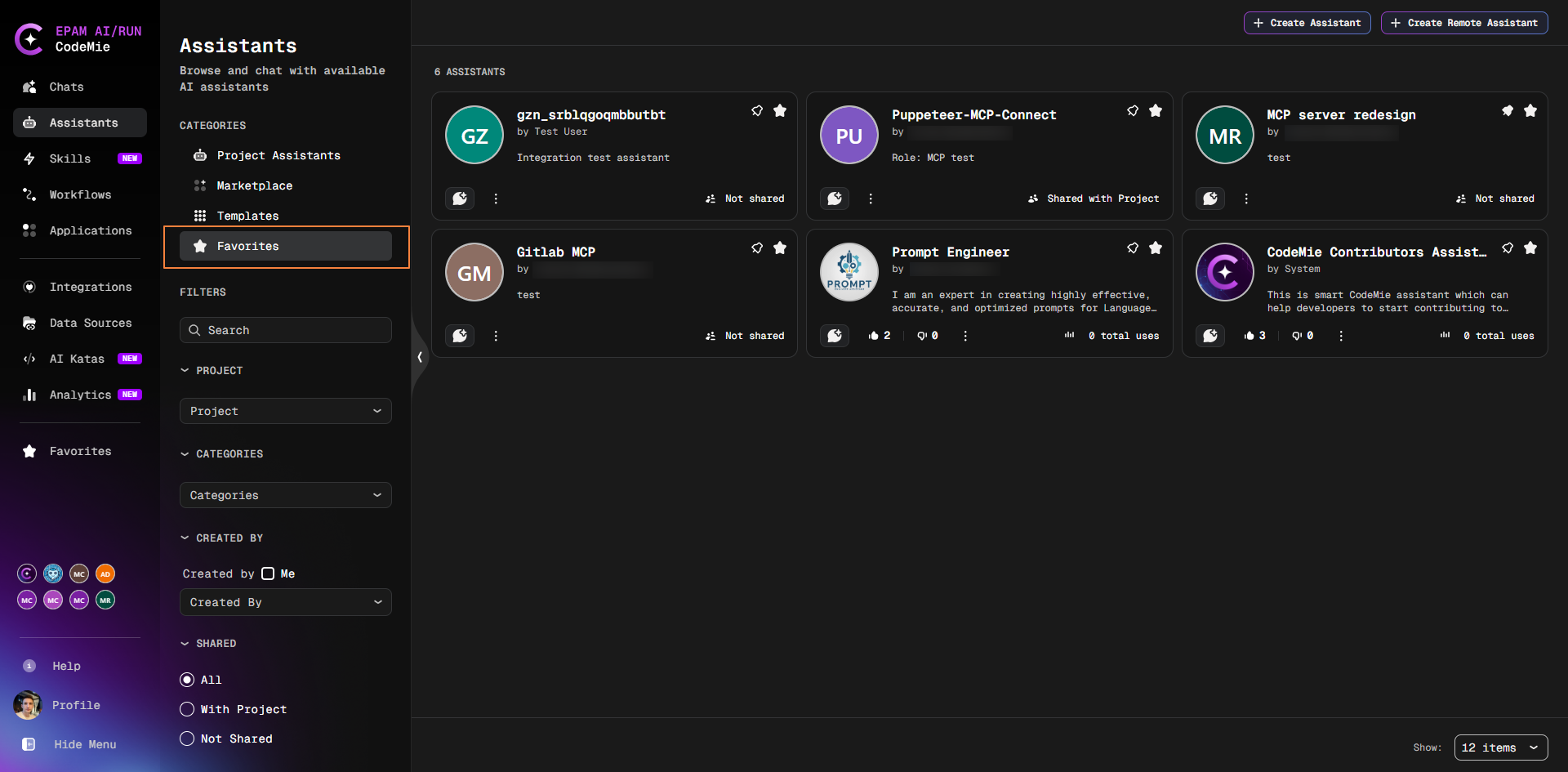
You can combine the Favorites tab with other filters (Project, Categories, Created By) to narrow results further:
Favorites Page
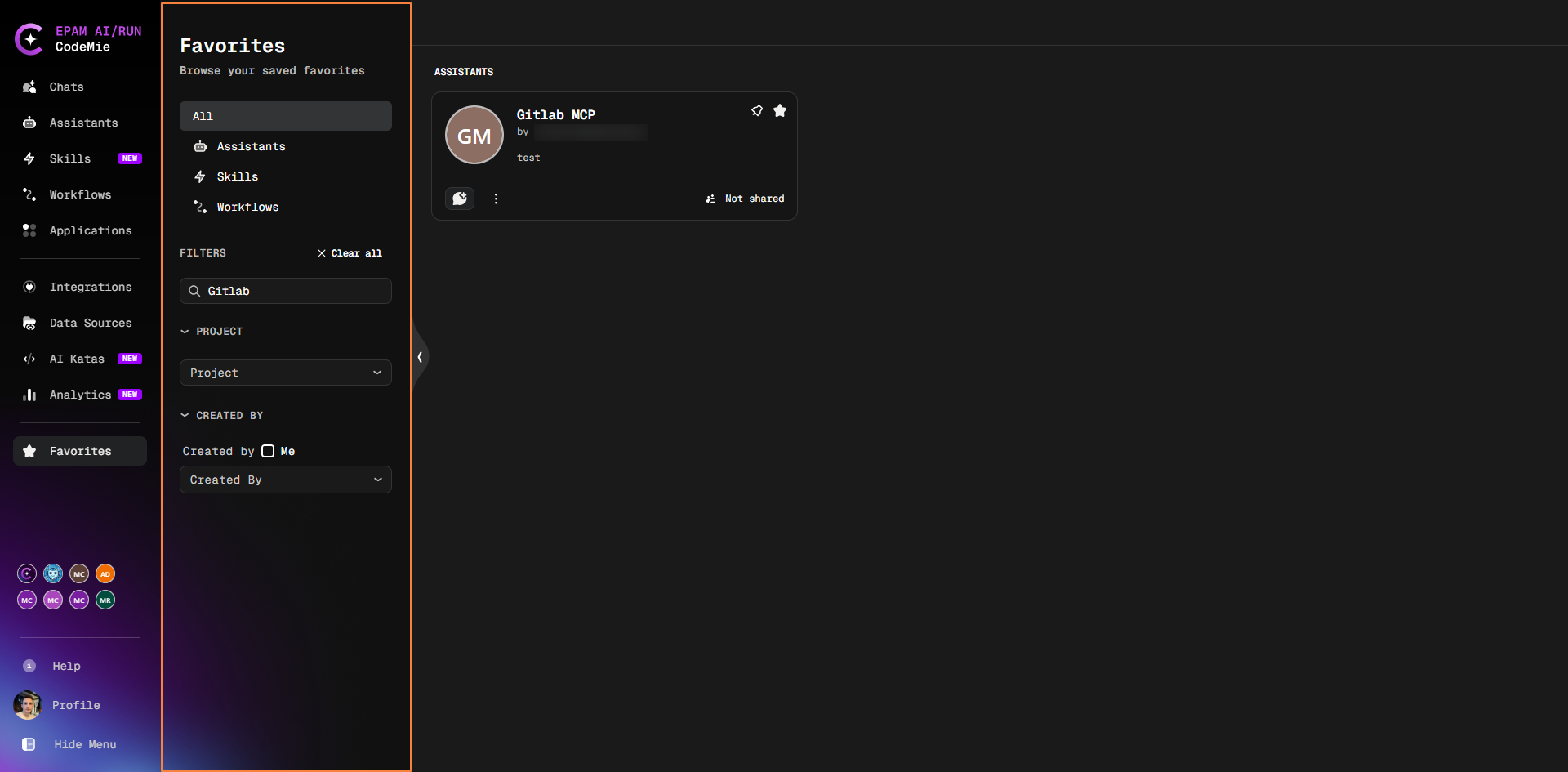
The Favorites page in the navigation sidebar collects all your favorite assistants, skills, and workflows in one place:
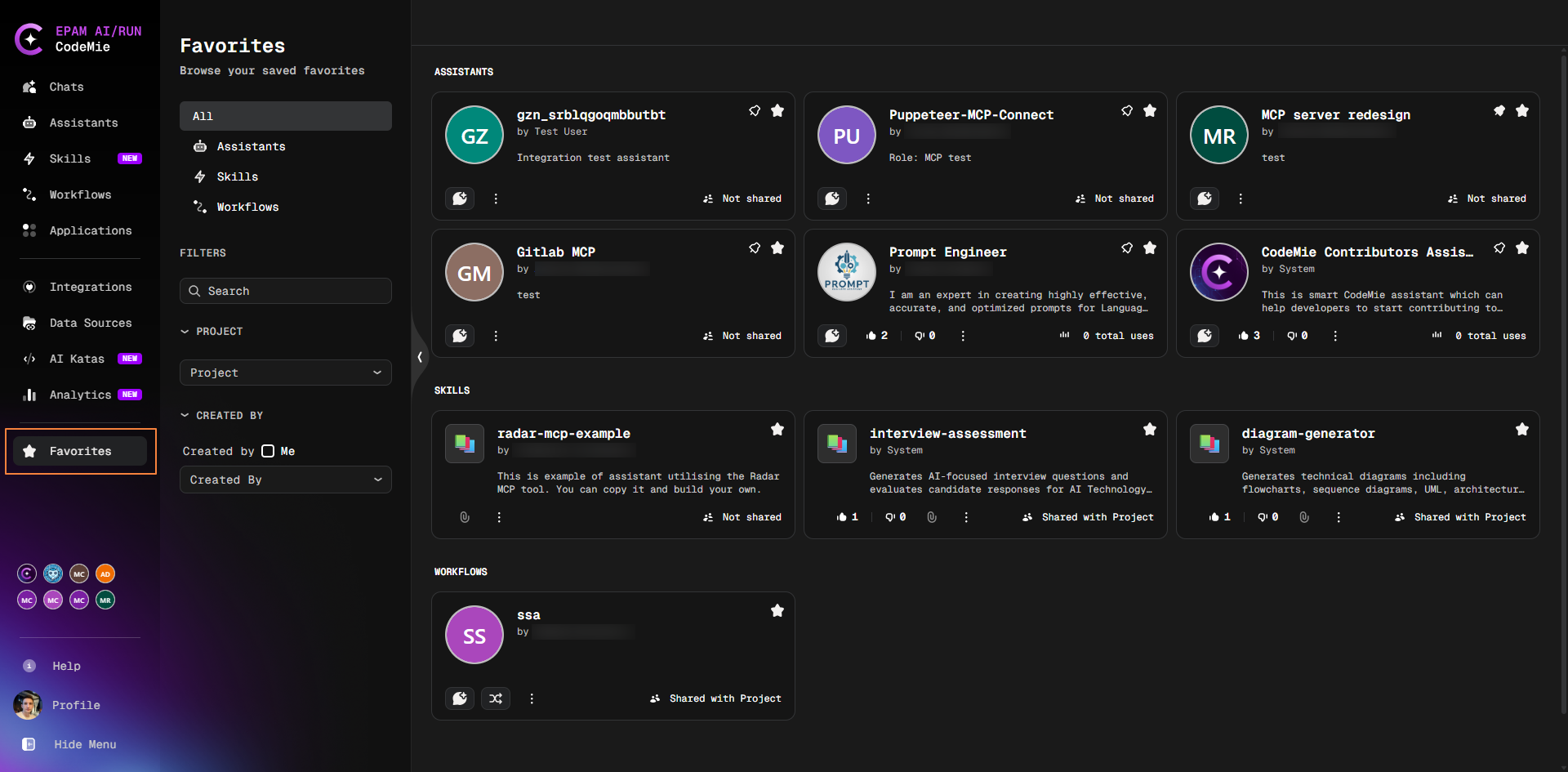
The Favorites page is available when enabled by your administrator.
Filter by Type
Use the type tabs in the left panel to view a specific category:
| Tab | Shows |
|---|---|
| All | All favorite items |
| Assistants | Only favorite assistants |
| Skills | Only favorite skills |
| Workflows | Only favorite workflows |
You can also use the search box and additional filters (Project, Created By) to narrow the results:
Actions on Favorite Items
On the Favorites page you can use the same actions as on the main section pages:
| Item type | Available actions |
|---|---|
| Assistants | Start chat, edit, share, and other assistant actions via the card menu |
| Skills | View details, attach to assistant, and other skill actions |
| Workflows | Start Chat, Start Execution, open card, and other workflow actions via the 3-dots menu |
Remove a Favorite
Click the filled star icon on any card — in the original section, on the Favorites tab, or on the Favorites page. The item is removed immediately and remains accessible in its original section.
Administrator Configuration
The favorites feature is controlled by the administrator. See Customer Feature Configuration for the features:favorites and features:favoritesPage settings.