Workflow Version History
Workflow YAML configuration changes are tracked automatically. When editing an existing workflow, you can browse prior YAML versions, compare them against the current editor content, and restore a previous configuration when an experiment does not work out.
Version history applies to workflow YAML configuration only. Workflow metadata (name, description, project assignment) and execution history are managed separately.
Prerequisites
- An existing workflow with at least one saved YAML change (history is empty until the configuration is modified and saved at least once)
- Access to edit the workflow (see Permissions below)
Open Version History
Version history is available when editing an existing workflow. It is not shown during workflow creation.
-
Navigate to Workflows and open a workflow for editing (click Actions (⋮) → Edit on the workflow card, or Edit on the Workflow Details page).
-
Open the YAML editor:
- Visual Editor: Click the YAML button in the upper-right corner of the workflow editor.
- Legacy form editor: Open the YAML configuration field in the workflow form.
-
In the YAML header action bar, click Version History (beside Documentation when documentation is available):
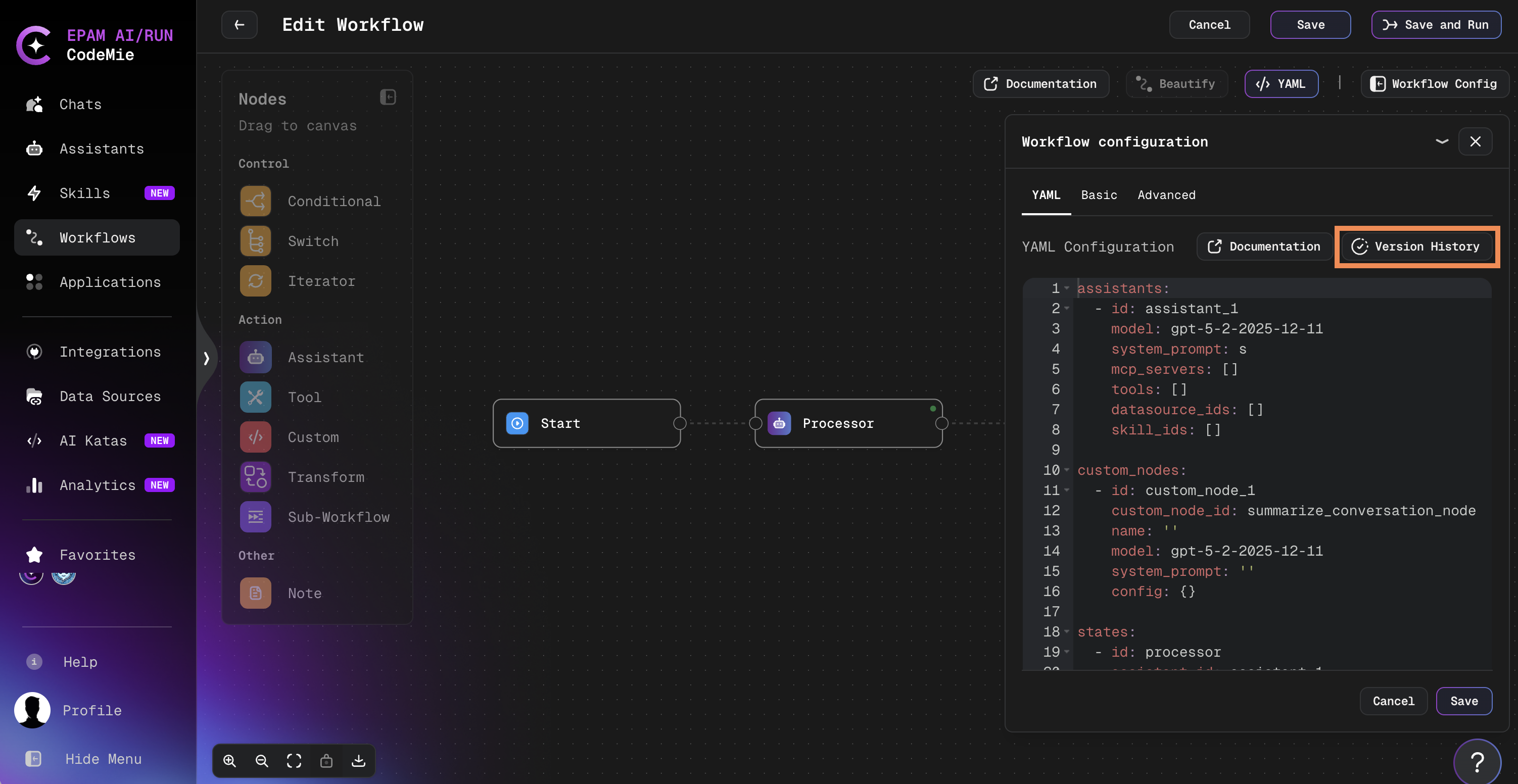
Both the visual editor YAML panel and the legacy YAML form editor expose the same Version History button. The button appears even when Documentation is hidden for the workflow.
Browse and Compare Versions
The Version History popup lists every saved prior version of the workflow YAML. Each entry is labeled in this format:
[NN] - <date> - <author>
Where NN is a sequential version number (newer versions have higher numbers).
-
Select a version from the dropdown to load it into the diff view.
-
Compare the selected version against a baseline:
Baseline Description Current Version The YAML currently in the editor, including any unsaved changes captured when the popup opened Previous Version The next older historical version relative to the selected entry (disabled when none exists) -
Review the side-by-side diff. Lines highlighted in red will be removed; lines in green will be added.
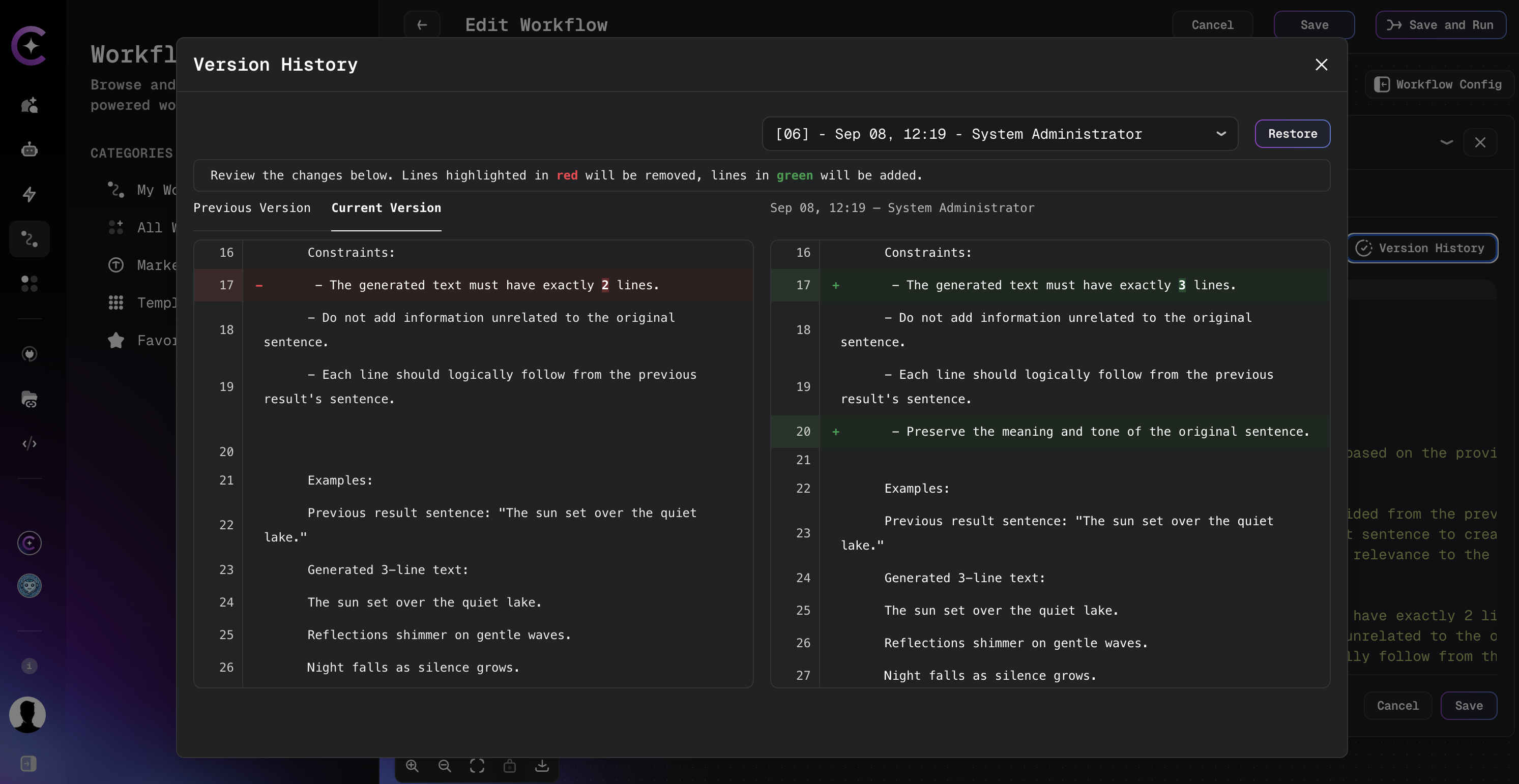
If no historical versions exist, the popup displays No version history available and the Restore button is unavailable.
Restore a Previous Version
Restoring a version replaces the YAML in the editor with the content from the selected historical version. The change is not saved automatically.
-
Select the version to restore from the dropdown.
-
Click Restore.
-
Confirm the restore action in the confirmation dialog:
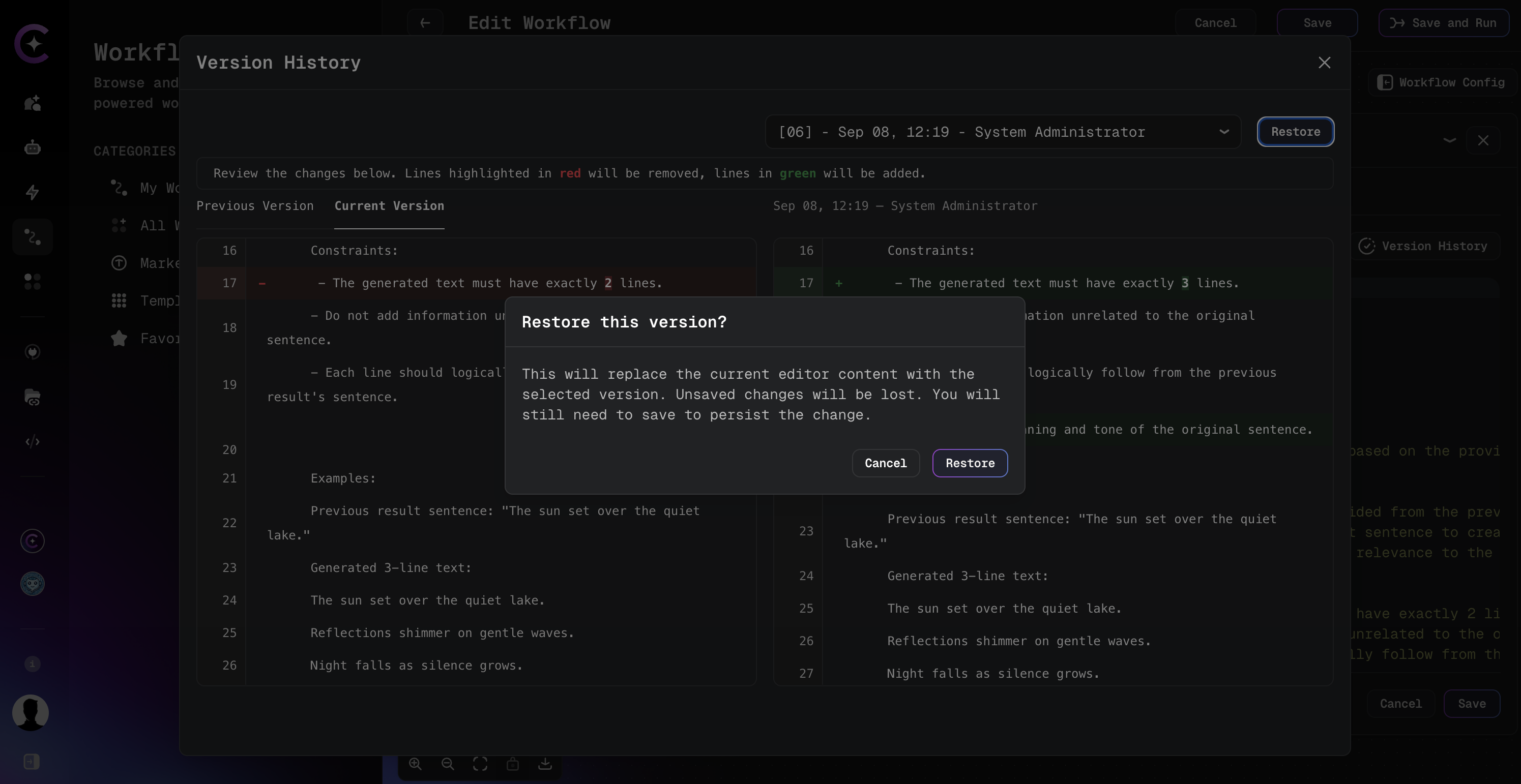
-
Click Save on the Edit Workflow page to persist the restored configuration.
Restoring a version replaces the current editor content. All unsaved workflow edits—including changes made in the visual editor or YAML panel—are discarded when restore is confirmed.
Revert to Previous discards an unsaved AI refinement and returns to the YAML captured before refinement. Version History restores any previously saved YAML version from the workflow's change history. See Create Workflow for AI refinement details.
Permissions
| Access level | Browse history | Compare versions | Restore |
|---|---|---|---|
| Read | Yes | Yes | No |
| Write | Yes | Yes | Yes |
Users with read-only access can open version history and review diffs but cannot restore versions. Saving a restored configuration requires write access to the workflow.
When History Is Recorded
A new history entry is created when the workflow YAML configuration is saved with content that differs from the previous saved version. Metadata-only changes (such as renaming the workflow) do not add YAML history entries.
Related Documentation
- Create Workflow — Build and edit workflows with the visual editor and YAML panel
- Workflow YAML Configuration Guide — YAML syntax and configuration reference