Clone Workflow from Marketplace
Clone a marketplace workflow to a personal project to customize it or adapt it for a specific use case. All authenticated users can clone any marketplace workflow. The clone is a fully independent copy — changes to it do not affect the original.
Clone a Workflow
1. Navigate to Marketplace
- Go to Workflows → Marketplace.
- Browse the catalog or use search and filters to find the workflow to clone.
2. Select a Workflow
-
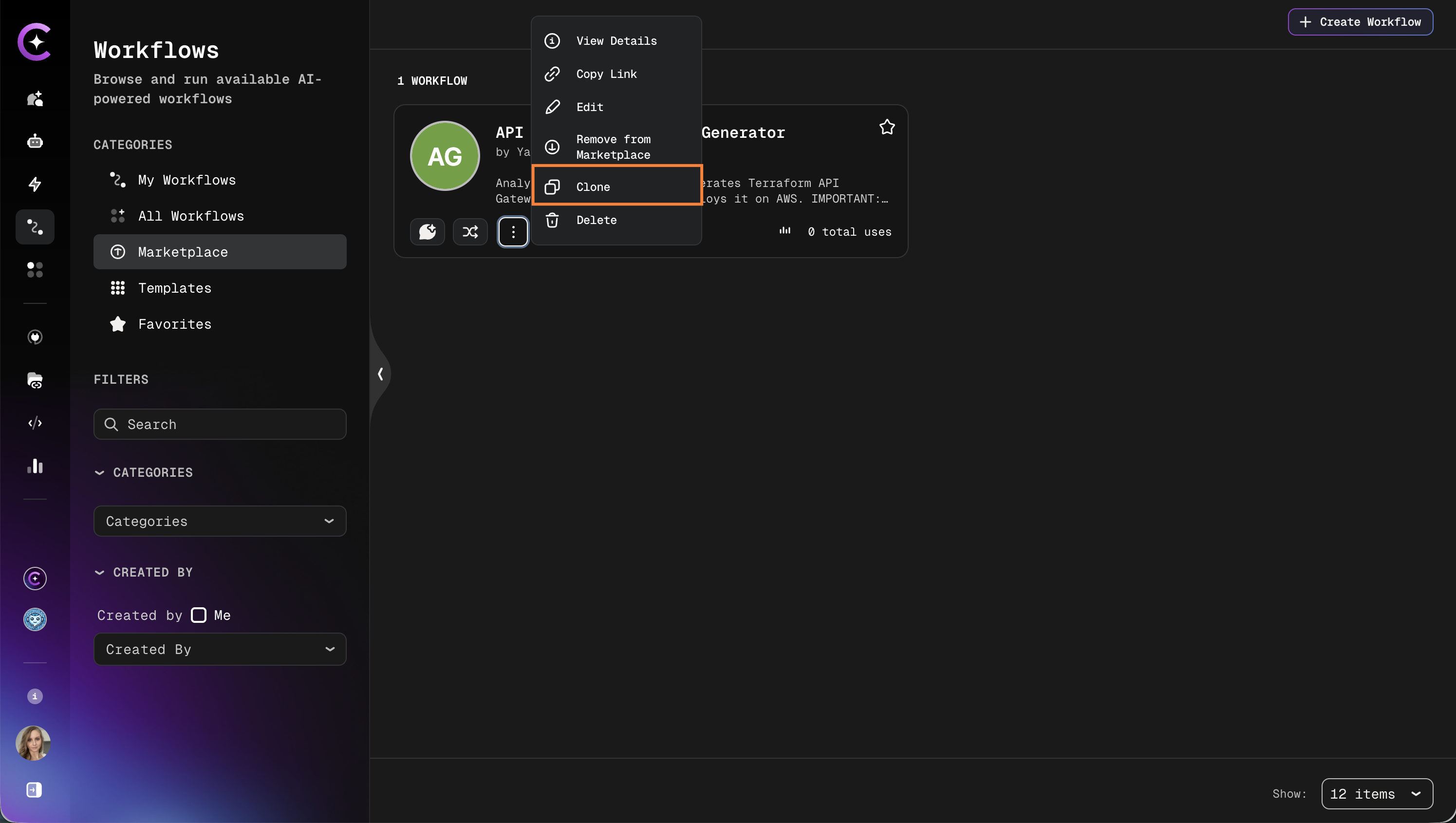
Click on the workflow card to open its details page.
-
Review the workflow description, categories, and usage metrics.
-
Click the Clone button:
3. Configure Clone Settings
-
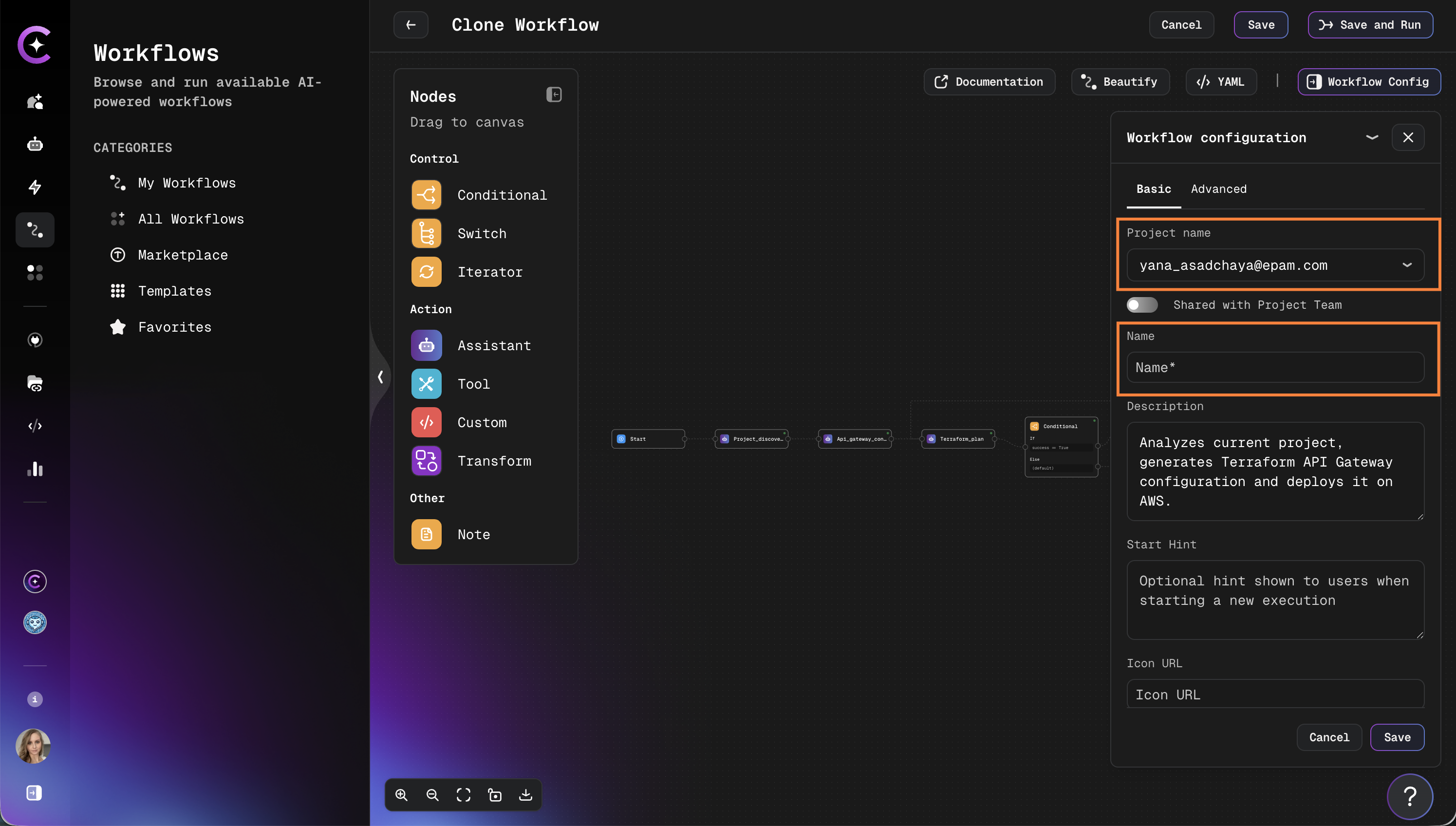
Select the target project from the dropdown.
- Only projects with access are listed.
-
Enter a name for the cloned workflow:
-
Confirm the slug is unique within the target project.
The slug must be unique within the selected project. If a conflict exists, a different name must be chosen before proceeding.
4. Complete Cloning
- Click Clone Workflow to start the process.
- The system creates a copy with all configuration preserved.
- A confirmation is displayed when cloning is complete.
After Cloning
The cloned workflow appears in the target project's workflow list, where it can be:
- Edited and reconfigured freely
- Connected to different datasources or assistants
- Published to the Marketplace as a new entry
The cloned workflow is independent from the original. Modifications do not affect the marketplace version, and updates to the original are not reflected in the clone.