Exporting Node Call History
Each node in a workflow execution records the individual LLM and tool calls it made. You can review these calls in the Call history popup and export them as JSON to share in a ticket, chat, or log, or to analyze them outside the platform.
This differs from Exporting Workflow Execution, which saves the results of every step as a zip archive of Markdown or HTML files. Call history export saves the calls made inside a single node.
Open the Call History
-
Open a workflow and select an execution in Workflow Execution History.
-
In the node list at the bottom of the execution page, below the workflow graph, select the node whose calls you want to review.
-
Click Call history.
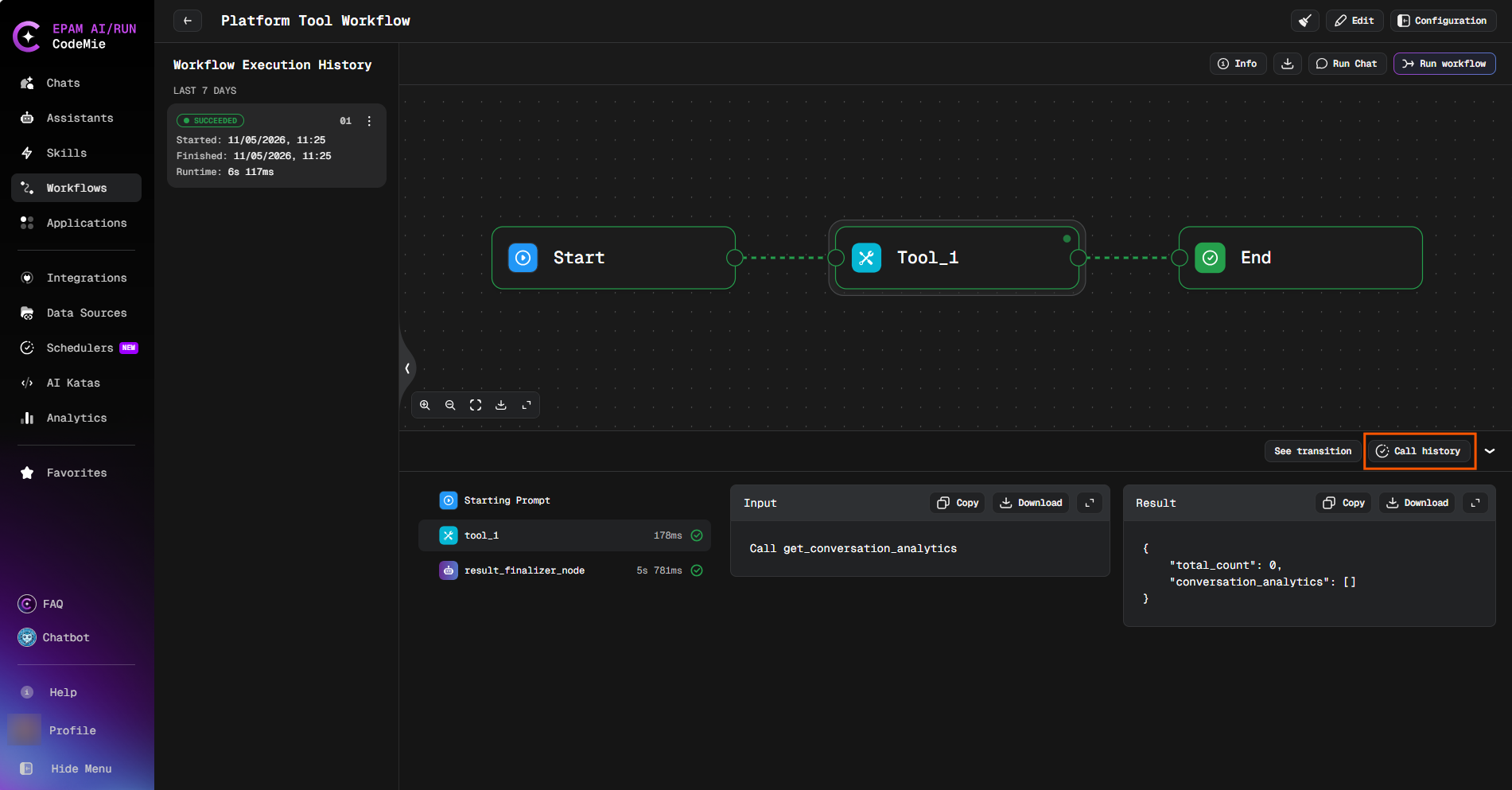
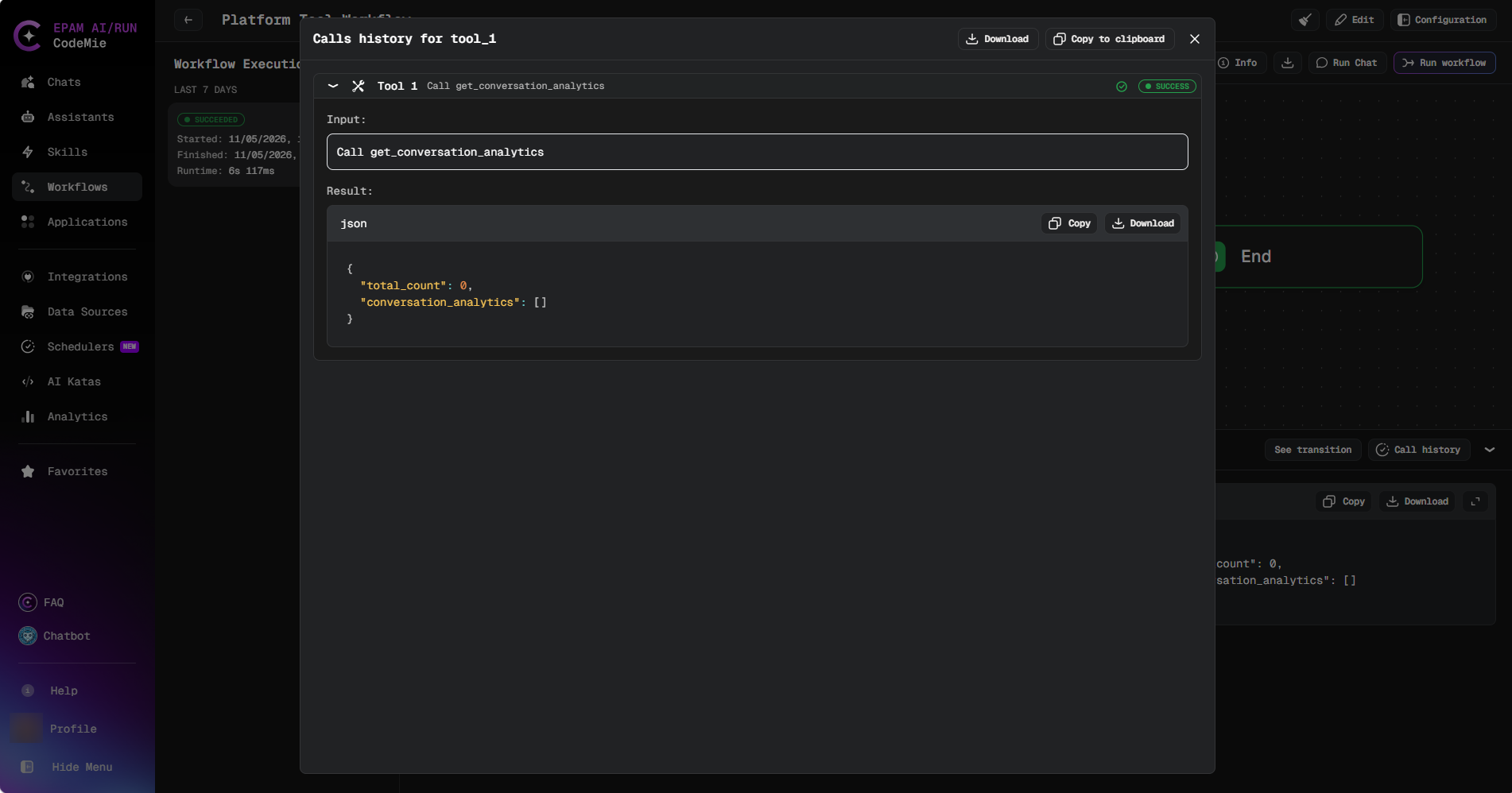
The popup opens with the title Calls history for followed by the node name. It lists every call with its status, input, and result. Expand a call to see its input, result, and any sub-calls (thoughts) it made.
The Call history button is not available for the Starting Prompt item. Clicking a node in the workflow graph does not open the popup.
Export Call History
The popup header provides two actions for saving or sharing a node's call history:
| Action | Description |
|---|---|
| Download | Saves the call history as a .json file. The filename is derived from the node name and execution ID. |
| Copy to clipboard | Copies the full call history JSON to the clipboard. |
To export a node's call history:
-
Open the Call history popup for the node, as described above.
-
Click Download to save a file, or Copy to clipboard to paste the JSON elsewhere. A confirmation message appears when the export succeeds.
The two buttons appear once the node's calls are loaded and are hidden for a node without calls.
Exported JSON
Both actions produce the same indented JSON, built from the call data already loaded for the popup. No additional data is fetched from the server. It contains a node summary followed by the calls.
Node Summary
| Field | Description |
|---|---|
execution_id | Identifier of the workflow execution |
state_id | Identifier of the node's state within the execution |
node | Node name |
status | Node status, for example Succeeded or Failed |
started_at | Time the node started |
completed_at | Time the node completed |
duration_seconds | Time between start and completion, in seconds. null if either is missing |
Calls
The calls array lists every call shown in the popup, in order, including sub-calls:
| Field | Description |
|---|---|
index | Position of the call, starting at 1 |
id | Identifier of the call |
author_name, tool_name | Name of the assistant or tool that made the call |
author_type | Type of the call's author, for example WorkflowState |
input_text | Input passed to the call |
message | Raw output of the call |
content | Output parsed as JSON when it is valid JSON, otherwise the same text as message |
error | Error value, when the call failed |
children | Sub-calls (thoughts) made during the call |
date | Date and time of the call |
Example
The downloaded file opened in a text editor:
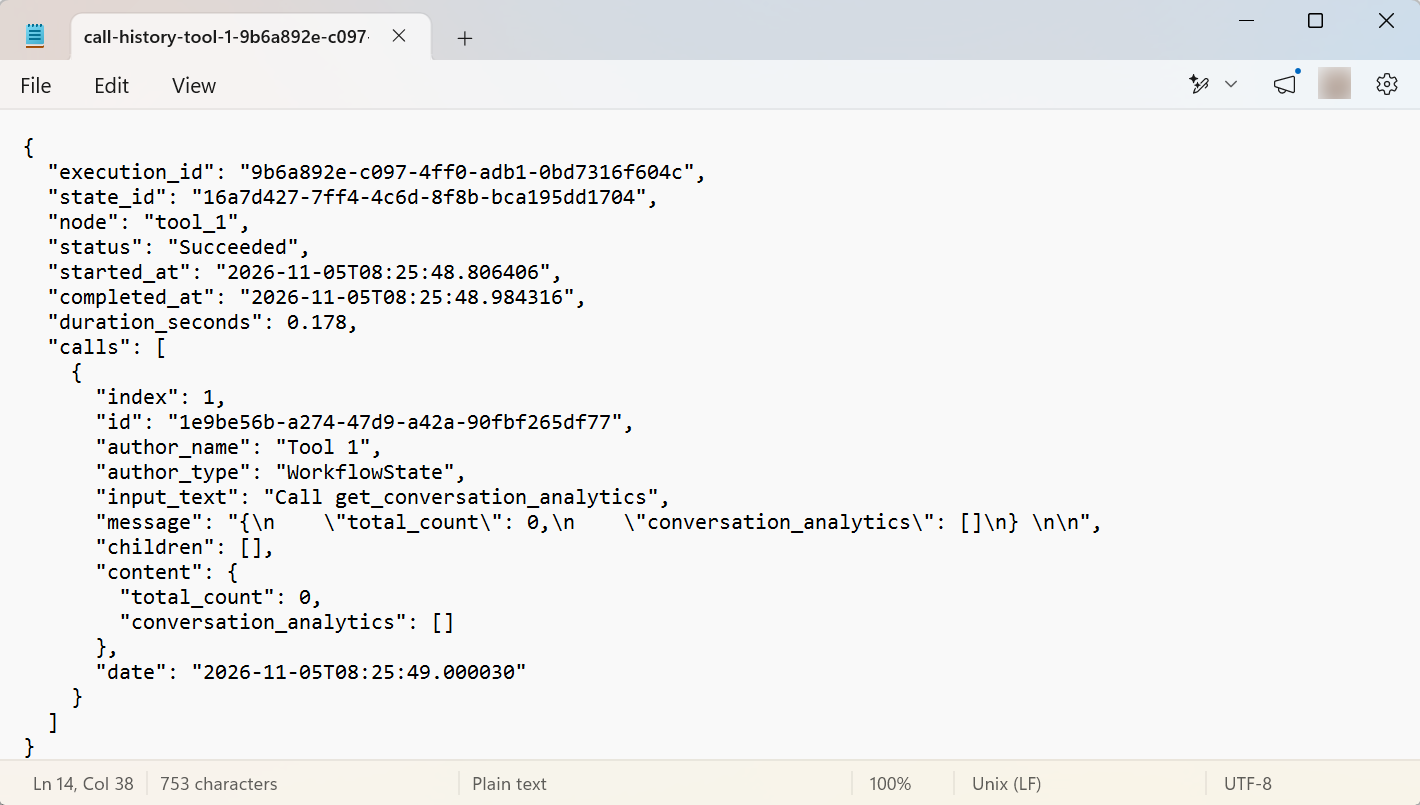
The same content as text:
{
  "execution_id": "9b6a892e-c097-4ff0-adb1-0bd7316f604c",
  "state_id": "16a7d427-7ff4-4c6d-8f8b-bca195dd1704",
  "node": "tool_1",
  "status": "Succeeded",
  "started_at": "2026-11-05T08:25:48.806406",
  "completed_at": "2026-11-05T08:25:48.984316",
  "duration_seconds": 0.178,
  "calls": [
    {
      "index": 1,
      "id": "1e9be56b-a274-47d9-a42a-90fbf265df77",
      "author_name": "Tool 1",
      "author_type": "WorkflowState",
      "input_text": "Call get_conversation_analytics",
      "message": "{\n    \"total_count\": 0,\n    \"conversation_analytics\": []\n} \n\n",
      "children": [],
      "content": {
        "total_count": 0,
        "conversation_analytics": []
      },
      "date": "2026-11-05T08:25:49.000030"
    }
  ]
}
Use Copy to clipboard to paste a node's call history straight into a ticket or chat, and Download when you need to keep the file or attach it.