Add and Index Google Data Source
Connect and index Google Documents as data sources.
Google Documents are a valuable knowledge source in AI/Run CodeMie, enabling assistants to access structured documentation and FAQs. This guide walks you through the process of adding and indexing Google Docs.
Overview
Google Documents are indexed by connecting your Google account through a Google OAuth integration. The document must be formatted in a specific way, such as FAQs, to be compatible with the platform's parsing and LLM routing capabilities.
Prerequisites
The Google OAuth integration requires administrator configuration before users can sign in with Google. See Google OAuth in the API Configuration guide.
Before adding a Google Docs data source, ensure you have:
- A Google Document formatted according to AI/Run CodeMie requirements
- A Google OAuth integration created in AI/Run CodeMie (see Setting Up a Google OAuth Integration below)
- Viewer access to the Google Document with your Google account
Google Docs must follow the triple numeration format (1.1.1.) with Heading 3 style. Documents without this format will fail to parse correctly.
Required Document Format
Google documents should be created in a specific format to allow AI/Run CodeMie to parse it and use it for LLM routing efficiently instead of traditional semantic search.
Format Structure
The document format should follow these guidelines:
1. Titles with triple numeration
- Use format:
1.1.1.(numbered sections) - Apply text style: Heading 3
- This creates a hierarchical structure for easy navigation
2. Content text
- Use text style: Normal for all content inside sections
- Keep content clear and concise
- Structure information logically
Example Structure
1.1.1. What is AI/Run CodeMie?
AI/Run CodeMie is a platform for...

1.1.2. How do I get started?
To get started with AI/Run CodeMie...

1.2.1. Creating your first assistant
Follow these steps to create...
The triple numeration format enables AI/Run CodeMie to create a semantic hierarchy of your content, improving search accuracy and LLM routing efficiency.
For a complete example of the correct format, refer to this example Google Document.
Setting Up a Google OAuth Integration
A Google OAuth integration links your Google account to AI/Run CodeMie. You only need to create it once and can reuse it for multiple Google Docs datasources.
Steps
- In the AI/Run CodeMie main menu, click Integrations.
- Click + Create and select Create User Integration.
- In the Credential Type dropdown, select Google OAuth.
- Click the Sign in with Google button.
- A browser popup opens. Select your Google account and grant the requested permissions (read-only access to Google Documents).
- Once sign-in is complete, the button shows Re-authenticate and Signed in as:
<your-email>above it.
If you use Google Docs across multiple projects, enable the Global toggle when creating the integration. This makes the integration available in all projects where you are onboarded, so you only need to authenticate once.
Adding a Google Data Source
Follow these detailed steps to add a Google Document as a data source:
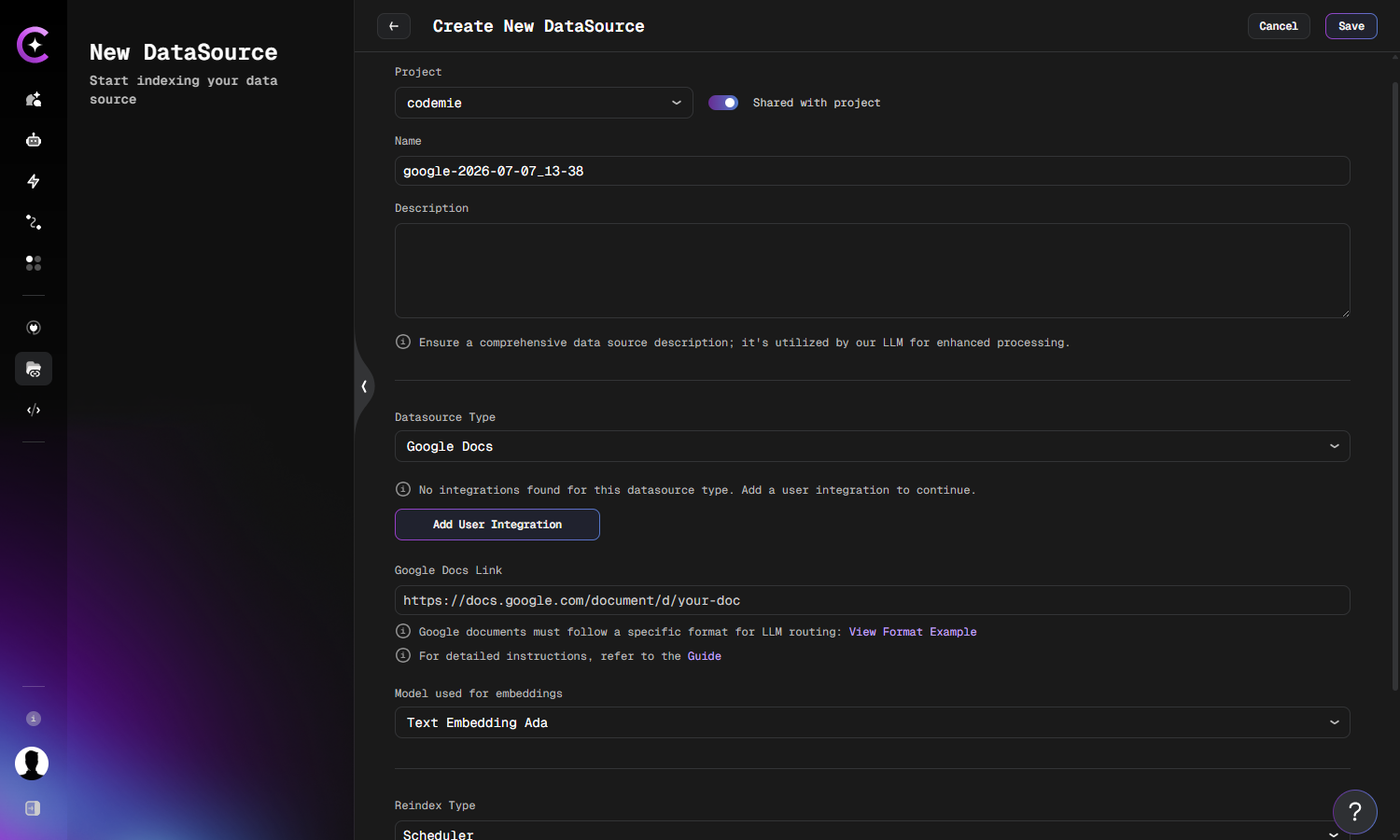
Configuration Steps
-
Navigate to Data Sources section in AI/Run CodeMie
-
Click + Create Datasource
-
Fill in required fields:
- Project: Select target project
- Name: Provide a descriptive name for the data source
- Description: Add details about the document content
- Datasource Type: Select Google Docs
- Google Auth Integration: Select your Google OAuth integration from the dropdown or click Add User Integration
- Google Docs Link: Paste the Google Document URL (e.g.,
https://docs.google.com/document/d/your-doc-id) - Model used for embeddings: Select embedding model
-
Configure Reindex Schedule (Optional)
In the Reindex Type section, configure automatic reindexing:
- Scheduler: Choose your preferred reindexing schedule
- No schedule (manual only) - Default, requires manual reindexing
- Every hour - For frequently updated documentation
- Daily at midnight - Recommended for most Google Docs
- Weekly on Sunday at midnight - For stable documents
- Monthly on the 1st at midnight - For rarely updated documents
- Custom cron expression - Enter custom cron expression (e.g.,
0 8 * * *for daily at 8 AM)
- Scheduler: Choose your preferred reindexing schedule
-
Click + Create to create the data source
Using Google Data Source in Assistants
After successfully creating and indexing your Google data source, you can connect it to any assistant to provide access to your Google Docs content.
Adding Data Source to Assistant
- Navigate to Assistants section
- Click + Create Assistant or edit an existing assistant
- In the Data Source Context section, click the dropdown menu
- Select your Google data source from the list
- Save the assistant configuration
Now your assistant can access and analyze content from the indexed Google Documents, enabling it to:
- Answer questions about document content
- Summarize sections and key points
- Extract specific information
- Compare information across multiple documents
- Provide context-aware responses based on your documentation
Your Google Documents are now configured and ready to enhance your assistants with collaborative documentation knowledge.