Project Budgets
Part of the CodeMie Enterprise package, and may not be enabled on every deployment. If this capability is missing from the UI described below, contact the CodeMie platform administrator. See all Enterprise features.
A project budget caps how much a single project can spend on LLM usage over a reset period, and splits that cap across the three budget categories: Platform, CLI, and Premium Models. Keeping the categories separate means a runaway CLI script cannot drain the allowance reserved for the web UI.
This page covers creating a project budget, tracking spend against it, and controlling how much of it each member can consume. For how a project budget interacts with personal and default budgets, see Budget Priority.
Access
Path: Profile → Settings → Administration → Projects Management → select a project
Creating and editing project budgets requires the Maintainer role. Project Admins cannot manage budgets in any project — including their own. See Access for the full permission matrix.
Reviewing Projects and Their Budgets
The Projects management list shows every project on the platform along with its cost center and budget state.
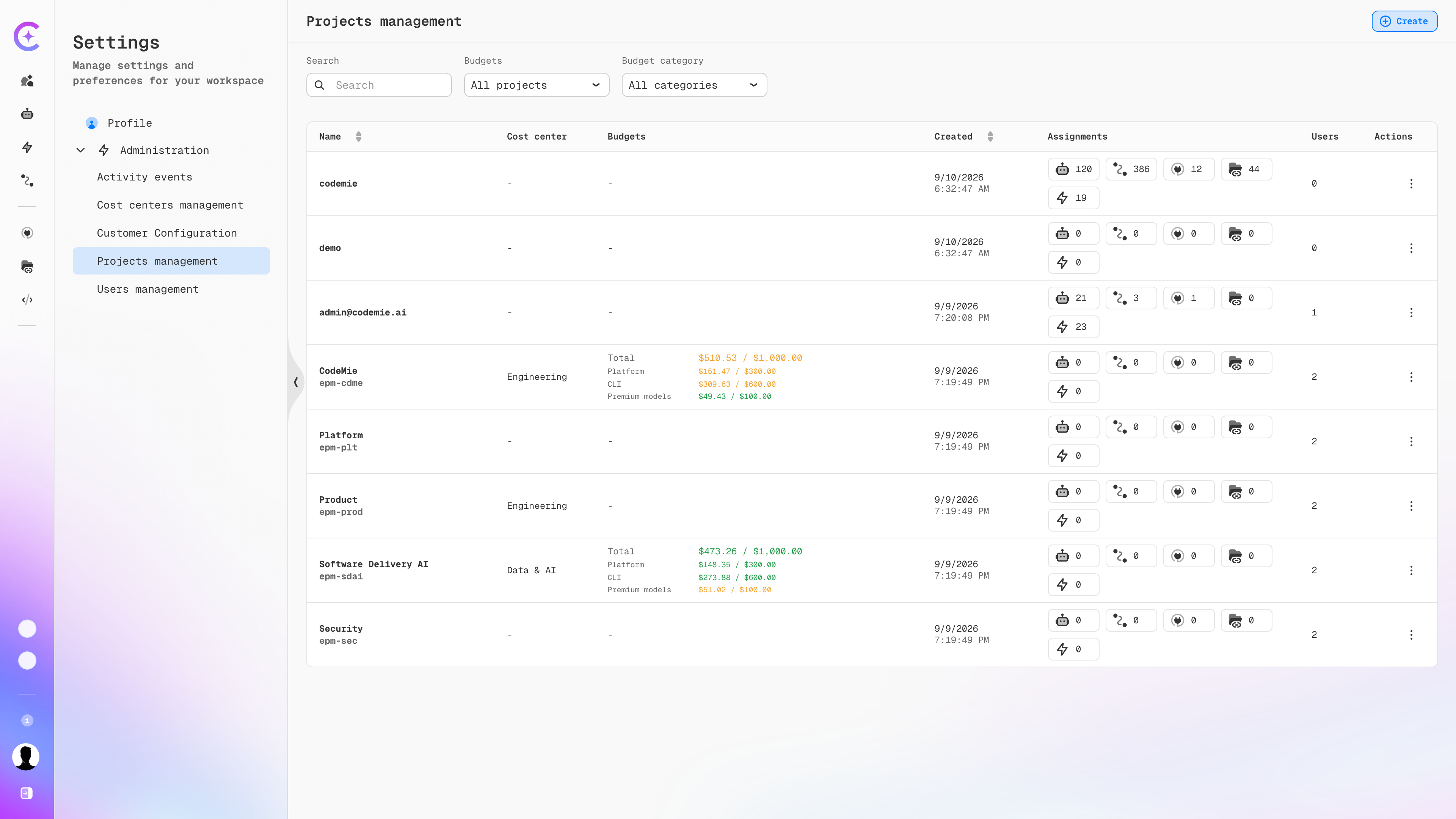
The Budgets column shows the project total and a per-category breakdown in
$spent / $limit format. Values are colored by consumption, so projects approaching their cap stand
out at a glance. Projects with no budget show a dash.
Two filters narrow the list:
| Filter | Purpose |
|---|---|
| Budgets | Show all projects, or only those with (or without) a budget |
| Budget category | Show only projects that have a budget in the selected category |
Creating a Project Budget
A project without a budget shows three empty category cards and a Create Budget button.
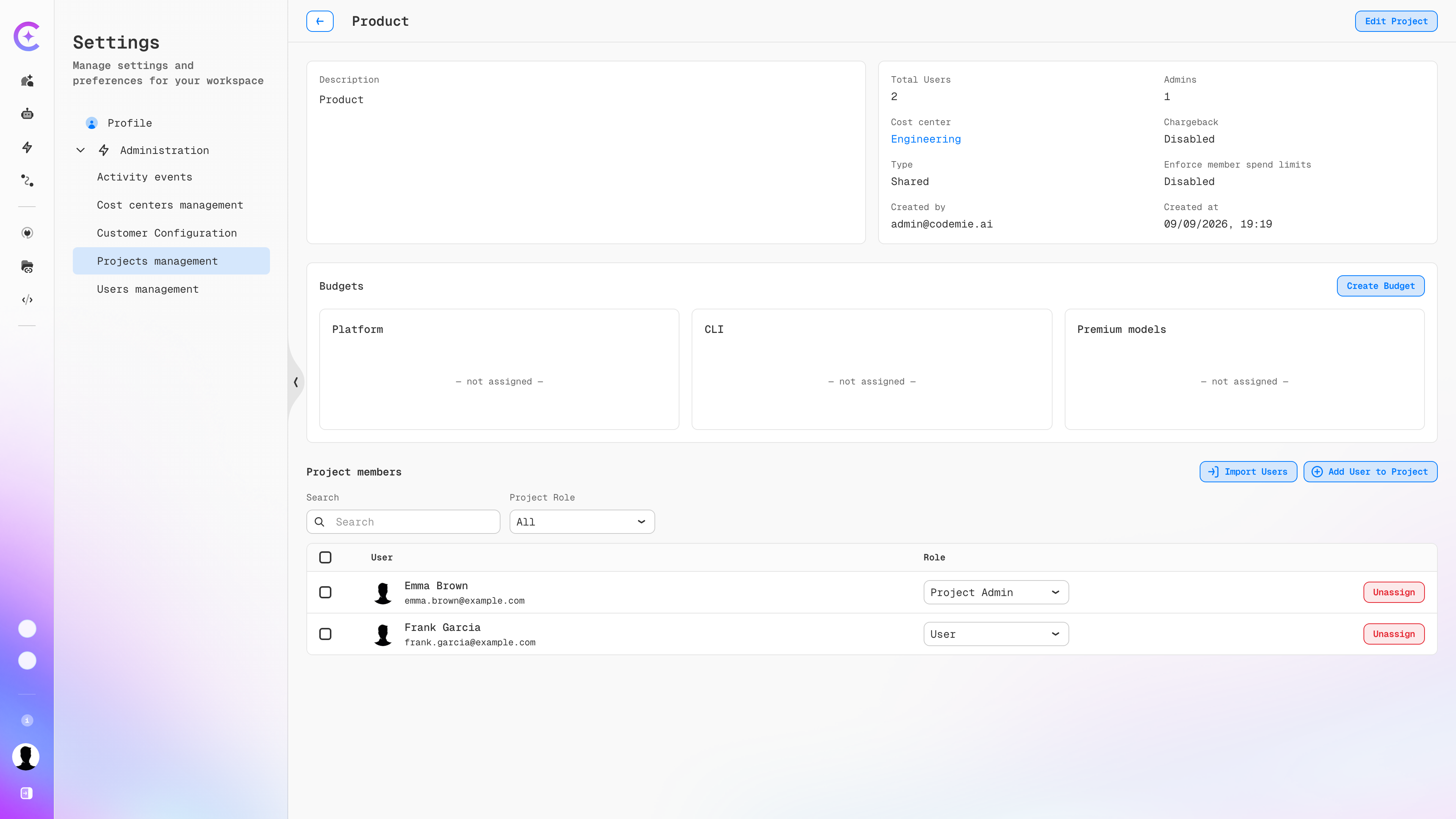
- Click the Profile icon in the bottom-left corner and select Settings.
- Go to Administration → Projects Management and select the project.
- In the Budgets section, click Create Budget.
- Complete the dialog described below.
- Click Create Budget.
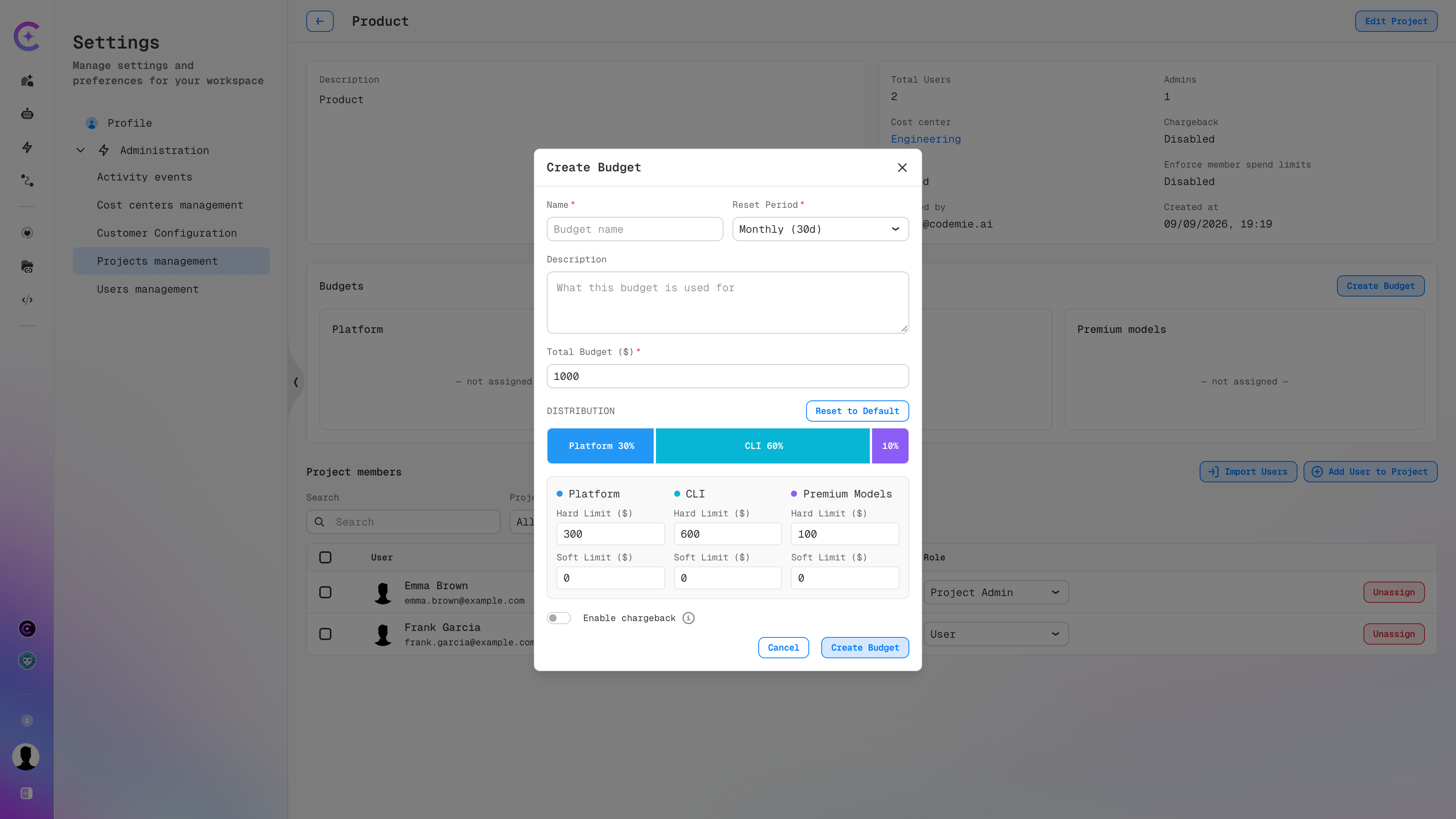
Budget Fields
| Field | Required | Description |
|---|---|---|
| Name | Yes | Human-readable label for the budget. The budget ID is generated from it automatically |
| Reset Period | Yes | How often spend counters reset — for example, Monthly (30d) or Weekly (7d) |
| Description | No | Note on what the budget is used for |
| Total Budget ($) | Yes | The project's overall cap in USD. This amount is divided across the three categories |
| Hard Limit ($) | Yes | Per category. Enforcement cap — requests in that category are blocked once the amount is reached. Must be > 0 |
| Soft Limit ($) | No | Per category. Warning threshold — requests are not blocked when it is crossed |
Distributing the Total Across Categories
Entering a Total Budget splits it across the categories using the default weighting — 30% Platform, 60% CLI, 10% Premium Models — and fills the per-category Hard Limit fields accordingly. A $1,000 total therefore yields $300 Platform, $600 CLI, and $100 Premium Models.
To rebalance, either drag the segment boundaries on the DISTRIBUTION bar or type the amounts directly into the Hard Limit fields. Reset to Default restores the 30/60/10 split.
Set a Soft Limit per category to receive a warning before the hard limit blocks anything. Soft
limits default to 0, which disables the warning.
A single dialog creates budgets for all three categories at once. Only one budget per category per project is allowed.
The dialog also carries the Enable chargeback and Attribute to a cost center toggles. See Chargeback and Cost Centers.
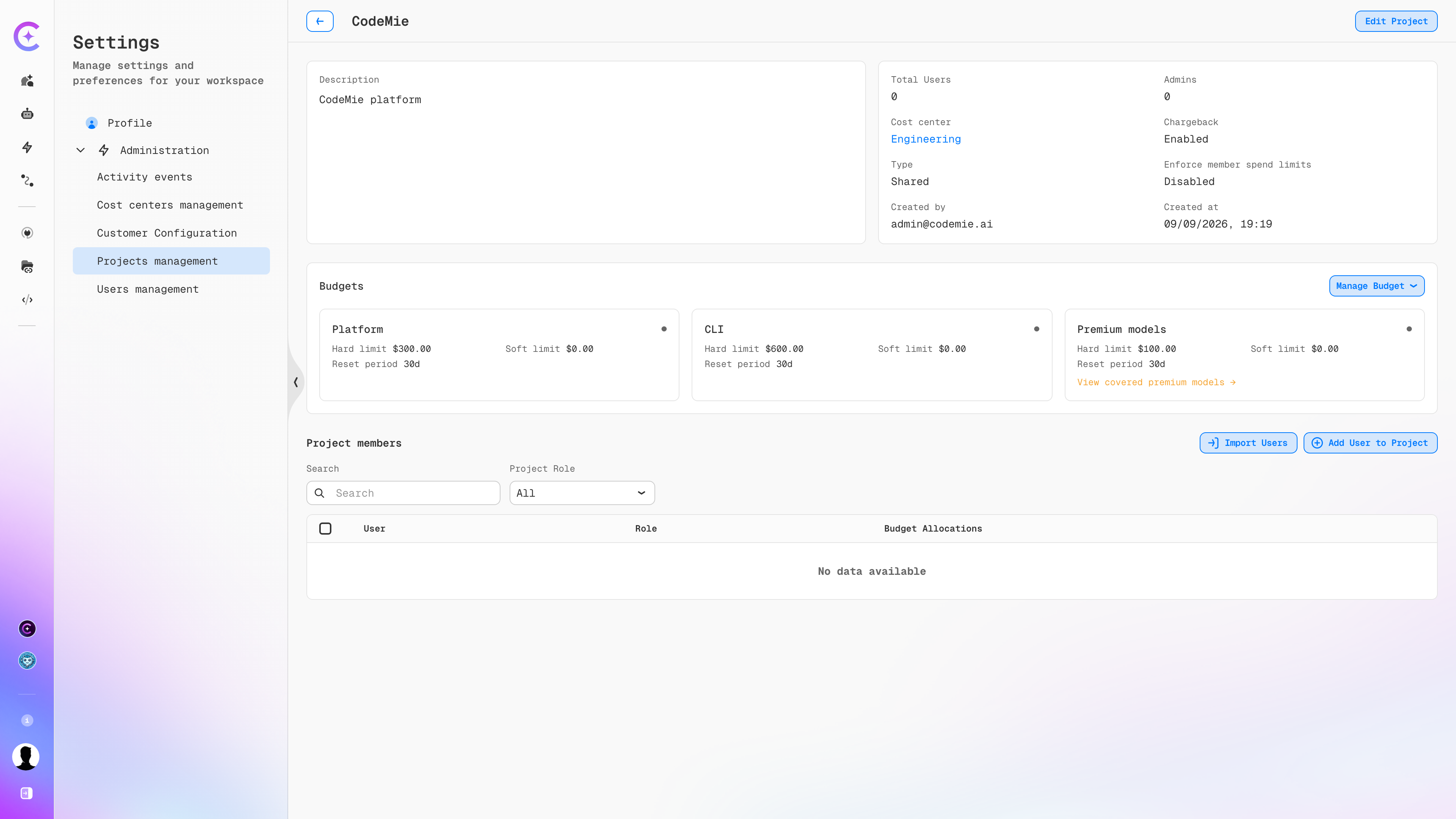
Once created, the category cards show the configured limits and reset period, and the Create Budget button is replaced by a Manage Budget dropdown for later edits.
Premium Model Coverage
The Premium models card carries a View covered premium models link, which opens the deployment's model catalog with premium models flagged and priced.
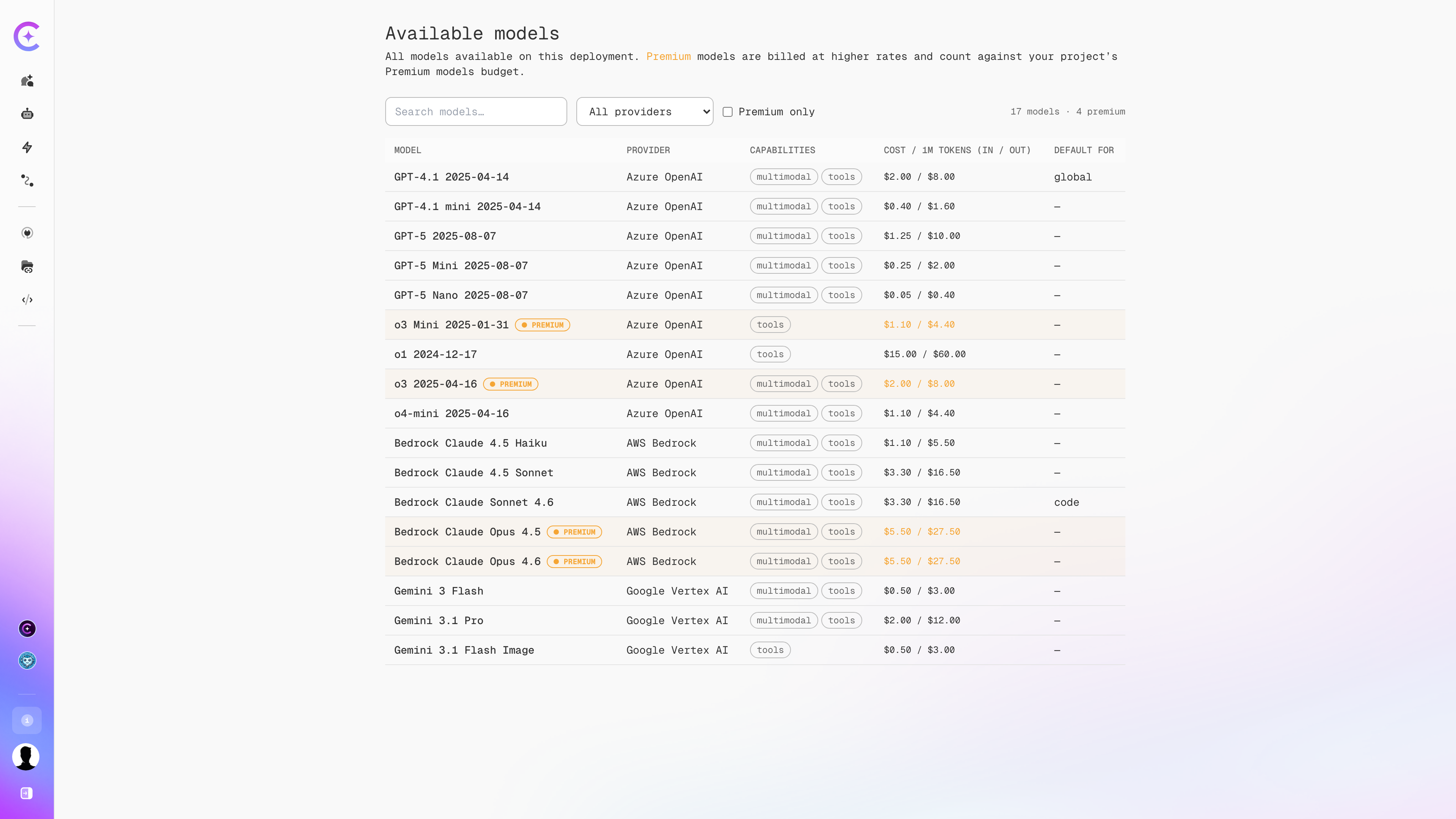
Each row lists the provider, capabilities, and cost per 1M input/output tokens. Use the Premium only checkbox to filter the list down to the models that draw on the Premium Models budget.
Which models count as premium is set at deployment time through the LITELLM_PREMIUM_MODELS_ALIASES
environment variable. See Configure Premium Model Aliases.
Tracking Spend
Once a budget is live, the project page reports consumption against it without any export step.
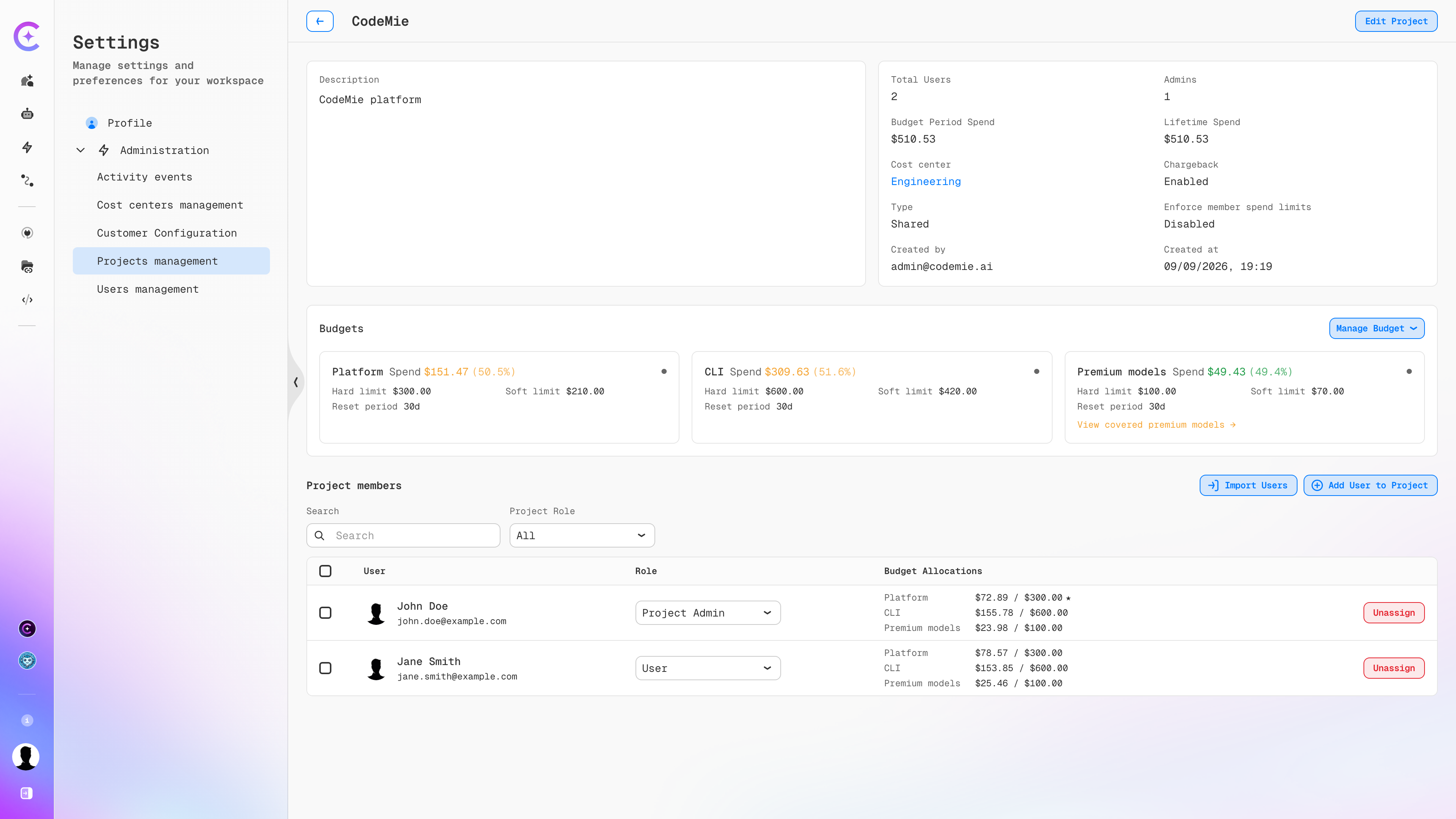
Project Summary
The information panel at the top of the project page reports:
| Field | Description |
|---|---|
| Budget Period Spend | Amount spent in the current reset period across all categories |
| Lifetime Spend | Cumulative spend since the project was created, preserved across resets |
| Cost center | Cost center this project's spend rolls up to, if one is assigned |
| Chargeback | Whether the project's spend is tracked for internal billing |
| Type | Shared for a team project, Personal for a user's personal space |
| Enforce member spend limits | Whether per-member allocations are enforced or the budget is a shared pool |
Category Cards
Each category card reports Spend as an absolute amount and as a percentage of that category's
hard limit — for example, Spend $151.47 (50.5%) against a $300.00 hard limit. The card also
repeats the hard limit, soft limit, and reset period.
Spend figures come from a background collector that polls LiteLLM on a schedule — nightly by default. Figures may lag actual usage by up to one collection cycle. Enforcement does not depend on this job: hard limits are applied in real time. See Spending Data Update Frequency.
Member Allocations
The Project members table carries a Budget Allocations column showing each member's spend
against their allocated limit, per category, in $spent / $allocated format.
A star (★) next to an allocation marks a member whose limit is a fixed override rather than an even share of the category.
Distribution Modes
How the project budget is shared among members is controlled by Enforce member spend limits on the project itself, not on the budget.
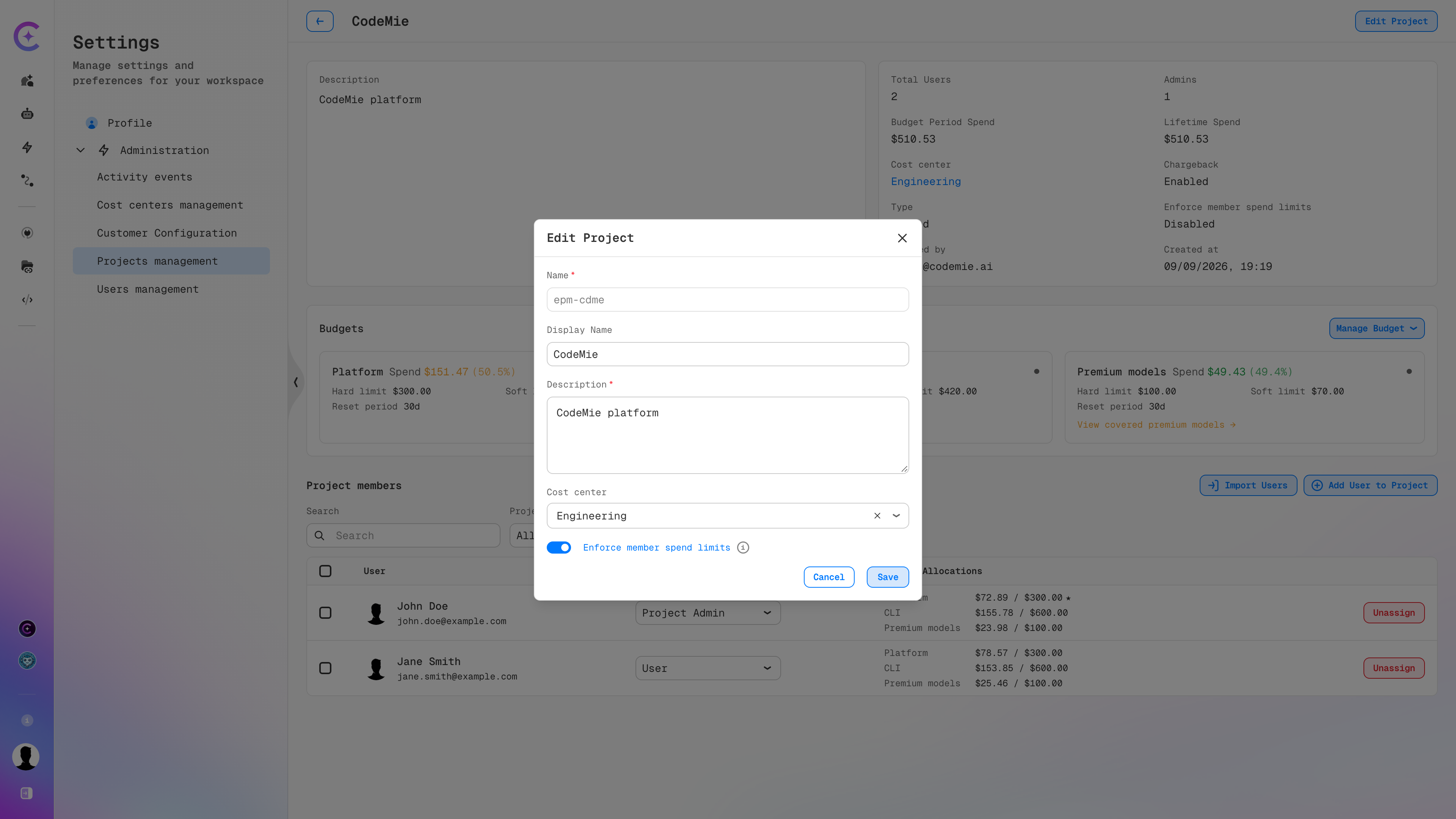
To change it, open the project and click Edit Project, then toggle Enforce member spend limits and click Save.
Disabled (default) — shared pool
Individual shares are calculated and stored in CodeMie, but no per-member cap is enforced:
- Any member can draw on the whole project budget until the project collectively exhausts it
- One member may spend $5 and another $50 without either being blocked
- A member's personal budget is not consulted — the shared project limit governs the whole team
Enabled — enforced per-member caps
Each member receives a hard individual limit, and requests beyond it are blocked:
- A $100 category budget across 10 members gives each member $10
- If one member holds a $20 override, the remaining nine split the rest: ($100 − $20) ÷ 9 ≈ $8.89 each
Overriding a Member's Allocation
An override pins one member to a fixed limit instead of the even share — a larger allowance for a heavy user, or a smaller one to rein someone in.
- In the Project members table, click the member's allocation for the category to change.
- The Budget Override dialog opens.
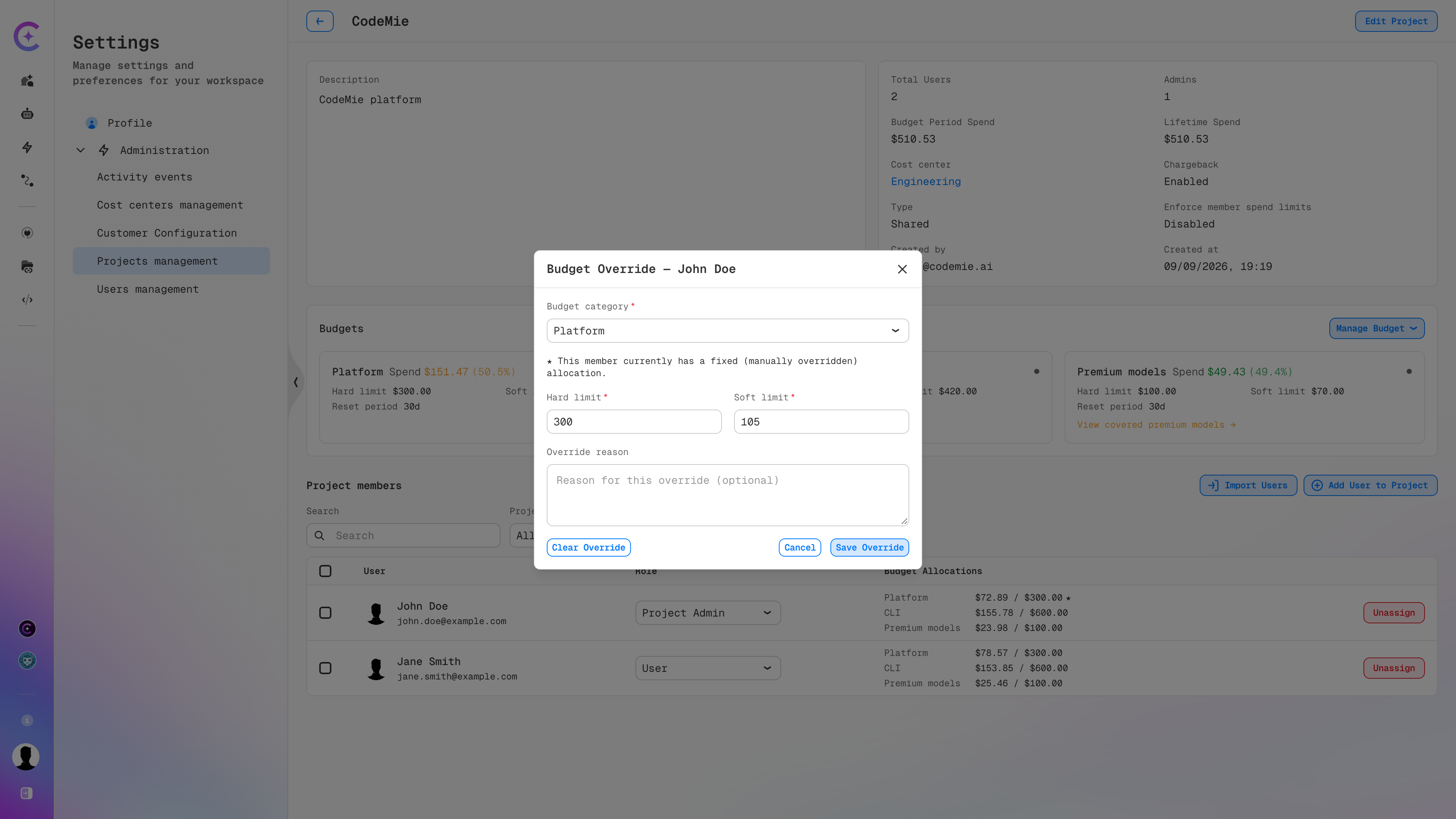
- Confirm or change the Budget category.
- Set the Hard limit and Soft limit for this member.
- Optionally record an Override reason for audit purposes.
- Click Save Override.
The member switches to fixed allocation mode, their amount is locked, and the rest of the project budget is re-divided evenly among the members still on an even share. Click Clear Override to return the member to the even split.
A fixed override cannot exceed the project's hard limit for that category.
| Enforce member spend limits | Override behavior |
|---|---|
| Enabled | The override sets a real per-member cap. Remaining budget is recalculated and redistributed among members without overrides |
| Disabled | The override is recorded in CodeMie, but no per-member restriction applies — all members draw on the shared pool |
Rebalance
Rebalance recalculates the distribution among project members and syncs the result with LiteLLM. Run it from the Manage Budget dropdown.
Rebalance runs automatically when:
- An override is set or cleared
- Enforce member spend limits is changed
- A member is removed from the project
Rebalance must be run manually when:
- New members are added to the project
- The total project budget changes
- Uneven distribution has accumulated and needs correcting
A new member joining a project receives a copy of the current even share rather than triggering a redistribution, so the total allocated amount can exceed the project limit until a rebalance is run.
Example: a project with 3 members and a $100 budget gives each member $33. Adding a 4th member grants them $33 as well, bringing the total allocated to $132 against a $100 limit. A manual rebalance corrects this to $25 each.
When a reset period expires, spend counters in LiteLLM reset automatically, but member shares are not recalculated. Rebalance is not part of the reset.
Recreating a project budget causes LiteLLM to issue a new key with a fresh spend counter. The previous key's counter is reset, but historical spend is preserved in platform analytics (Elasticsearch), and total expenditure will not exceed the combined sum of both keys.
See Also
- Budget Management — budget types, categories, priority, and enforcement behavior
- Chargeback and Cost Centers — internal billing and rolling spend up across projects
- Project Budget Management — platform configuration and background jobs
- Projects Management — creating projects and managing members