Skills in Workflow
Attach skills to assistants defined in workflow YAML to extend their capabilities during workflow execution.
Finding a Skill ID
Each skill has a unique ID required for YAML configuration.
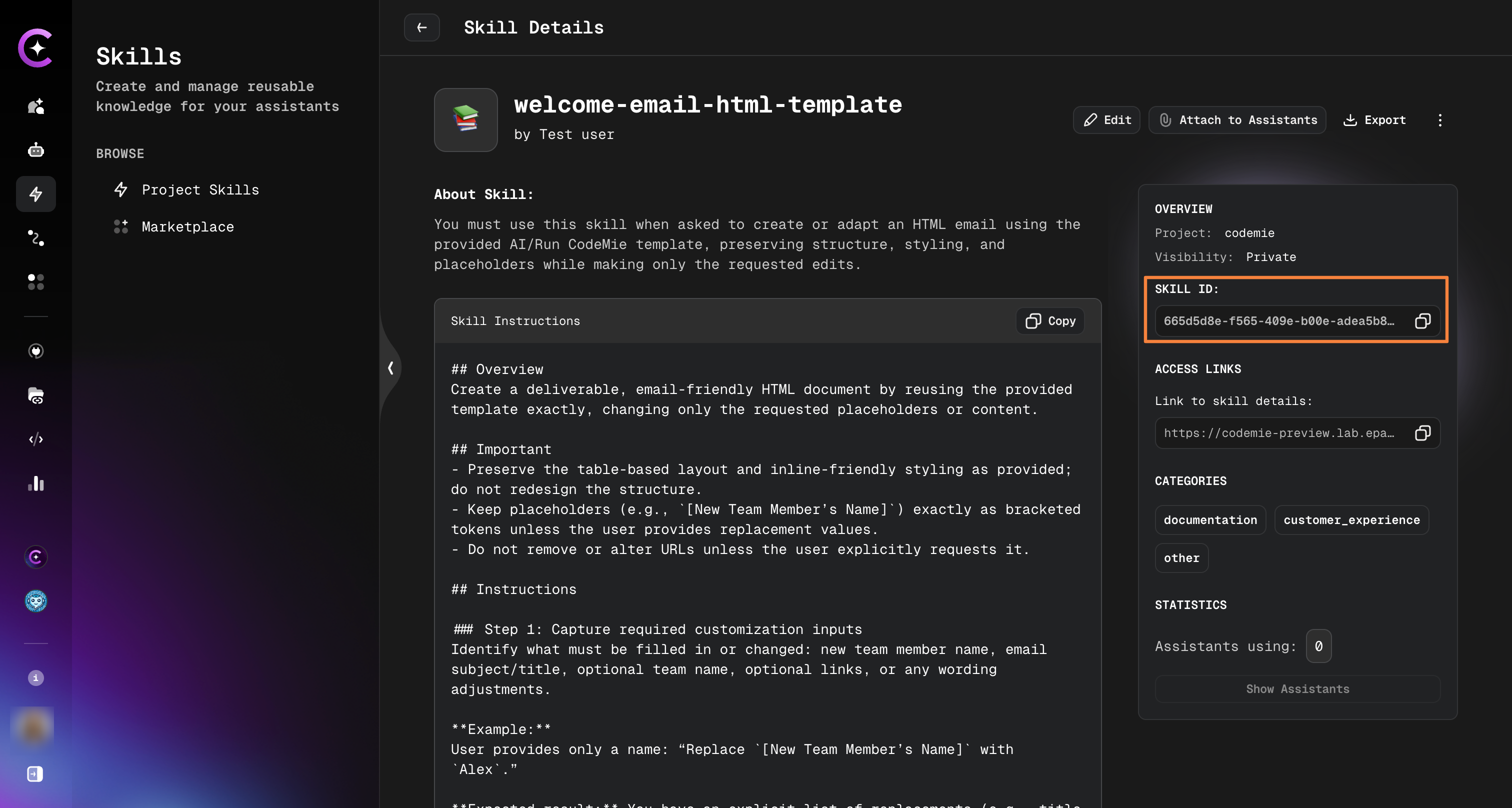
Step 1: Open Skill Details
Navigate to Skills → Project Skills and click on the skill.
Step 2: Copy the Skill ID
Find the Skill ID field in the right panel and copy the value.
Configuring Skills in Workflow YAML
Step 1: Open Workflow Configuration
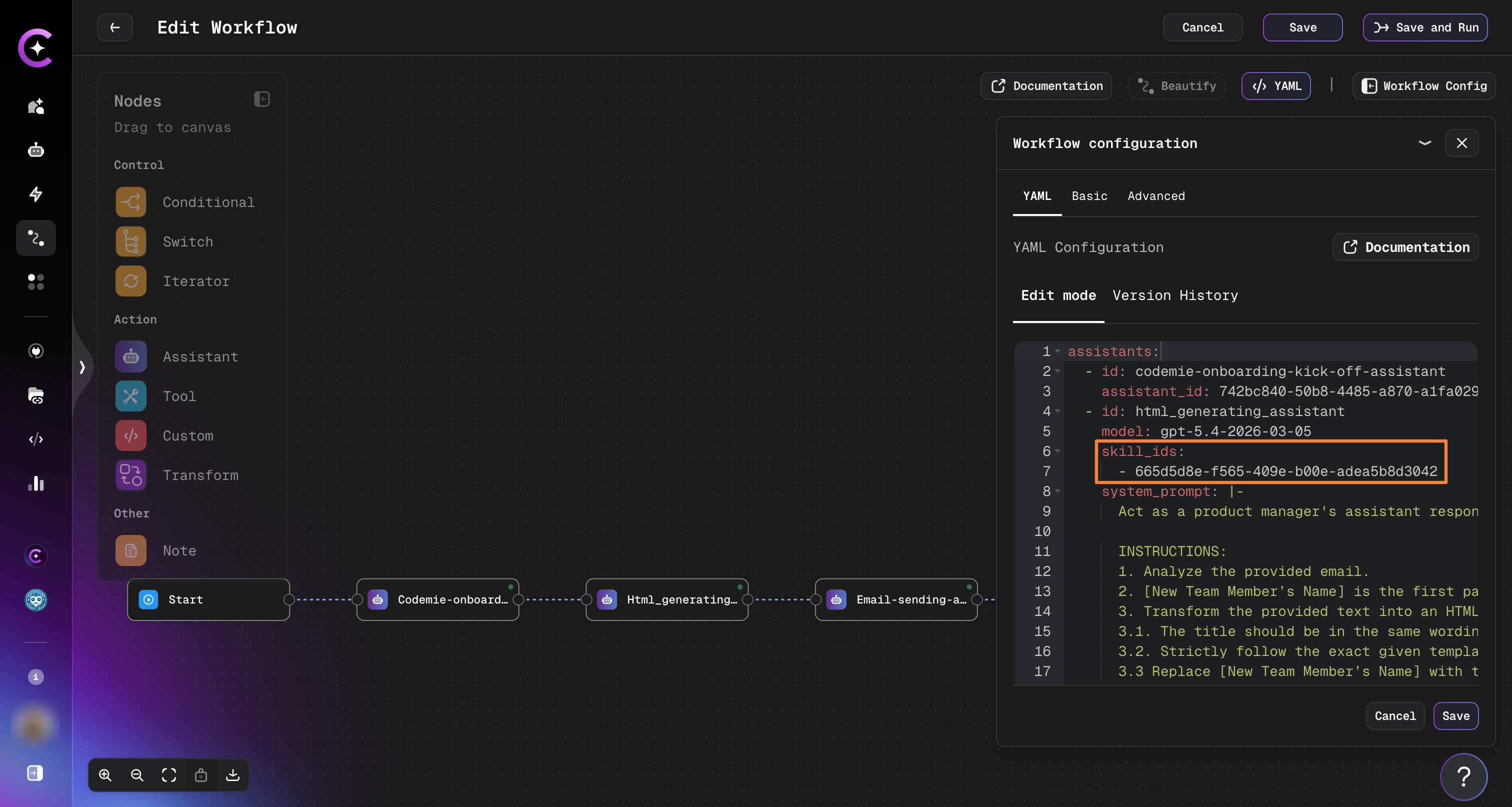
Open your workflow in the builder and click Workflow Config → YAML tab.
Step 2: Add the skills field to the assistant
Add a skills list under the assistant definition, using the skill IDs you copied:
assistants:
  - id: html_generating_assistant
    model: gpt-5.2
    system_prompt: |
      Act as a product manager's assistant responsible for creating HTML emails.
    skill_ids:
      - skill-id
Step 3: Save and run the workflow
Click Save, then Save and Run. The assistant will load the configured skills on demand during execution.
You can attach multiple skills to a single assistant by adding multiple IDs to the skill_ids list.
Viewing Skill Usage in Execution Logs
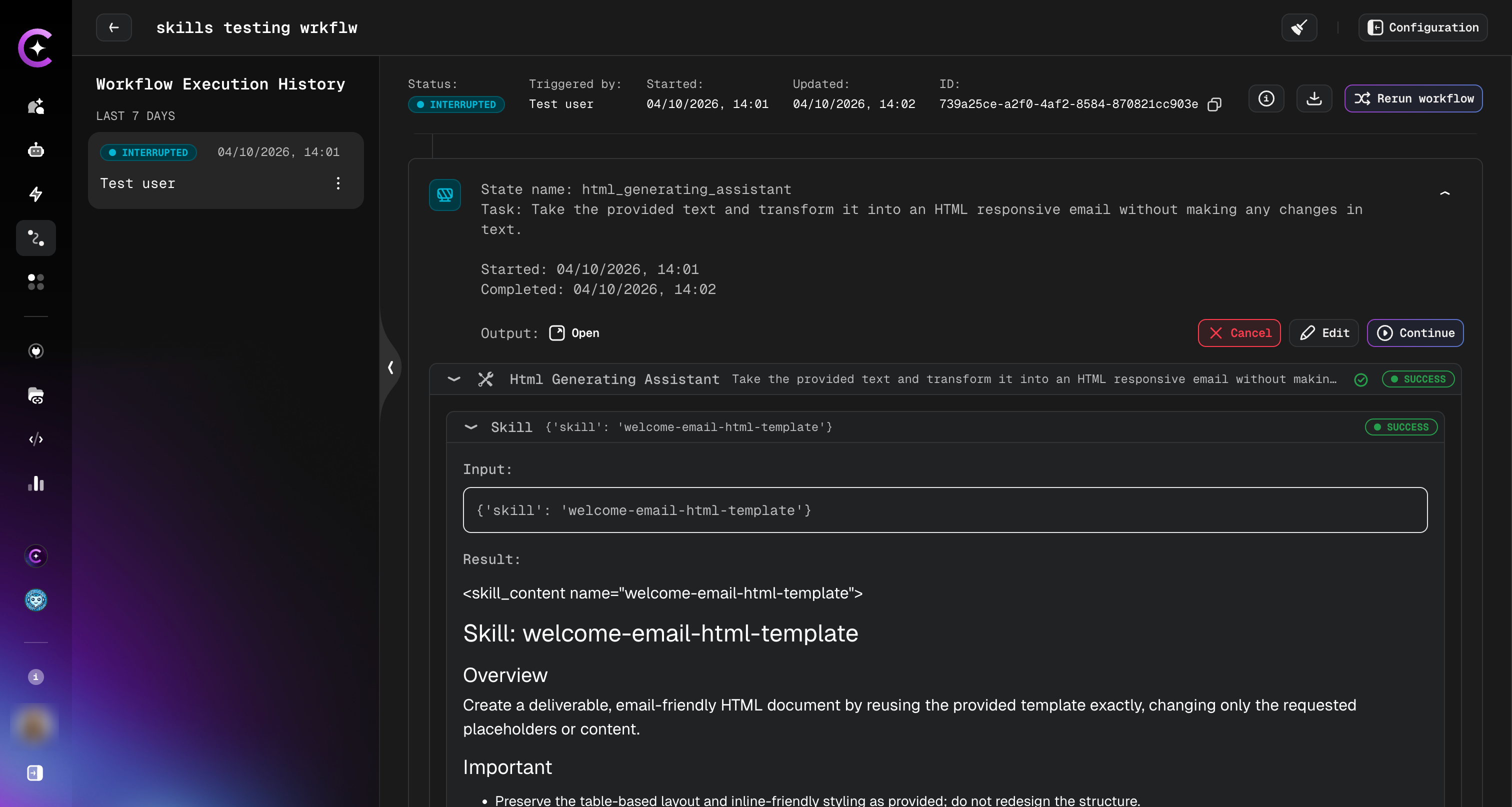
After the workflow runs, open the execution details to see which skills were invoked.
Navigate to Workflows → select your workflow → click view button.
Each assistant step shows the skills it loaded, including the full skill content used during that run.
Related
- Create a Skill — Build a new skill from scratch
- Skills Marketplace — Discover publicly shared skills
- Attach Skills to Assistants — UI-based skill attachment for regular assistants
- Workflow Configuration Reference — Full YAML reference