GitHub/GitLab/Bitbucket
AI/Run CodeMie assistants can work with Git repositories. Apart from integrating the Git tool for such purposes, assistants must also know what repository to deal with. To connect assistant with the repository, it is required to provide the repository link or upload the codebase and specify the target branch to work with.
Integrating Version Control Systems allows assistants to navigate to the code repositories and perform various actions on your behalf, whether it is simple code analysis or creating pull requests with code that solves the problem indicated in a JIRA task. It is worth mentioning that this integration is required when adding a code repository.
To integrate Version Control System tool in AI/Run CodeMie, follow the steps below:
1. Prepare Credentials
- GitHub
- GitLab
- Bitbucket
GitHub supports two authentication methods. Choose the one that best fits your organization's security requirements.
Option A: Personal Access Token (PAT)
Generate a Personal Access Token in your GitHub account with the following scopes:
reporepo:statusrepo_deploymentpublic_reporepo:invitesecurity_eventsprojectread:project
Save the token value in a secure location. GitHub shows the token value only once after generation.
Option B: GitHub Application
GitHub Apps provide stronger security and finer-grained permissions compared to PATs. They authenticate as an installation rather than as a user, which is preferred for organizational use.
To use GitHub App authentication, you need:
-
Create a GitHub App in your GitHub organization or account:
- Go to Settings → Developer settings → GitHub Apps → New GitHub App
- Set the required repository permissions (Contents: Read & Write, Pull requests: Read & Write, Metadata: Read)
- After creating the app, note the App ID shown on the app's settings page
-
Generate a private key:
- On the GitHub App settings page, scroll to Private keys
- Click Generate a private key — a
.pemfile will be downloaded - Open the file and copy its full contents (including the
-----BEGIN RSA PRIVATE KEY-----header and footer)
-
Install the GitHub App on your organization or repository:
- Go to Settings → Developer settings → GitHub Apps → Edit → Install App
- Install it on the organization or specific repositories that CodeMie needs access to
- After installation, note the Installation ID from the installation URL (e.g.,
https://github.com/settings/installations/12345678)
The Installation ID is optional — if you leave it blank, CodeMie will auto-detect the first available installation for your App.
Generate a Personal Access Token in your GitLab account with the following scopes:
apiread_apiread_repositorywrite_repository
Save the token value in a secure location. GitLab shows the token value only once after generation.
Generate an App Password in your Bitbucket account with the following permissions:
repository:readrepository:writerepo:statusproject:readproject:writeapi:read
2. Configure Integration in CodeMie
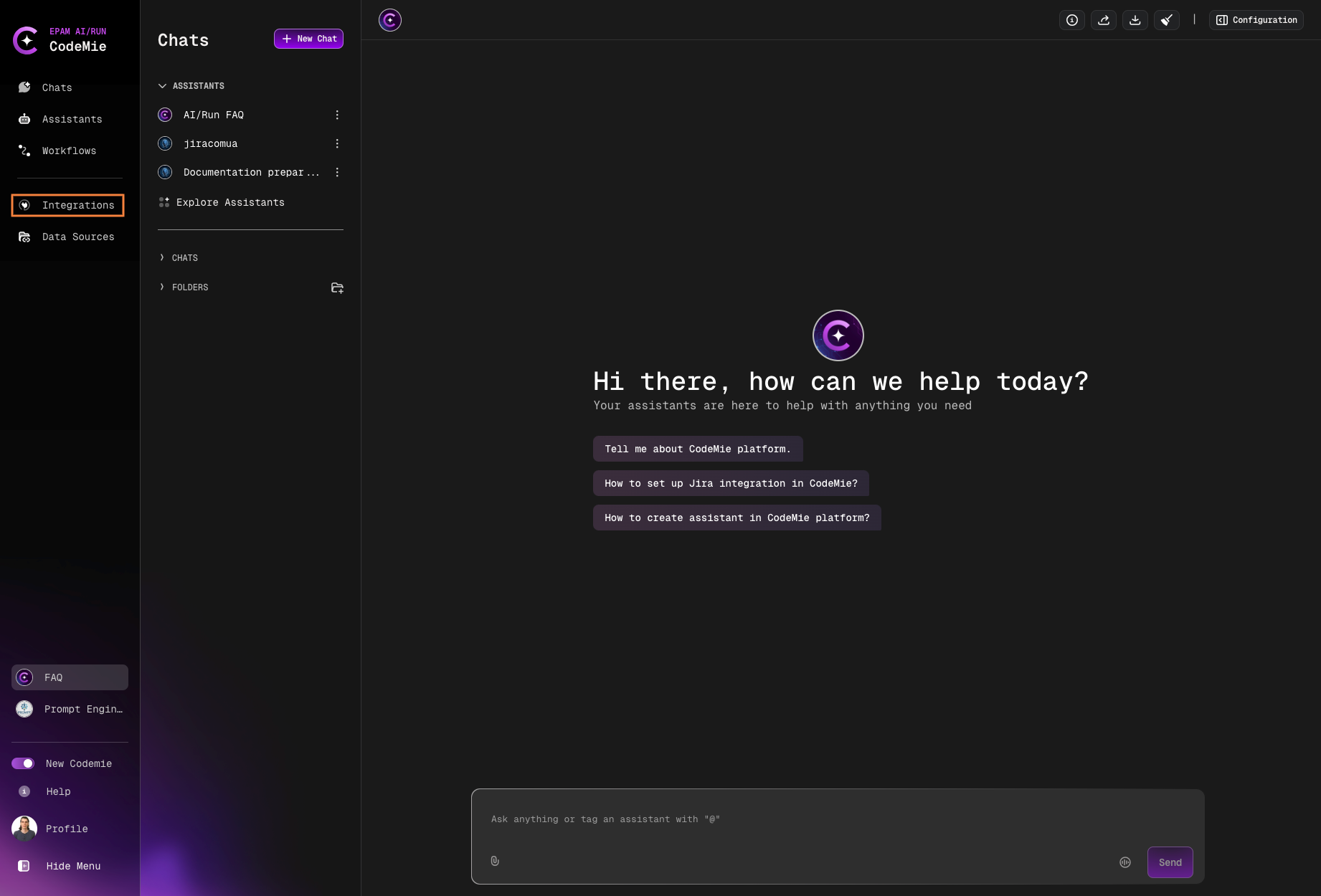
- In the AI/Run CodeMie main menu, click the Integrations button
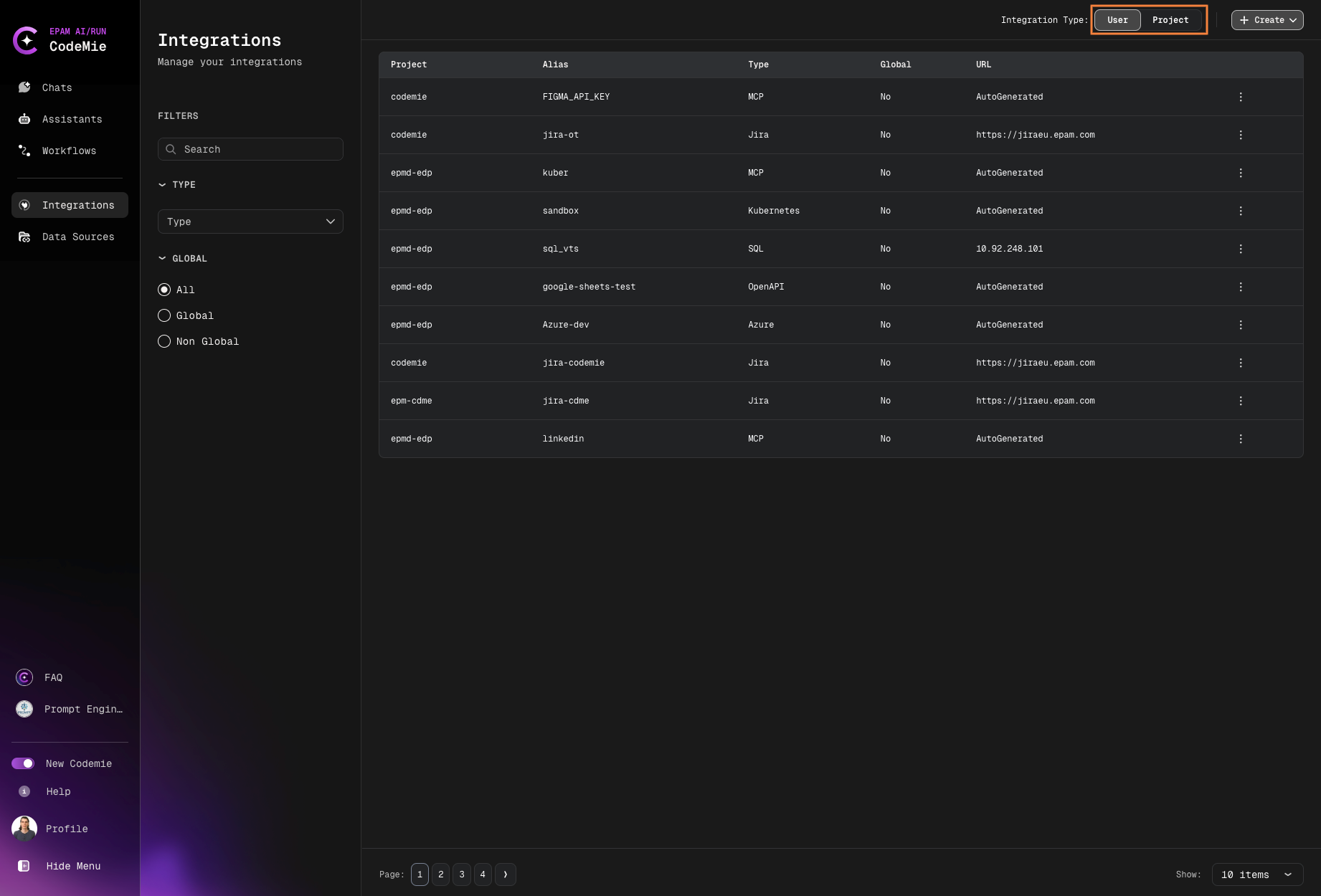
- Select User Integration or Project Integration (only for applications-admin, for that create request in support) and click + Create
-
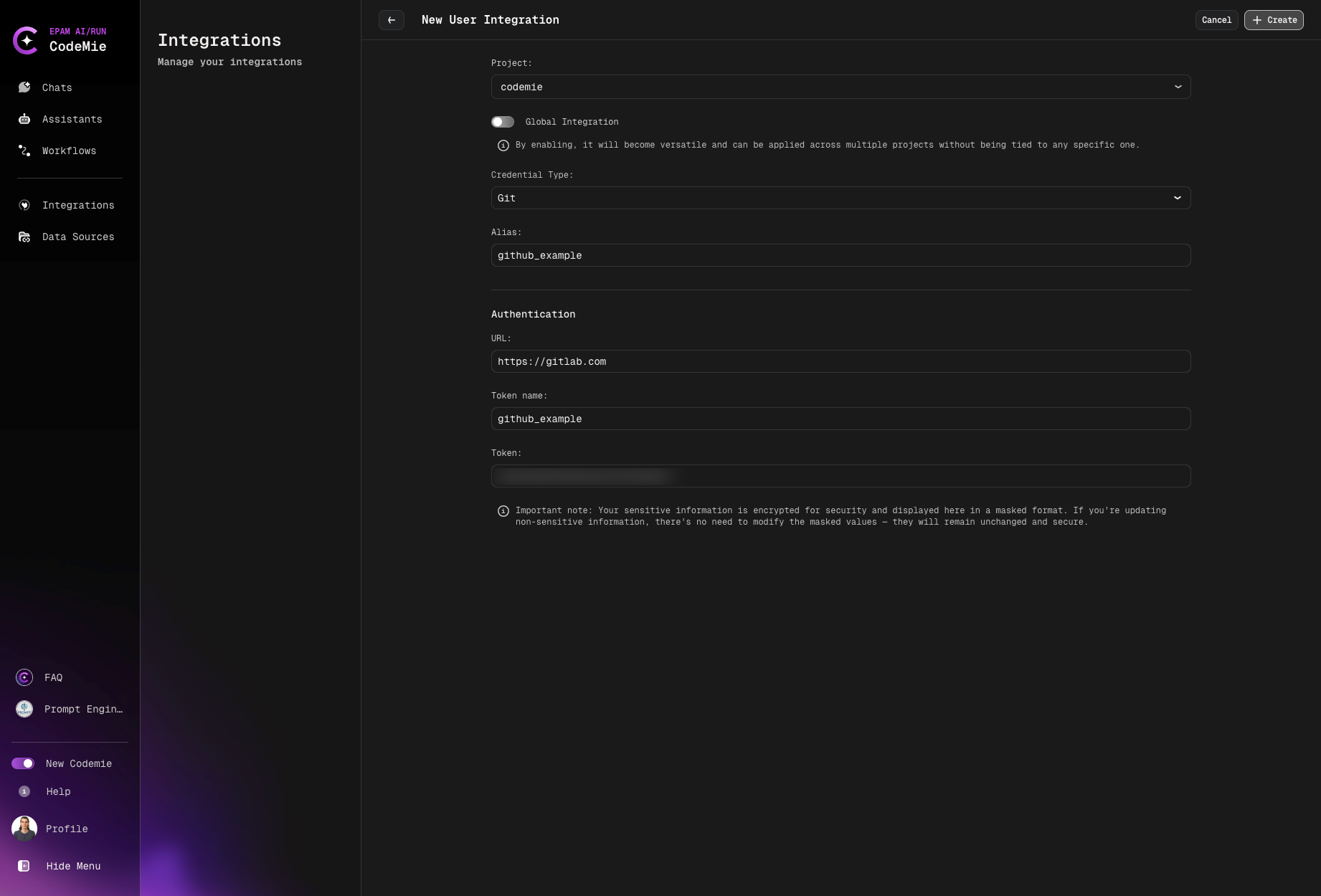
Set Credential Type to Git, enter an Alias, and set the URL to your Git host (e.g.,
https://github.com) -
Select your Authentication Type:
- Personal Access Token
- GitHub Application
Select Personal Access Token from the Authentication Type dropdown and fill in:
| Field | Description |
|---|---|
| Token Name | The username or token label (e.g., oauth2 for GitHub/GitLab, your Bitbucket username for Bitbucket) |
| Token | The token value you generated in step 1 |
Select GitHub Application from the Authentication Type dropdown and fill in:
| Field | Description |
|---|---|
| GitHub App ID | The numeric App ID from your GitHub App settings page |
| GitHub App Private Key | The full contents of the .pem private key file, including the -----BEGIN and -----END lines |
| GitHub App Installation ID | The numeric installation ID (optional — auto-detected if left blank) |
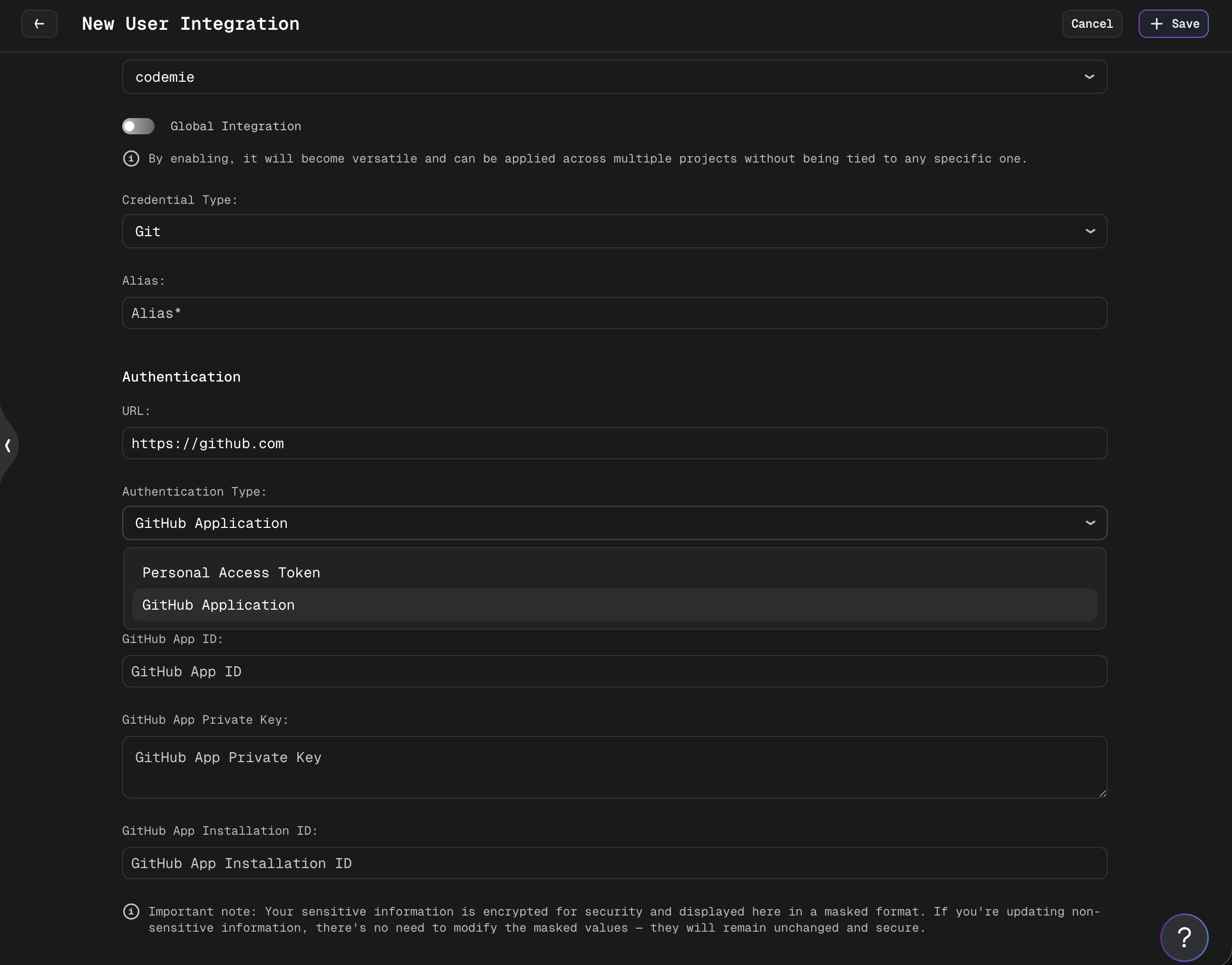
The private key is stored encrypted and displayed in masked format for security.
- Click Save to create the integration
The project name for the integration must match the project of the indexed repository.
That's it. Now you can add code repositories to your AI/Run CodeMie account.