Managing Skills
Learn how to edit, export, delete, and organize your skills.
Viewing Skills
Project Skills
- Navigate to Skills in the left panel
- Select Project Skills tab
- View all skills in your current project
Skills list shows:
- Skill name
- Description preview
- Sharing status (private, project, marketplace)
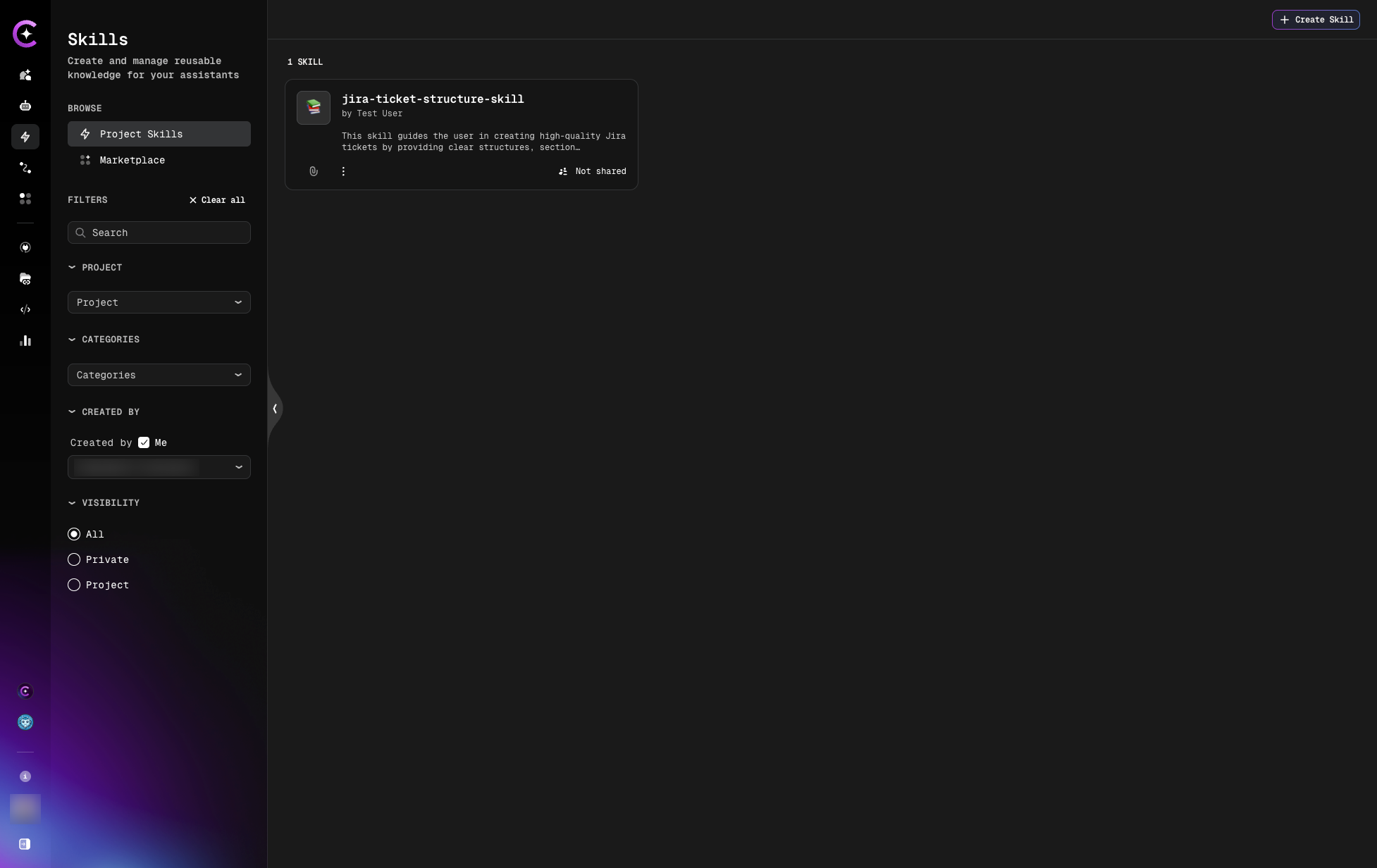
Filter skills using the following options:
Search
Enter keywords in the search field to find skills by name.
- Search works in real-time as you type
- Matches skill names
- Examples: "jira", "ticket", "deployment"
PROJECT
Filter skills by project:
- Dropdown list of available projects
- Shows current project by default
- Select a different project to view its skills
CATEGORIES
Filter skills by categories:
- Multi-select dropdown (select one or multiple categories)
- Shows only skills matching selected categories
CREATED BY
Filter skills by author:
- "Created by ☑ Me" checkbox - Quick filter to show only your skills
- User dropdown - Select a specific user to see their skills
- Only one user can be selected at a time
VISIBILITY
Filter skills by access level:
- ⦿ All (Default) - Show all skills
- ○ Private - Only private skills (visible to owner only)
- ○ Project - Only project-level skills (shared with project members)
Clear All
Click × Clear all to reset all filters to their default values
Marketplace Skills
- Navigate to Skills → Marketplace tab
- Browse public skills shared by the community
- Filter by category or search by name
Editing Skills
Edit Skill Content
- Navigate to Skills → Project Skills
- Find the skill to edit
- Click the three dots menu (⋮)
- Select Edit
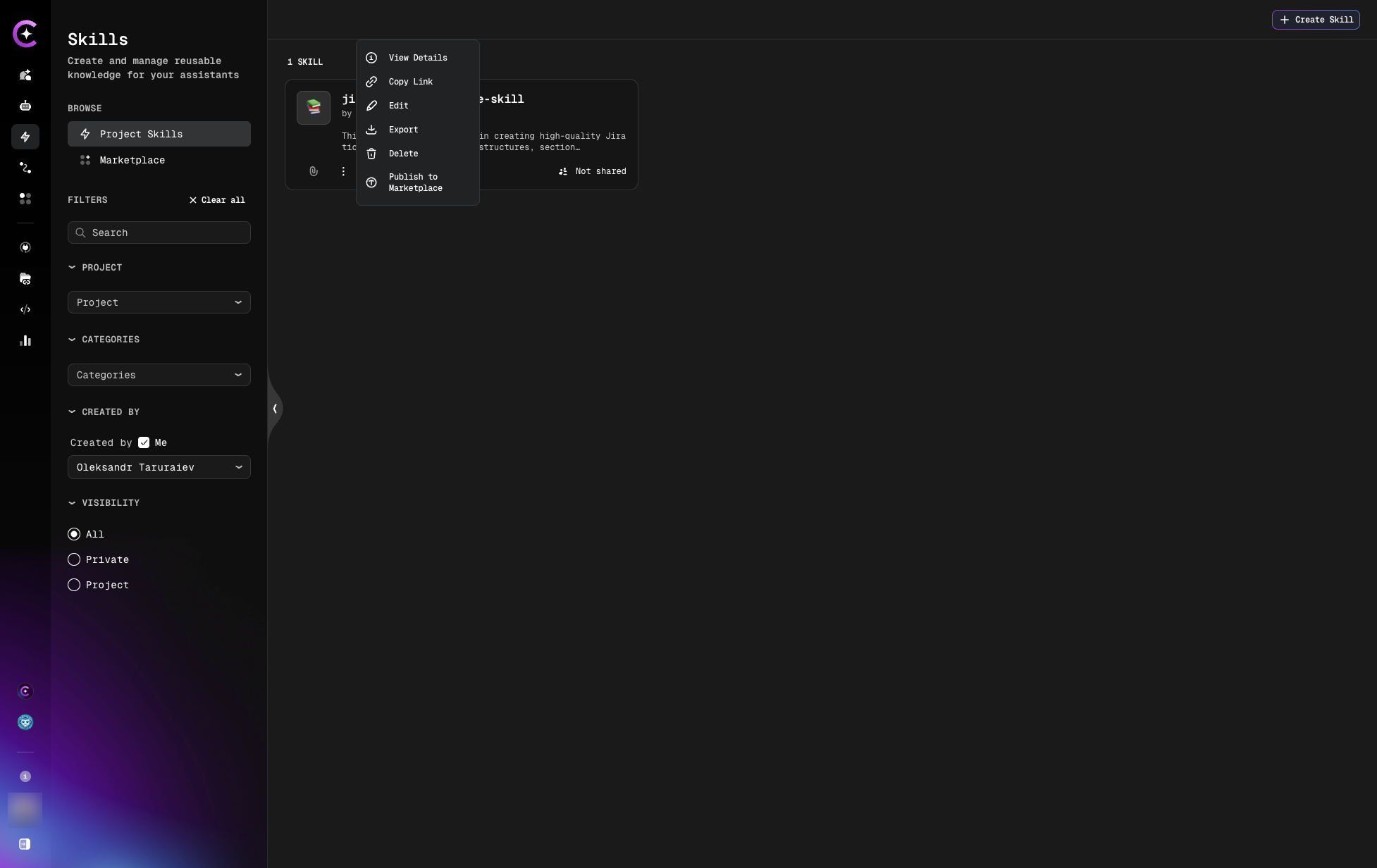
On the edit page, you can modify:
- Name - Update skill title
- Description - Refine when-to-use guidance
- Instructions - Update step-by-step directions
- Required Tools - Add or remove tools
- Project - Change project assignment
- Sharing - Update visibility settings
- Click Save Changes
When you update a skill, all assistants using that skill immediately inherit the changes.
Update Required Tools
To change tools for a skill:
- Edit the skill
- Scroll to Tools section
- Add or remove tools from the list
- Save changes
Effect on assistants:
- Assistants using this skill will inherit the updated tool list
- Newly added tools become available to those assistants
- Removed tools are no longer inherited (unless manually added to assistant)
Exporting Skills
Export to Markdown
Skills can be exported in markdown format for:
- Backup and version control
- Sharing with team members
- Documentation purposes
- Importing into other projects
Export steps:
- Navigate to Skills → Project Skills
- Find the skill
- Click three dots menu (⋮)
- Select Export
- File downloads to your local machine
Use Cases for Export
Version Control:
# Store skills in Git
git clone your-skills-repo
cd skills/
# Export skill
# Save to repository
git add jira-ticket-structure.md
git commit -m "Update JIRA ticket skill"
git push
Team Sharing:
- Export skill as
.mdfile - Send to team members
- They import into their projects
Documentation:
- Export all skills
- Include in project documentation
- Share with stakeholders
Deleting Skills
Delete a Skill
Deleting a skill is permanent and cannot be undone.
- Navigate to Skills → Project Skills
- Find the skill
- Click three dots menu (⋮)
- Select Delete
- Confirm deletion in the popup
Effects:
- Skill is permanently removed
- Assistants using this skill lose access
- Skill is removed from all assistants
- Inherited tools may be removed from assistants (if not manually added)
Check which assistants are using the skill before deleting. Consider exporting the skill first as a backup.
Check Skill Usage
Before deleting, verify where the skill is used:
- Navigate to Skills → Project Skills
- Click on the skill to open details page
- Scroll to Attach to Assistants section
- View the list of assistants using this skill
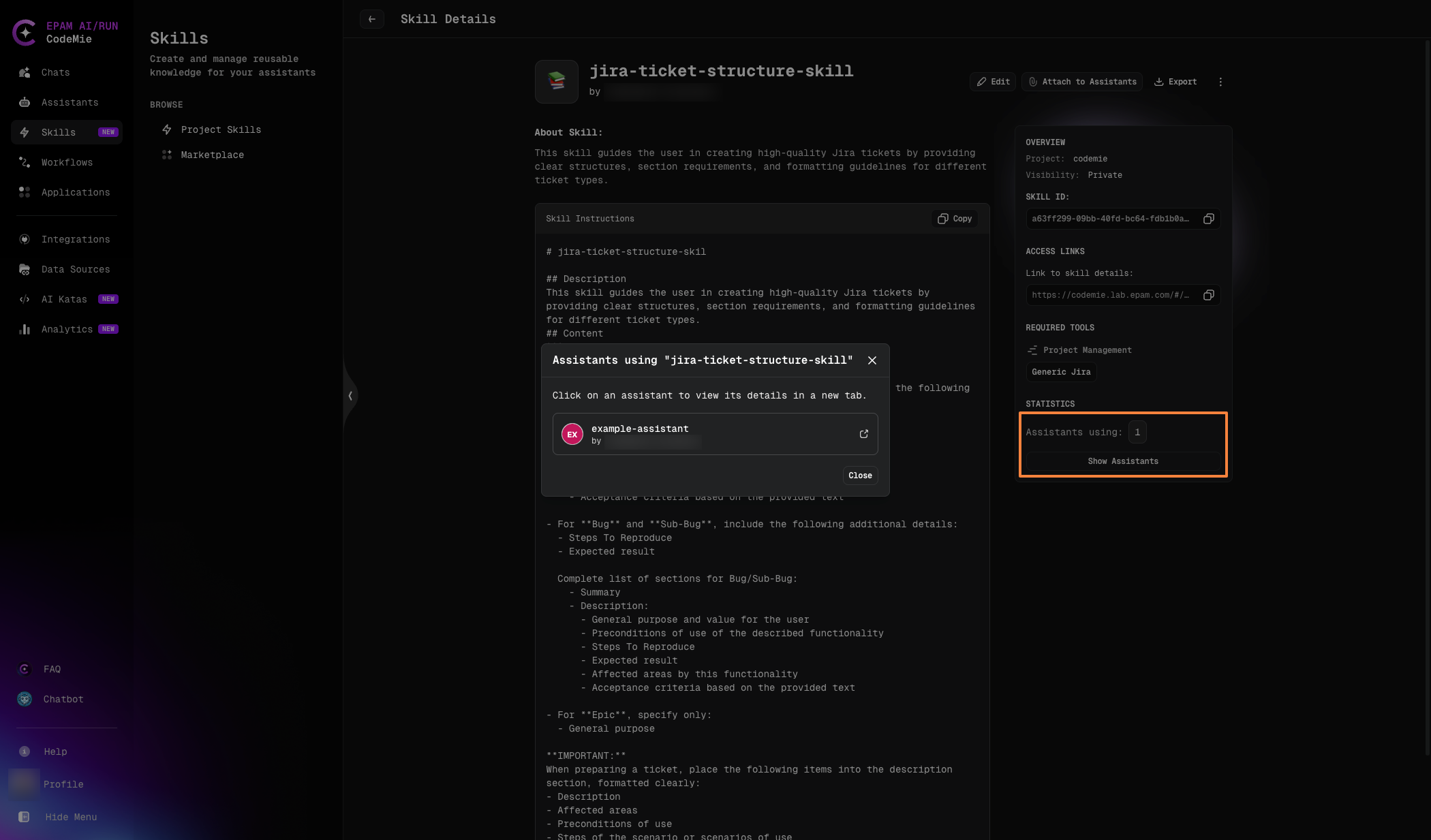
The dropdown shows all assistants where this skill is currently attached. Update or remove the skill from these assistants before deletion if needed.
Organizing Skills
Project Assignment
Skills belong to projects. To move a skill to another project:
- Edit the skill
- Change Project dropdown
- Save changes
The skill moves to the new project and becomes available to assistants in that project.
Sharing and Publishing
Sharing Settings
Control who can see and use your skill:
| Sharing Status | Visibility | How to Set |
|---|---|---|
| Private | Only you | Default (Project toggle off) |
| Project | All members of the project | Enable Project sharing toggle |
| Marketplace | Public - all CodeMie users | Publish skill to Marketplace |
To share with your project:
- Edit the skill
- Enable Project sharing toggle
- Save changes
Publishing to Marketplace
To share a skill with the community:
- Edit the skill
- Select Publish to Marketplace
- Select mandatory skill categories (e.g., Business Analysis, DevOps, Development)
- Save changes
The skill becomes available in the Skills Marketplace for all users.
Learn more about Marketplace →
Troubleshooting
Skill Not Appearing in Assistant
Problem: After creating/editing a skill, it doesn't show in assistant's skill dropdown.
Solutions:
- Verify skill is in the same project as the assistant
- Check sharing settings - must be project-level or higher
- Refresh the page
- Verify skill was saved successfully
Next Steps
- Attach Skills to Assistants - Learn how to use skills
- Marketplace Skills - Publish and discover public skills
- Skills in Chat - Dynamic skill attachment