Attach Skills to Assistants
Learn how to attach skills to assistants to automatically inherit instructions and required tools.
Ways to Attaching Skills to Assistants
- From Assistant Page
- From Skill Details
- In Chat
You can attach skills when creating a new assistant or editing an existing one.
Step 1: Open Assistant Configuration
- For new assistant: Navigate to Assistants → Create Assistant
- For existing assistant: Navigate to Assistants → Select assistant → Edit
Step 2: Select Skills
- Find the Skills section in the assistant configuration
- Click Add or select from dropdown
- Select one or more skills from the list
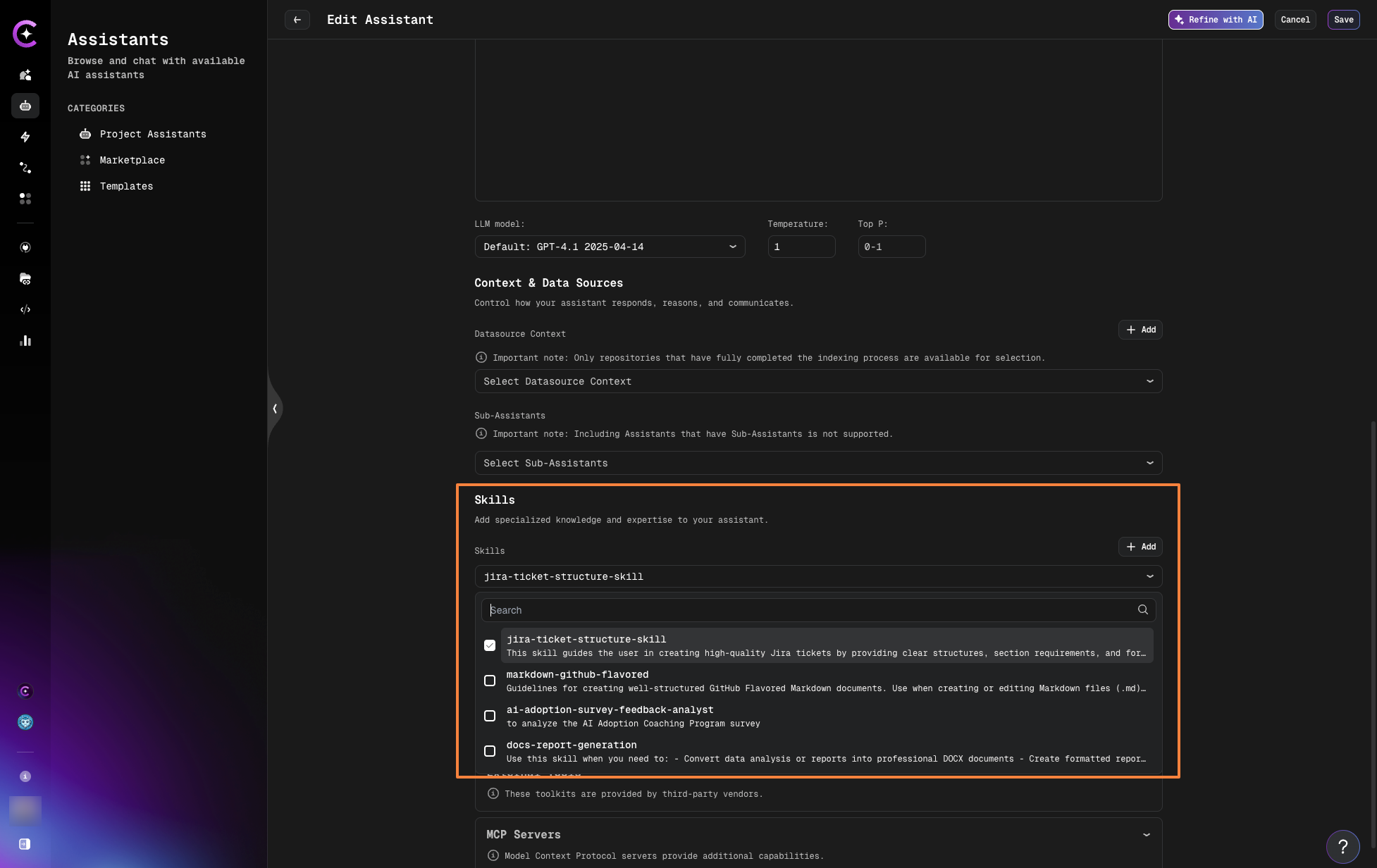
- Click Save or Create Assistant
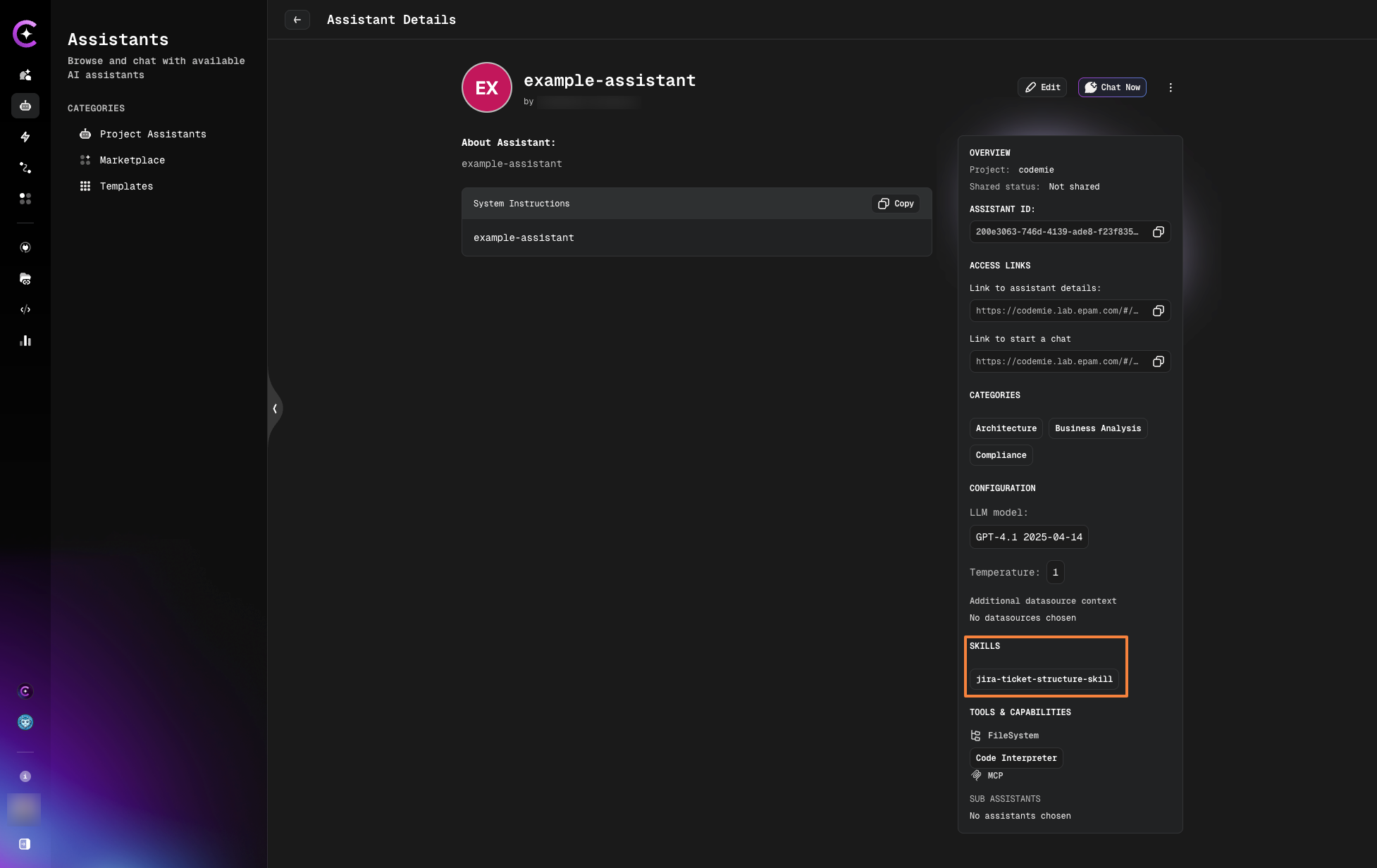
The assistant now has the selected skills attached. You can view attached skills in the assistant details:
Attach a skill to multiple assistants directly from the Skill Details page.
Step 1: Open Skill Details
- Navigate to Skills → Project Skills
- Click on a skill to open details page
Step 2: Attach to Assistants
- Scroll to Attach to Assistants section
- Select assistants from the dropdown
- Click on assistants to attach the skill
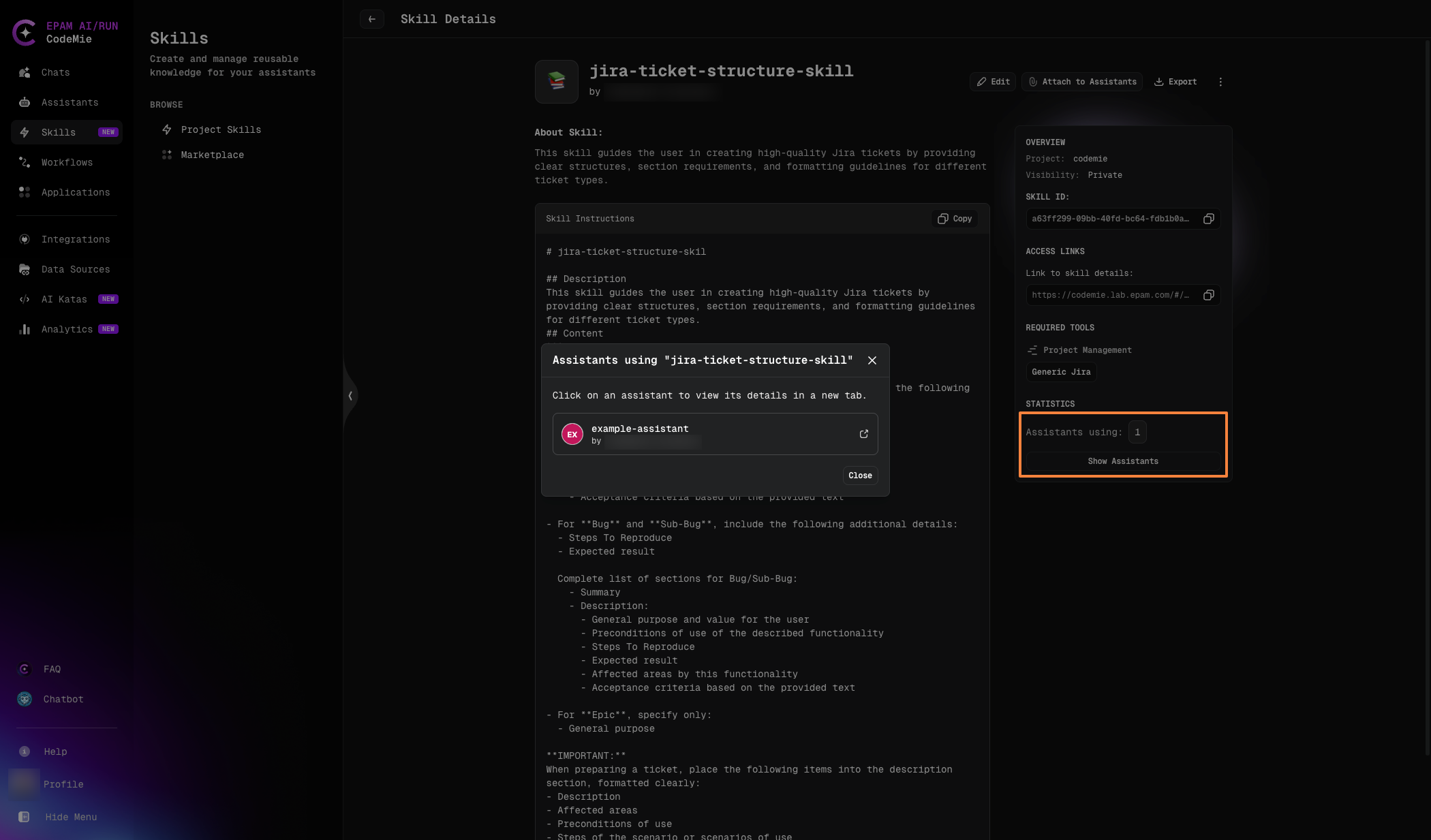
The skill is now attached to the selected assistants.
Dynamically attach skills to a specific conversation without modifying the assistant.
Step 1: Open Chat
Start or open an existing chat with an assistant.
Step 2: Attach Skills
- Click the Skills button (input field)
- In the Attach Skills modal:
- Browse your Project Skills
- Or explore Marketplace Skills
- Select one or more skills to add
- Click Confirm
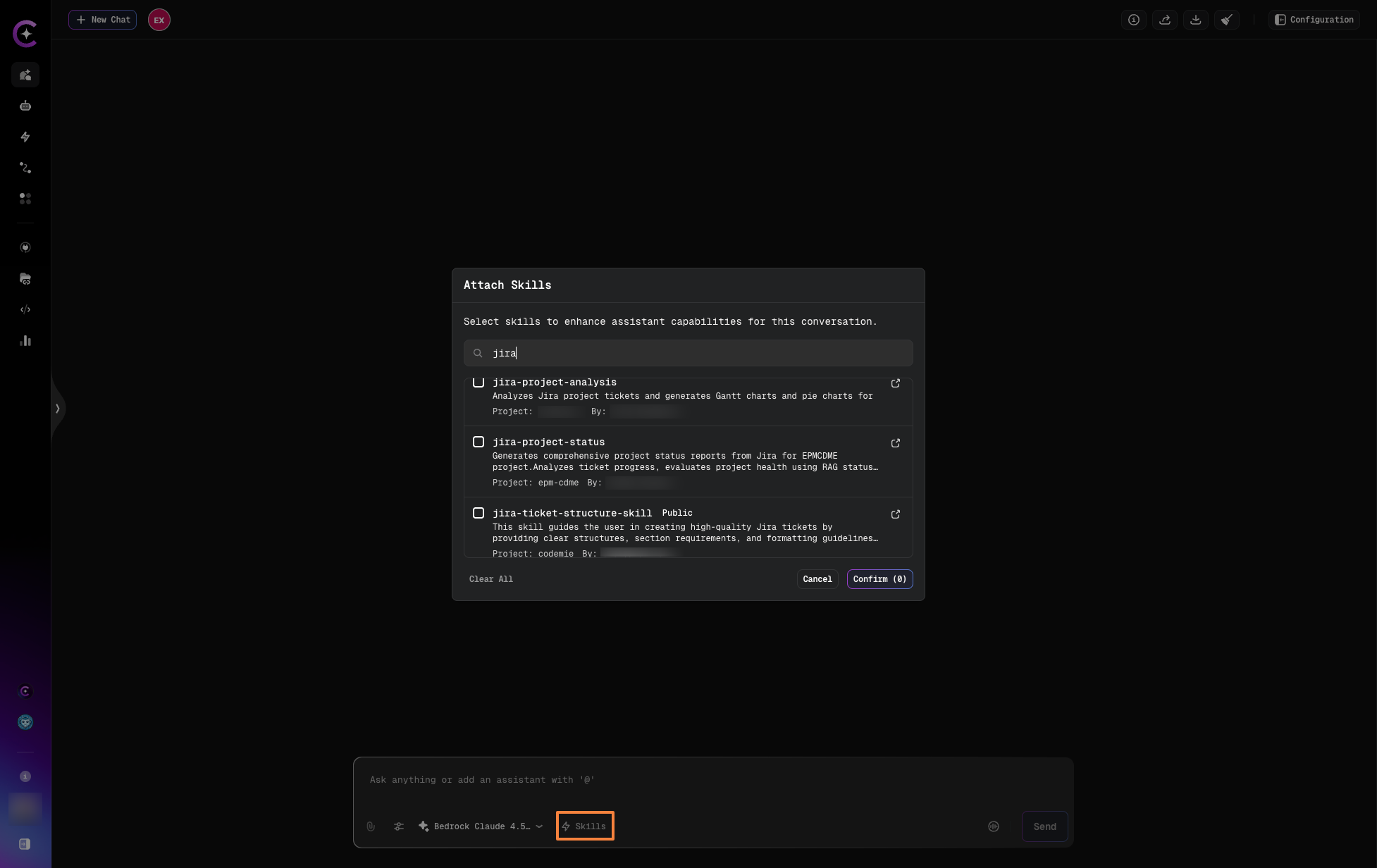
The modal shows all available skills from both your project and the marketplace, making it easy to quickly find and attach the skills you need.
The selected skills are now active for this chat session only.
Skill Loading Behavior
Automatic Loading Based on Relevance
Attached skills load automatically when they're relevant to your request. The assistant determines relevance based on the skill's description.
Example:
You have an assistant with these skills:
- JIRA Ticket Structure
- Find Duplicate Tickets
- Release Planning
When you ask: "Create a draft story for the new feature"
The assistant loads the JIRA Ticket Structure skill because your request involves creating a ticket. The skill wasn't used before this request - it loads on-demand when needed.
When you ask: "Find existing tickets about login issues"
The assistant loads the Find Duplicate Tickets skill. This skill wasn't previously attached to the assistant permanently, since it shouldn't be used every time a ticket is created. You can add it dynamically in the chat without modifying the assistant itself. The skill will attach to this chat and load on demand, following the same logic as the assistant's skills.
Skills load on-demand based on your query and the skill's description. The assistant automatically determines which skills are relevant for each request.
Working with Multiple Skills
Composing Assistant Capabilities
Build powerful assistants by combining focused skills:
Example: Business Analyst Assistant
Assistant: BA Pro
System Prompt: You are a senior business analyst assistant.

Skills:
  - JIRA Ticket Structure # Loads when creating tickets
  - Find Duplicate Tickets # Loads when searching
  - Release Planning # Loads for releases
  - Sprint Management # Loads for sprint work
  - Stakeholder Communication # Loads for updates

Inherited Tools:
  - JIRA (from multiple skills)
  - Confluence (from Release Planning, Sprint Management)
  - Elasticsearch (from Find Duplicate Tickets)
  - Slack (from Stakeholder Communication)
Benefits:
- Specialized knowledge - Each skill handles specific tasks
- Automatic context - Right instructions load at right time
- Simplified maintenance - Update one skill, affects all assistants
- Reduced token usage - Only relevant skills load
Skill Priority and Conflicts
If multiple skills apply to the same query:
- All relevant skills load - The assistant can use instructions from multiple skills
- No conflicts - Skills are additive, not exclusive
- Clear separation - Design skills with distinct purposes to minimize overlap
Example:
User: "Create a ticket and check for duplicates"

System loads:
  - JIRA Ticket Structure (for creation)
  - Find Duplicate Tickets (for search)

Both skills apply simultaneously.
Removing Skills from Assistants
Detach a Skill
To remove a skill from an assistant:
- Navigate to Assistants
- Edit the assistant
- Find the Skills section
- Click X or Remove next to the skill
- Click Save Changes
Effects:
- Skill is removed from assistant
- Skill instructions no longer available
- Inherited tools from that skill are removed (unless manually added or from other skills)
- Other assistants using the skill are unaffected
Next Steps
- Skills in Chat - Dynamic skill attachment during conversations
- Manage Skills - Edit and maintain your skills