Publish to Marketplace
Share your custom assistants with the AI/Run CodeMie community by publishing them to the Marketplace. Follow the publishing process to ensure your assistant is properly configured and secure.
Publishing Process
-
Create and configure your assistant in the Project Assistants section.
-
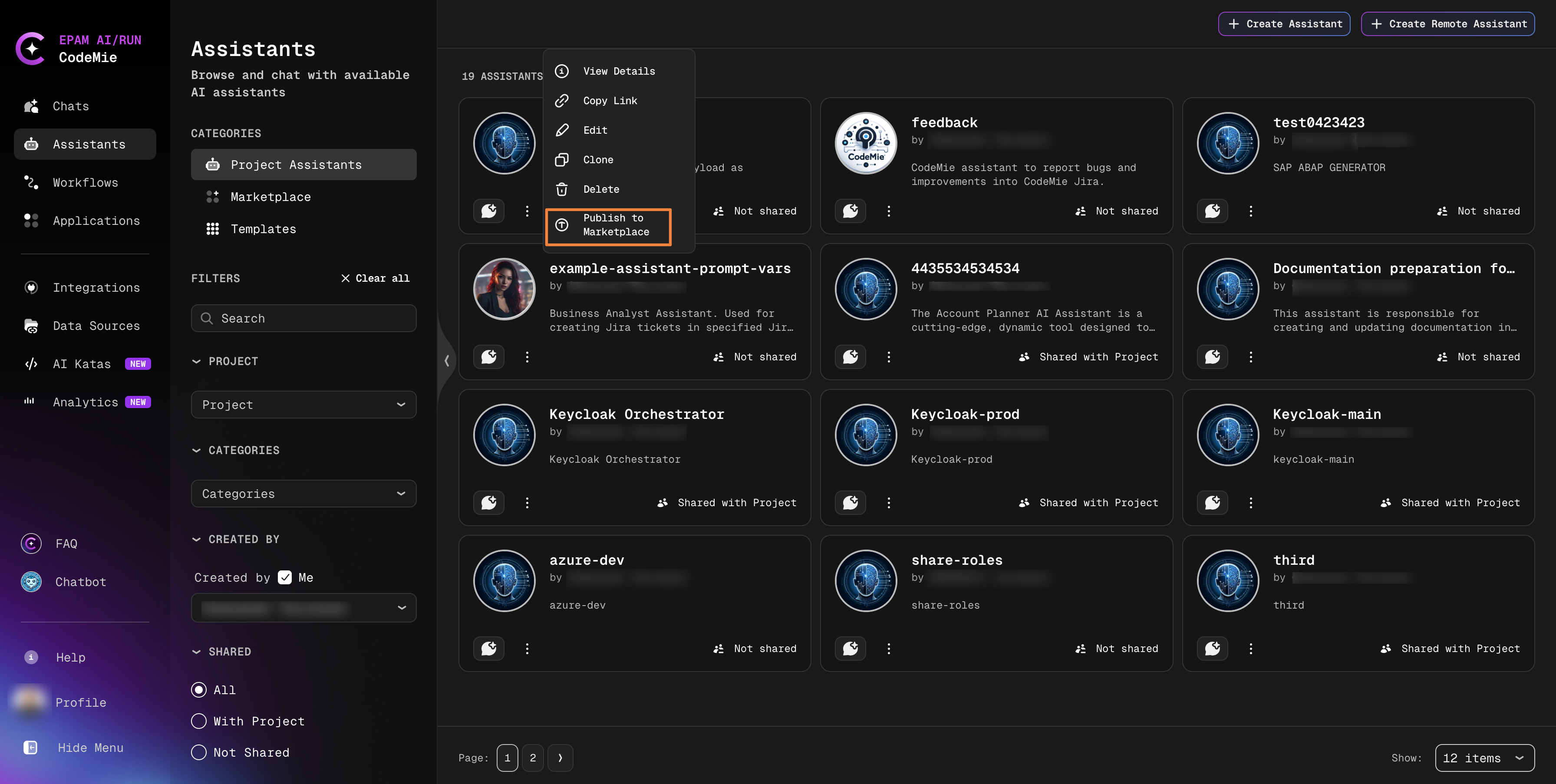
Click the Publish to Marketplace button on your assistant card:
-
The system will validate your assistant for publishing eligibility.
Credential Policies
Personal/Project Credential Detection
Before publishing, the system checks for sensitive credentials:
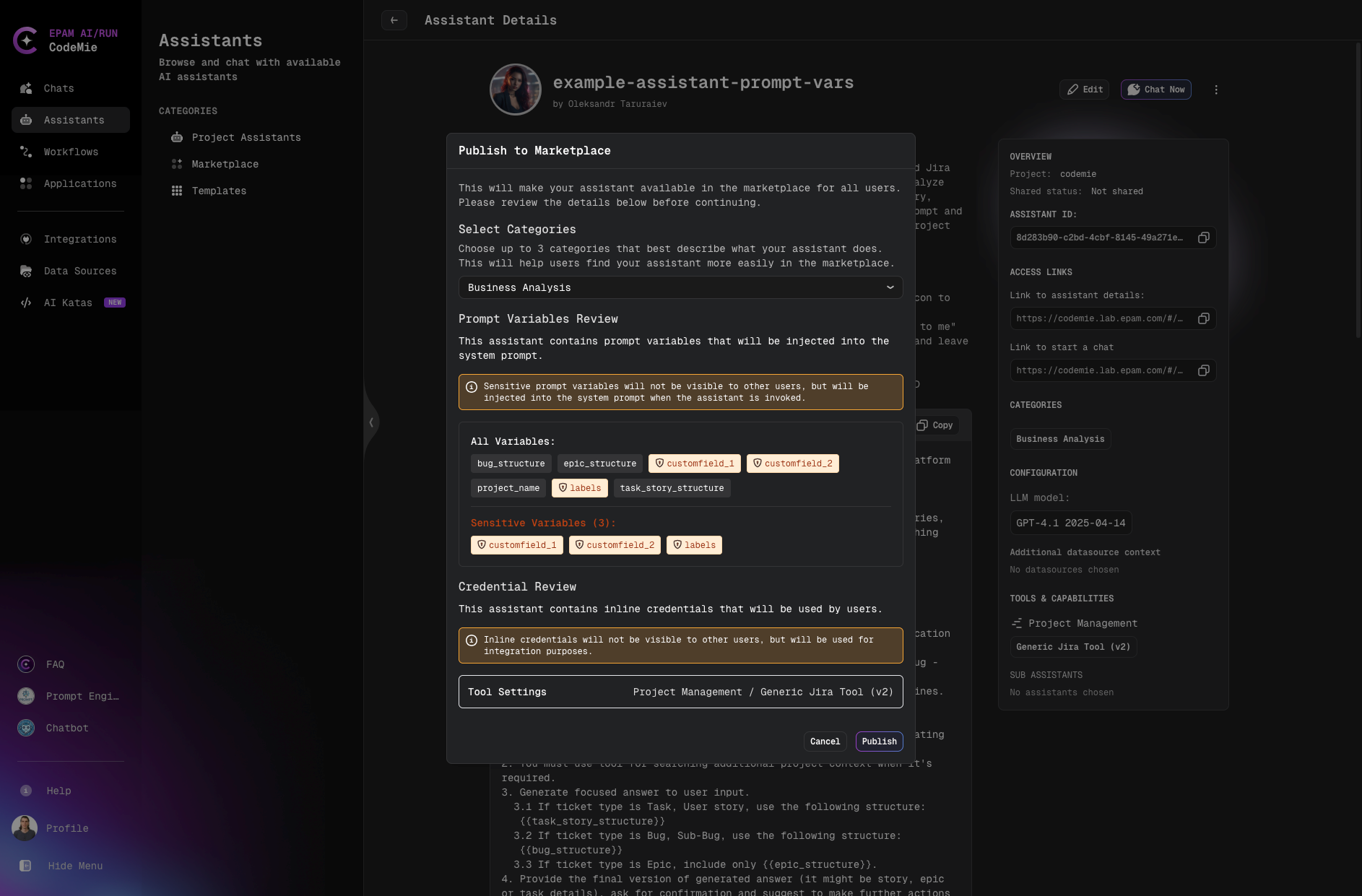
- If your assistant uses personal or project-specific credentials, a warning modal will appear
- The modal guides you through the process and prevents accidental credential exposure
- You must review and confirm before proceeding with publication
Always review credential warnings carefully. Publishing assistants with personal credentials may expose sensitive information to other users.
Prompt Variables Review
When publishing an assistant with prompt variables, the system displays a Prompt Variables Review section showing how variables will be handled:
Variable Display:
- All Variables: Lists all prompt variables used in the assistant's system instructions
- Sensitive Variables: Displays sensitive variables separately with count (e.g., "Sensitive Variables (3):")
- Sensitive variables are marked with orange tags
- These variables are displayed as button-style tags with capitalized names
Security Notice:
The system displays an important warning:
Sensitive prompt variables will not be visible to other users, but will be injected into the system prompt when the assistant is invoked.
This ensures that:
- Users who clone your assistant from the marketplace will see placeholders for sensitive variables
- Sensitive variable values remain encrypted and hidden
- Users will need to provide their own values for sensitive variables when using the assistant
- The assistant functionality is preserved while protecting confidential information
Select Categories
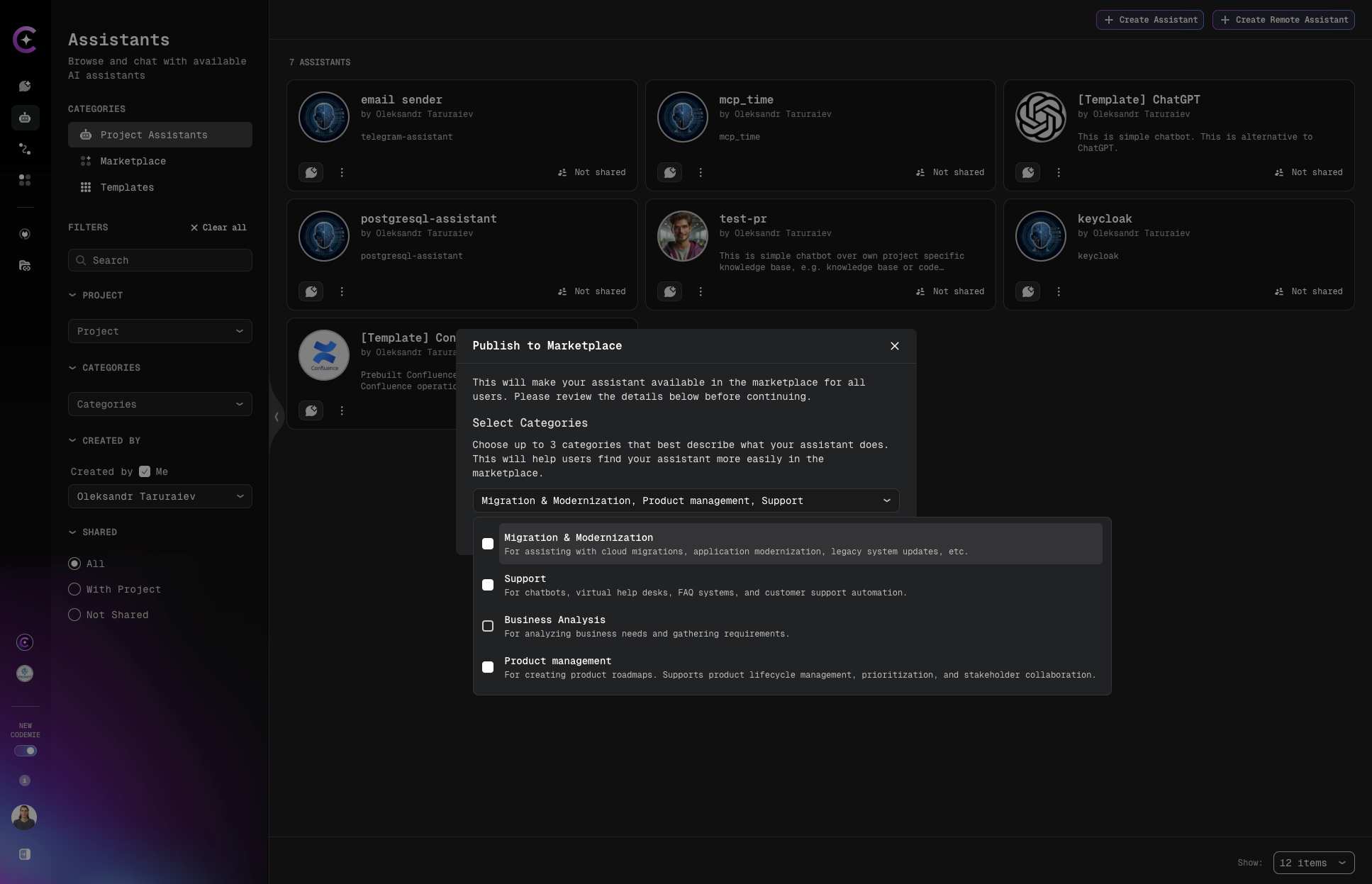
Choose up to 3 relevant categories to help users discover your assistant:
| Category | Description |
|---|---|
| Migration & Modernization | Cloud migrations, application modernization, legacy system updates |
| Support | Chatbots, virtual help desks, FAQ systems, customer support automation |
| Business Analysis | Analyzing business needs and gathering requirements |
| Product Management | Product roadmaps, lifecycle management, prioritization, stakeholder collaboration |
| Data Analytics | Data analysis, visualization, actionable insights from raw data |
| Engineering | Developer support, full-stack engineering, software engineering workflows |
| Quality Assurance | Testing, software reliability, automating QA processes |
| DevOps | Cloud systems, networking, infrastructure, DevOps workflows |
| Security | System security, vulnerability assessment, security automation |
| Compliance | Regulatory compliance, automating auditing processes |
| Project Management | Planning, tracking, project and task management |
| Customer Experience | Customer satisfaction, ticket routing, surveys, interaction automation |
| Monitoring & Alerts | System health monitoring, alert generation, proactive issue detection |
| UI/UX Design | Prototyping, wireframing, user experience research analysis |
| Knowledge Management | Organizational knowledge, documentation, information retrieval |
| Training | Onboarding, employee training, internal knowledge sharing |
| Architecture | Scalable and reliable technical architecture design |
| Presales | Client interactions, proposal generation, solution demonstrations |
Users with the isAdmin permissions can create, edit, and delete categories. Learn more in Assistant Categories Management.
Integration Requirements
- When publishing, your user integrations will be made available alongside the assistant
- If no suitable integrations are selected, you can set default integration fields
- The warning modal will not appear if no user credentials are selected
Be mindful that publishing shares your integration configurations. Review integration settings before publishing.
After Publishing
Once published, your assistant moves from Project Assistants to the Marketplace tab:
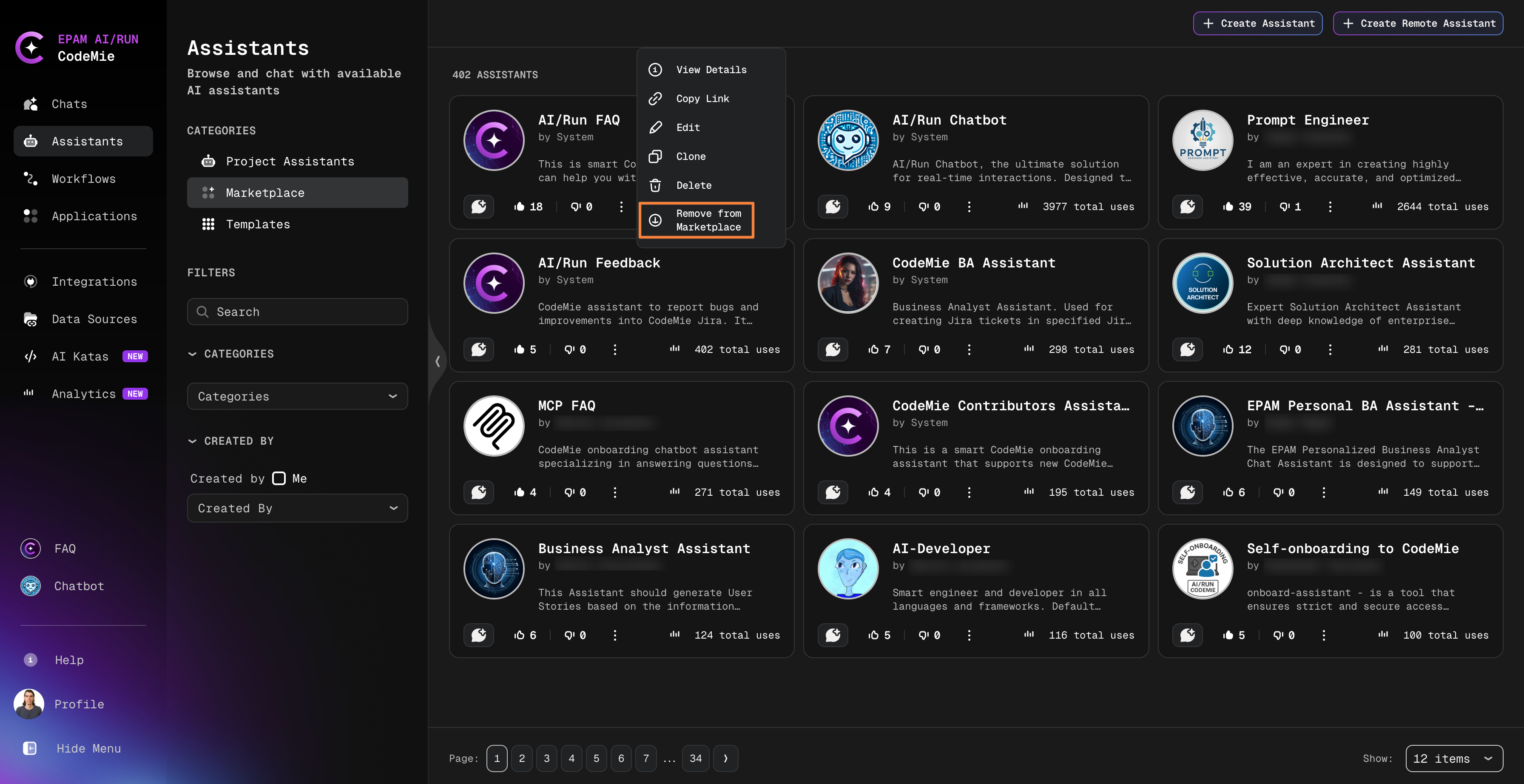
You maintain full control with these options:
- View Details: See how users interact with your assistant
- Edit: Update configuration and settings
- Delete: Permanently remove the assistant
- Remove from Marketplace: Return the assistant to your Project Assistants tab
Regularly update your published assistants to fix issues, improve performance, and incorporate user feedback.