Add and Index Provider Data Source
Index external data sources through third-party providers.
Overview
Provider data sources enable indexing external data through registered third-party provider configurations. Once indexed, assistants can use provider-specific tools to work with this data. Additionally, some provider tools can be used independently without requiring a data source.
This functionality is only available to users with the isAdmin role.
Provider Capabilities
Provider capabilities depend on their configuration. External providers might enable:
- Analyze code structure and patterns
- Explore repository contents
- Extract insights from indexed data
- Perform advanced code understanding tasks
How It Works
1. Register Provider Configuration
Administrators register third-party providers in Settings → Administration → Providers management:
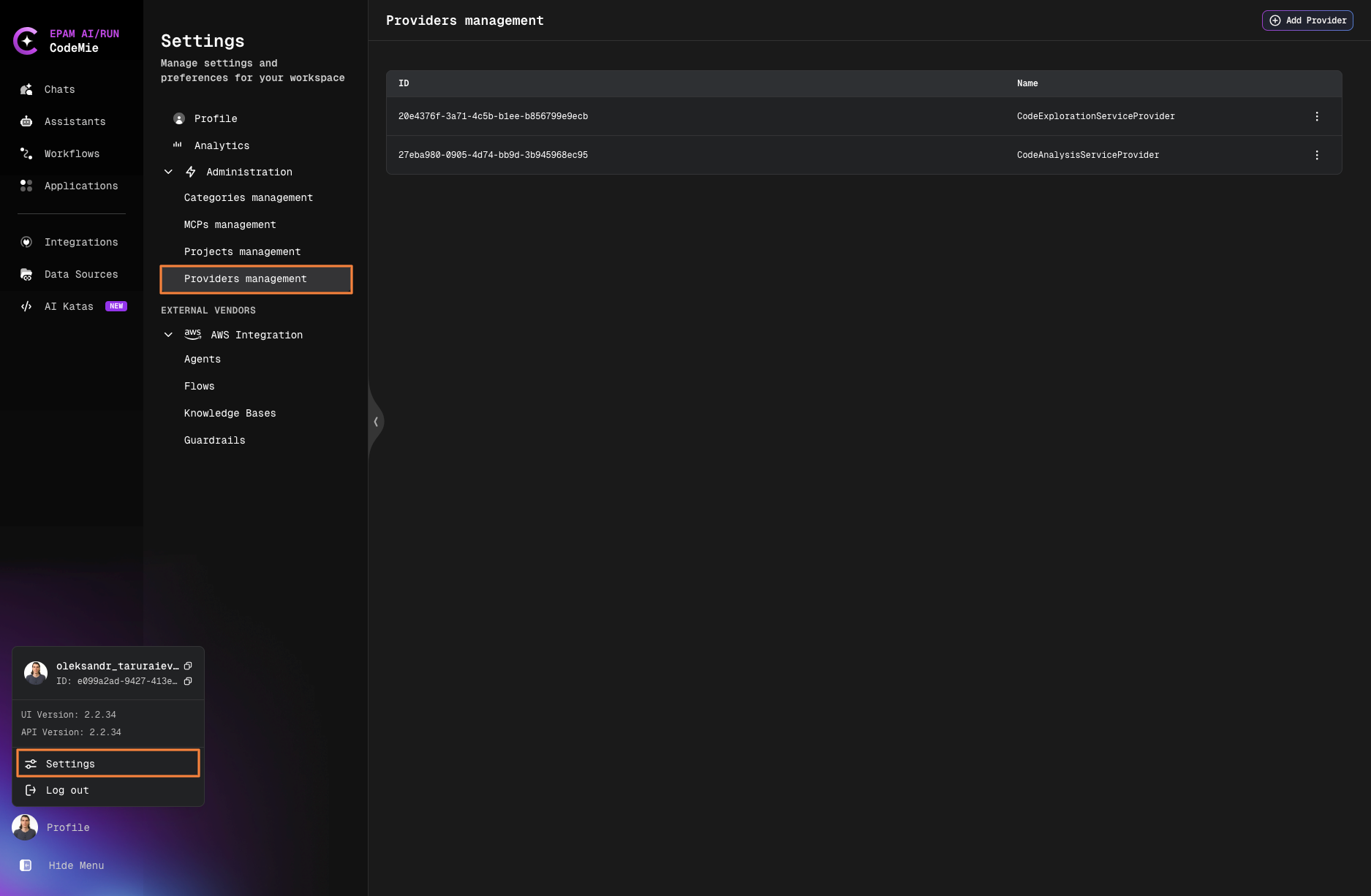
Click + Add Provider, fill configuration details, and click Save:
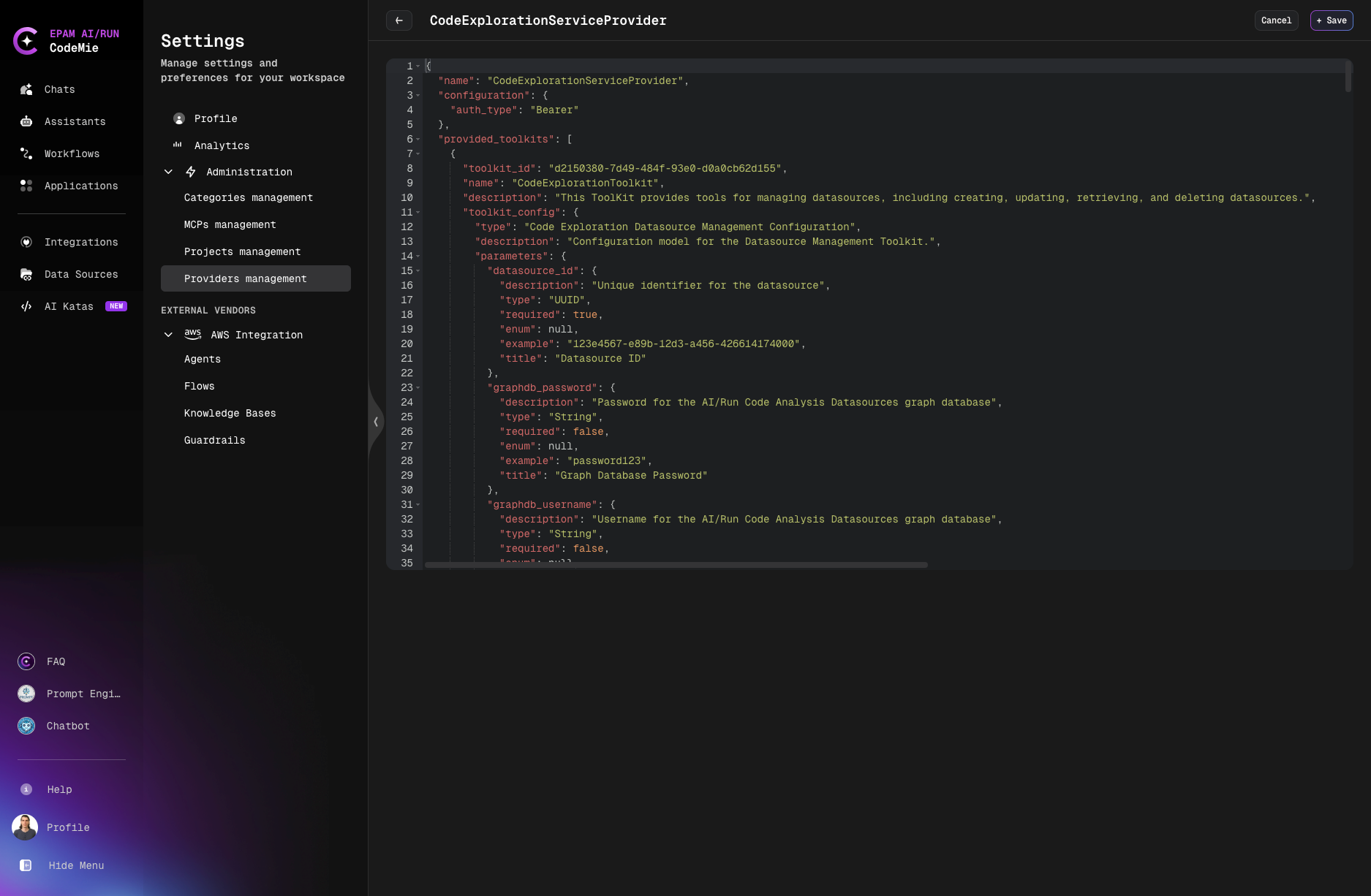
2. Creating Provider Data Source
Step 1: Navigate to Data Sources
Click Data Sources in the left navigation bar.
Step 2: Create New Data Source
Click + Create Datasource button.
Step 3: Fill Required Fields
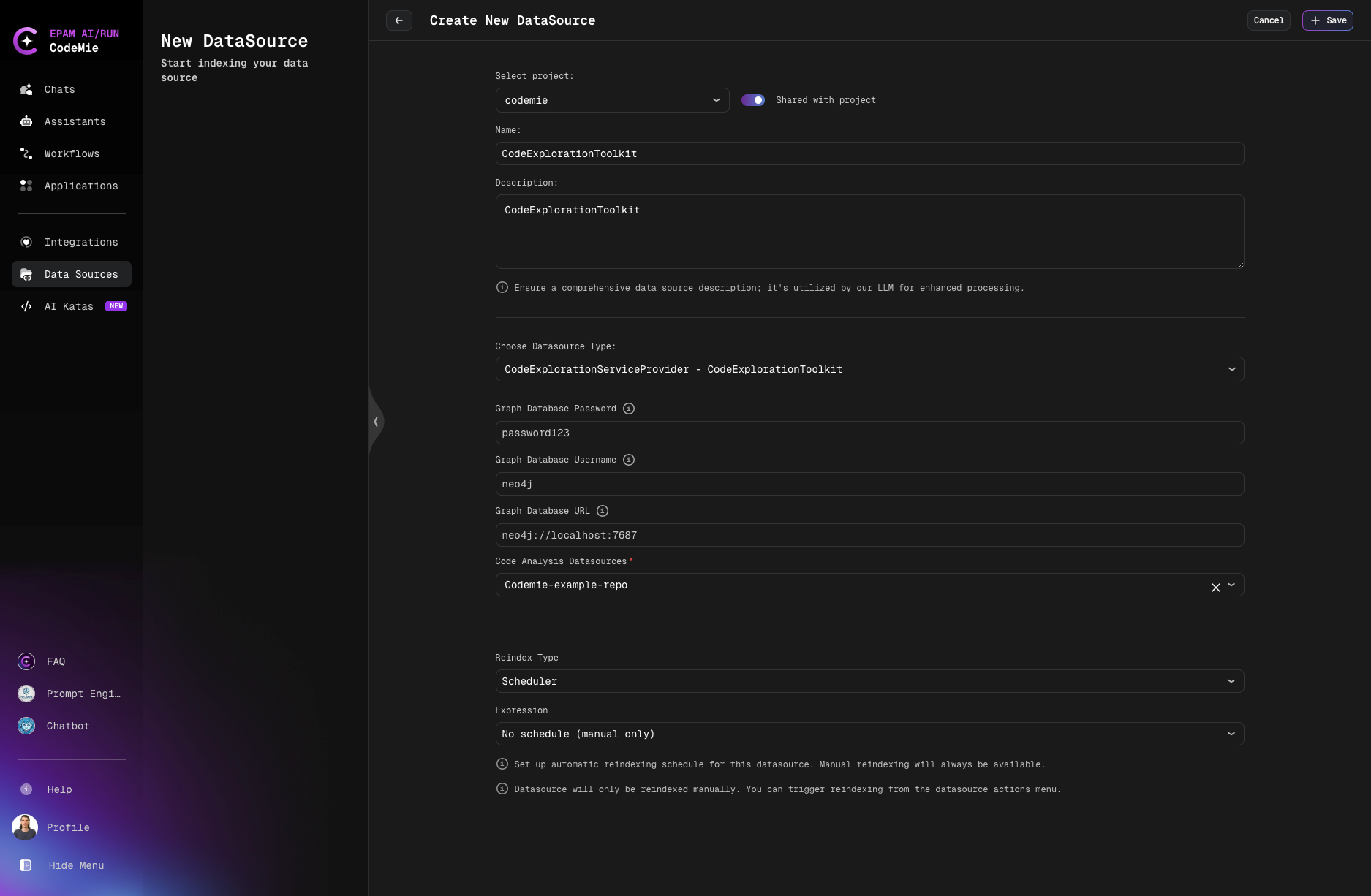
Select project: Choose your project from dropdown
Shared with project: Toggle to share data source with project team members
Name: Provide descriptive name for the data source
Description: Explain data source purpose and what it will be used for
Choose Datasource Type: Select registered provider from dropdown
Provider-Specific Configuration: Depending on selected provider, fill additional fields:
- Graph Database Password: Password for graph database connection (if required by provider)
- Graph Database Username: Username for graph database (if required by provider)
- Graph Database URL: Connection URL for graph database (if required by provider)
- Code Analysis Datasources: Select existing datasources to analyze with provider tools (optional)
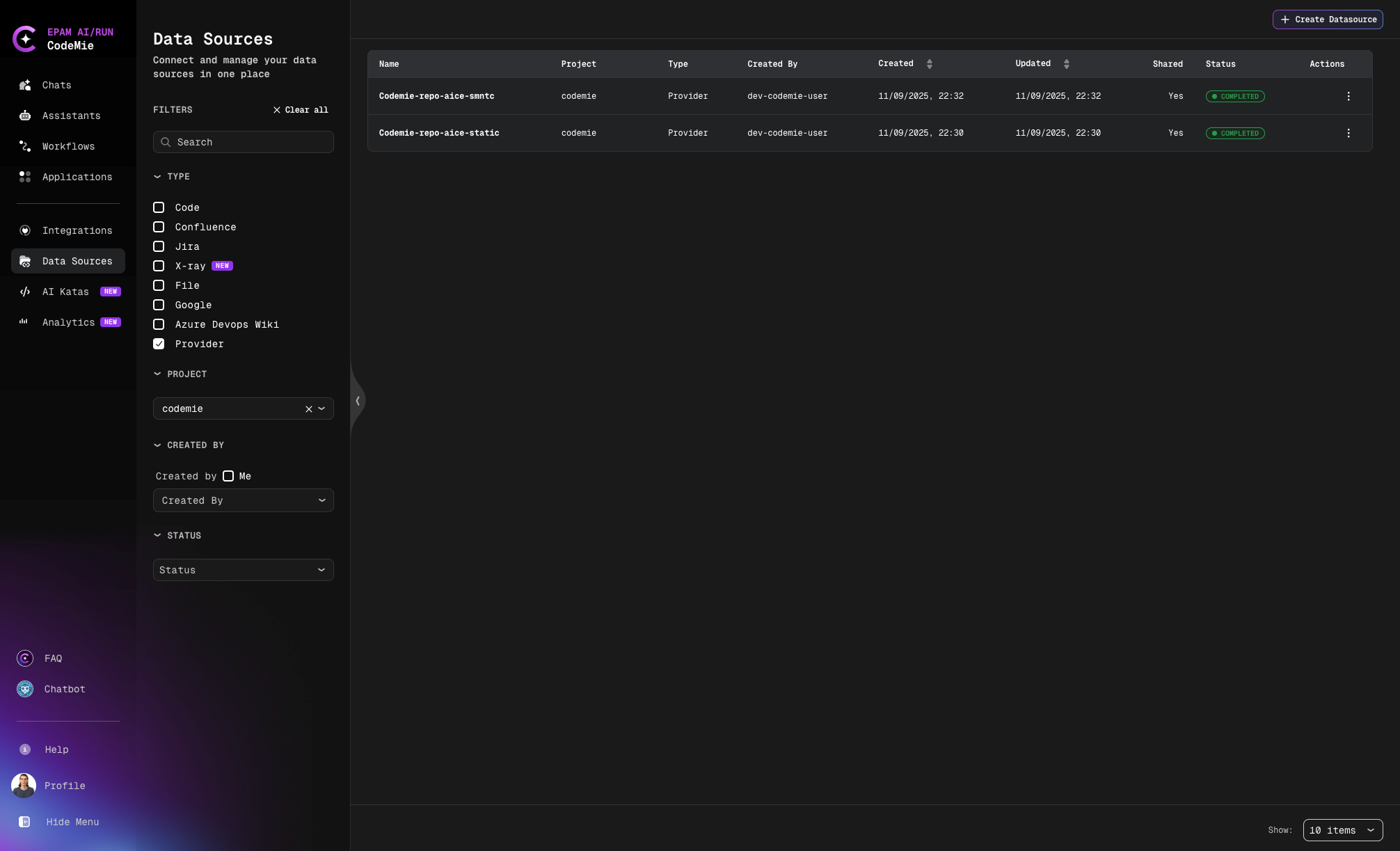
3. Index Provider Data Source
Users select Provider as data source type and index their data:
4. Use Provider Tools with Assistants
When configuring assistants, provider-specific tools become available in External Tools section:
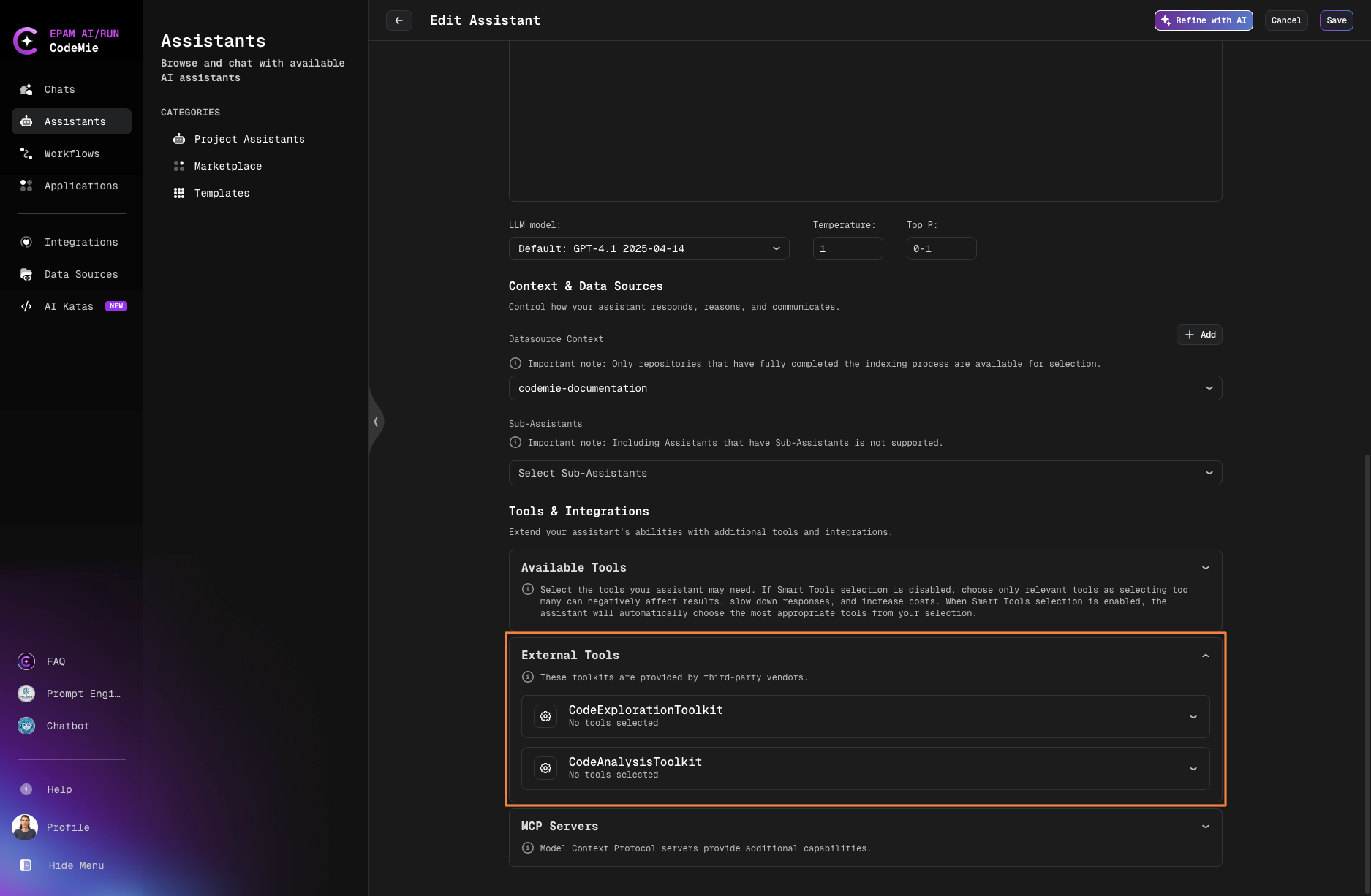
Provider tools can be used:
- With data source context: Tools work with indexed provider data
- Independently: Some tools don't require data source and work standalone
Workflow
1. Administrator registers provider configuration
   ↓
2. User selects Provider as data source type
   ↓
3. User indexes data through provider
   ↓
4. User creates assistant with provider tools enabled
   ↓
5. Assistant uses provider tools with or without data source context
Using Provider Data Source in Assistants
After successfully creating and indexing your Provider data source, you can connect it to any assistant to provide access to external analysis capabilities.
Adding Data Source to Assistant
- Navigate to Assistants section
- Click + Create Assistant or edit an existing assistant
- In the Data Source Context section, click the dropdown menu
- Select your Provider data source from the list
- In the Available tools section, enable the provider-specific tools
- Save the assistant configuration
Now your assistant can access and analyze code through the provider's external tooling, enabling it to:
- Perform advanced code analysis with specialized tools
- Leverage external analysis engines and capabilities
- Access provider-specific insights and metrics
- Combine indexed data with real-time analysis
- Utilize both data source context and independent tool operations
Your Provider data source is now configured and ready to enhance your assistants with external analysis toolkit integration.