Add and Index Google Data Source
Connect and index Google Documents as data sources.
Google Documents are a valuable knowledge source in AI/Run CodeMie, enabling assistants to access structured documentation and FAQs. This guide walks you through the process of adding and indexing Google Docs.
Overview
Google Documents can be indexed by providing a link with read-only access to AI/Run CodeMie's Google account. The document must be formatted in a specific way, such as FAQs, to be compatible with the platform's parsing and LLM routing capabilities.
Prerequisites
Before adding a Google Docs data source, ensure you have:
- A Google Document formatted according to AI/Run CodeMie requirements
- Permission to share the document with AI/Run CodeMie's service account
- Required document structure
Google Docs must follow the triple numeration format (1.1.1.) with Heading 3 style. Documents without this format will fail to parse correctly.
Required Document Format
Google documents should be created in a specific format to allow AI/Run CodeMie to parse it and use it for LLM routing efficiently instead of traditional semantic search.
Format Structure
The document format should follow these guidelines:
1. Titles with triple numeration
- Use format:
1.1.1.(numbered sections) - Apply text style: Heading 3
- This creates a hierarchical structure for easy navigation
2. Content text
- Use text style: Normal for all content inside sections
- Keep content clear and concise
- Structure information logically
Example Structure
1.1.1. What is AI/Run CodeMie?
AI/Run CodeMie is a platform for...

1.1.2. How do I get started?
To get started with AI/Run CodeMie...

1.2.1. Creating your first assistant
Follow these steps to create...
The triple numeration format enables AI/Run CodeMie to create a semantic hierarchy of your content, improving search accuracy and LLM routing efficiency.
For a complete example of the correct format, refer to this example Google Document.
Sharing the Document
To allow AI/Run CodeMie to parse a Google Document, you must share the document with AI/Run CodeMie's service account.
Service Account Email
Share your document with:
codemie-kb-crawler@or2-msq-epmd-edp-anthos-t1iylu.iam.gserviceaccount.com
This service account only has read access and cannot modify your documents. Sharing with this account is safe and does not expose your data.
How to Share
- Open your Google Document
- Click the Share button in the top-right corner
- Enter the service account email address
- Set permissions to Viewer (read-only access)
- Click Send
Ensure you grant at least Viewer permissions. The service account only needs read access to index the document.
Adding a Google Data Source
Follow these detailed steps to add a Google Document as a data source:
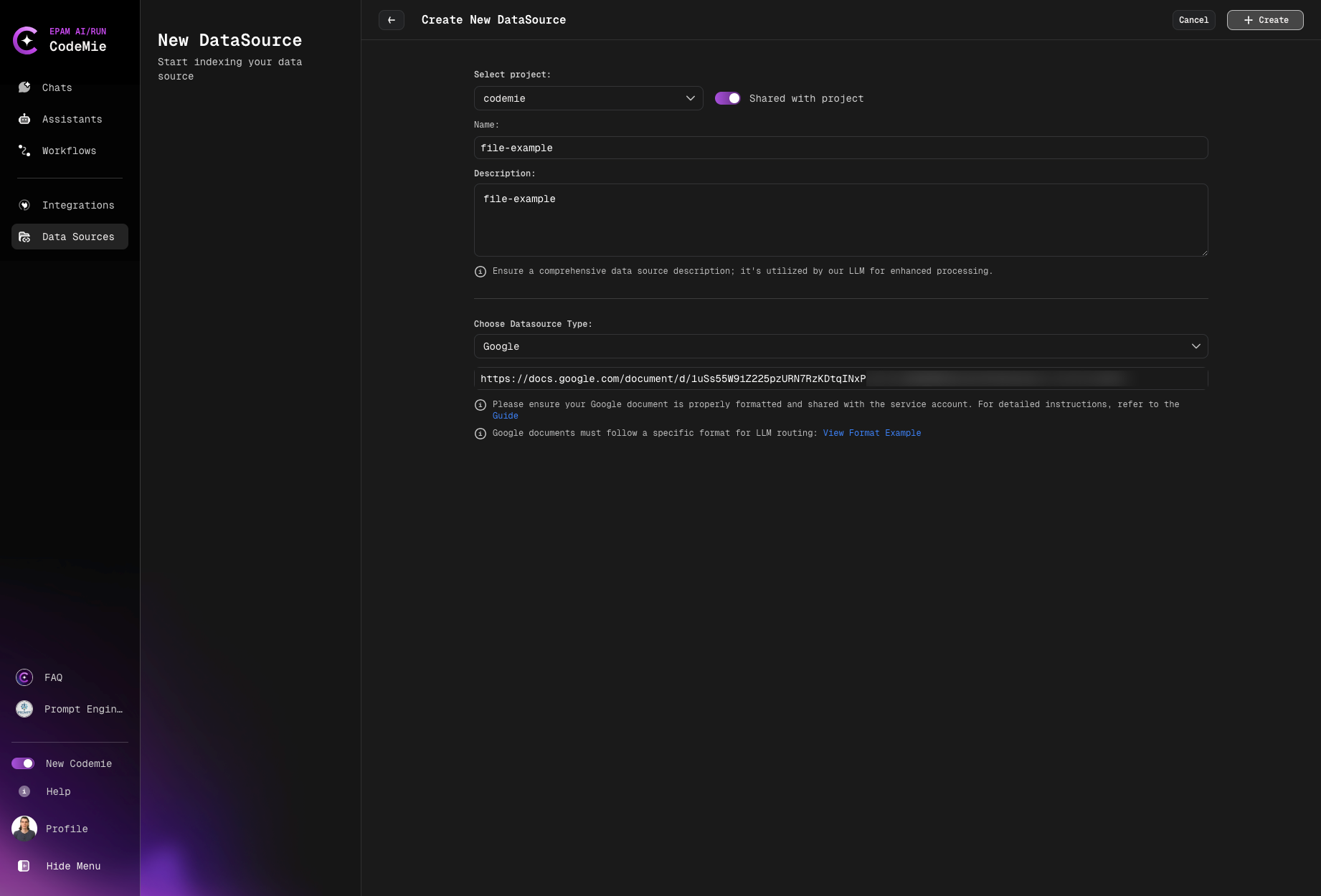
Configuration Steps
-
Navigate to Data Sources section in AI/Run CodeMie
-
Click + Create Datasource
-
Fill in required fields:
- Project: Select target project
- Name: Provide a descriptive name for the data source
- Description: Add details about the document content
- Datasource Type: Select Google
- Document URL: Paste the Google Document link
- Model used for embeddings: Select embedding model
-
Configure Reindex Schedule (Optional)
In the Reindex Type section, configure automatic reindexing:
- Scheduler: Choose your preferred reindexing schedule
- No schedule (manual only) - Default, requires manual reindexing
- Every hour - For frequently updated documentation
- Daily at midnight - Recommended for most Google Docs
- Weekly on Sunday at midnight - For stable documents
- Monthly on the 1st at midnight - For rarely updated documents
- Custom cron expression - Enter custom cron expression (e.g.,
0 8 * * *for daily at 8 AM)
- Scheduler: Choose your preferred reindexing schedule
-
Click + Create to create the data source
Using Google Data Source in Assistants
After successfully creating and indexing your Google data source, you can connect it to any assistant to provide access to your Google Docs content.
Adding Data Source to Assistant
- Navigate to Assistants section
- Click + Create Assistant or edit an existing assistant
- In the Data Source Context section, click the dropdown menu
- Select your Google data source from the list
- Save the assistant configuration
Now your assistant can access and analyze content from the indexed Google Documents, enabling it to:
- Answer questions about document content
- Summarize sections and key points
- Extract specific information
- Compare information across multiple documents
- Provide context-aware responses based on your documentation
Your Google Documents are now configured and ready to enhance your assistants with collaborative documentation knowledge.