Users Management
The Users Management page is only accessible to Platform Admins. Regular users can manage members within their own projects from the Projects Management page.
The Users Management page gives Platform Admins a unified view of all users registered on the platform, their roles, and their project memberships. From here you can filter users, inspect individual user details, and manage project assignments.
To access Users Management, click the Profile icon in the bottom-left corner → Settings → Administration → Users management.
Users List
The users list displays all platform users in a searchable, filterable table.
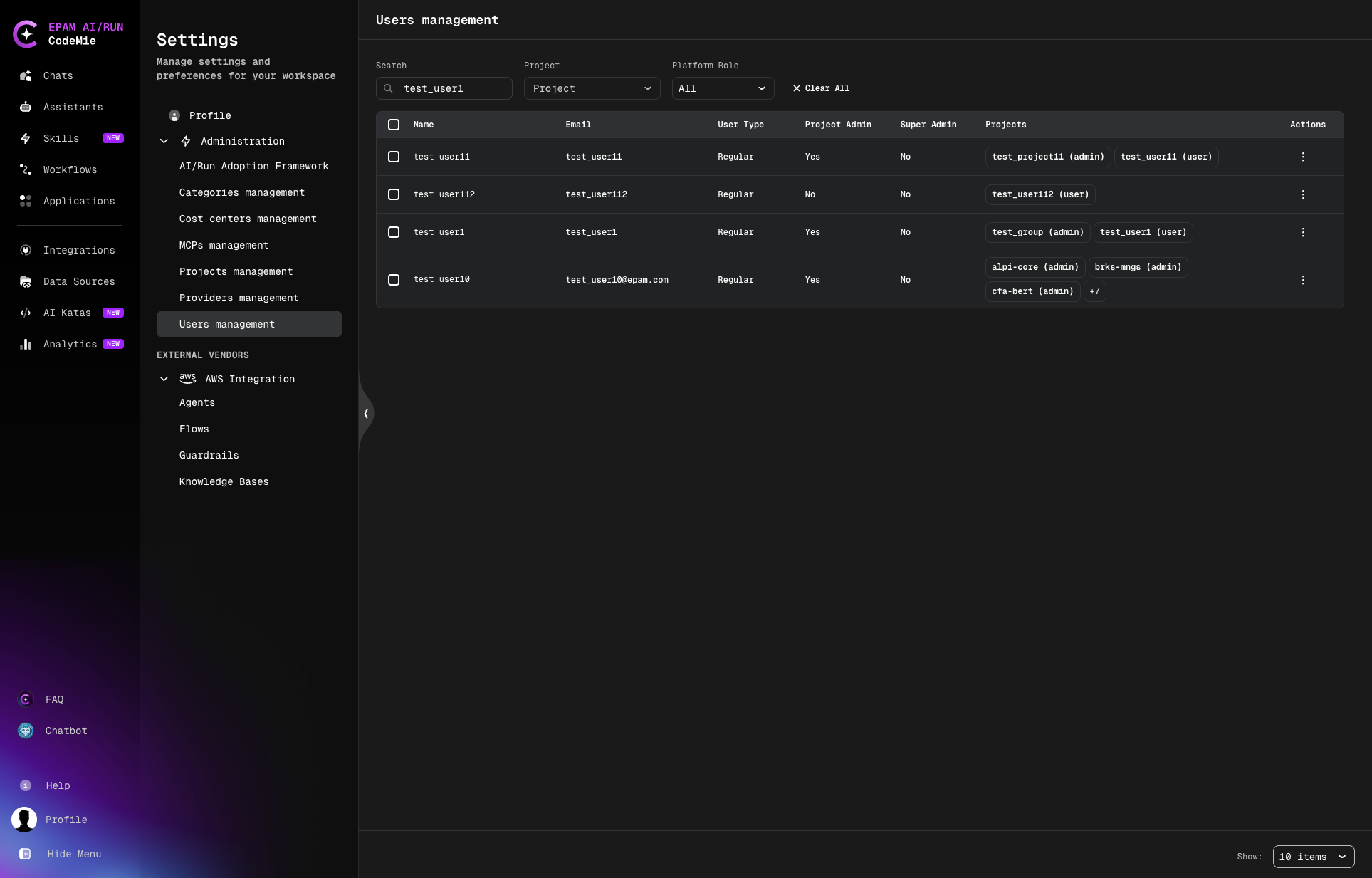
Columns
| Column | Description |
|---|---|
| Name | Display name |
| User's email address | |
| User Type | Regular or External — see External User |
| Project Admin | Whether the user holds Project Admin role in any project |
| Super Admin | Whether the user has platform-wide Super Admin privileges |
| Projects | Badge list of projects the user is assigned to |
| Actions | Row-level actions (edit, view details) |
Filtering
Use the filter bar at the top of the list to narrow results:
- Search — filter by name
- Project — show only users assigned to a specific project
- Platform Role — filter by
User,Project Admin, orSuper Admin
Click Clear All to reset all active filters.
User Details
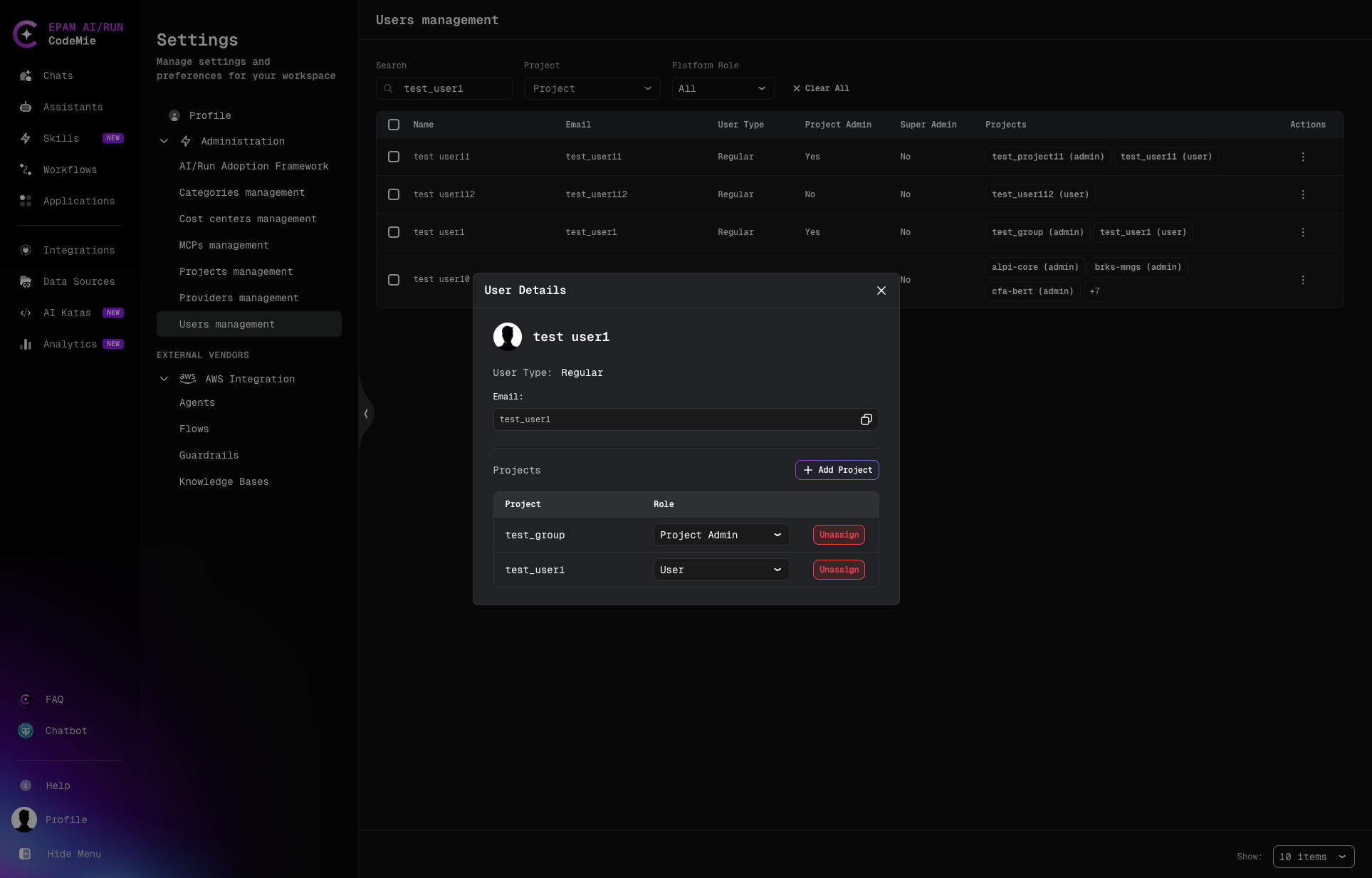
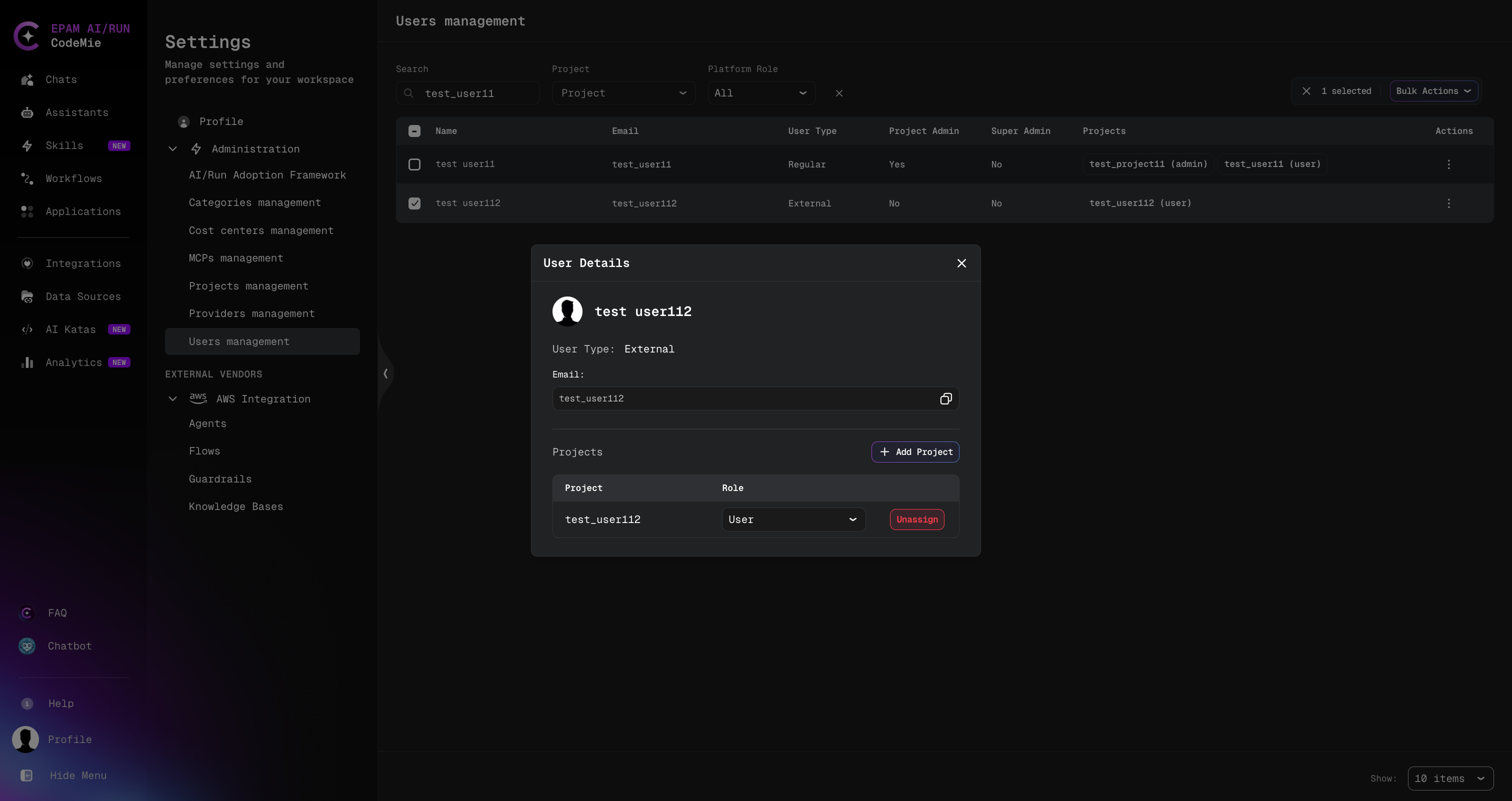
Click the ⋮ (Actions) menu on a user row, or click the user's name, to open the User Details panel.
The panel shows:
- Avatar and display name
- User Type:
RegularorExternal - Email: user's email address
- Projects table — list of projects the user is assigned to, with their role in each
Manage a User's Project Assignments
From the User Details panel you can add or remove project memberships without leaving the user record.
Add a Project Assignment
- In the User Details panel, click Add Project.
- Select a project from the dropdown.
- Choose the role: User or Project Admin.
- Click Add.
The new assignment appears in the Projects table immediately.
Remove a Project Assignment
- In the User Details panel, locate the project in the Projects table.
- Click Unassign next to that project.
- Confirm the removal.
The user loses access to that project immediately. Their account is not affected.