Projects Management
Projects are isolated workspaces that group your assistants, workflows, data sources, and integrations. Every user can create their own projects and manage team membership within them. Platform Admins can view and manage all projects across the platform.
To access Projects Management, click the Profile icon in the bottom-left corner → Settings → Administration → Projects management.
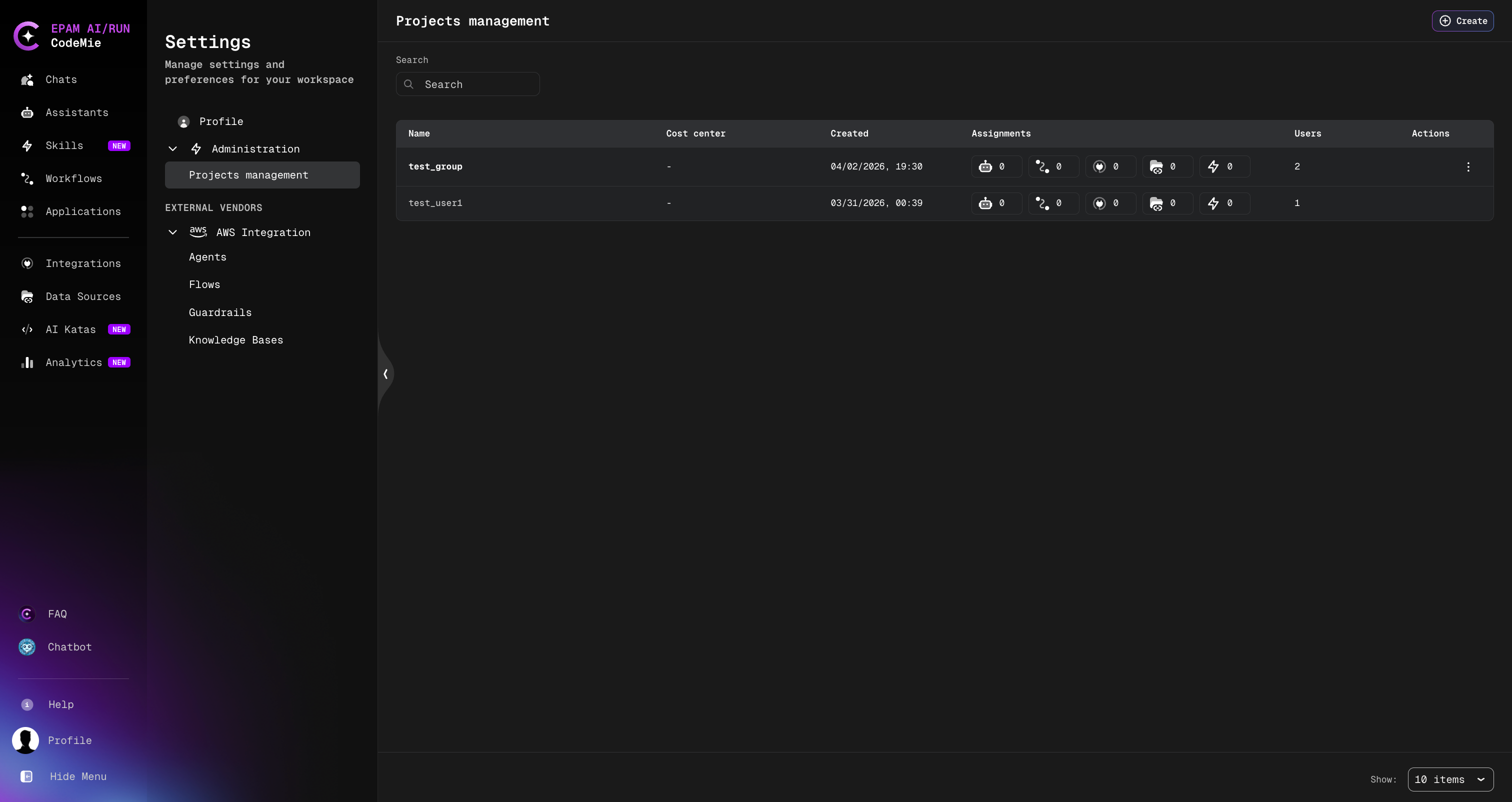
Projects List
The projects list displays all projects you have access to. For each project, the table shows:
- Name — the project name (always lowercase)
- Last update — date and time of the most recent change
- Created — date the project was created
- Assignments — entity counts for linked items (users, assistants, workflows, data sources, and other resources), shown as icons with numbers
- Users — total number of members in the project
- Actions — row-level actions: View, Edit, and Delete
Create a Project
- Click the Create button in the top-right corner of the Projects Management page.
- In the Create Project dialog, fill in:
- Name (required) — a unique project name. Must be lowercase only.
- Description (required) — a plain-text description of the project.
- Click Create.
The new project appears in the list immediately without a page reload.
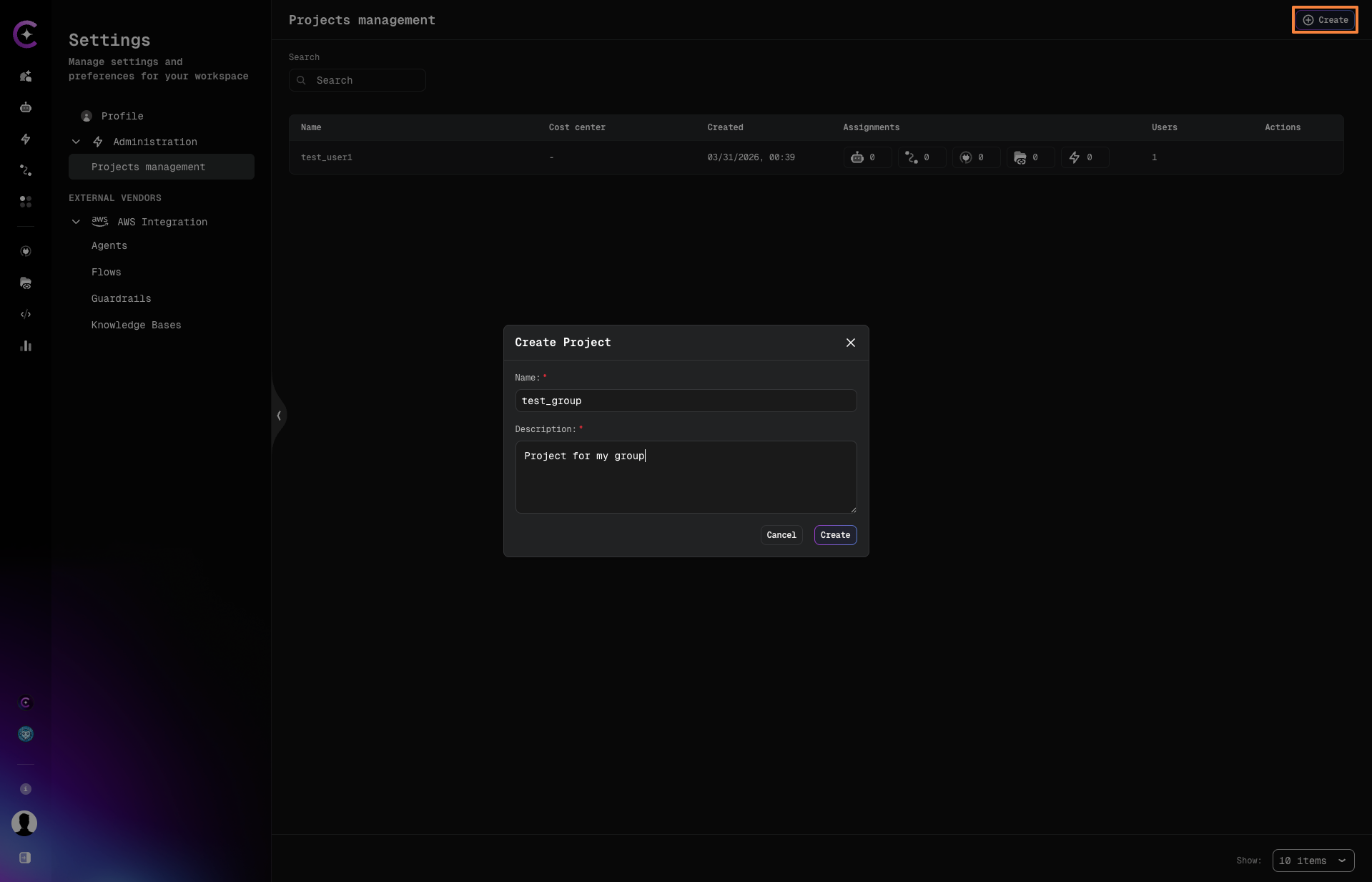
Project names must be lowercase. Uppercase characters are not accepted.
Open a Project
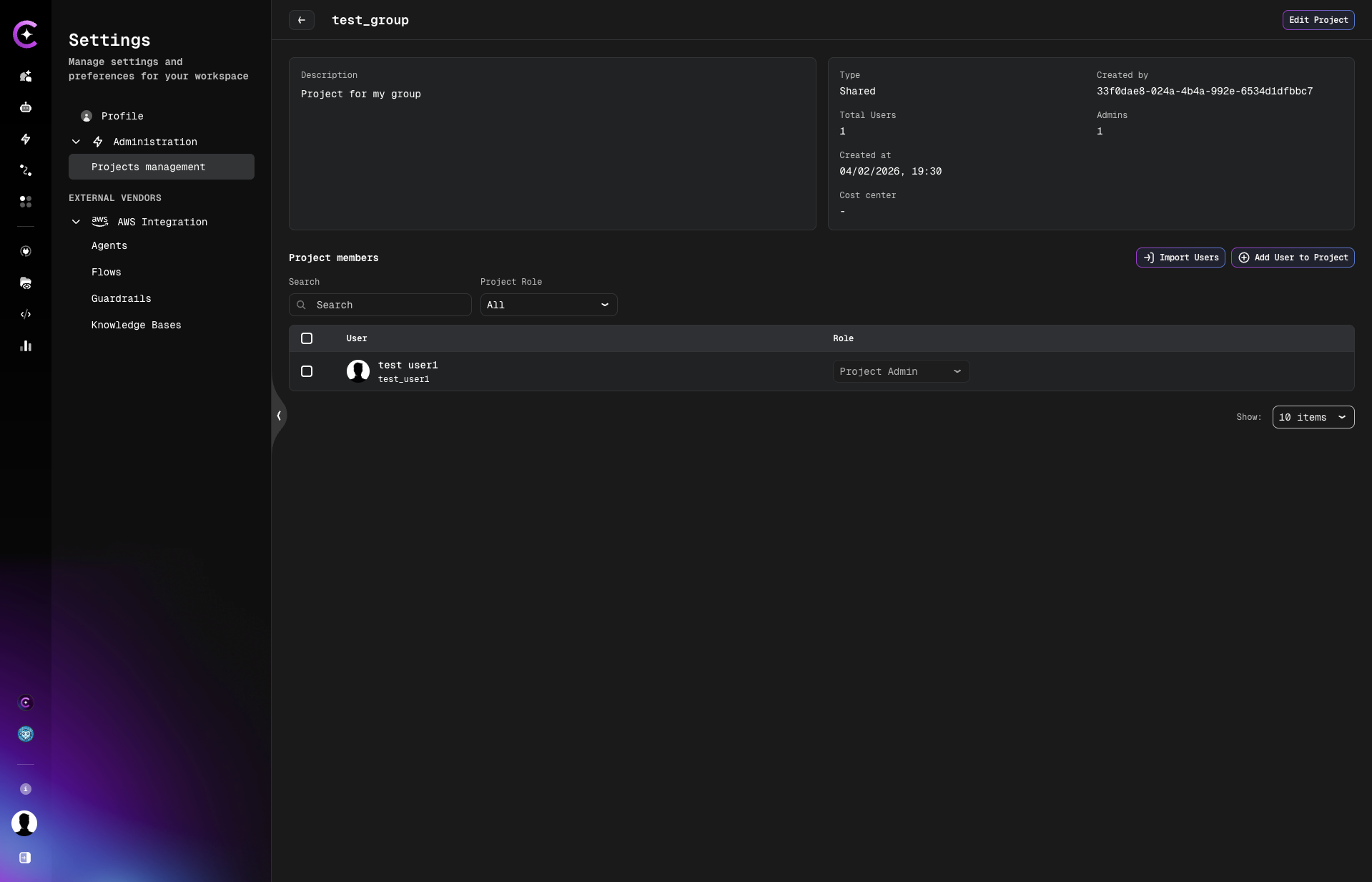
Click the ⋮ (Actions) menu on any project row and select View, or click directly on the project name. This opens the project detail page.
The project detail page shows:
- Project description, type, created by, and timestamps
- Total users count and last access date
- The Project Members table listing all team members and their roles
Edit a Project
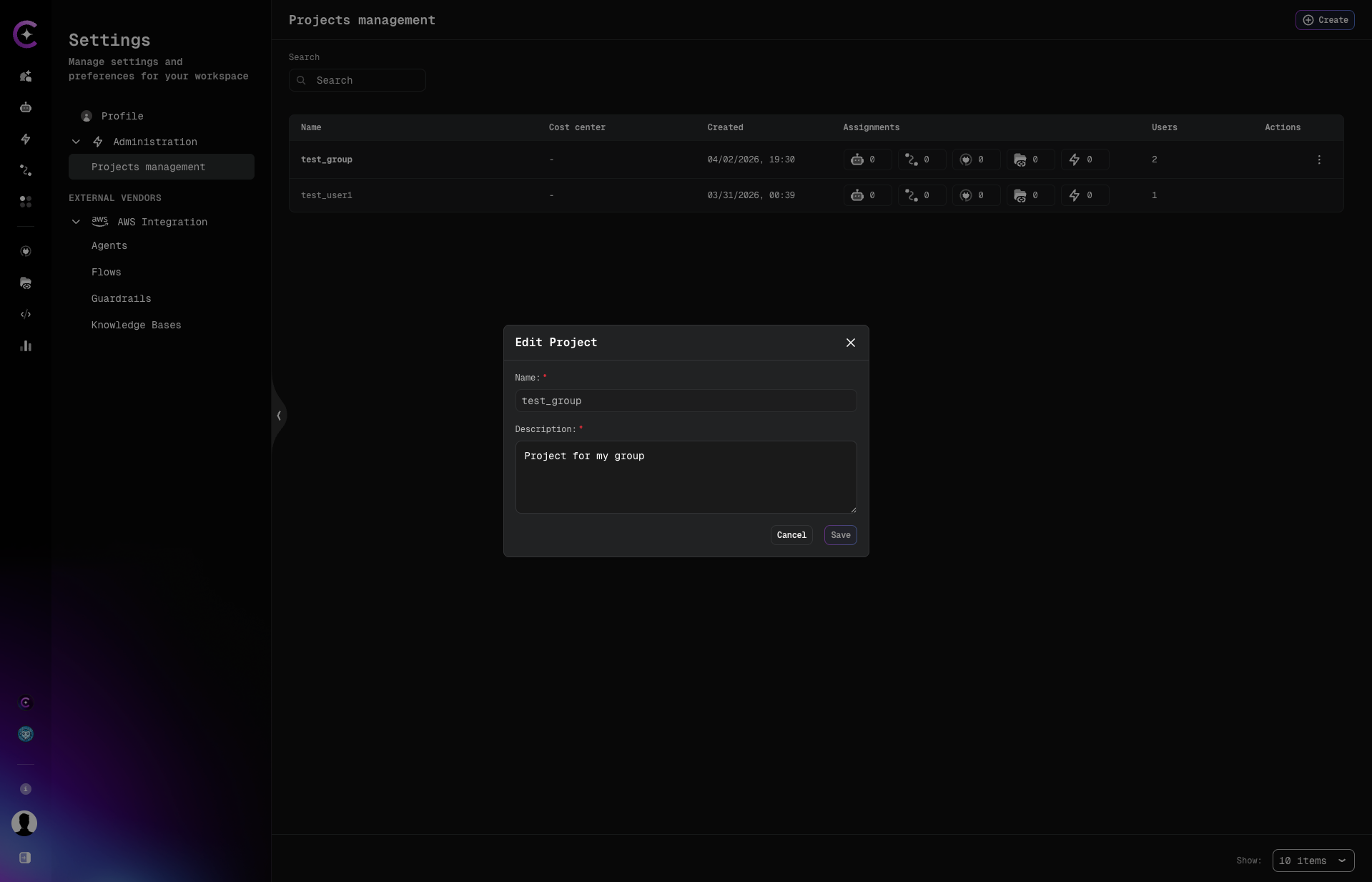
- Click the ⋮ (Actions) menu on a project row and select Edit.
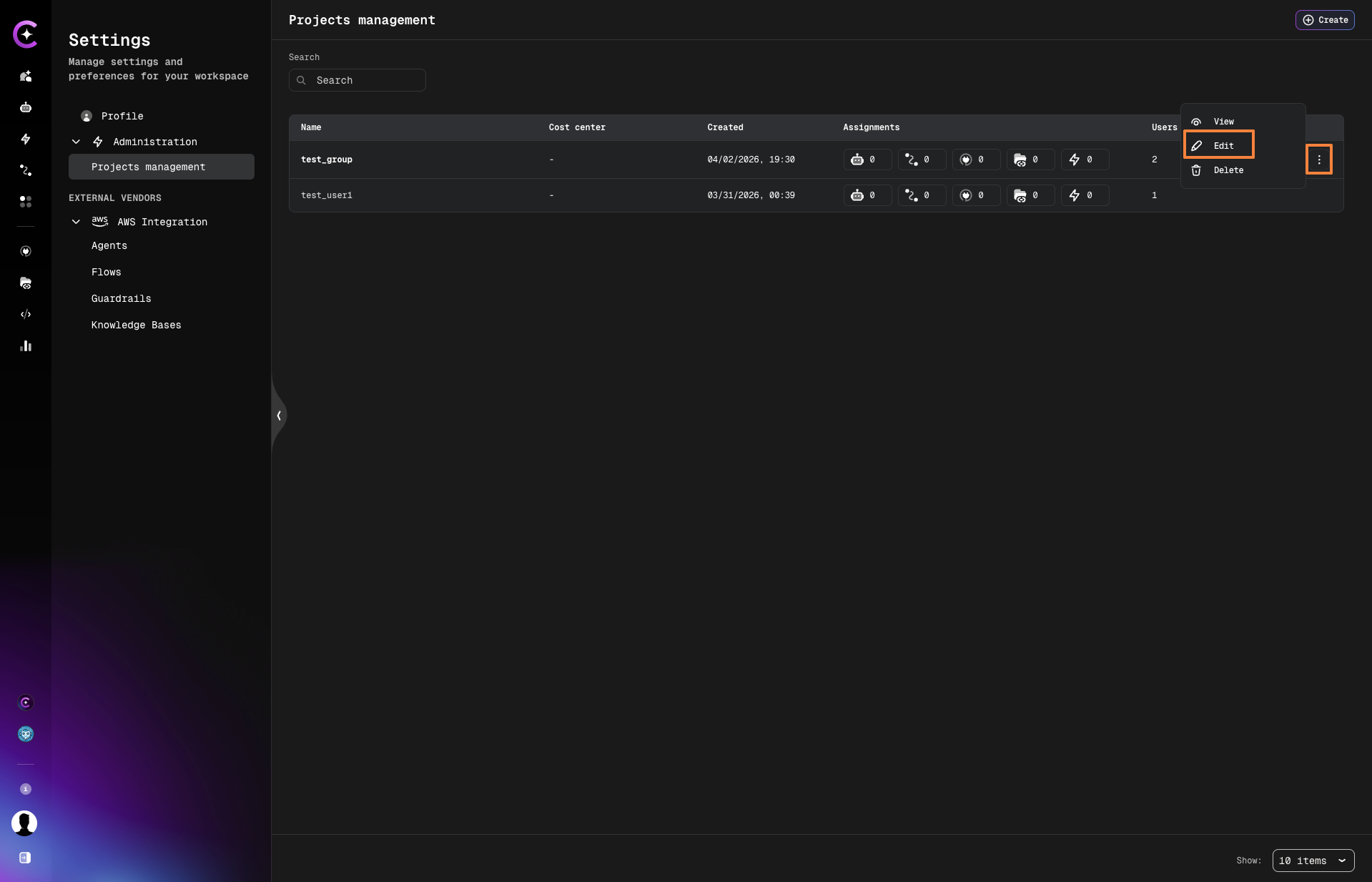
- In the Edit Project dialog, update the Description.
- Click Save.
The project name cannot be changed after creation. If you need a different name, delete the project and create a new one with the desired name.
Delete a Project
A project can only be deleted if it contains no associated entities (no users, assistants, workflows, data sources, or other items). If the project is not empty, deletion will be blocked and an error will list the blocking entities.
- Click the ⋮ (Actions) menu on the project row and select Delete.
- Confirm the deletion.
The project is removed from the list immediately.
Managing Project Members
From the project detail page, you can add, import, change roles for, and remove members.
Add a User
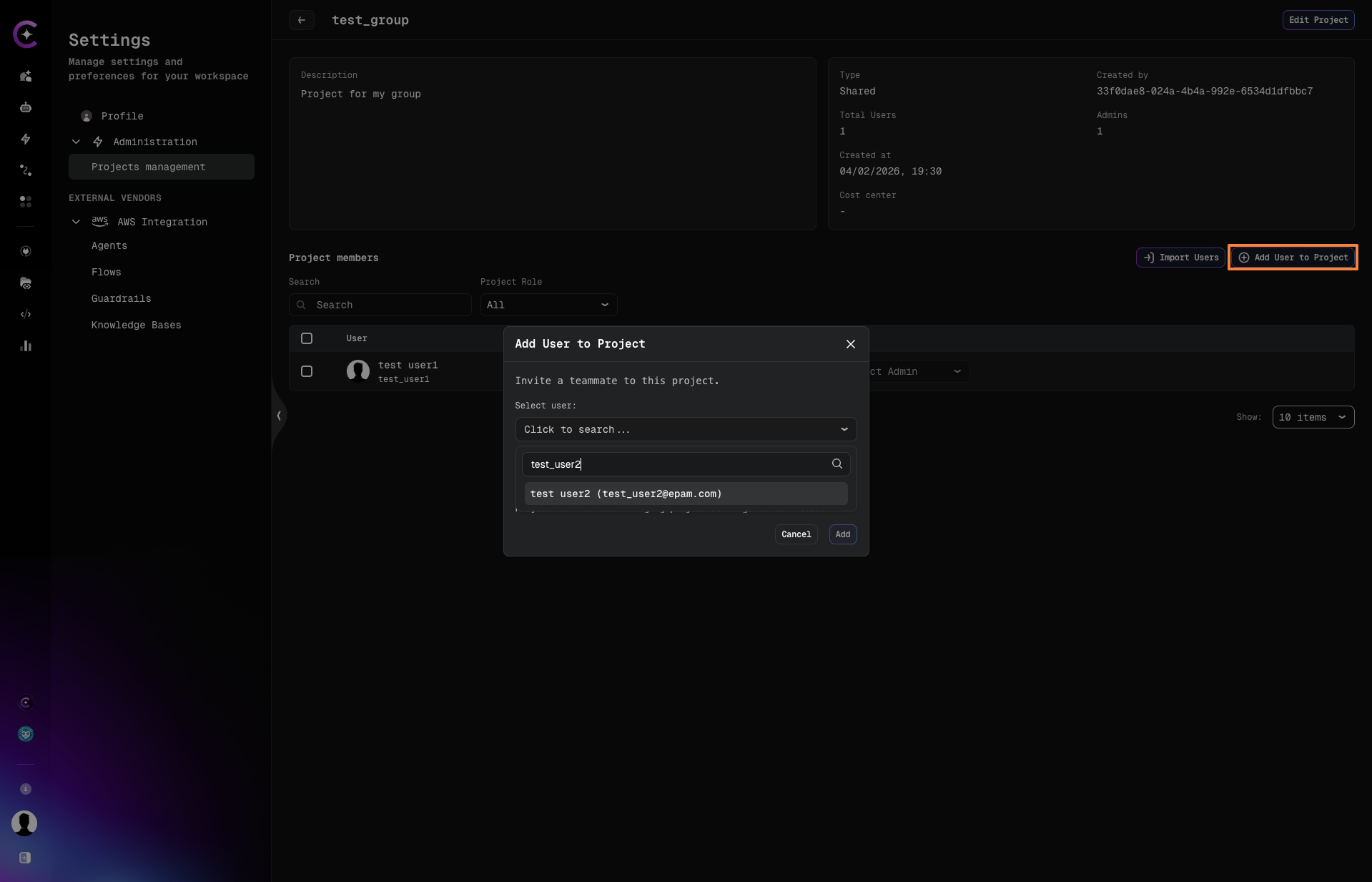
- Click Add User to Project on the project detail page.
- In the Select user field, search for a user by name or email.
- Select the user from the dropdown.
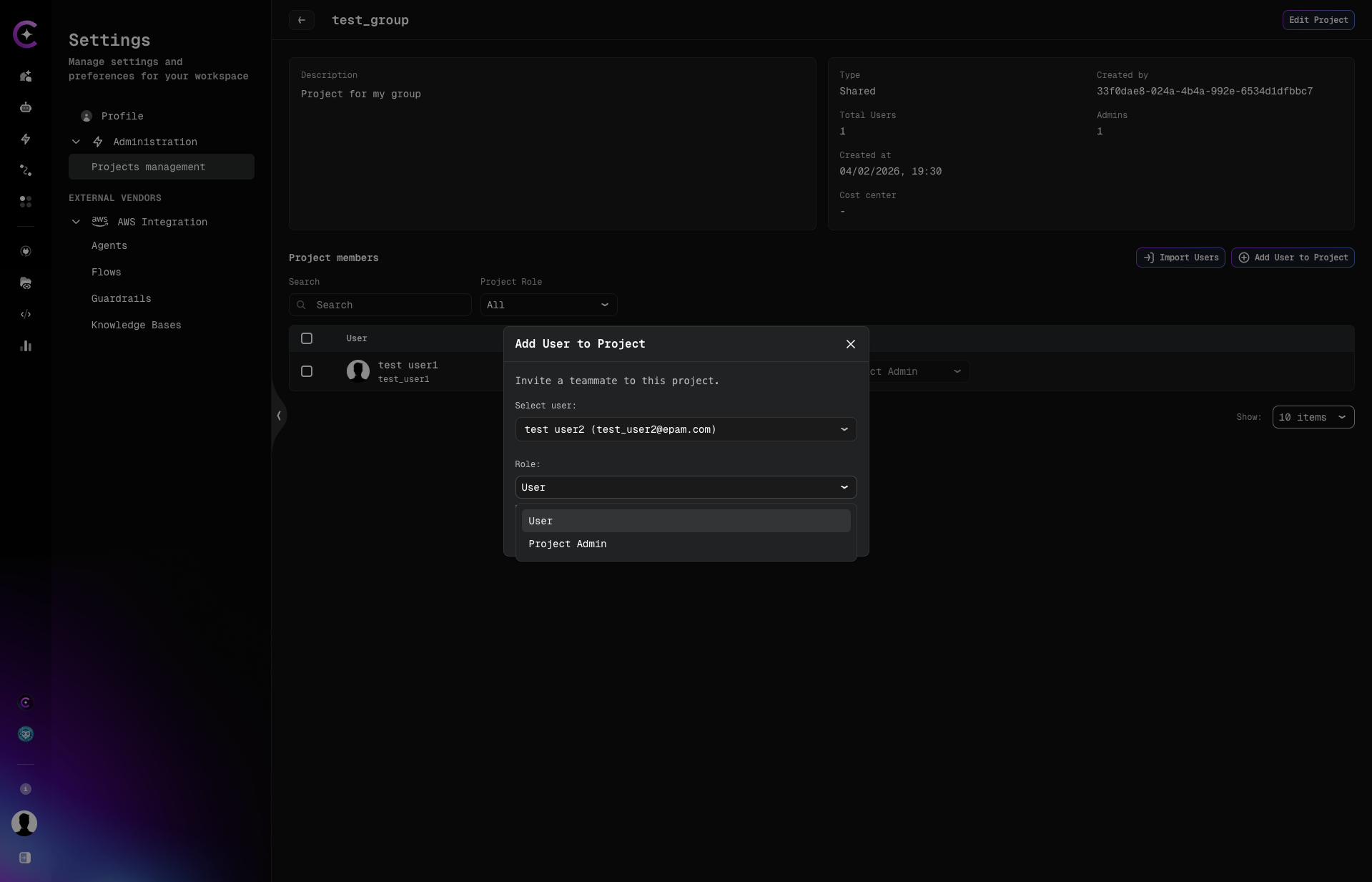
- In the Role dropdown, choose the role to assign:
- User — standard project access
- Project Admin — can manage project members and settings
- Click Add.
The user appears in the Project Members table immediately.
If a user does not appear in the search results, they have not logged in to CodeMie yet. Ask them to sign in first — their account will be available in the search after their first login.
Import Users via CSV
To add multiple users at once:
-
Click Import Users on the project detail page.
-
In the Import Users to project dialog, upload a CSV file by clicking Upload or drop file, or drag and drop a file onto the upload area.
Use the Download template link to get a correctly formatted file.
-
Click Import.
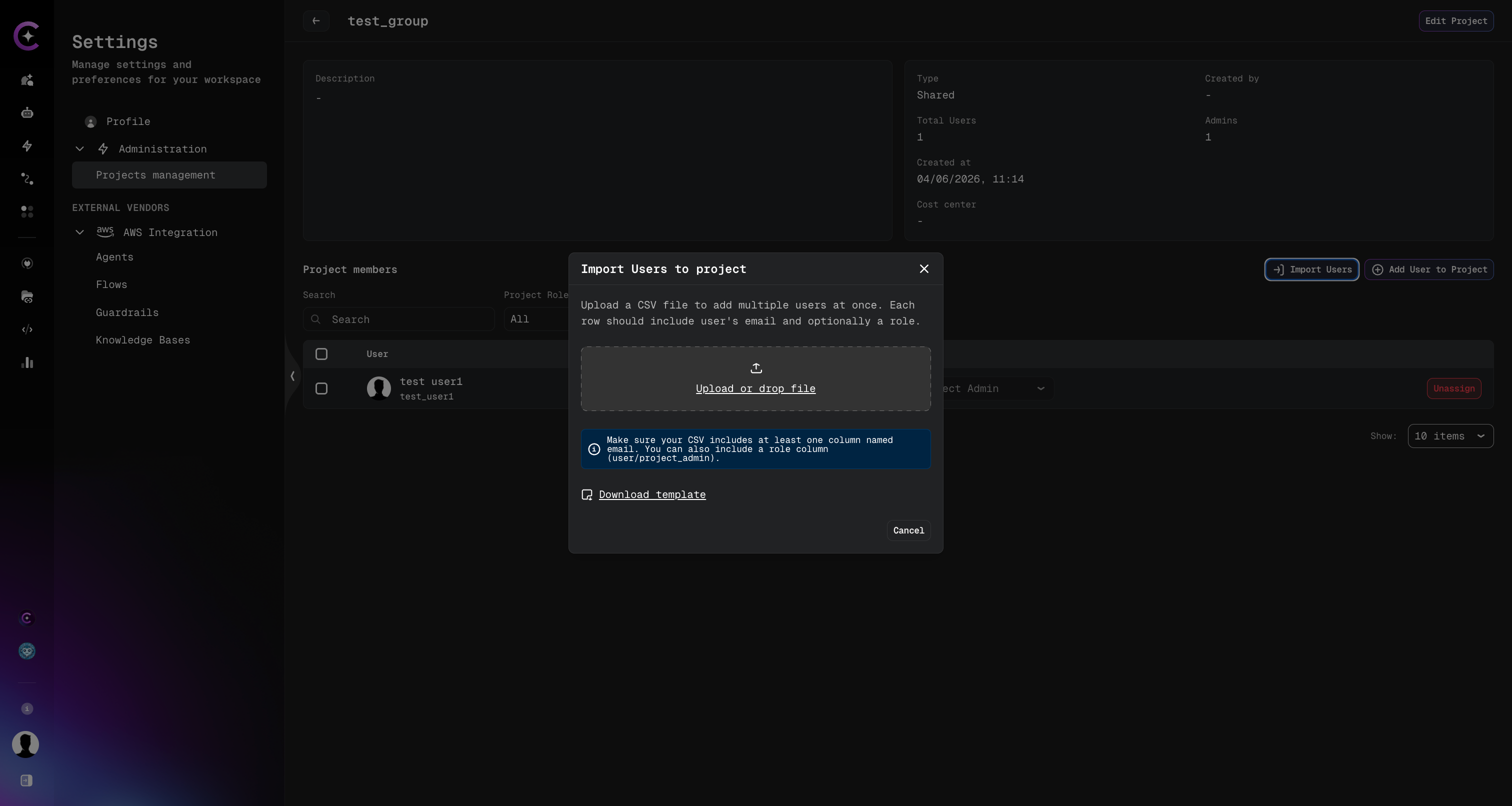
The file must have two columns:
| Column | Required | Values |
|---|---|---|
email | Yes | User's email address |
role | Yes | project_admin or user |
Example:
email,role
example@domain.com,project_admin
example2@domain.com,user
Each row represents one user to be added to the project.
Change a Member's Role
In the Project Members table, use the Role dropdown next to a user's name to switch their role between User and Project Admin. The change takes effect immediately.
Remove a Member
- In the Project Members table, click the Unassign button (or the action icon) next to the member you want to remove.
- Confirm the action in the Unassign User? dialog by clicking Unassign.
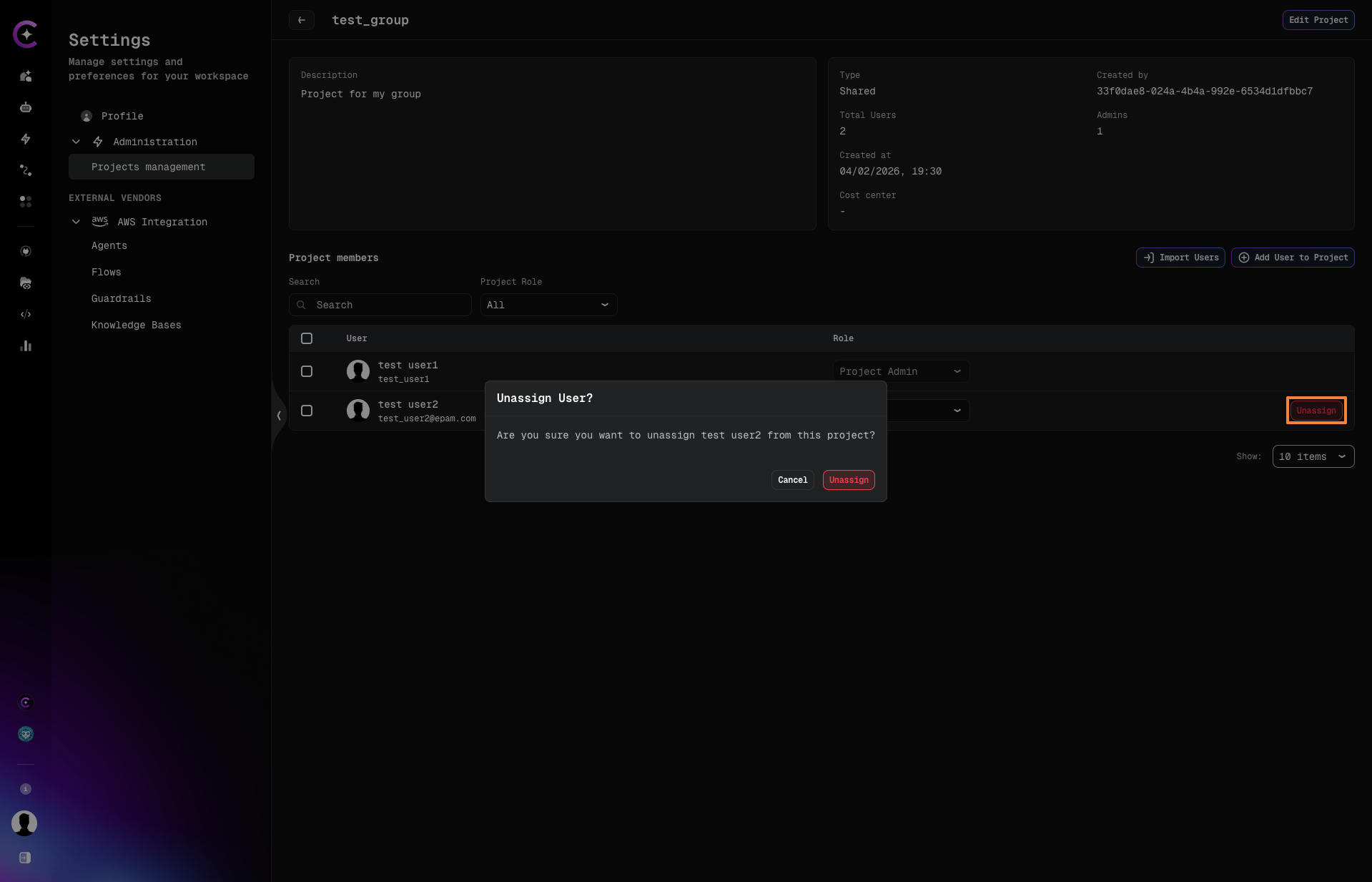
The user is removed from the project immediately. Their account is not deleted — they simply lose access to this project.