Xray
Overview
The Xray tool enables AI/Run CodeMie assistants to retrieve and interact with test cases from Xray Test Management for Jira. Xray is a comprehensive test management solution that helps teams plan, design, and execute tests within Jira.
With the Xray tool, assistants can:
- Query test cases using JQL-like syntax
- Retrieve test details including key, summary, and test type
- Access test information for analysis and reporting
- Support quality assurance workflows
Prerequisites
This tool requires you to have at least one X-ray integration configured in AI/Run CodeMie. For more details, please refer to the Integrations Overview guidelines.
Setting Up X-ray Integration
1. Create X-ray API Keys
Before configuring the integration in AI/Run CodeMie, you need to generate API credentials in Xray:
- Follow the Xray API Keys documentation to create your API keys
- Generate a new API key in Xray Global Settings
- Copy the Client ID and Client Secret - you'll need these for the integration
2. Navigate to Integrations
- Go to Integrations
- Select User Integrations or Project Integrations based on your needs:
- User Integrations: Available only to you across all projects
- Project Integrations: Shared with all members of the selected project
- Click + Create
3. Configure Integration Settings
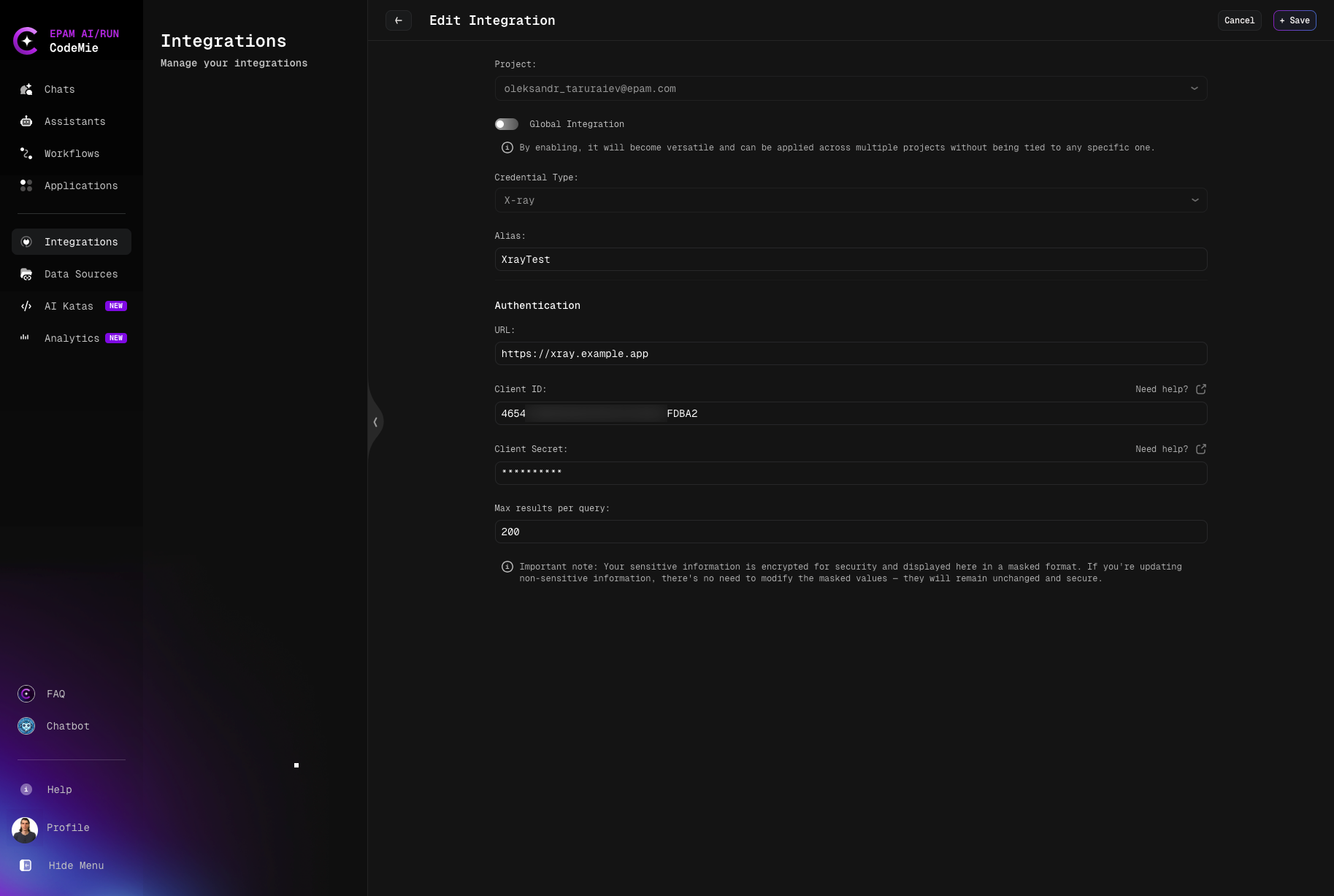
- Select: Choose User or Project integration scope
- Project: Select your target project (if creating Project integration)
- Global Integration: Enable if integration should be available across multiple projects
- Credential Type: Select X-ray
- Alias: Provide a descriptive name (e.g., "XrayTest")
4. Set Up Authentication
Configure the X-ray authentication:
- URL: Your Xray instance URL (e.g.,
https://xray.example.app) - Client ID: Your X-ray API client ID
- Client Secret: Your X-ray API client secret
- Max results per query: Maximum number of test cases to return (default: 200)
Your sensitive information is encrypted for security and displayed in a masked format. When updating non-sensitive information, masked values remain unchanged and secure.
5. Save Integration
- Click + Save to store the integration
Using Xray Tool in Assistants
1. Create or Edit Assistant
When creating or editing an assistant:
- Navigate to Assistants section
- Click + Create Assistant or edit an existing one
- In Available tools, add Xray
- Select your configured X-ray integration from the dropdown
2. Query Test Cases
Use natural language to query test cases. The assistant will translate your request into appropriate Xray queries.
Example queries:
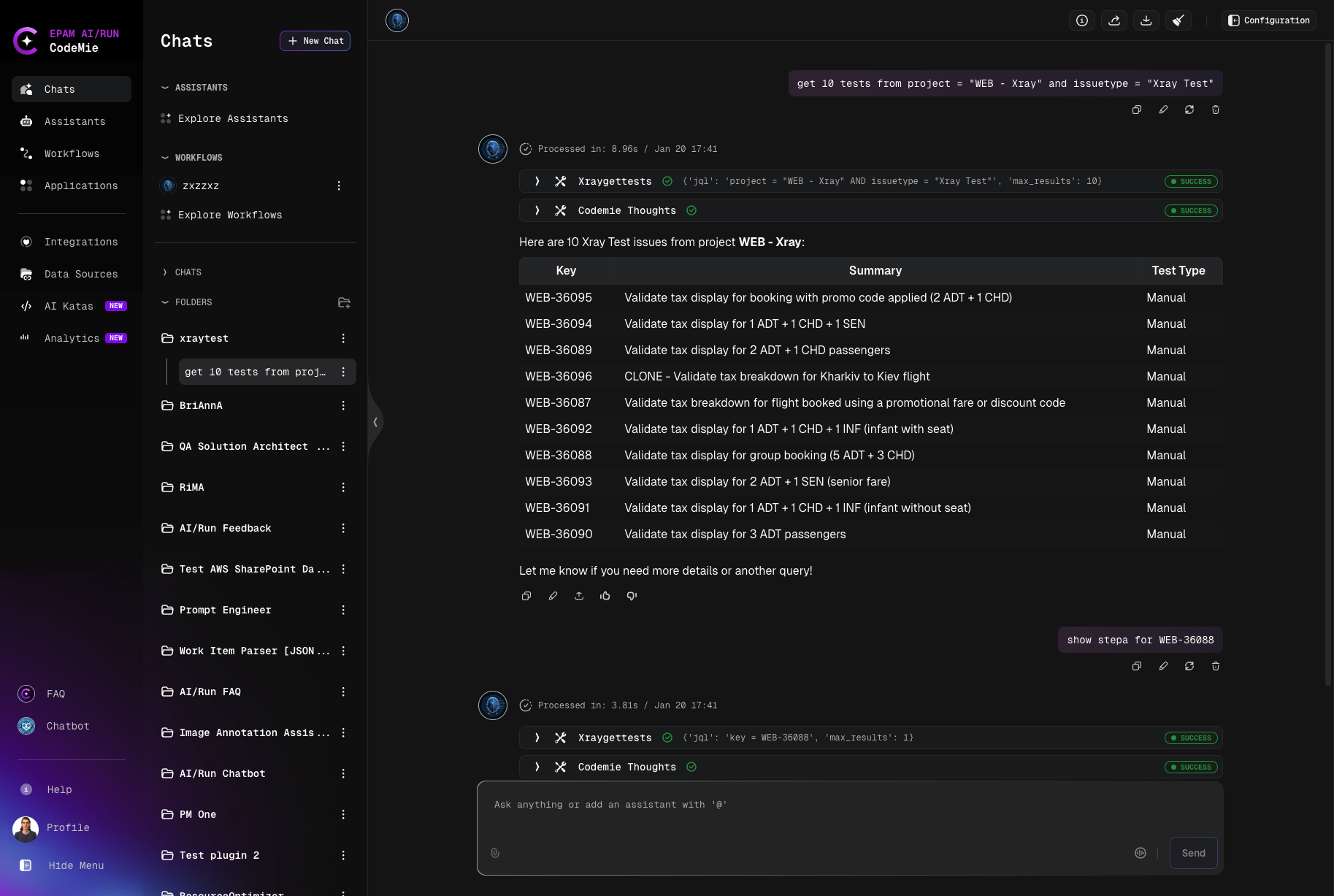
Get 10 tests from project = "WEB - Flyporter" and issuetype = "Xray Test"
Show me manual tests from the API Testing project
Find all tests assigned to John Doe in the Mobile project
Example result:
3. JQL Syntax for Test Queries
The Xray tool supports JQL-like syntax for filtering test cases:
Basic query structure:
get [number] tests from [JQL expression]
Common JQL expressions:
# Filter by project
project = "PROJECT-KEY"

# Filter by issue type
issuetype = "Xray Test"

# Filter by test type
"Test Type" = Manual

# Combine conditions
project = "WEB" AND issuetype = "Xray Test" AND "Test Type" = "Manual"
For more information on writing JQL expressions, refer to the Atlassian JQL documentation.