Indexing Data Sources
Learn how to index data sources for better searchability and access.
Once a data source is added to the AI/Run CodeMie platform, you can proceed with indexing it. Indexing enables assistants and workflows to interact with the data within the data source. Assistants can only access data that has been indexed, so you need to re-index the data source each time it is updated. Otherwise, AI/Run CodeMie will not recognize the new data.
Automatic Indexing
By default, AI/Run CodeMie automatically indexes new data sources as soon as they are added to the platform:
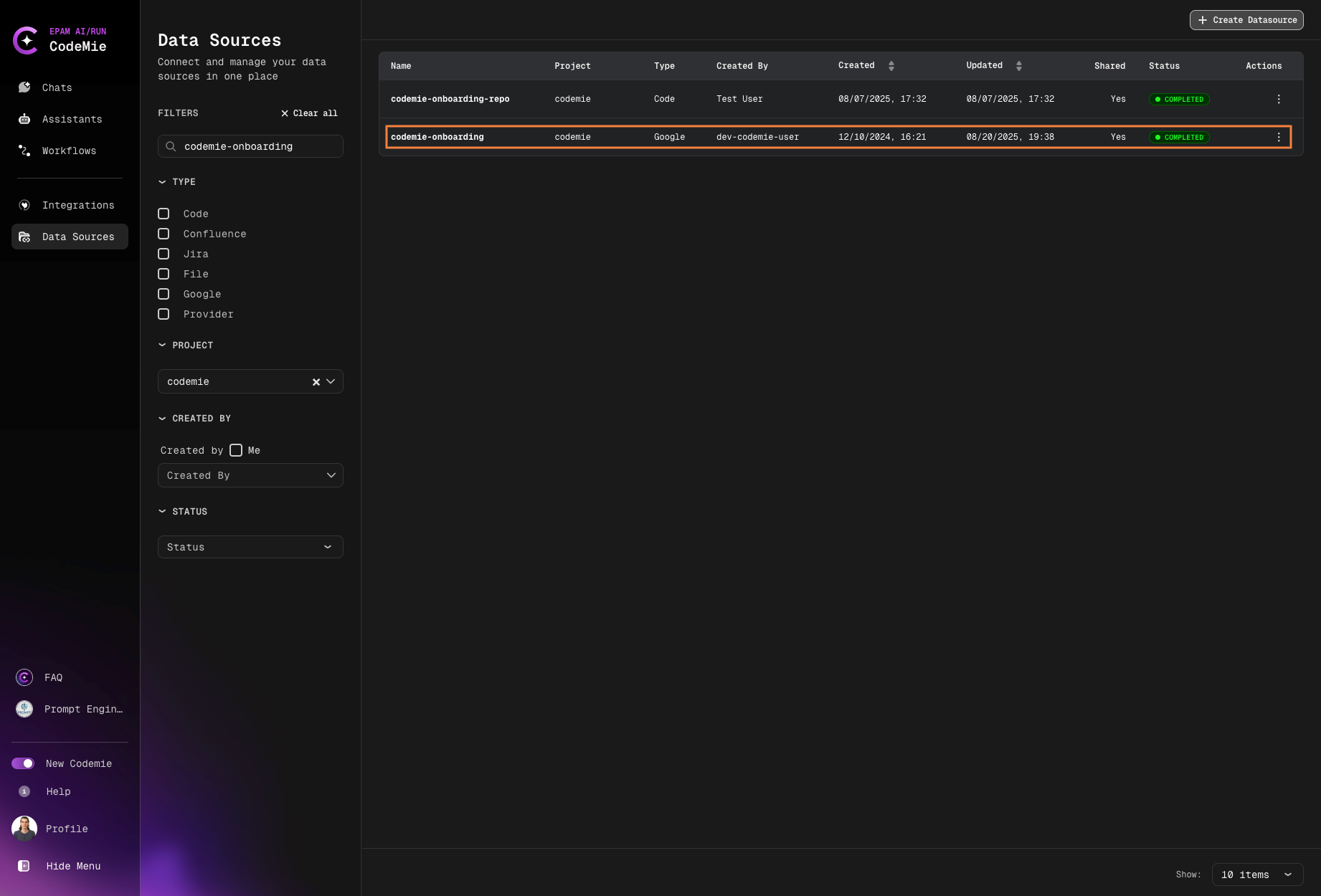
You do not have to wait until a data source is fully indexed. You can already add this data source to your assistants.
If you add a data source before indexing completes, assistants will only access already-indexed content. Wait for full indexing for complete coverage.
Manual Reindexing
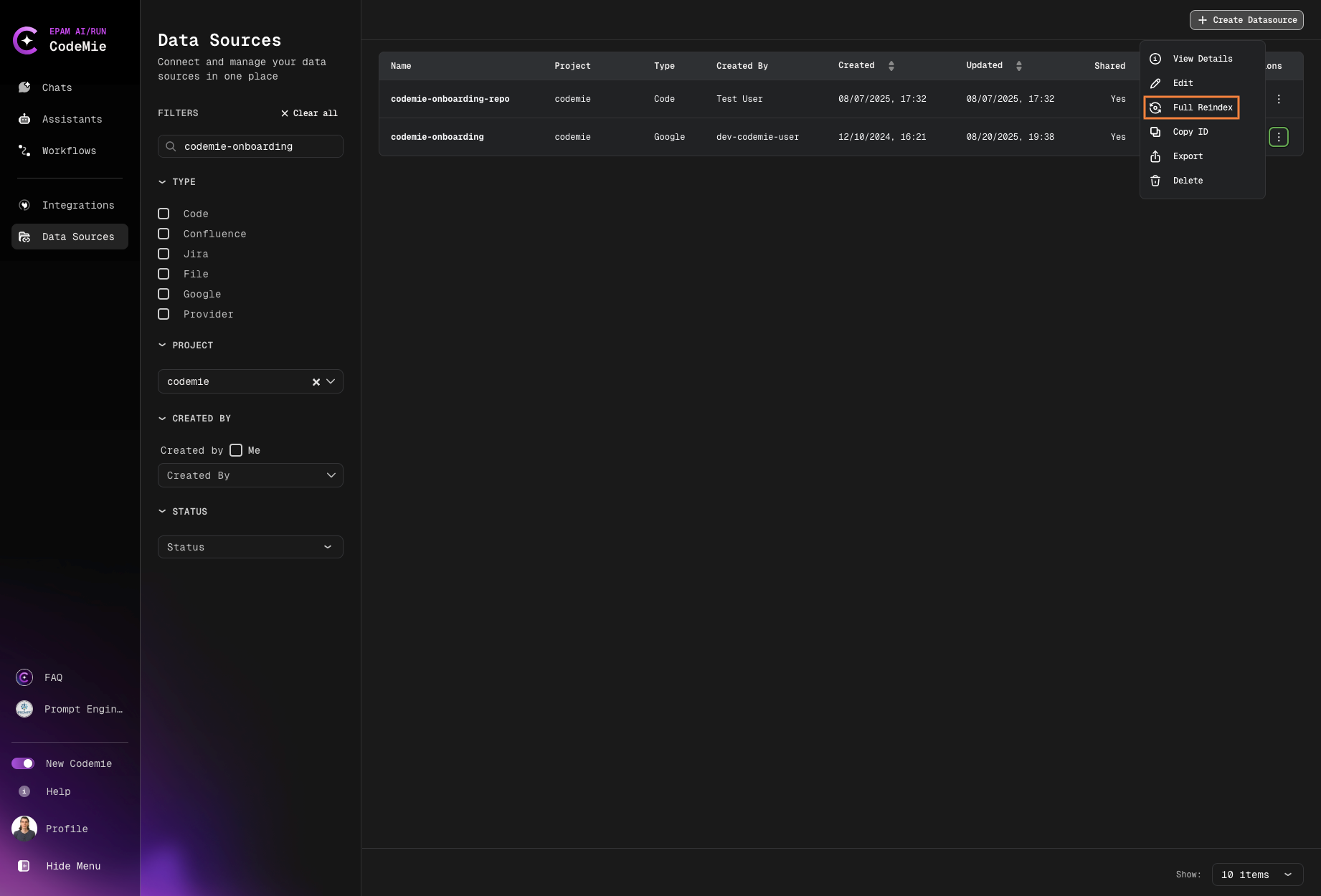
To manually trigger data source reindexing, click the actions button and select Full Reindex or Incremental Index:
Indexing Types
Full Reindex
A complete reindexing of the data source. This involves scanning and updating all data from the source, regardless of any changes.
When to use Full Reindex:
- After major updates to the data source
- When data integrity issues are suspected
- For initial indexing of large data sources
- When switching indexing strategies or configurations
Incremental Index
This option is currently only supported for Jira data sources. With this option, only new or changed data from the source will be updated. It only reindexes the data that has been modified since the last reindex.
When to use Incremental Index:
- For frequent, small updates to Jira data sources
- To save time and resources on large Jira projects
- For regular synchronization of Jira issues
- When only recent changes need to be reflected
Incremental indexing is currently only available for Jira. Other data sources require full reindexing. We're working on expanding this feature.
Full Reindex is also available on the Data Source Details page: Data Source tab → Selected data source → 3 dots → View → scroll the page to the bottom.
Automatic Reindexing with Scheduler
Instead of manually triggering reindexing, you can configure automatic reindexing schedules directly in the data source settings. The built-in scheduler is available for all data source types except Provider and File data sources.
Setting Up Automatic Reindexing
The scheduler can be configured when creating a new data source or when updating an existing one:
- Navigate to your data source creation or update form
- Locate the Reindex Type section
- Select your preferred schedule from the Scheduler dropdown
Available Schedules
- No schedule (manual only) - Default, manual reindexing only
- Every hour - Automatic reindexing every hour
- Daily at midnight - Once per day at midnight
- Weekly on Sunday at midnight - Once per week
- Monthly on the 1st at midnight - Once per month
- Custom cron expression - Enter your own cron expression for custom timing
When to Use Scheduled Reindexing
Use automatic scheduling when:
- Data source updates regularly (Git repos, Confluence, Jira)
- You want assistants to always have access to latest content
- You prefer a "set it and forget it" approach
Use manual reindexing when:
- Data source rarely changes
- You have full control over update timing
- Working in development/testing environments
- Data source is very large and updates infrequently
For detailed scheduler configuration, see the Scheduler documentation.
Resuming Indexing
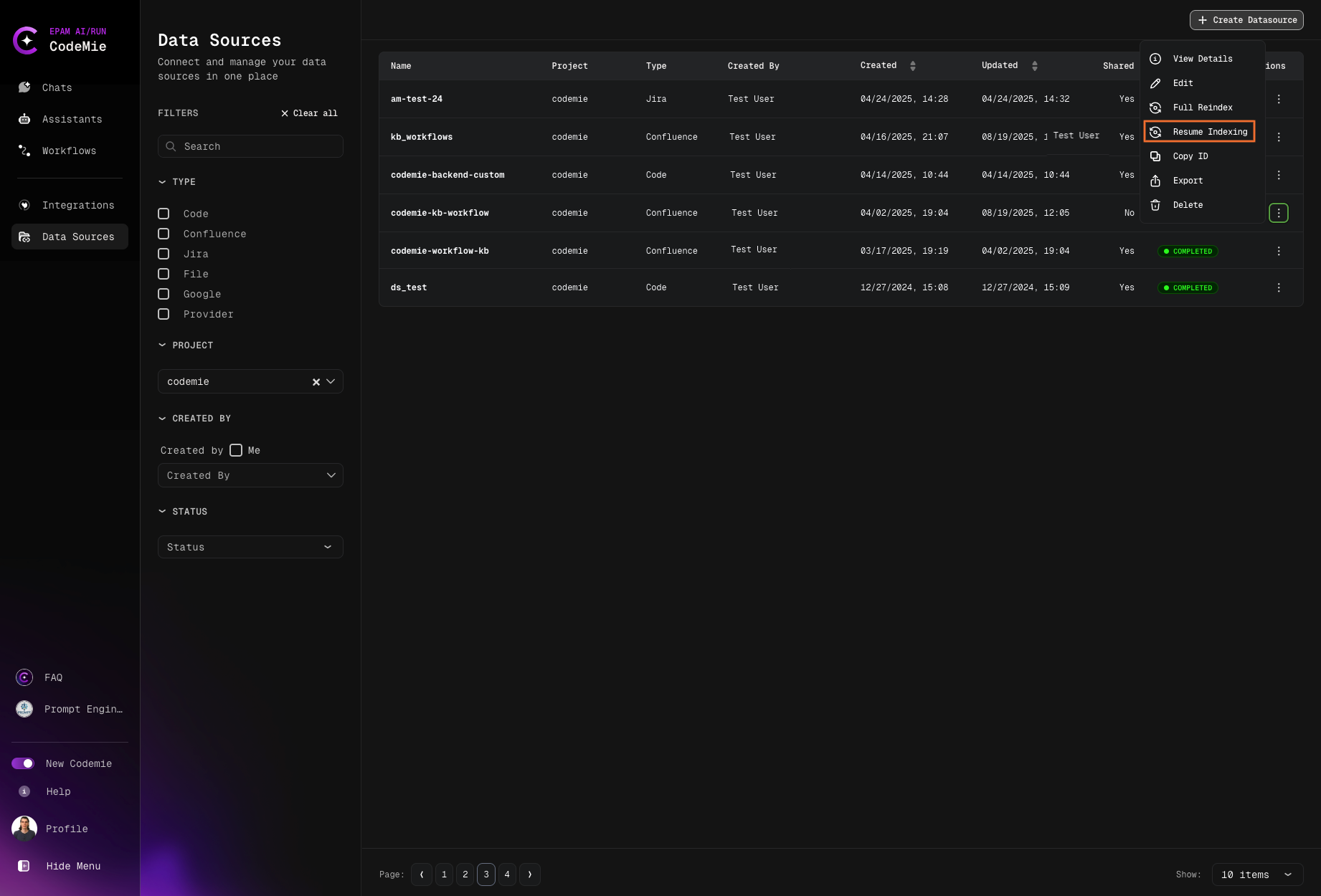
If indexing is interrupted or paused, you can resume the process by clicking the Resume Indexing button:
Scheduler Reindex Behavior
When automatic reindexing is triggered by the scheduler, different data sources use different indexing methods:
| Data Source | Reindex Method | Type | Description |
|---|---|---|---|
| Git Repositories | reprocess() | Full | Deletes entire index and re-indexes from scratch |
| Confluence | reprocess() | Full | Complete reindexing of all pages |
| Google Docs | reprocess() | Full | Complete reindexing of all documents |
| Azure DevOps Wiki | reprocess() | Full | Complete reindexing of wiki pages |
| Azure DevOps Work Items | reprocess() | Full | Complete reindexing of work items |
| Jira | incremental_reindex() | Incremental | Only fetches issues updated since last_reindex_date |
| X-ray | reprocess() | Full | Complete reindexing of test data |
| AWS Knowledge Bases | reprocess() | Full | Complete reindexing of knowledge base content |
Indexing Best Practices
Data Sources with Scheduler Support
The built-in automatic reindexing scheduler availability by data source type:
| Data Source Type | Automatic Scheduler |
|---|---|
| Git Repositories | ✅ Available |
| Confluence | ✅ Available |
| Jira | ✅ Available |
| Google Docs | ✅ Available |
| AWS Knowledge Bases | ✅ Available |
| X-ray | ✅ Available |
| File | ❌ Not available |
| Provider | ❌ Not available |
Monitoring Indexing Status
Keep track of your data source indexing status:
- Check the STATUS column in the data sources list
- Monitor indexing progress for large data sources
- Verify successful completion of indexing operations
- Review any indexing errors or warnings
Optimizing Indexing Performance
- Schedule Large Reindexes: Perform full reindexes during off-peak hours
- Use Incremental Indexing: Leverage incremental indexing for Jira when possible
- Batch Updates: Group multiple changes before triggering reindex
- Clean Up First: Remove outdated or unnecessary data before reindexing
Full reindex replaces all existing indexed data. If your data source has changed significantly (e.g., repository deleted, Confluence pages removed), those items will be removed from search results.
Indexing Status Indicators
Data sources display different statuses during the indexing process:
- Indexing: Currently being indexed
- Indexed: Successfully indexed and ready to use
- Failed: Indexing encountered an error
- Pending: Waiting to start indexing
- Paused: Indexing process is paused
Now your data sources are indexed and ready to be used by assistants and workflows for enhanced AI-powered operations.