Manage Katas
Create, edit, publish, clone, and archive AI Katas.
Access Required
This functionality is only available to users with the isAdmin role. Platform Administrators have full access to create, edit, publish, and manage all Kata content.
Creating a Kata
- Navigate to AI Katas
- Click + Create Kata
- Fill in the creation form
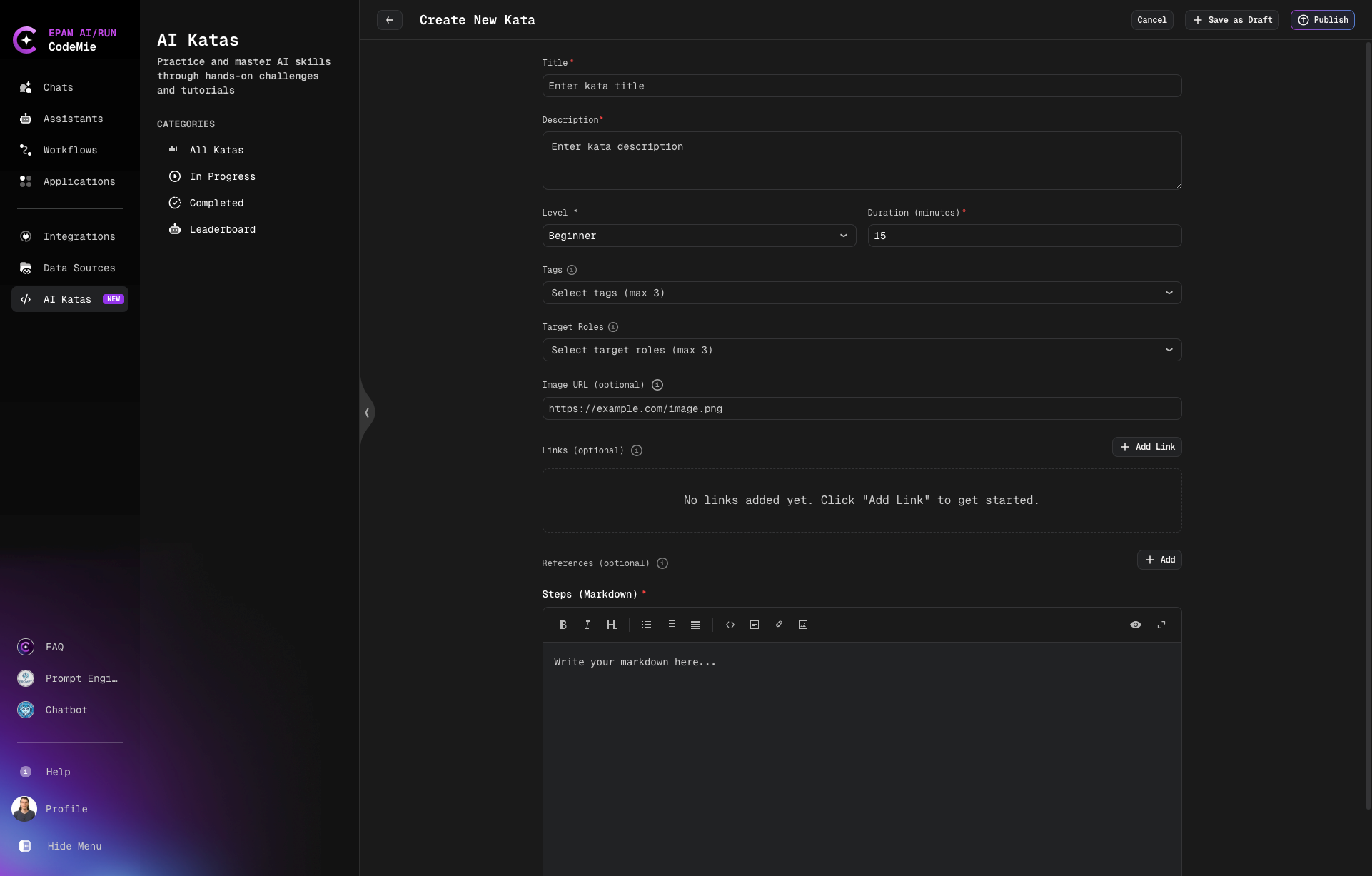
Required Fields
| Field | Description |
|---|---|
| Title * | Clear, descriptive name (50-70 characters) |
| Description * | Detailed learning objectives and outcomes |
| Level * | Beginner / Intermediate / Advanced |
| Duration (minutes) * | Estimated completion time |
| Steps (Markdown) * | Step-by-step instructions with markdown formatting |
Optional Fields
| Field | Description |
|---|---|
| Tags | Up to 3 topic tags (e.g., getting-started) |
| Target Roles | Up to 3 professional roles (e.g., developer) |
| Image URL | HTTPS URL to Kata card image (400x300 - 800x600px) |
| Links | Reference materials and documentation |
| References | Additional reading materials |
Writing Effective Steps
Use markdown editor features:
- Headers: Organize content with
##and### - Lists: Numbered or bulleted lists
- Code Blocks: Syntax highlighting for code examples
- Images: Embed screenshots using markdown
- Links: Reference external resources
Example Structure:
### Instructions

1. **Open an existing assistant** in your workspace that you'd like to improve:
   - Navigate to your assistants list
   - Choose an assistant that hasn't been performing as expected or has poor prompt
   - Or create a new assistant if you want to start fresh

2. **Access the edit page**:
   - Go on the assistant's edit page
   - Locate the **System Instructions** section (this is your assistant's prompt)

3. **Launch Refine with AI**:
   - Find the **"Refine with AI"** action button above the System Instructions section
   - Click it to open the refinement dialog
Publishing and Status
Save as Draft
- Save without publishing
- Only visible to admins and authorized editors
- Use for review and refinement
Publish
- Make Kata available to all users
- Requires all required fields to be completed
- Kata appears in the public catalog
Cancel
- Discard changes and exit
- Unsaved changes will be lost
Editing Katas
- Open the Kata details page
- Click the Edit button
- Modify fields
- Save as draft or publish changes
tip
Test all steps yourself before publishing to ensure instructions work correctly.
Cloning Katas
- Open the Kata to copy
- Click Clone
- Modify title, description, and steps
- Save as draft or publish
Use cloning to create variations or customize content for different audiences.
Archiving Katas
note
Katas cannot be permanently deleted - they can only be archived. Archived Katas can be cloned at any time to create new versions.
To archive a Kata:
- Open the Kata details page
- Click Archive
- Confirm the action
Archived Katas are removed from the public catalog but remain accessible to administrators. You can clone archived Katas to restore or modify content.
Best Practices
- Test Before Publishing: Complete each Kata yourself
- Clear Instructions: Write for your target audience's skill level
- Update Regularly: Keep content current with platform changes
- Monitor Feedback: Review likes/dislikes and improve low-rated Katas
- Consistent Style: Maintain uniform formatting across Katas