LiteLLM Budget Configuration
LiteLLM allows you to set spending limits and rate limits through budgets. This guide explains how to create and configure budgets in the LiteLLM UI for CodeMie.
Overview
Budgets in LiteLLM help you control costs and manage API usage by setting:
- Max Budget: Maximum spending limit in dollars
- Max Tokens per Minute (TPM): Token rate limiting
- Max Requests per Minute (RPM): Request rate limiting
Budget Types
LiteLLM supports two types of budgets for different use cases:
1. API Key Budget
This budget is assigned to the specific API key used to integrate CodeMie with LiteLLM.
Recommended Configuration: Set to unlimited to ensure CodeMie service is never interrupted at the integration level.
The API key budget should not be the primary cost control mechanism. Instead, use it as a safety net to prevent unexpected issues at the integration layer.
2. Default Budget (End User Budget)
This budget is assigned to individual CodeMie end users to control their spending. The CodeMie API automatically assigns this budget to each user when they make requests through the platform.
Recommended Configuration: Set specific spending limits to restrict how much each CodeMie user can spend on AI services.
By setting the API key budget to unlimited and restricting each end user with a default budget, you ensure:
- CodeMie service remains available (no integration-level blocking)
- Individual users have controlled spending limits
- Easy cost management per user or team
Accessing the LiteLLM UI
- Navigate to your LiteLLM Proxy UI endpoint
- Log in with your administrative credentials
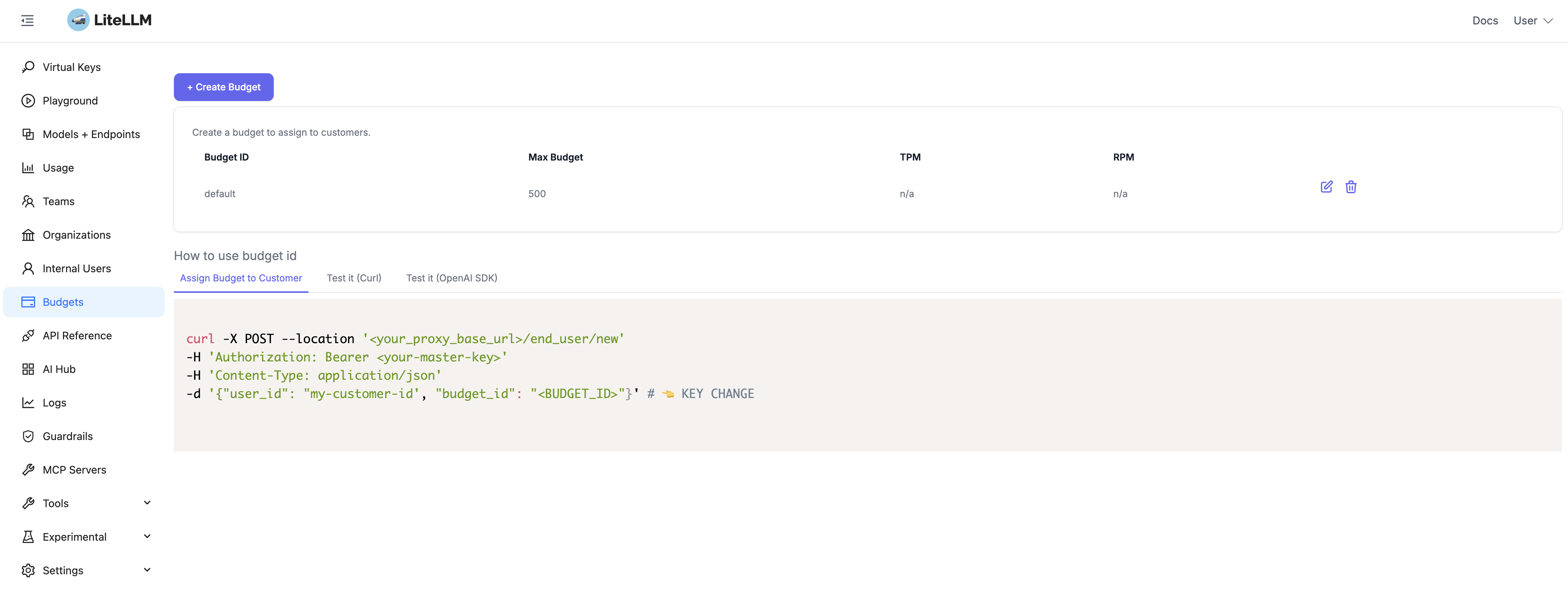
- From the left sidebar, click on Budgets
Creating a Budget
Step 1: Open Budget Creation Form
- On the Budgets page, click the + Create Budget button in the top-left corner
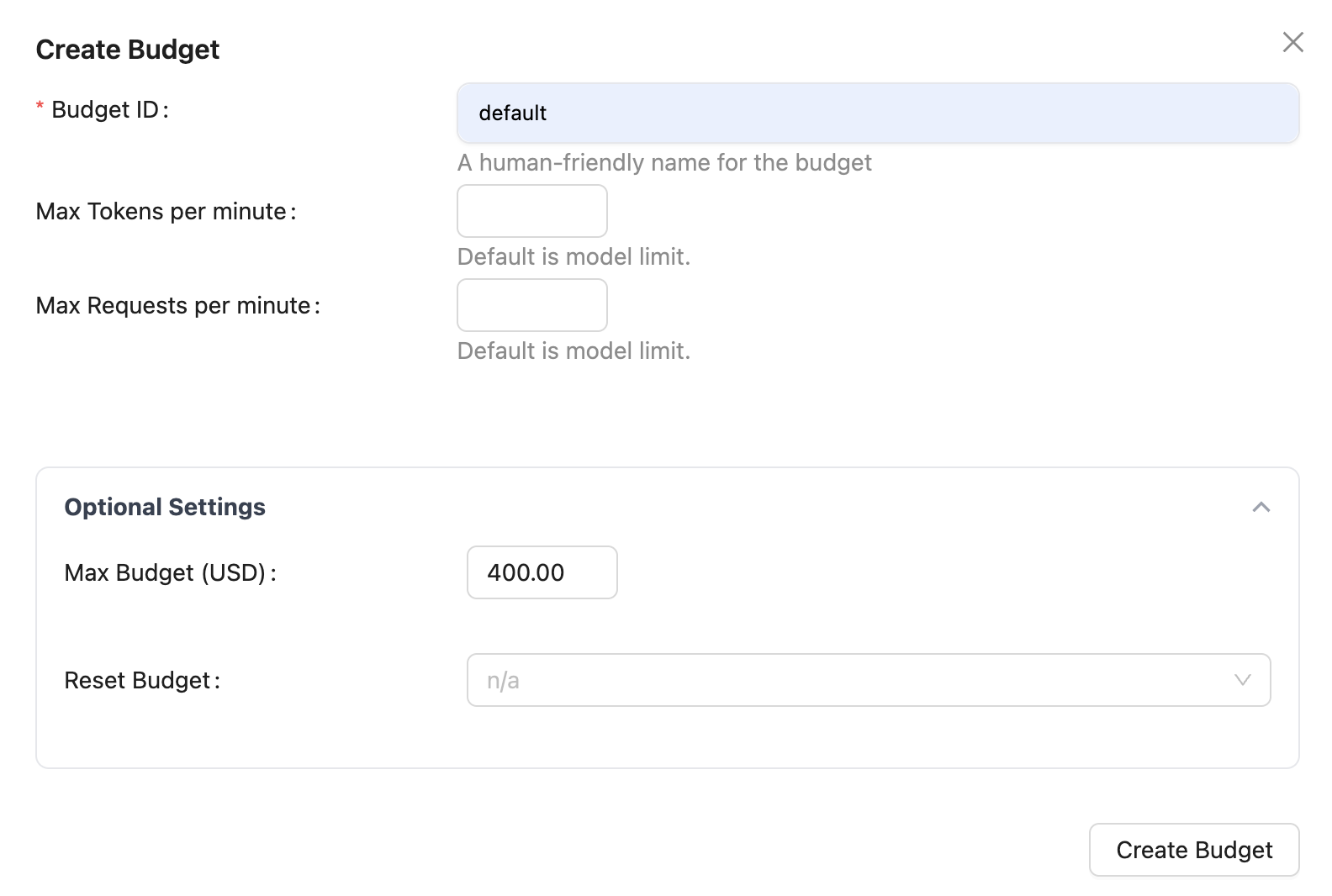
- The "Create Budget" dialog will appear
Step 2: Configure Budget Settings
Fill in the required and optional fields:
Budget ID (Required)
- Field: Budget ID
- Description: A human-friendly name for the budget
- Example:
default,team-budget,production-budget
Default Budget (End Users): AI/Run CodeMie uses the budget name default by default for end users. If you create a budget with a different name, you must configure the API to use it via environment variable.
API Key Budget: The budget name for the API Key has no specific naming pattern. You can use any descriptive name (e.g., codemie-api-key, integration-budget, unlimited-api).
Rate Limiting (Optional)
Configure rate limits to control usage:
- Max Tokens per Minute: Limits the number of tokens processed per minute (default is model limit if not set)
- Max Requests per Minute: Limits the number of API requests per minute (default is model limit if not set)
Step 3: Create the Budget
- Review your configuration
- Click the Create Budget button at the bottom-right of the dialog
- Your budget will appear in the budgets list
Default Budget Configuration
AI/Run CodeMie is pre-configured to use a budget named default. When you create this budget in LiteLLM:
- Set Budget ID to:
default - Configure your desired spending and rate limits
- Save the budget
The CodeMie API will automatically use this budget for all requests.
Using a Custom Budget Name
If you want to use a different budget name instead of default:
Step 1: Create Your Custom Budget
- Follow the budget creation steps above
- Use your desired budget name (e.g.,
production-budget)
Step 2: Configure CodeMie API
Update the CodeMie API deployment to reference your custom budget name:
Environment Variable:
DEFAULT_BUDGET_ID=production-budget
In Helm Values (values.yaml):
api:
  env:
    - name: DEFAULT_BUDGET_ID
      value: "production-budget"
After updating the configuration, restart the CodeMie API pods for the changes to take effect.
Premium Models Budget
For costly models such as Claude Opus or OpenAI o1, you can set up a separate budget to track and enforce spending independently from the default end-user budget. When configured, CodeMie automatically attributes premium model requests to a derived LiteLLM customer identity ({user_email}_{budget_name}), allowing you to apply stricter limits to expensive models without affecting the standard budget.
This feature is fully opt-in. It only activates when LITELLM_PREMIUM_MODELS_BUDGET_NAME is set in the CodeMie API configuration. If the variable is empty or absent, all requests use the standard budget behavior unchanged.
Step 1: Create the Premium Budget in LiteLLM
- Follow the Creating a Budget steps above
- Set Budget ID to:
premium_models(or any name you prefer — must match the value you set inLITELLM_PREMIUM_MODELS_BUDGET_NAME) - Configure tighter spending limits appropriate for costly models
- Click Create Budget
Step 2: Configure the CodeMie API
Set the following environment variables to enable premium budget tracking:
# Name of the LiteLLM budget created in Step 1
LITELLM_PREMIUM_MODELS_BUDGET_NAME=premium_models

# Comma-separated model name substrings that qualify as premium
LITELLM_PREMIUM_MODELS_ALIASES=opus,o1
In Helm Values (values.yaml):
api:
  env:
    - name: LITELLM_PREMIUM_MODELS_BUDGET_NAME
      value: "premium_models"
    - name: LITELLM_PREMIUM_MODELS_ALIASES
      value: "opus,o1"
How It Works
When a user calls the LiteLLM proxy with a model whose name contains any of the configured aliases:
- CodeMie derives a separate LiteLLM customer identity:
{user_email}_{budget_name}(e.g.,john@company.com_premium_models) - The request is attributed to that identity for independent budget enforcement
- Standard budget checks continue to run against the base user identity as usual
The /spending endpoint returns an additional premium_current_spending field when this feature is enabled, so you can monitor premium model costs separately.